Have you ever missed an important morning because your iPhone alarm was not loud enough? You’re not alone. Many users face this frustrating issue where the alarm sounds too quiet—or doesn’t seem loud enough to wake them up—even when the volume appears to be set correctly.
The good news is that this problem is usually not caused by a serious fault. In most cases, it happens because of simple settings like ringer volume, alarm tone, or features such as Attention Aware. If your alarm is not going off at all, you can also check this guide to fix your iPhone alarm not going off. In this guide, we’ll explain why your iPhone alarm not loud enough and show you easy step-by-step fixes to make sure your alarm is loud, clear, and reliable every day.
Why does my alarm sound low even at full volume?
Even if your iPhone volume is set to maximum, your alarm can still sound low because of certain settings. One common cause is Attention Aware Features, which automatically lower the volume when you’re looking at your screen. Also, alarms use the Ringer and Alerts volume—not the media volume—so if that slider is set low, your alarm will sound quiet.
Other possible causes include the “Change with Buttons” option accidentally lowering the volume, a connection to a Bluetooth device, or blocked or dirty speakers. Checking these simple things can quickly fix a low alarm sound issue.
Top Reasons & Fixes
- Turn off Attention Aware Features: Go to Settings → Face ID & Passcode and disable it.
- Check Ringer and Alerts volume: Go to Settings → Sounds & Haptics and increase the slider.
- Disable “Change with Buttons”: Prevent accidental volume reduction.
- Disconnect Bluetooth devices: Make sure the alarm plays through your iPhone speaker.
- Clean your speakers: Remove dust or obstructions for clearer sound.
By checking these settings and applying these simple fixes, you can ensure your iPhone alarm stays loud, clear, and reliable every day.
Common Reasons Your iPhone Alarm Isn’t Loud Enough
One common reason is that the alarm volume is linked to the ringtone volume, not the media volume. If your ringtone volume is low, your alarm will also sound quiet—even if videos or music play loudly.
Another important factor is the attention-aware feature. When enabled, your iPhone automatically lowers the alarm sound if it detects that you are looking at the screen. This can make your alarm seem much quieter than expected.
Additionally, features like Do Not Disturb or Focus mode may interfere with how alerts behave, especially if certain settings are customized. In some cases, a soft alarm tone or low-quality sound can also create the impression of low volume.
Lastly, minor software glitches or outdated settings can sometimes prevent the alarm from reaching its full volume.
How to Make Your iPhone Alarm Louder ?
If your iPhone alarm is not loud enough, there are several simple settings you can adjust to increase the volume and make sure you never miss an alarm again. Here are the most common reasons and fixes:
1. Increase Ringtone & Alert Volume
The alarm volume is linked to your ringtone volume, not the media volume.
Go to:
- Settings → Sounds & Haptics → Ringer and Alerts
Then drag the slider to the maximum level.
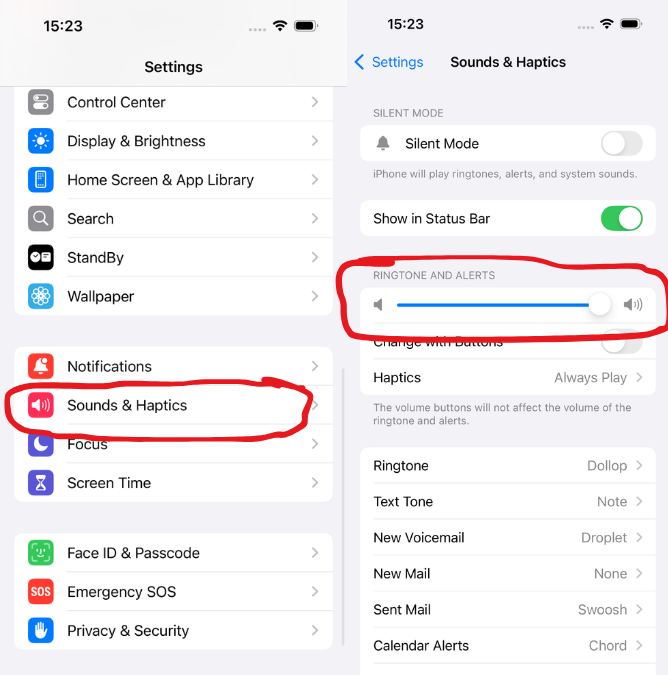
👉This is one of the most important steps to make your iPhone alarm louder.
2. Turn Off the “Attention Aware” Feature
Your iPhone may automatically lower the alarm sound if it detects your face.
- Go to Settings → Face ID & Passcode
Then turn off Attention Aware Features.
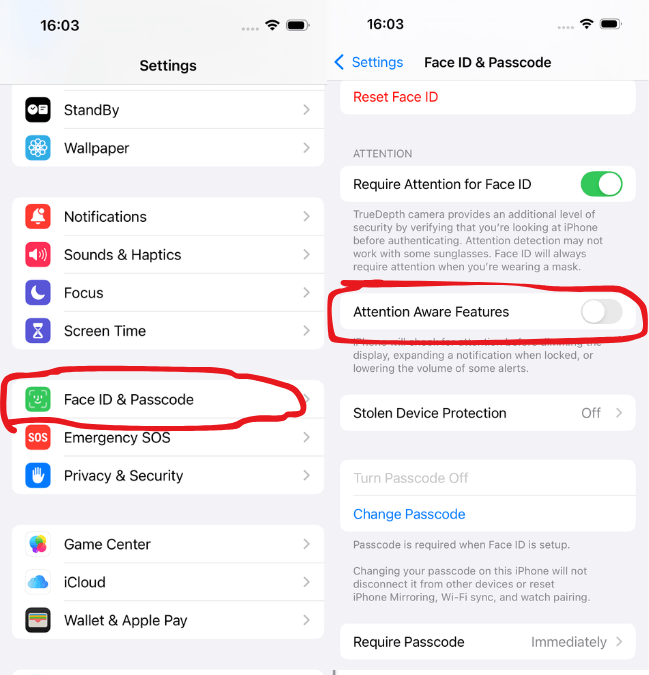
👉 This prevents your alarm from automatically becoming quieter.
3. Choose a Louder Alarm Sound
Some alarm tones are naturally softer than others.
- Open the Clock app → Alarm → Edit
- Tap Sound & choose louder tones such as Radar, Apex, and Beacon
👉 Avoid soft or calm sounds if you are a heavy sleeper.
4. Check Focus/Do Not Disturb Mode
Sometimes focus settings can affect alerts.
- Go to Settings → Focus
Make sure alarm behavior is not restricted.
👉 Alarms usually bypass this, but custom settings can sometimes interfere.
5. Avoid Using Volume Buttons
If “Change with Buttons” is enabled, you might accidentally lower your alarm volume.
👉 Turn it OFF in Sounds & Haptics to keep the volume fixed.
6. Check the speaker and Clean It
Dust or blockages in the speakers can reduce sound quality and volume.
👉 Clean the speaker gently and test the sound using music or a video to make sure it’s working properly.
7. Update Your iPhone
Software bugs can sometimes affect alarm volume.
👉 Go to Settings → General → Software Update
Is alarm volume linked to ringtone volume?
Yes, on an iPhone, the alarm volume is directly linked to the ringtone and alert volume, not the media or music volume. This means that even if your videos or music plays loudly, your alarm can still sound quiet if the ringtone volume is set low.
To control your alarm loudness, you need to adjust the Ringer and Alerts volume:
- Go to Settings → Sounds & Haptics
- Increase the Ringer and Alerts slider
This setting controls:
- Incoming call ringtone
- Notification sounds
- Alarm volume
Another important detail is the “Change with Buttons” option. If this is turned on, using the volume buttons on the side of your iPhone can accidentally lower your ringtone—and your alarm—without you realizing it.
👉 For a consistent alarm sound, it’s recommended to:
- Set the ringtone volume to high
- Turn OFF “Change with Buttons”
This ensures your iPhone alarm stays loud and reliable, even if you adjust media volume during the day.
How do I check alarm volume settings on my iPhone?
If your iPhone alarm is not loud, the first thing you should do is check your alarm volume settings. Many users adjust the wrong volume, which is why the alarm still sounds low.
1. Check Ringer & Alerts Volume
The alarm volume is controlled by the ringtone settings.
- Go to Settings → Sounds & Haptics
- Find Ringer and Alerts
- Move the slider to increase the volume
👉 This directly controls how loud your alarm will be.
2. Turn Off “Change with Buttons”
If this option is enabled, you might accidentally lower your alarm volume using the side buttons.
- Go to Settings → Sounds & Haptic
- Turn OFF Change with Buttons
👉 This keeps your alarm volume fixed and consistent.
3. Test Your Alarm Sound
After adjusting the volume:
- Open the Clock app
- Tap Alarm → Edit
- Select your alarm → Tap Sound
- Choose a tone and listen to the preview
👉 This helps you confirm if the alarm is loud enough.
4. Check Attention-Aware Settings
Sometimes your iPhone lowers sound automatically.
- Go to Settings → Face ID & Passcode
- Turn OFF Attention Aware Features
Does Silent mode affect alarm volume?
No, silent mode does not affect your iPhone alarm volume. Even if your iPhone is set to silent using the side switch, your alarm will still ring at the set volume.
This is because alarms are designed as high-priority alerts, meaning they bypass Silent mode to ensure you don’t miss important wake-up times or reminders.
However, there are a few things to keep in mind. While Silent mode itself won’t lower your alarm, the Ringer and Alerts volume still controls how loud the alarm sounds. If this volume is set low, your alarm may still seem quiet—even in silent mode.
Also, if you are using Focus modes with custom settings, or if your alarm sound is set to a very soft tone, it might give the impression that Silent mode is affecting the volume.
👉 Important:
- Silent mode = alarm still rings ✅
- Low ringtone volume = alarm sounds quiet ❌
Why Does My Alarm Get Quieter Automatically?
If your iPhone alarm gets quieter automatically, the most common reason is a built-in feature called “Attention Aware.” This feature uses Face ID to detect when you are looking at your iPhone. When it recognizes your attention, it automatically lowers the alarm volume, assuming you are already awake.
This can be helpful for notifications, but for alarms, it often makes the sound feel too quiet—especially if you just glance at your phone while still half asleep.
Attention-Aware Feature
- Found in Settings → Face ID & Passcode
- When turned ON:
- Alarm volume reduces when you look at the screen
- When turned OFF:
- The alarm stays loud and consistent
Other Possible Reasons
1. Gradual Alarm Sound
Some alarm tones start softly and increase slowly.
👉 This can make it seem like your alarm is getting quieter at first.
2. Low-Volume Alarm Tone
Certain sounds are naturally soft or calm.
👉 Choosing a stronger tone can make a big difference.
3. Software Glitches
Sometimes, minor bugs or outdated iOS versions can affect alarm behavior.
👉 Updating your iPhone can address this issue.
How to Fix Low Alarm Volume on iPhone (Step-by-Step) ?
If your iPhone alarm is not loud, don’t worry—this issue is usually caused by simple settings. Follow these step-by-step fixes to make your alarm loud and reliable again.
1: Increase Ringer & Alerts Volume
The alarm volume depends on your ringtone settings.
- Go to Settings → Sounds & Haptics
- Find Ringer and Alerts
- Drag the slider to maximum
👉 This is the most important step to fix low alarm volume on iPhone.
2: Turn Off “Change with Buttons”
You might accidentally lower the alarm volume using side buttons.
- In Sounds & Haptics
- Turn OFF Change with Buttons
👉 This keeps your alarm volume fixed.
3: Disable Attention-Aware Feature
Your iPhone may automatically reduce alarm volume when it detects your face.
- Go to Settings → Face ID & Passcode
- Turn OFF Attention Aware Features
👉 This prevents automatic volume reduction.
4: Choose a Louder Alarm Sound
Some alarm tones are too soft.
- Open Clock app → Alarm → Edit
- Tap Sound
- Select louder tones like:
- Radar
- Apex
- Beacon
👉 Avoid calm or soft tones if you’re a heavy sleeper.
5: Check Focus/Do Not Disturb Settings
Custom focus settings can sometimes affect alerts.
- Go to Settings → Focus
- Review your settings and allow alarms properly
6: Clean Your iPhone Speakers
Dust or dirt can reduce sound output.
👉 Gently clean your speakers and test the sound using music or videos.
7: Update Your iPhone
Software bugs can cause alarm issues.
- Go to Settings → General → Software Update
- Install the latest iOS version
Best Loud Alarm Sounds on iPhone
1. Radar (Most Recommended)
- One of the loudest and most effective alarm tones
- Has a rising, repetitive beeping sound that’s difficult to ignore
👉 Many users prefer it because it gradually increases intensity and wakes you up quickly
2. Alarm (Classic Tone)
- Traditional ringing sound
- Loud and clear, especially at high volume
👉 Good for people who want a simple but strong wake-up sound
3. Apex
- Balanced but still strong
- Not too harsh but loud enough for daily use
4. Old Phone
- High-pitched, classic ringtone style that easily cuts through background noise
- Designed to mimic traditional phone alarms, making it sharp and attention-grabbing
👉 This sound is especially effective for deep sleepers because its high frequency is harder for the brain to ignore, even during heavy sleep
FAQs About iPhone Alarm Issues
Does Do Not Disturb reduce alarm sound?
No, Do Not Disturb does not reduce your iPhone alarm sound. Alarms are treated as high-priority alerts, so they will still ring at the set volume even when Do Not Disturb or Focus mode is turned on.
Will Focus mode mute my alarm?
No, Focus mode will not mute your iPhone alarm. Just like Do Not Disturb, Focus modes are designed to silence calls, messages, and notifications—but alarms from the Clock app will still ring at the set volume.
Conclusion
If you’ve been struggling with the iPhone alarm not being loud? Issue, the good news is that it’s usually easy to fix. By adjusting the ringer and alerts volume, choosing a louder alarm tone, and turning off features like Attention Aware, you can quickly make your alarm much more reliable. Small settings can make a big difference, so take a few minutes to check everything properly. Once optimized, you won’t have to worry about missing important mornings again—your iPhone alarm will be loud, clear, and dependable every time.
Read more :