Posted on Leave a comment

iPhone 14 Pro Max vs iPhone 16 Camera Specs Comparison: Which Is Better?

iPhone 14 Pro Max vs iPhone 16 Camera Specs Comparison

If you already own the Apple iPhone 14 Pro Max and are planning to buy the Apple iPhone 16 but are wondering about iPhone 14 Pro Max vs iPhone 16 camera specs, then this post is for you.

In this comparison, you can check the photo quality captured with the ultra-wide, main, telephoto, and selfie cameras of the iPhone 14 Pro Max. You can also see photos taken with the ultra-wide, main (1x & 2x zoom), and selfie cameras of the iPhone 16.

Not only can you compare pictures, but you can also watch video samples recorded using the Ultra Wide, Main, Telephoto, and Selfie cameras on the iPhone 14 Pro Max, along with videos captured using the Ultra Wide, Main (1x & 2x zoom), and Selfie cameras on the iPhone 16.
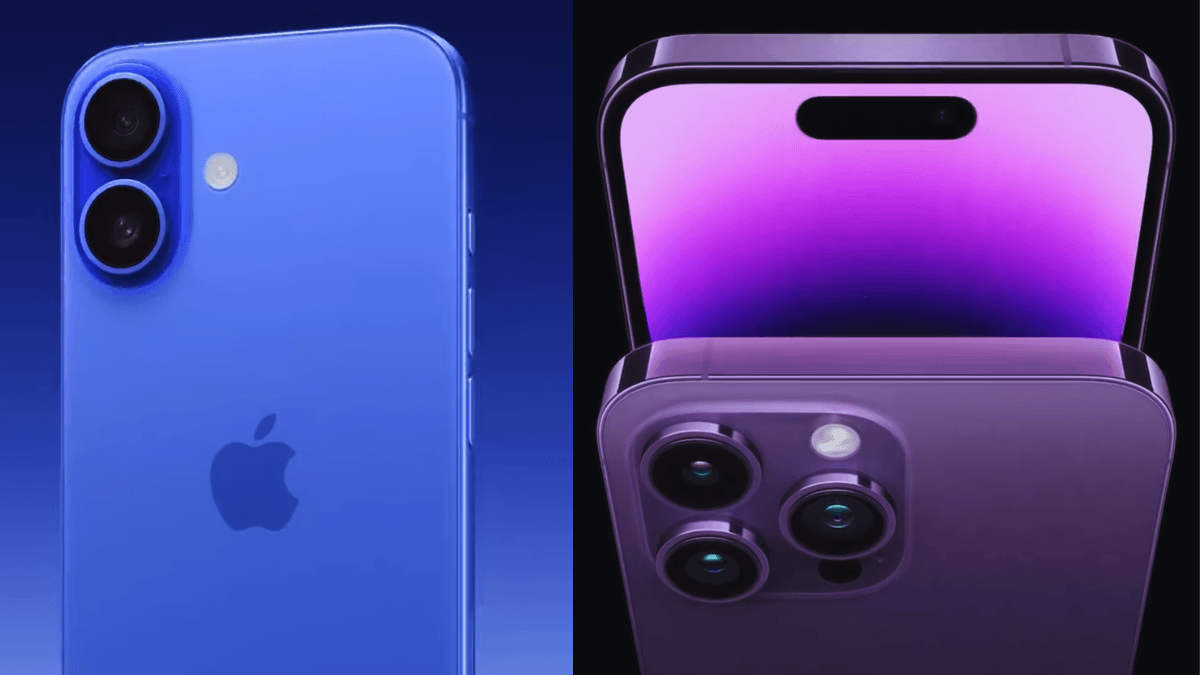
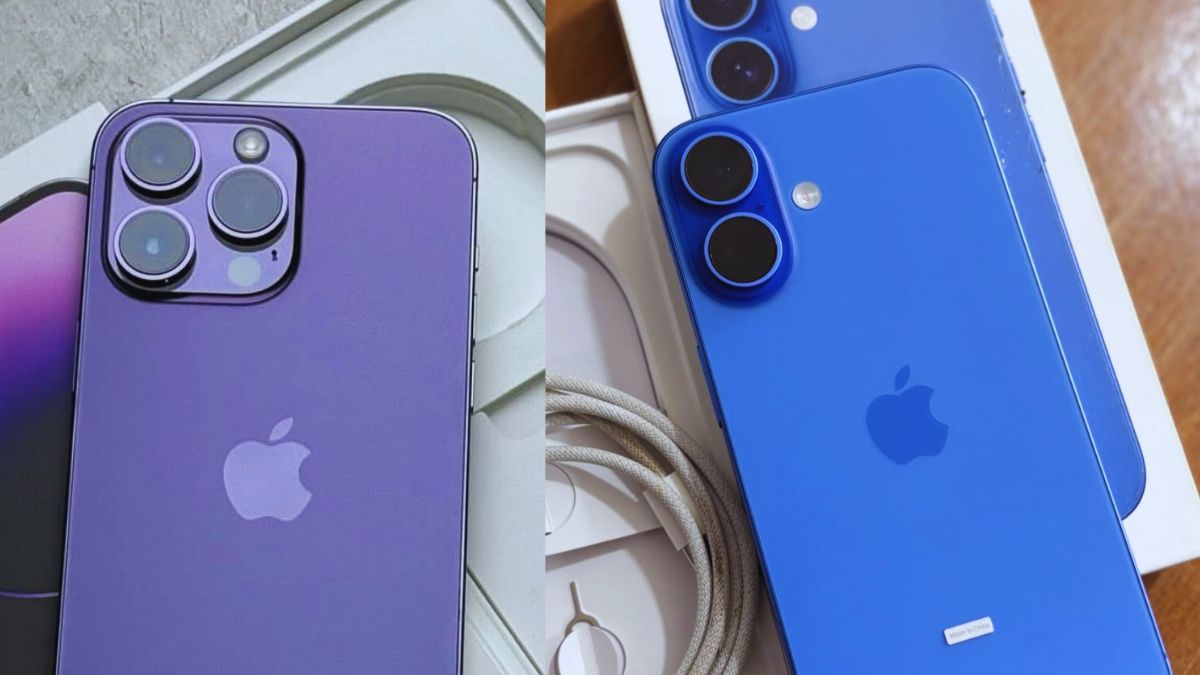
iPhone 14 Pro Max vs iPhone 16 Camera Specs Comparison showing triple-camera and dual-camera systems
iPhone 16 dual-camera setup with the iPhone 14 Pro Max triple-camera system

iPhone 14 Pro Max vs iPhone 16 Camera Specs

The iPhone 14 Pro Max features a powerful triple-camera system, including a 48MP main camera, a 12MP Ultra Wide camera, and a 12MP telephoto camera with 3x optical zoom. The telephoto lens also supports up to 15x digital zoom, making it a strong choice for zoom photography. On the front, the iPhone 14 Pro Max includes a 12MP selfie camera.

In this iPhone 14 Pro Max vs iPhone 16 camera comparison, the iPhone 16 comes with a dual-camera setup. It features a 48MP main camera with 2x optical-quality zoom, a 12MP Ultra Wide camera, and a 12MP front camera. However, unlike the iPhone 14 Pro Max, the iPhone 16 does not include a dedicated telephoto lens and supports up to 10x digital zoom.

Looking at the iPhone 14 Pro Max camera specs and iPhone 16 camera specs, both phones offer excellent 48MP main cameras for high-quality photography. However, the iPhone 16 introduces a new Camera Control button on the right side, allowing faster access and adjustment of camera functions. It is also powered by the newer A18 chip for improved image processing and performance.

Which iPhone has better camera ?

The iPhone 14 Pro Max offers a better camera system for professional photography and videography users. It features a professional triple-camera setup with improved zoom quality, including a dedicated 12MP telephoto lens with 3x optical zoom and support for up to 15x digital zoom. The device also supports ProRAW for advanced photo editing and ProRes for high-quality professional video recording.

On the other hand, the iPhone 16 comes with a highly upgraded dual-camera system powered by the newer A18 chip. The iPhone 16 camera specs focus more on smarter image processing, faster automatic photo optimization, and improved everyday photography performance. It also supports Macro Photography for detailed close-up shots and Spatial Video recording for a more immersive 3D-like video experience.

If you are wondering which iPhone has the better camera, the iPhone 14 Pro Max is a stronger choice for professional creators and zoom photography, while the iPhone 16 is designed for users who want newer camera technology, smart processing, and modern video features.

Camera Features Differences

Is the iPhone 16 Camera Better Than the iPhone 14 Pro Max?

it depends on your photography needs. the iPhone 16 camera is better because this phone introduces newer camera technology powered by the advanced A18 chip, offering smarter image processing, improved low-light performance, better automatic photo optimization, upgraded ultrawide capabilities, Macro Photography, and Spatial Video recording for a more immersive 3D-like video experience.

However, the iPhone 14 Pro Max still features a more professional triple-camera system with a dedicated telephoto lens, superior zoom quality, ProRAW photo support, and ProRes video recording. If you are looking for professional photography, zoom shots, and advanced video editing, the iPhone 14 Pro Max camera is still better. But for users who want newer smart camera features and improved everyday photography, the iPhone 16 camera is an excellent upgrade.

Camera Test: iPhone 14 Pro Max vs iPhone 16

To compare the real-world camera performance, I captured photos and videos with both the iPhone 14 Pro Max and iPhone 16 using all available camera lenses. The tests include daylight photography, low-light shots, zoom photos, selfies, portrait selfies, and 4K video recording. Check the results below to see how the iPhone 14 Pro Max vs iPhone 16 camera specs perform in everyday situations.

Daylight Photo Comparison

I captured 10 daylight photos with the iPhone 14 Pro Max and 10 daylight photos with the iPhone 16 using their 48MP main cameras. The images below show differences in detail, color accuracy, dynamic range, and overall image quality. This hands-on test helps you see how the iPhone 14 Pro Max vs iPhone 16 camera specs perform in bright outdoor conditions.


A quiet pond in the park captured in daylight with the iPhone 14 Pro Max 48MP camera
A quiet pond in the park captured with the iPhone 14 Pro Max 48MP main camera in daylight
A quiet pond in the park captured in daylight with the iPhone 16 48MP camera
A quiet pond in the park captured with the iPhone 16 48MP main camera in daylight
Daylight road scene captured with the iPhone 14 Pro Max
Road and vehicles captured with the iPhone 14 Pro Max 48MP main camera
Road and vehicles captured in daylight with the iPhone 16 48MP camera
Road and vehicles captured with the iPhone 16 48MP main camera in daylight
Flower garden captured in daylight with the iPhone 14 Pro Max 48MP camera
Flower garden captured with the iPhone 14 Pro Max 48MP main camera in daylight
Flower garden captured in daylight with the iPhone 16 48MP camera
Flower garden captured with the iPhone 16 48MP main camera in daylight
A beautiful pond in the park captured in daylight with the iPhone 14 Pro Max 48MP camera
A beautiful pond in the park captured with the iPhone 14 Pro Max 48MP main camera in daylight
A beautiful pond in the park captured in daylight with the iPhone 16 48MP camera
A beautiful pond in the park captured with the iPhone 16 48MP main camera in daylight
Beautiful plants on the pond with green trees along the side captured in daylight with the iPhone 14 Pro Max 48MP camera
Beautiful plants on the pond with green trees along the side captured with the iPhone 14 Pro Max 48MP main camera in daylight
Beautiful plants on the pond with green trees along the side captured in daylight with the iPhone 16 48MP camera
Beautiful plants on the pond with green trees along the side captured with the iPhone 16 48MP main camera in daylight
Sago palms in the garden captured in daylight with the iPhone 14 Pro Max 48MP camera
Sago palms in the garden captured with the iPhone 14 Pro Max 48MP main camera in daylight
Sago palms in the garden captured in daylight with the iPhone 16 48MP camera
Sago palms in the garden captured with the iPhone 16 48MP main camera in daylight
Beautiful side view of the park captured in daylight with the iPhone 14 Pro Max 48MP camera
Beautiful side view of the park captured with the iPhone 14 Pro Max 48MP main camera in daylight
Beautiful side view of the park captured in daylight with the iPhone 16 48MP camera
Beautiful side view of the park captured with the iPhone 16 48MP main camera in daylight
A tower with waterfalls in the park captured in daylight with the iPhone 14 Pro Max 48MP camera
A tower with waterfalls in the park captured with the iPhone 14 Pro Max 48MP main camera in daylight
A tower with waterfalls in the park captured in daylight with the iPhone 16 48MP camera
A tower with waterfalls in the park captured with the iPhone 16 48MP main camera in daylight
Rose flower garden captured in daylight with the iPhone 14 Pro Max 48MP camera
Rose flower garden captured with the iPhone 14 Pro Max 48MP main camera in daylight
Rose flower garden captured in daylight with the iPhone 16 48MP camera
Rose flower garden captured with the iPhone 16 48MP main camera in daylight
A pond with a park and buildings captured in daylight with the iPhone 14 Pro Max 48MP camera
A pond with a park and buildings captured with the iPhone 14 Pro Max 48MP main camera in daylight
A pond with a park and buildings captured in daylight with the iPhone 16 48MP camera
A pond with a park and buildings captured with the iPhone 16 48MP main camera in daylight

Low-Light Camera Performance

Night street scene captured with the iPhone 14 Pro Max 48MP main camera
Night street scene captured with the iPhone 16 48MP main camera
Night street scene captured with the iPhone 14 Pro Max 12MP camera showing low-light details
Night street scene captured with the iPhone 14 Pro Max 12MP main camera.
Night street scene captured with the iPhone 16 24MP main camera showing low-light details
Night street scene captured with the iPhone 16 24MP main camera.

Portrait Mode Comparison

Rose captured with the iPhone 14 Pro Max 2x Zoom Portrait Mode
Rose captured using the iPhone 14 Pro Max 2x Zoom Portrait Mode
Rose captured with the iPhone 16 2x Zoom Portrait Mode
Rose captured using the iPhone 16 2x Zoom Portrait Mode

selfie portrait zoom

Selfie portrait zoom captured with the iPhone 14 Pro Max front camera
Selfie portrait zoom captured using the iPhone 14 Pro Max front camera
Selfie portrait zoom captured with the iPhone 16 front camera
Selfie portrait zoom captured using the iPhone 16 front camera
Portrait selfie captured with the iPhone 14 Pro Max front camera
Portrait selfie captured using the iPhone 14 Pro Max front camera
Portrait selfie captured with the iPhone 16 front camera
Portrait selfie captured using the iPhone 16 front camera


Zoom Camera Test

Flower garden captured with the iPhone 14 Pro Max 2x zoom camera
Flower garden captured using the iPhone 14 Pro Max 2x zoom camera
Flower garden captured with the iPhone 16 2x zoom camera
Flower garden captured using the iPhone 16 2x zoom camera
A quiet pond in the park captured with the iPhone 14 Pro Max 2x Zoom camera
A quiet pond in the park captured using the iPhone 14 Pro Max 2x Zoom camera
A quiet pond in the park captured with the iPhone 16 2x zoom camera
A quiet pond in the park captured using the iPhone 16 2x zoom camera
Sago palms in the garden captured with the iPhone 14 Pro Max 2x Zoom camera
Sago palms in the garden captured using the iPhone 14 Pro Max 2x Zoom camera
Sago palms in the garden captured with the iPhone 16 2x Zoom camera
Sago palms in the garden captured using the iPhone 16 2x Zoom camera
Beautiful plants on the pond with green trees captured with the iPhone 14 Pro Max 2x Zoom camera
Beautiful plants on the pond with green trees captured using the iPhone 14 Pro Max 2x Zoom camera
Beautiful plants on the pond with green trees captured with the iPhone 16 2x Zoom camera
Beautiful plants on the pond with green trees captured using the iPhone 16 2x Zoom camera
Rose flower garden captured with the iPhone 14 Pro Max 2x Zoom camera
Rose flower garden captured using the iPhone 14 Pro Max 2x Zoom camera
Rose flower garden captured with the iPhone 16 2x Zoom camera
Rose flower garden captured using the iPhone 16 2x Zoom camera
A tower with waterfalls in the park captured with the iPhone 14 Pro Max 2x Zoom camera
A tower with waterfalls in the park captured using the iPhone 14 Pro Max 2x Zoom camera
A tower with waterfalls in the park captured with the iPhone 16 2x Zoom camera
A tower with waterfalls in the park captured using the iPhone 16 2x Zoom camera
Beautiful side view of the park captured with the iPhone 14 Pro Max 2x Zoom camera
Beautiful side view of the park captured using the iPhone 14 Pro Max 2x Zoom camera
Beautiful side view of the park captured with the iPhone 16 2x Zoom camera
Beautiful side view of the park captured using the iPhone 16 2x Zoom camera
A beautiful pond in the park captured with the iPhone 14 Pro Max 2x Zoom camera
A beautiful pond in the park captured using the iPhone 14 Pro Max 2x Zoom camera
A beautiful pond in the park captured with the iPhone 16 2x Zoom camera
A beautiful pond in the park captured using the iPhone 16 2x Zoom camera

Selfie Camera Comparison

12MP selfie sample captured with the iPhone 14 Pro Max front camera
12MP selfie sample captured using the iPhone 14 Pro Max front camera
iPhone 16 12MP Selfie Sample
12MP selfie sample captured using the iPhone 16 front camera

Video Recording Comparison

To compare real-world video quality, I recorded 4K video samples using both smartphones and uploaded them to my YouTube channel. The test includes Ultra Wide, 1x, 2x, and Telephoto zoom footage to show the differences in detail, stabilization, colors, and overall video performance.

Watch the videos below to see the actual camera results and decide which device performs better for your needs. This hands-on comparison provides a practical look at the iPhone 14 Pro Max vs iPhone 16 camera specs in video recording rather than relying only on technical specifications.

iPhone 14 Pro Max Camera Test 2026 | Ultra Wide, 1x, 2x & Telephoto 4K Video

iPhone 16 Camera Test | Ultra Wide, 1x, 2x Zoom in 4K Video

Is the iPhone 14 Pro Max still good in 2026?

Even in 2026, the Apple iPhone 14 Pro Max remains a powerful smartphone and a great choice for users who value camera quality, battery life, and premium features. It continues to receive iOS updates and is expected to remain supported for several more years.

The iPhone 14 Pro Max still delivers excellent photo and video quality with its 48MP main camera, dedicated 3x telephoto lens, ProRAW support, ProRes video recording, and LiDAR sensor. While the iPhone 16 offers newer image processing and some camera improvements, the difference is not huge for everyday photography. The iPhone 14 Pro Max still has an advantage for users who want a professional triple-camera system and optical zoom.

Performance also remains impressive thanks to the A16 Bionic chip, which is still fast enough for gaming, video editing, multitasking, and content creation. Combined with its smooth 120Hz ProMotion display and strong battery life, the phone continues to feel modern and responsive.

Overall, the iPhone 14 Pro Max is far from outdated in 2026. It remains an excellent option for users who want flagship-level performance and camera quality without upgrading to the latest iPhone.

Frequently Asked Questions

  • Which phone takes better photos: iPhone 14 Pro Max or iPhone 16?

The iPhone 16 generally takes better photos thanks to its newer image processing and improved camera software. However, the iPhone 14 Pro Max still produces excellent image quality and offers a dedicated telephoto lens for better optical zoom.

  • Which has better night mode: iPhone 14 Pro Max or iPhone 16?

The iPhone 16 has a better Night mode due to its newer image processing technology, which helps capture brighter photos with improved detail in low-light conditions. However, the iPhone 14 Pro Max still performs very well at night.

  • Which has better selfie camera quality?

Both phones have a 12MP front camera with autofocus and produce excellent selfies. However, the iPhone 16 offers slightly better image processing, resulting in more natural colors and improved detail in some situations.

  • Which phone has a better zoom camera: iPhone 14 Pro Max or iPhone 16?

The iPhone 14 Pro Max has the better zoom camera because it includes a dedicated 3x telephoto lens. The iPhone 16 relies on digital and sensor-crop zoom, so the iPhone 14 Pro Max delivers sharper zoom photos at longer distances.

  • Which records better videos?

Both phones record excellent videos, but the iPhone 14 Pro Max has an advantage for professional users thanks to ProRes video recording and a dedicated telephoto lens. The iPhone 16 offers newer image processing, but overall video quality is very similar.

  • Which has more natural colors?

The iPhone 16 generally produces more natural colors thanks to its newer image processing and improved computational photography. However, the iPhone 14 Pro Max also delivers accurate and realistic colors in most shooting conditions.

  • Which phone is better for content creators?

The iPhone 14 Pro Max is generally better for content creators because it offers a dedicated telephoto lens, ProRAW photos, ProRes video recording, and more versatile camera hardware. The iPhone 16 is still a great option, but the 14 Pro Max provides more professional camera features.

Final Verdict : Should iPhone 14 Pro Max Users Upgrade to the iPhone 16?

After comparing the iPhone 14 Pro Max vs iPhone 16 camera specs, the iPhone 16 offers improved image processing, better low-light performance, and newer camera features. However, the iPhone 14 Pro Max still remains a strong camera phone with its 48MP main camera, dedicated 3x telephoto lens, ProRAW support, and excellent video quality.

If you already own an iPhone 14 Pro Max and are happy with its camera performance, upgrading to the iPhone 16 is not essential. But if you want the latest camera technology, software improvements, and a newer device that will be supported longer, the iPhone 16 is worth considering.

Read more:
 

Posted on Leave a comment

Mastering iPhone 14 Pro Max General Settings: A Complete Beginner’s Guide

iPhone 14 Pro Max General Settings

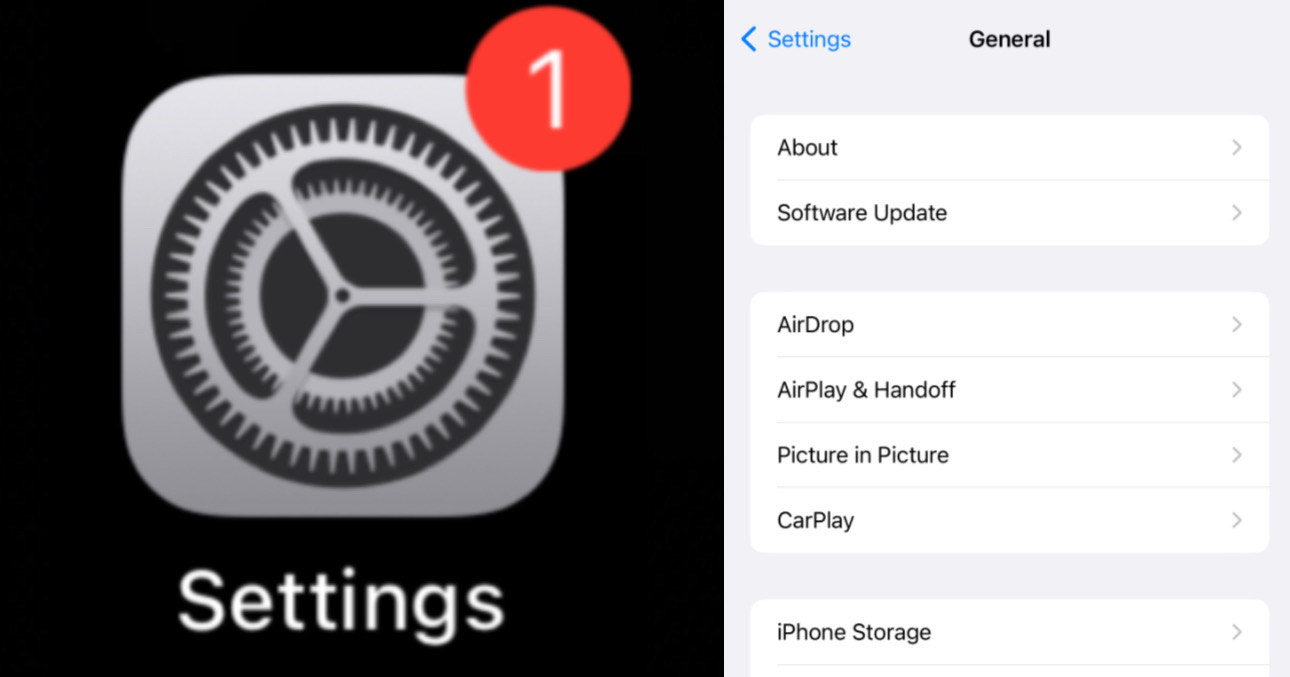
The iPhone 14 Pro Max General Settings are where you can manage all the essential features of your device. From checking your software updates and storage to using AirDrop, AirPlay & Handoff, Picture in Picture, CarPlay, and Background App Refresh, these settings help you get the most out of your iPhone. Whether you are a beginner or an experienced user, understanding these settings makes using your iPhone 14 Pro Max easier, faster, and more fun. If you want to know about Apple ID, Airplane Mode, Wi-Fi, Bluetooth, Cellular, Personal Hotspot, Notifications, Sounds & Haptics, Focus, and Screen Time settings, you can check this post — I’ve covered all of these settings.

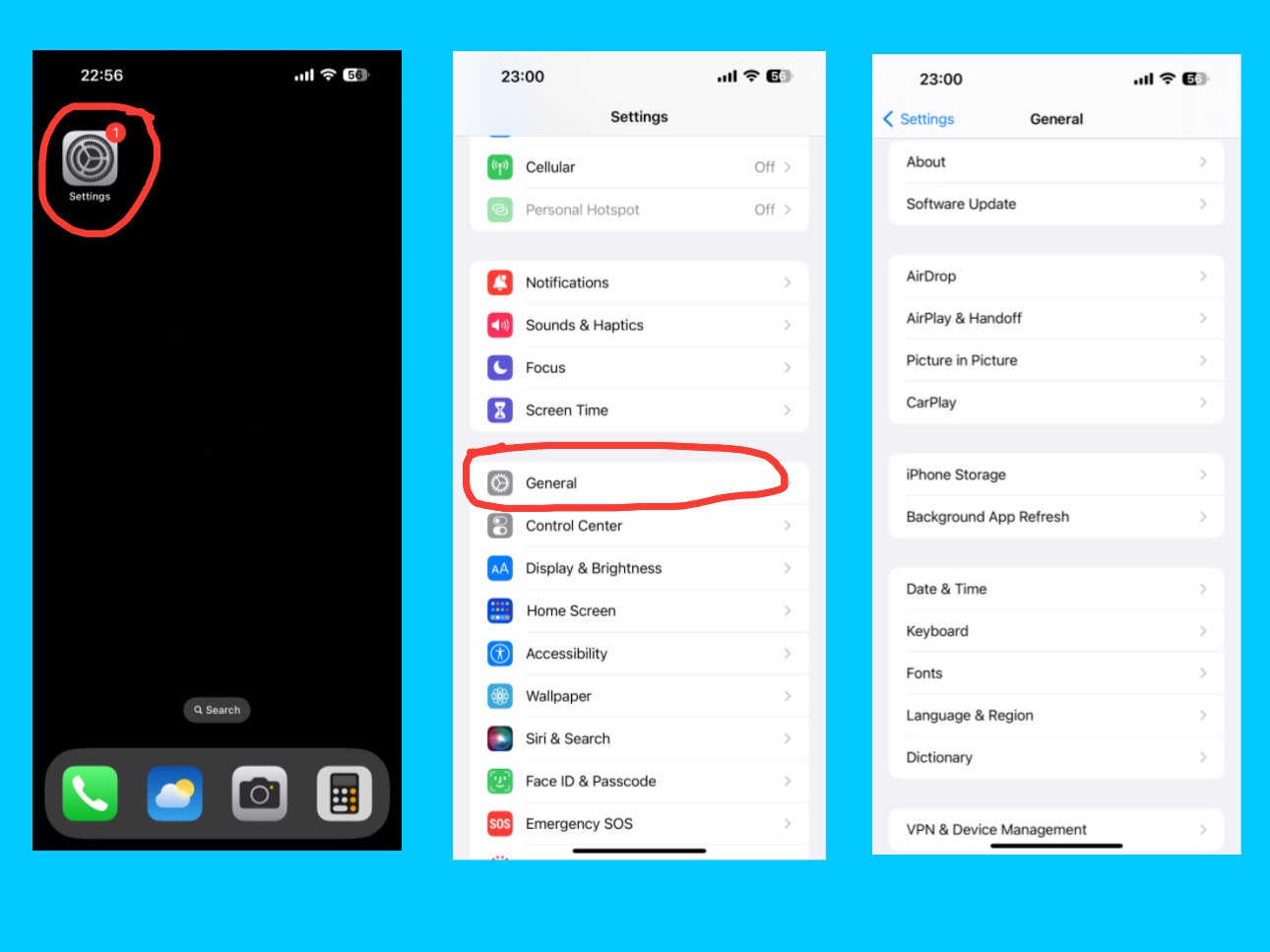
General

iPhone 14 Pro Max General Settings
General Settings of iPhone 14 Pro Max

The General setting is one of the most important sections on your iPhone 14 Pro Max. It controls the core system functions and overall performance of your device. From software updates to storage, AirDrop, background app refresh, and device information — this is where you manage the main settings that keep your iPhone running smoothly. There are more features and functions in this setting. For more details, visit Apple’s official iPhone User Guide.

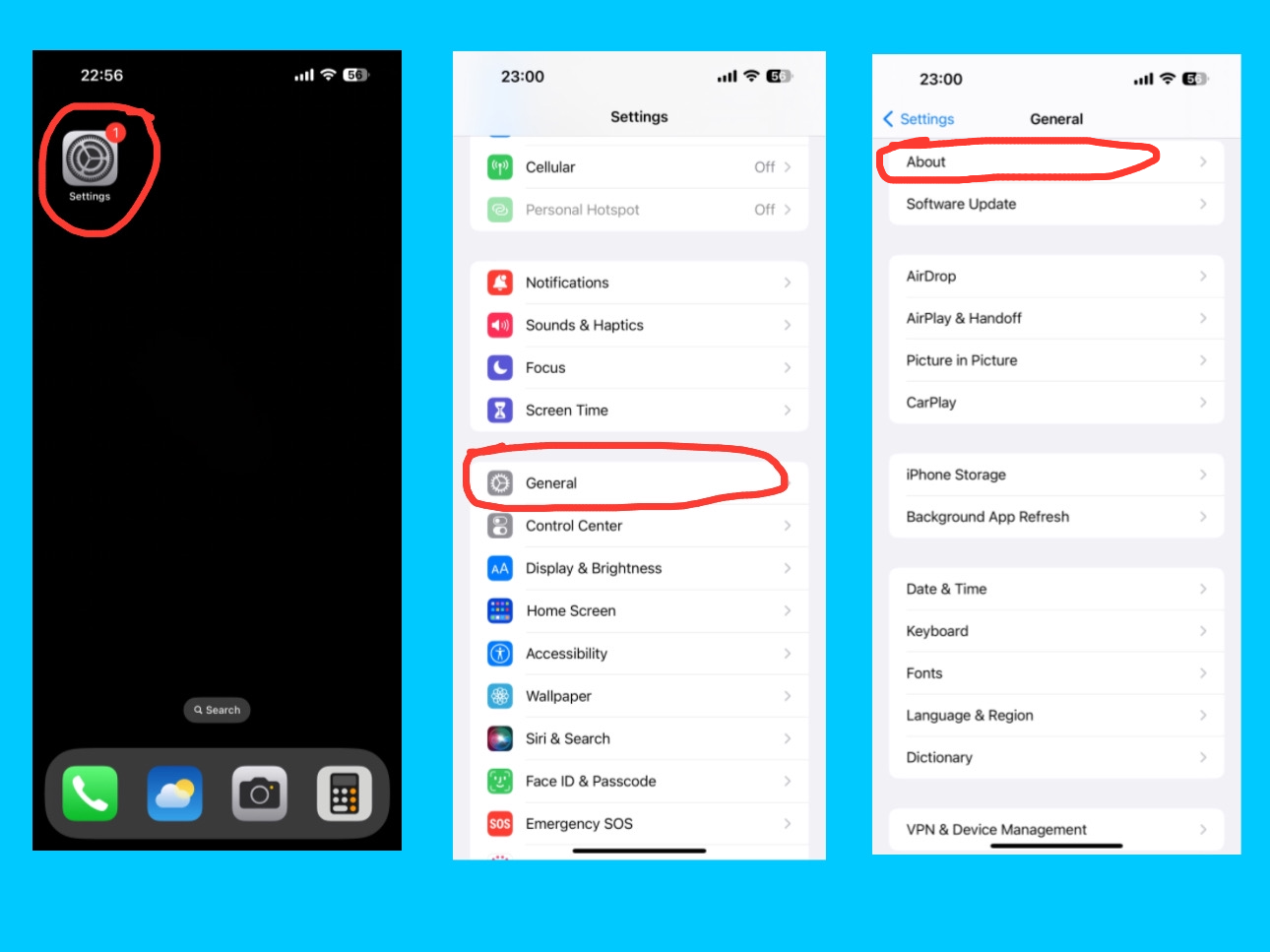
About

iPhone 14 Pro Max General Settings
General – About

The About section in the General settings gives you a complete overview of your iPhone 14 Pro Max. Here, you can easily check important details such as your model name, model number, iOS version, serial number, and storage capacity. It also shows how much available storage you have left, along with the number of photos, videos, apps, and songs stored on your device. In addition, you can find your Wi-Fi address, Bluetooth address, modem firmware, SEID, EID, IMEI number, and ICCID number — all in one place. Additionally, you can view your SIM details, carrier name, and network information to see which service your iPhone is currently using. You can even change your iPhone’s name here to anything you like, which helps you easily identify your device when connecting to other Apple products or networks.

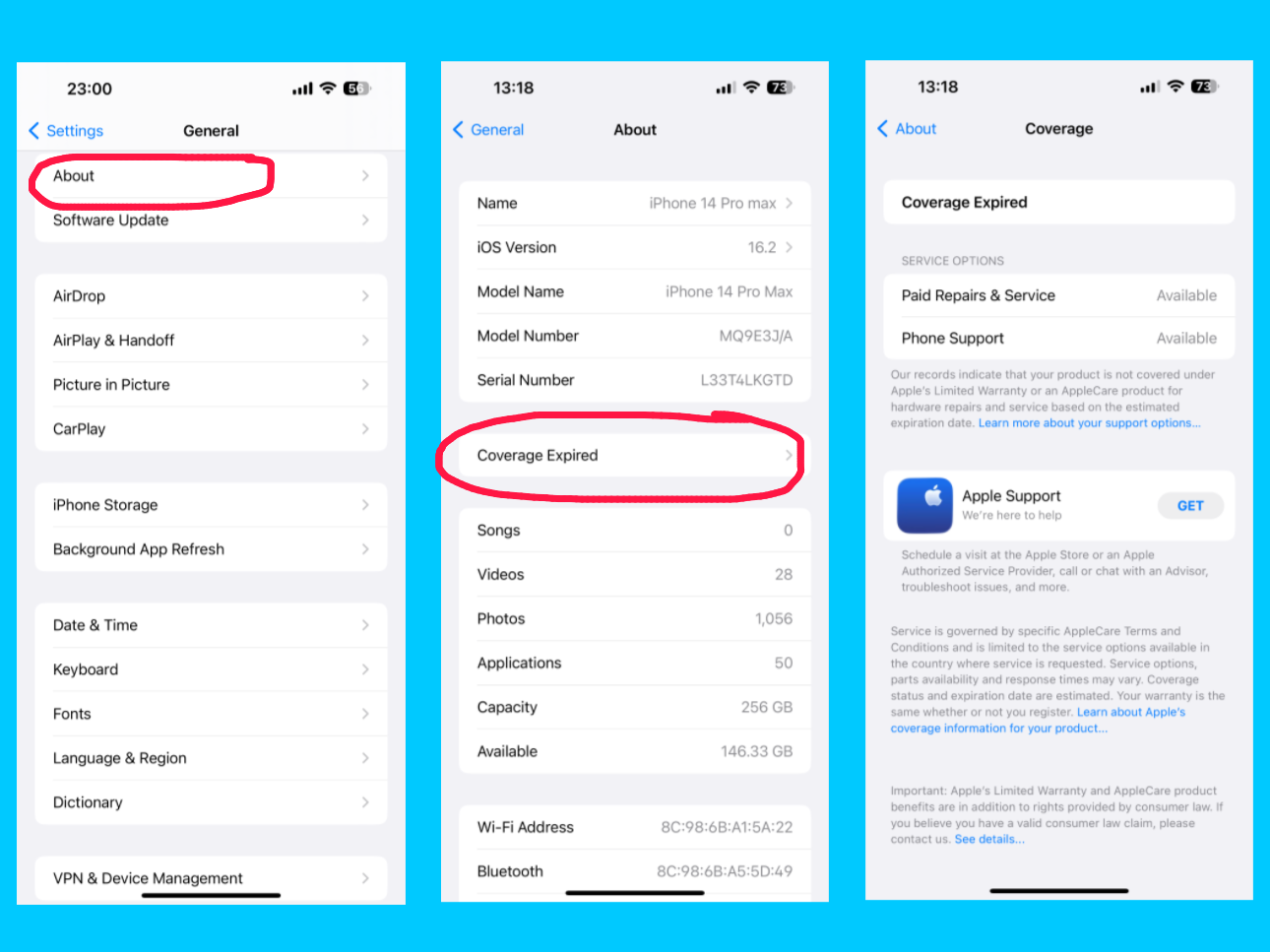
Coverage Expired 

iPhone 14 Pro Max General Settings
General – About – Coverage Expired

In the About section of your iPhone 14 Pro Max, you might also see a message that says “Coverage Expired.” This means your iPhone’s limited warranty or AppleCare coverage has ended. When your coverage is active, this section usually displays details about your warranty and AppleCare plan, but once it expires, it simply shows “Coverage Expired.” Even if your coverage has ended, you can still get help and services by downloading the Apple Support app. Through the app, you can schedule a visit at an Apple Store or an Apple Authorized Service Provider, call or chat with an Apple advisor, troubleshoot issues, and much more. It’s a convenient way to get expert help and keep your iPhone working smoothly, even after your warranty period is over.

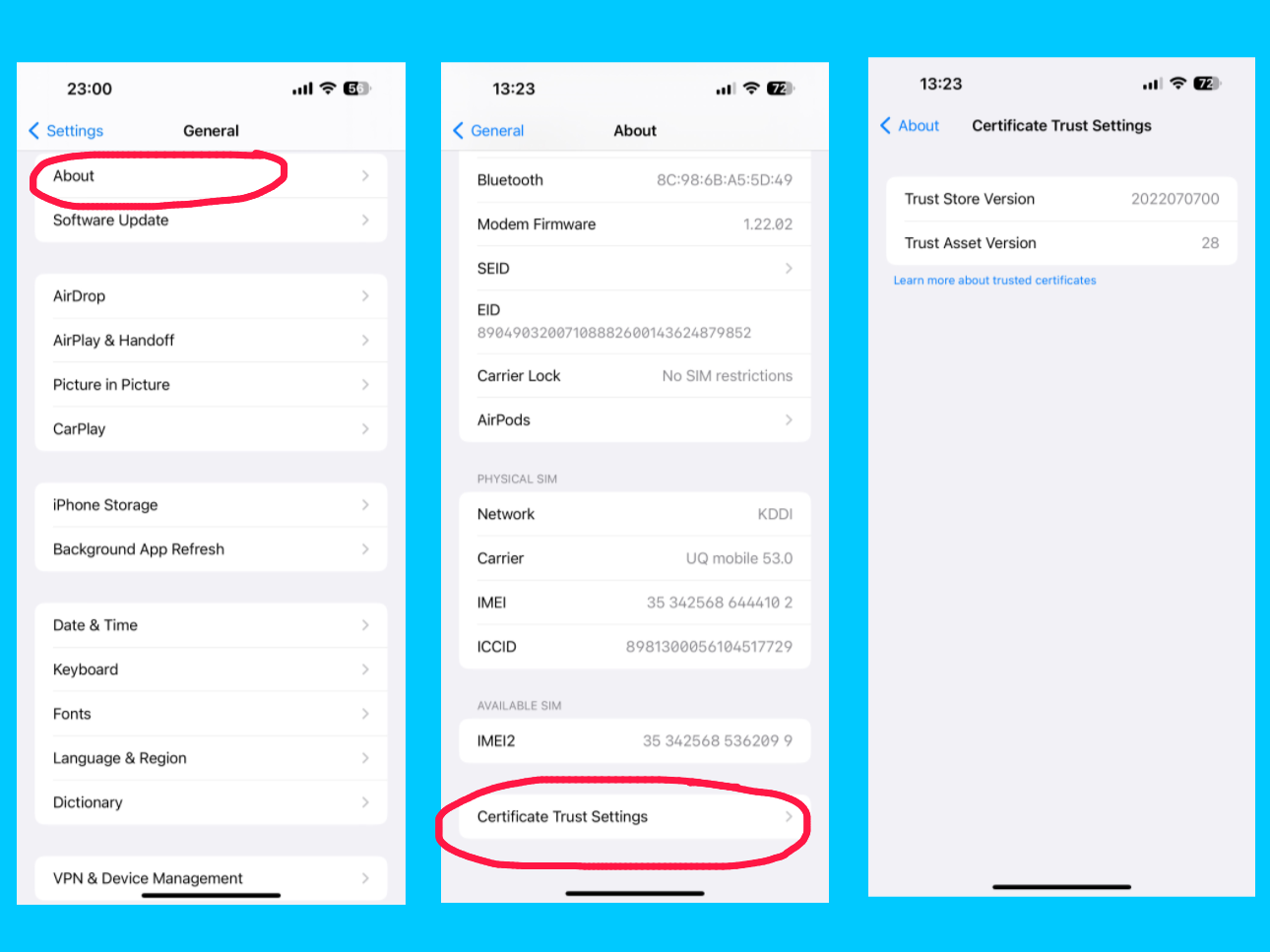
Certificate trust setting

iPhone 14 Pro Max General Settings
Settings – About – Certificate Trust Settings

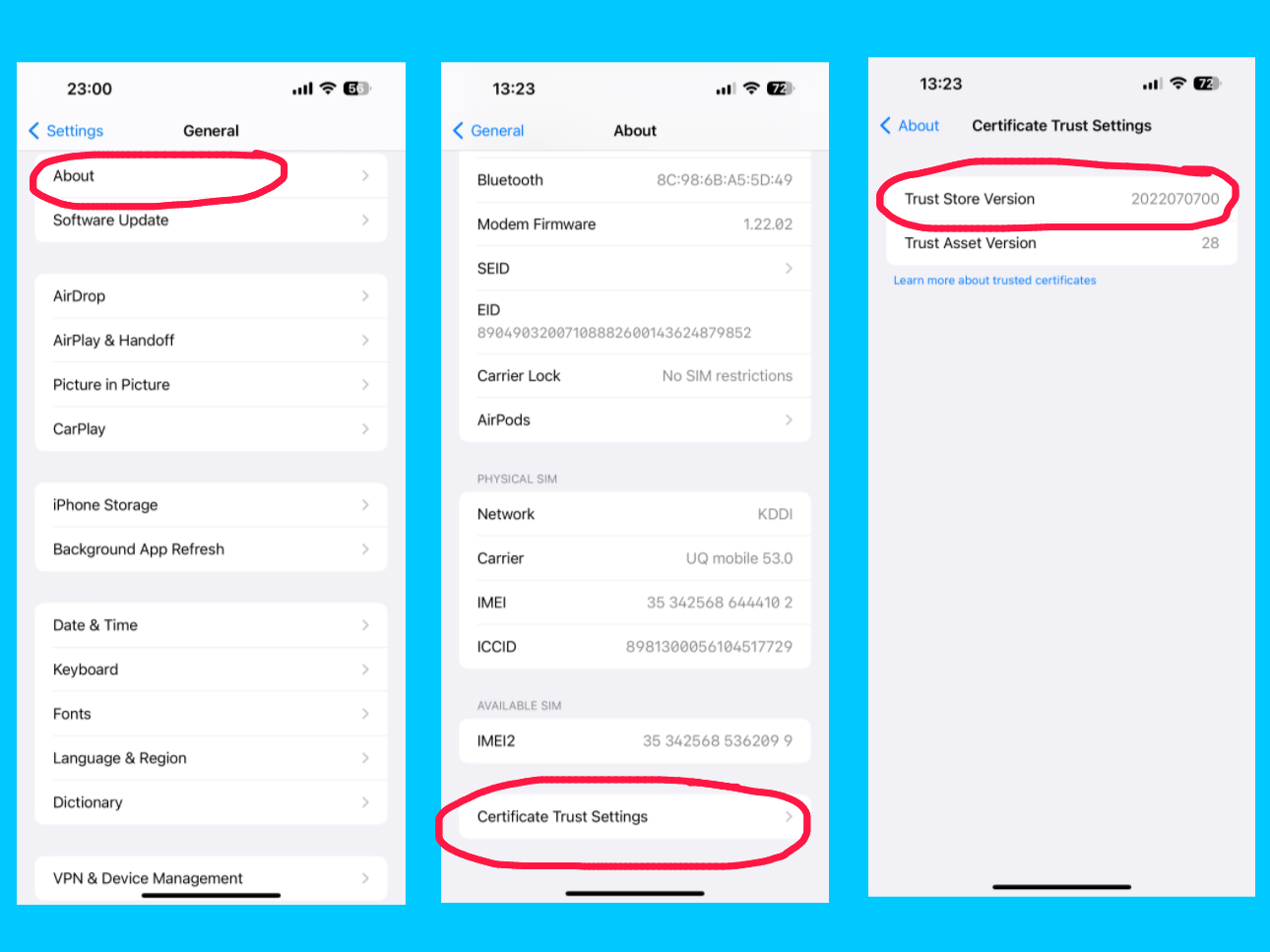
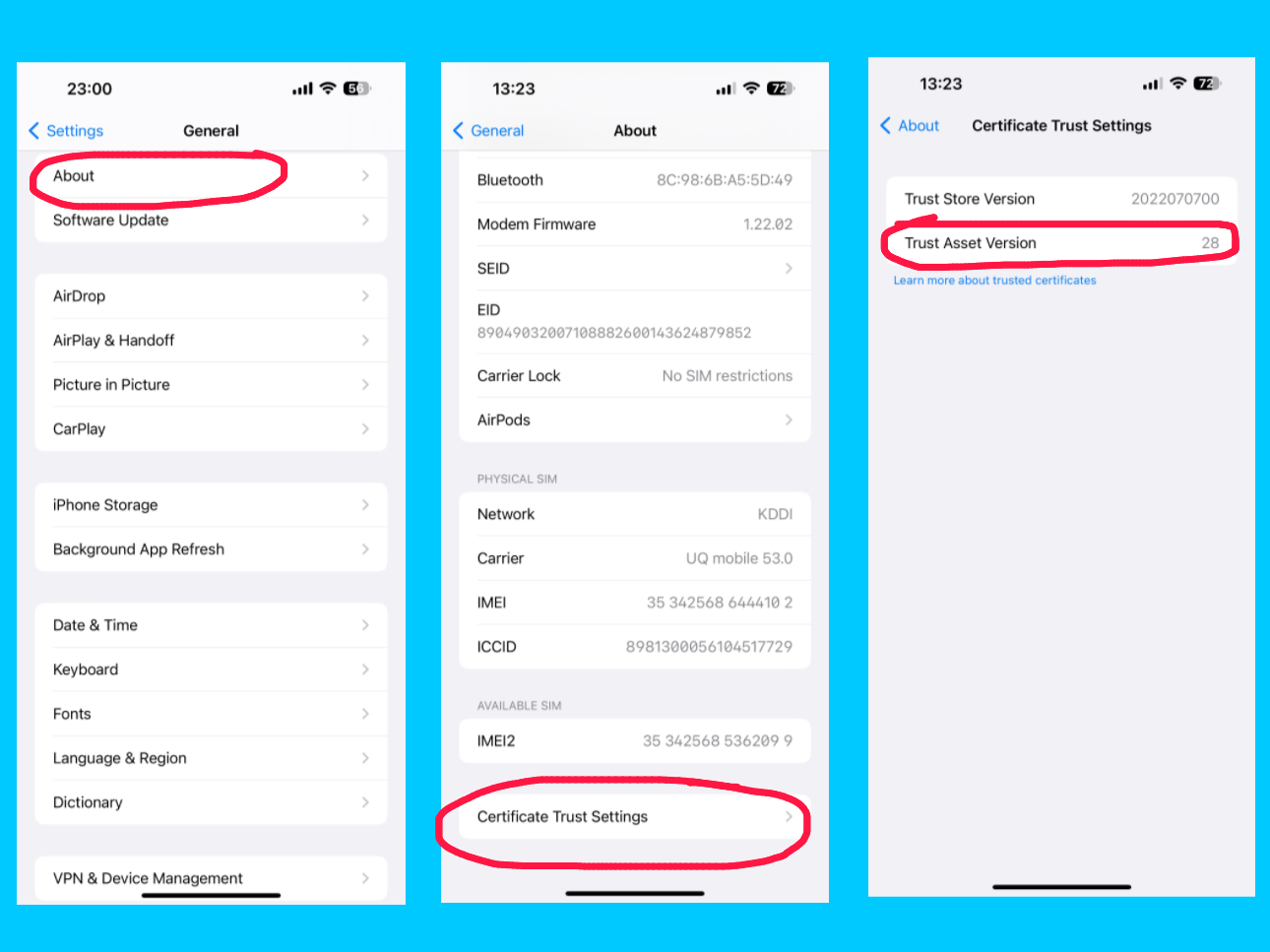
The Certificate Trust Settings in the About section of your iPhone 14 Pro Max allow you to manage which installed certificates are trusted by your device. Certificates are digital documents used to verify the identity of websites, apps, or networks and ensure secure connections. In this section, you can enable or disable trust for specific certificates, which affects how your iPhone connects securely to networks, email servers, or websites. This setting is especially useful for enterprise or school accounts, where custom certificates are required for secure access. By managing certificate trust, you can ensure your device stays secure while connecting to trusted services. Under the Certificate Trust Settings on your iPhone 14 Pro Max, you may also see Trust Store Version and Trust Access Version:

  1. Trust Store Version:
iPhone 14 Pro Max General Settings
Settings – About – Certificate Trust Settings – Trust Store Version

This shows the current version of Apple’s built-in list of trusted root certificates. These certificates help your iPhone verify the authenticity of websites, apps, and secure connections. Apple updates this list regularly to keep your device secure from untrusted or malicious sources.

  1. Trust Asset Version:
iPhone 14 Pro Max General Settings
Settings – About – Certificate Trust Settings – Trust Asset Version

This indicates the version of the system that manages which apps and services can access the trusted certificates on your device. It ensures that only authorized apps can use certificates for secure connections, helping maintain your iPhone’s security and privacy.

These versions help your iPhone stay up-to-date and protected when connecting to networks, websites, and other services that rely on secure certificates.

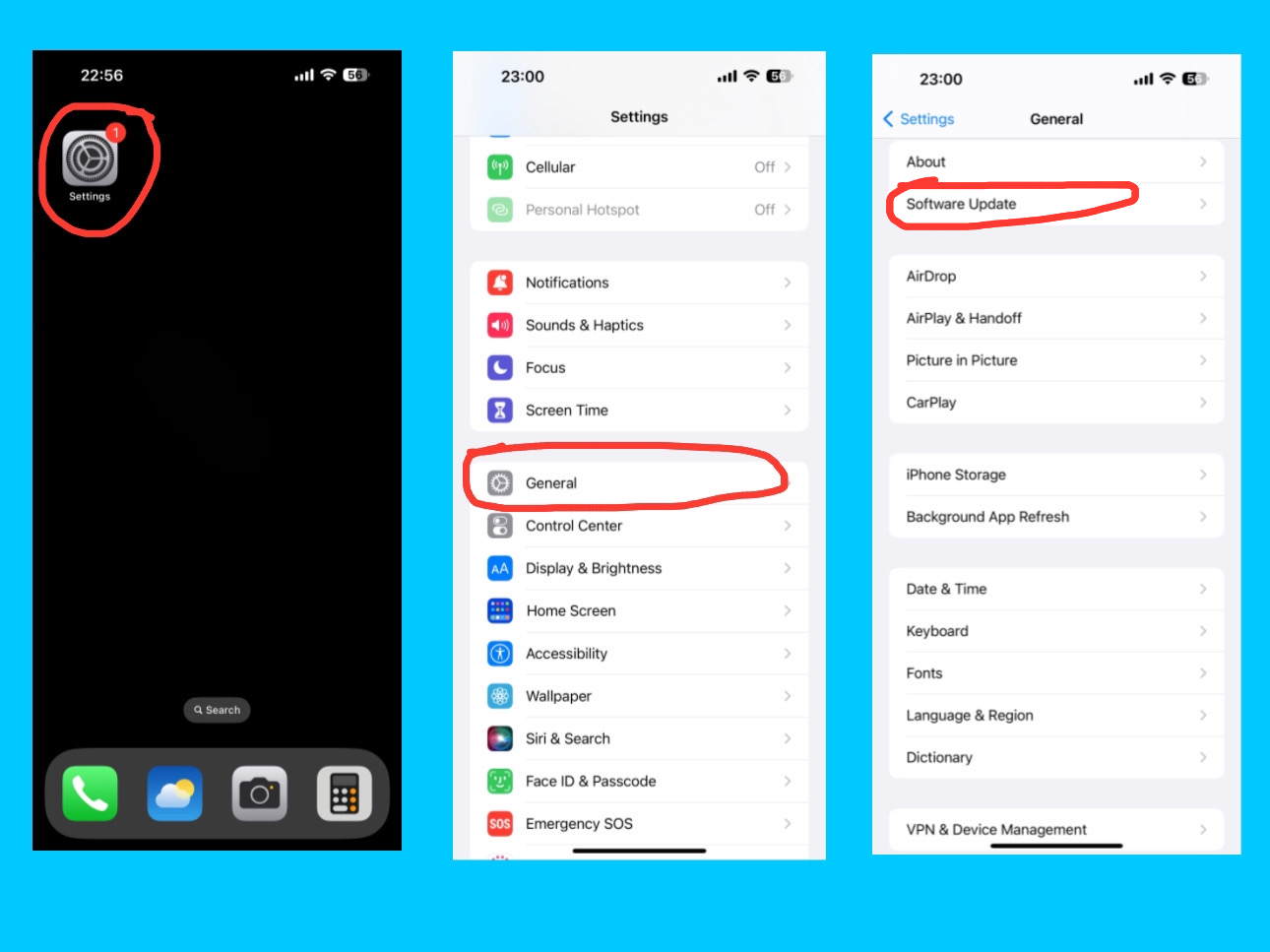
Software update

iPhone 14 Pro Max General Settings
Settings – General – Software Update

The Software Update option on your iPhone 14 Pro Max lets you check for and install the latest iOS updates. Here, you can see the current version of your iPhone as well as the latest available version that you can download and install. Keeping your device updated ensures it has the latest features, security improvements, and bug fixes, helping your iPhone run smoothly and safely. You can manually check for updates or enable automatic updates, which will download and install new iOS versions overnight when your iPhone is connected to Wi-Fi and charging. Updates often include important security patches, fixes for software issues, and new features or system improvements. You can also view your update history to see which iOS versions have been installed. Regularly updating your iPhone ensures the best performance, security, and access to all new features.

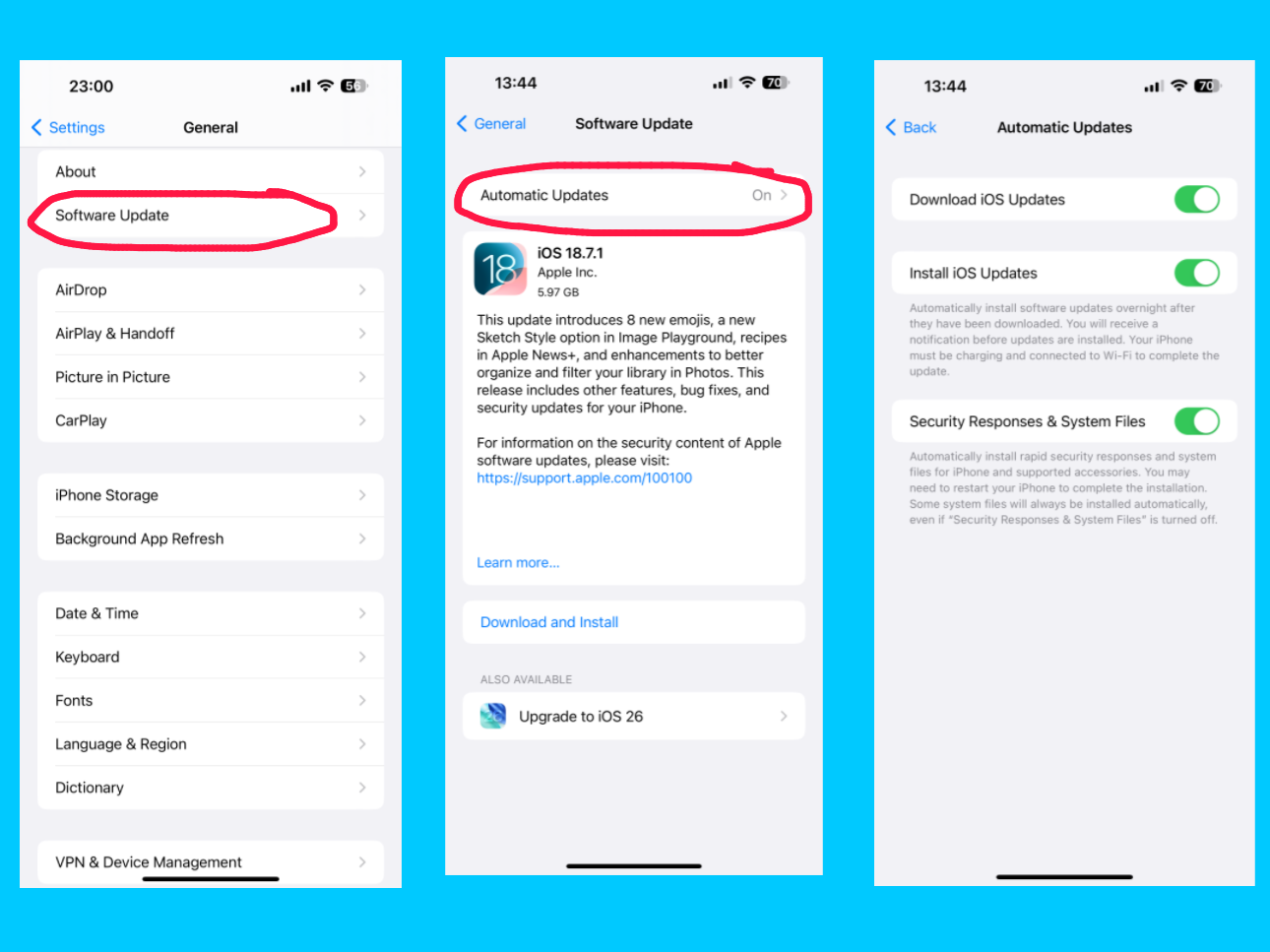
Automatic updates

iPhone 14 Pro Max General Settings
Settings – General – Software Update – Automatic Updates

Under the Software Update setting on your iPhone 14 Pro Max, you can find the Automatic Updates option. This allows you to turn on automatic downloading and installation of iOS updates, including security patches, system files, and other important updates. Once enabled, your iPhone can download new updates in the background and install them overnight while connected to Wi-Fi and charging, ensuring your device stays secure, up-to-date, and running smoothly without any manual effort.

AirDrop

iPhone 14 Pro Max General Settings
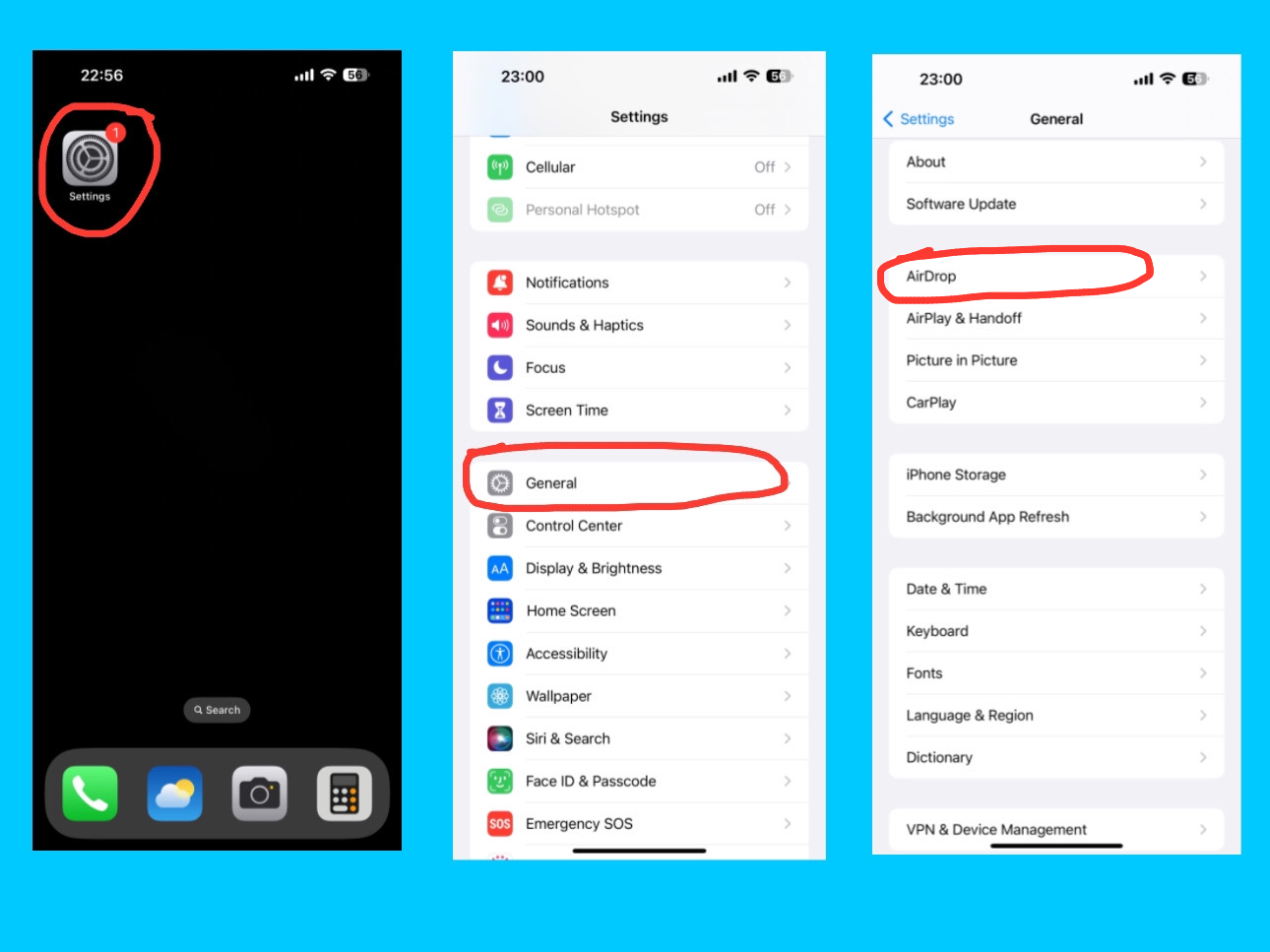
Settings – General – AirDrop

The AirDrop option allows you to instantly share files, photos, videos, contacts, and more with nearby Apple devices, like iPhones, iPads, and Macs, without using email or messaging apps. It uses Bluetooth and Wi-Fi to create a secure and fast connection between devices. AirDrop also lets you control who can send you files with three options:

  1. Everyone (any nearby Apple device can send you files)
  2. Contacts Only (only people in your contacts can send files)
  3. Receiving Off (you won’t receive files from anyone)

These settings help you manage privacy while keeping file transfers simple and secure across Apple devices.

AirPlay & Handoff

iPhone 14 Pro Max General Settings
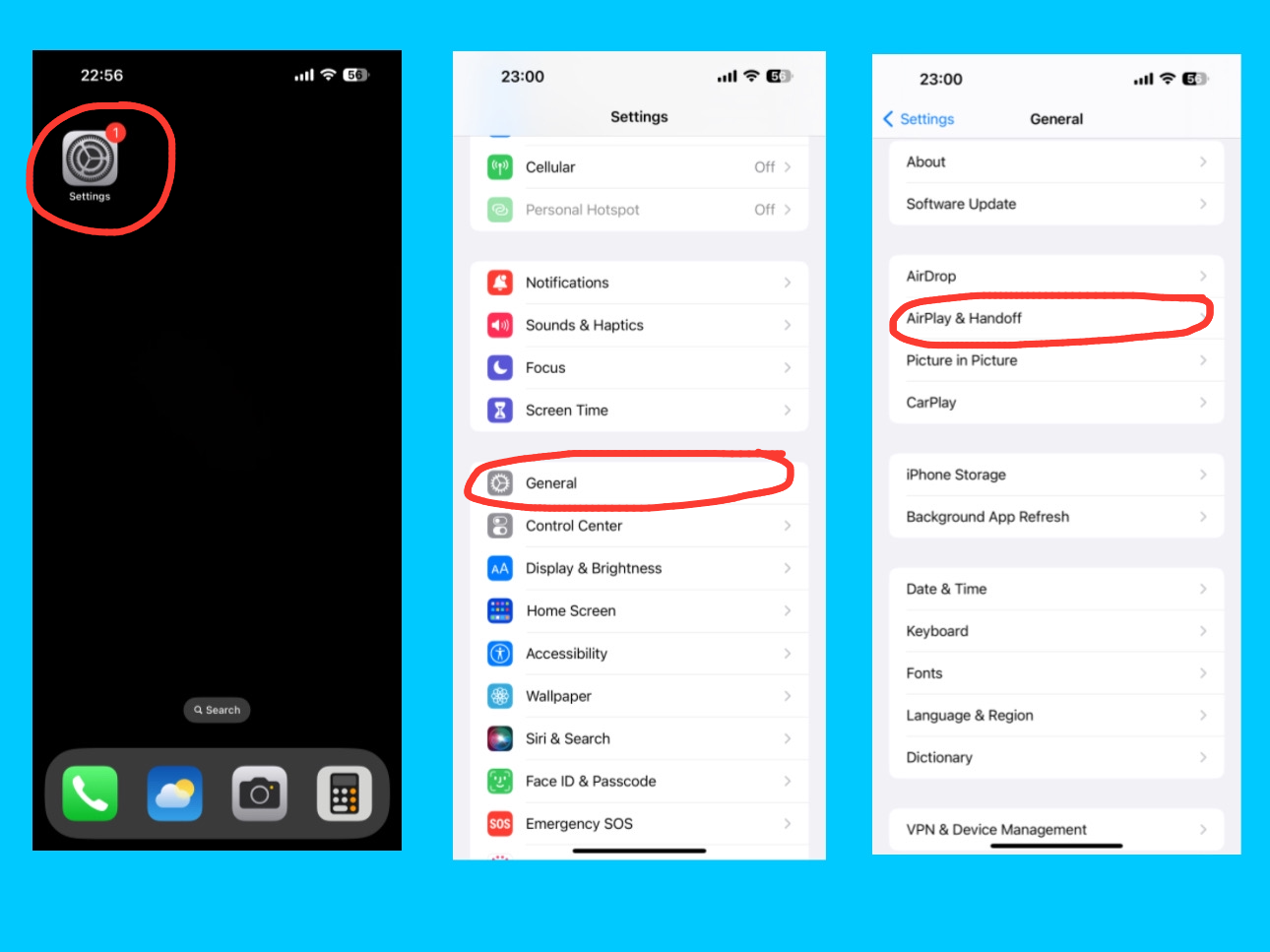
Settings – General – AirPlay & Handoff

The AirPlay & Handoff option on your iPhone 14 Pro Max lets you connect and share content seamlessly with other Apple devices. With Handoff, you can start an activity, like writing an email or browsing Safari, on your iPhone and continue it on your iPad or Mac without losing progress. The AirPlay feature allows you to stream music, videos, or your screen to Apple TV or other AirPlay-compatible devices. You can also enable your iPhone to automatically detect nearby Apple TVs for instant streaming. These features work across devices signed in with the same Apple ID, making it easy to switch between devices, share content, and stay productive or entertained effortlessly.

Automatically AirPlay to TV’s

iPhone 14 Pro Max General Settings
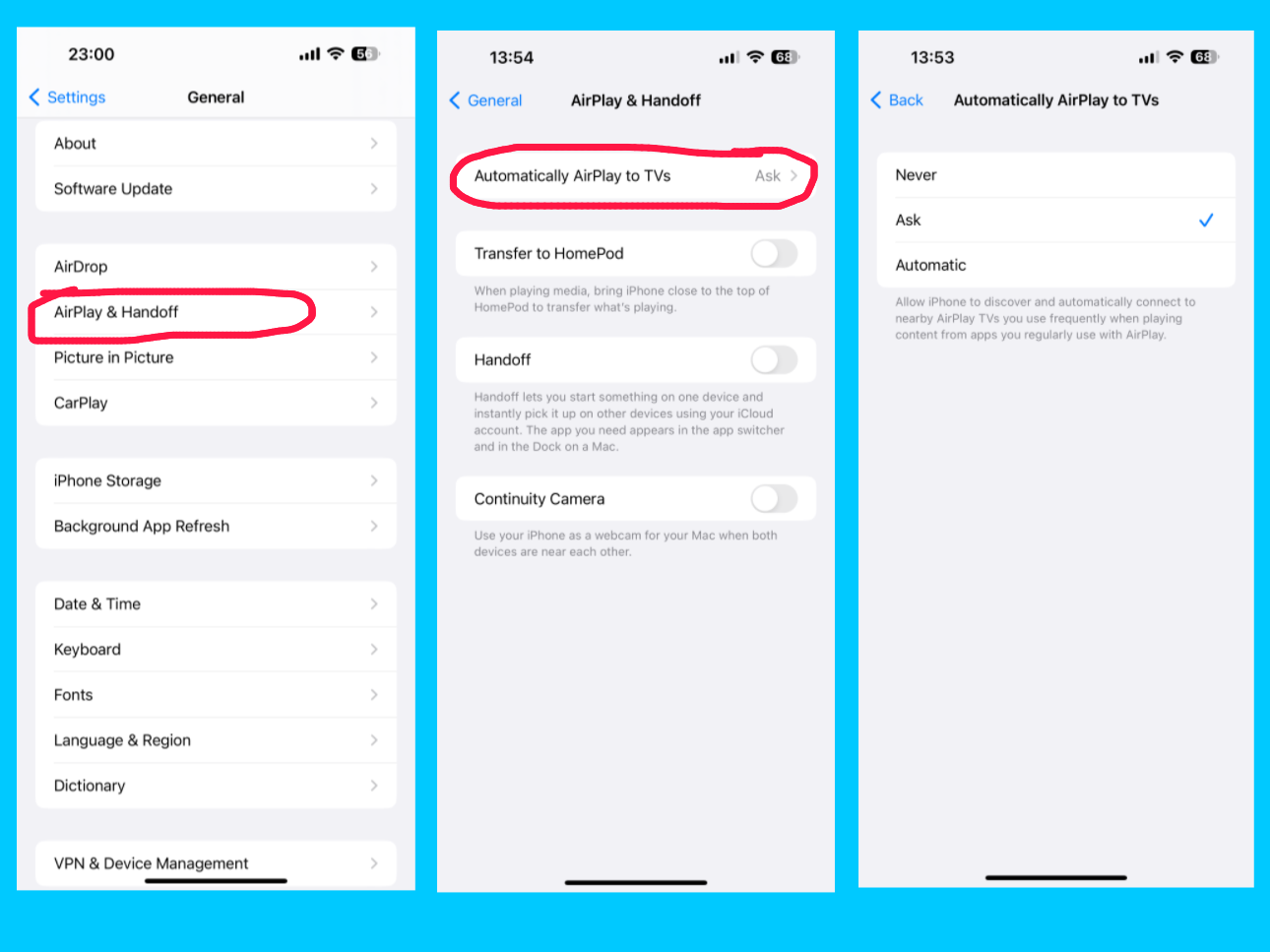
Settings – AirPlay & Handoff – Automatically AirPlay to TVs

The Automatically AirPlay to TVs option under AirPlay & Handoff on your iPhone 14 Pro Max lets your device detect nearby Apple TVs or AirPlay-compatible smart TVs and connect automatically for streaming content. You can choose whether your iPhone should always, never, or only ask when connecting to a TV. This feature makes it quick and easy to stream videos, music, or your screen without manually selecting a device each time, providing a seamless entertainment experience across Apple devices.

Transfer to HomePod

iPhone 14 Pro Max General Settings
Settings – General – AirPlay & Handoff – Transfer to HomePod

The Transfer to HomePod option under AirPlay & Handoff on your iPhone 14 Pro Max allows you to quickly move audio playback from your iPhone to a nearby HomePod. When this feature is enabled, simply bring your iPhone close to a HomePod, and the music, podcast, or any audio playing on your device will automatically transfer to the HomePod for continued listening. This provides a seamless and hands-free way to enjoy your audio on a more powerful speaker without manually connecting or selecting the device.
Handoff

iPhone 14 Pro Max General Settings
Settings – AirPlay & Handoff – Handoff

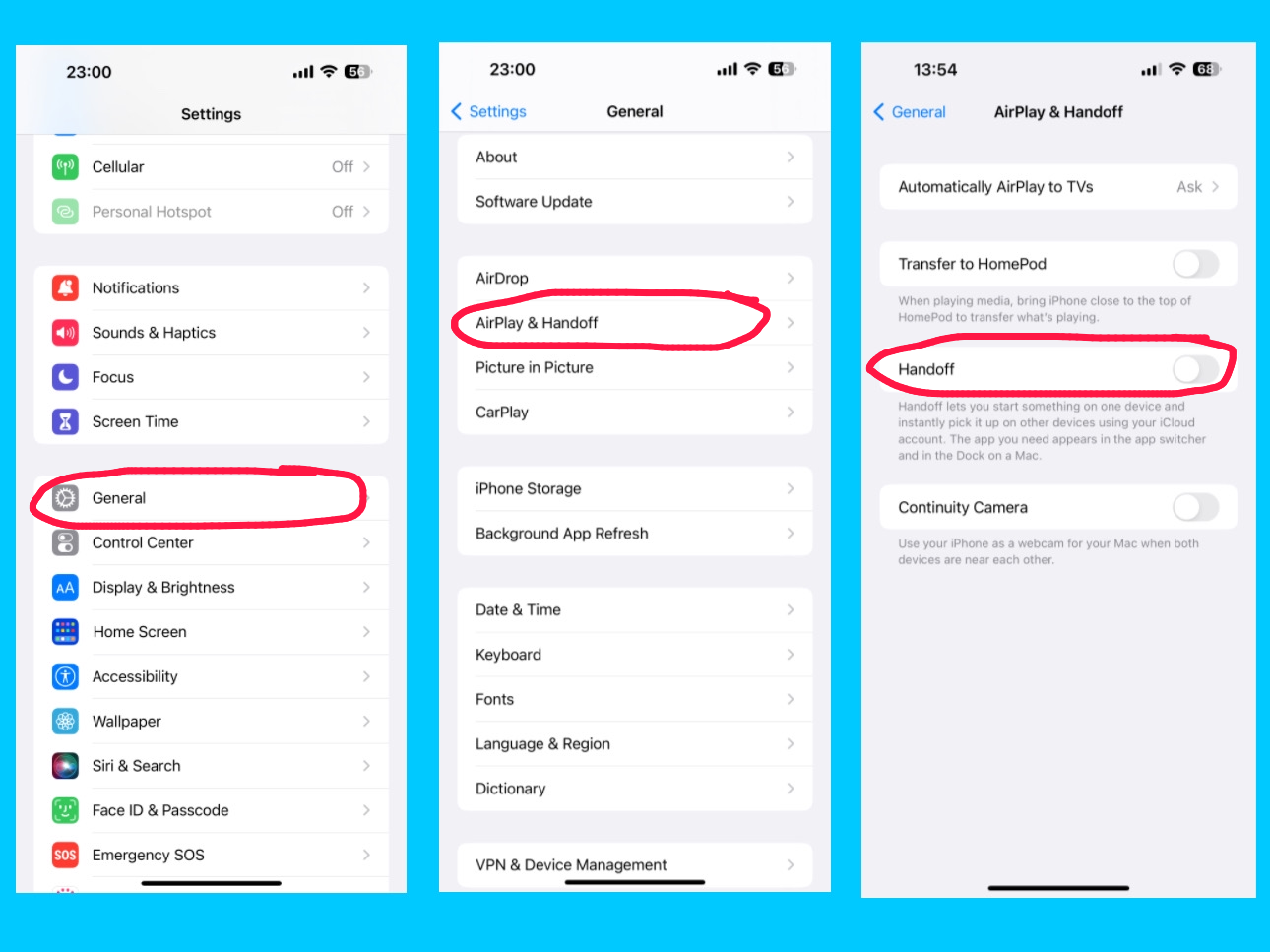
The Handoff option under AirPlay & Handoff on your iPhone 14 Pro Max allows you to start a task on one Apple device and continue it on another seamlessly. For example, you can begin composing an email, browsing a webpage, or working on a document on your iPhone and then pick up exactly where you left off on your iPad, Mac, or Apple Watch. Handoff works across all Apple devices signed in with the same Apple ID and connected via Wi-Fi and Bluetooth, making it easy to switch devices without losing progress and stay productive across your Apple ecosystem.

Continuity Camera

iPhone 14 Pro Max General Settings
General – AirPlay & Handoff – Continuity Camera

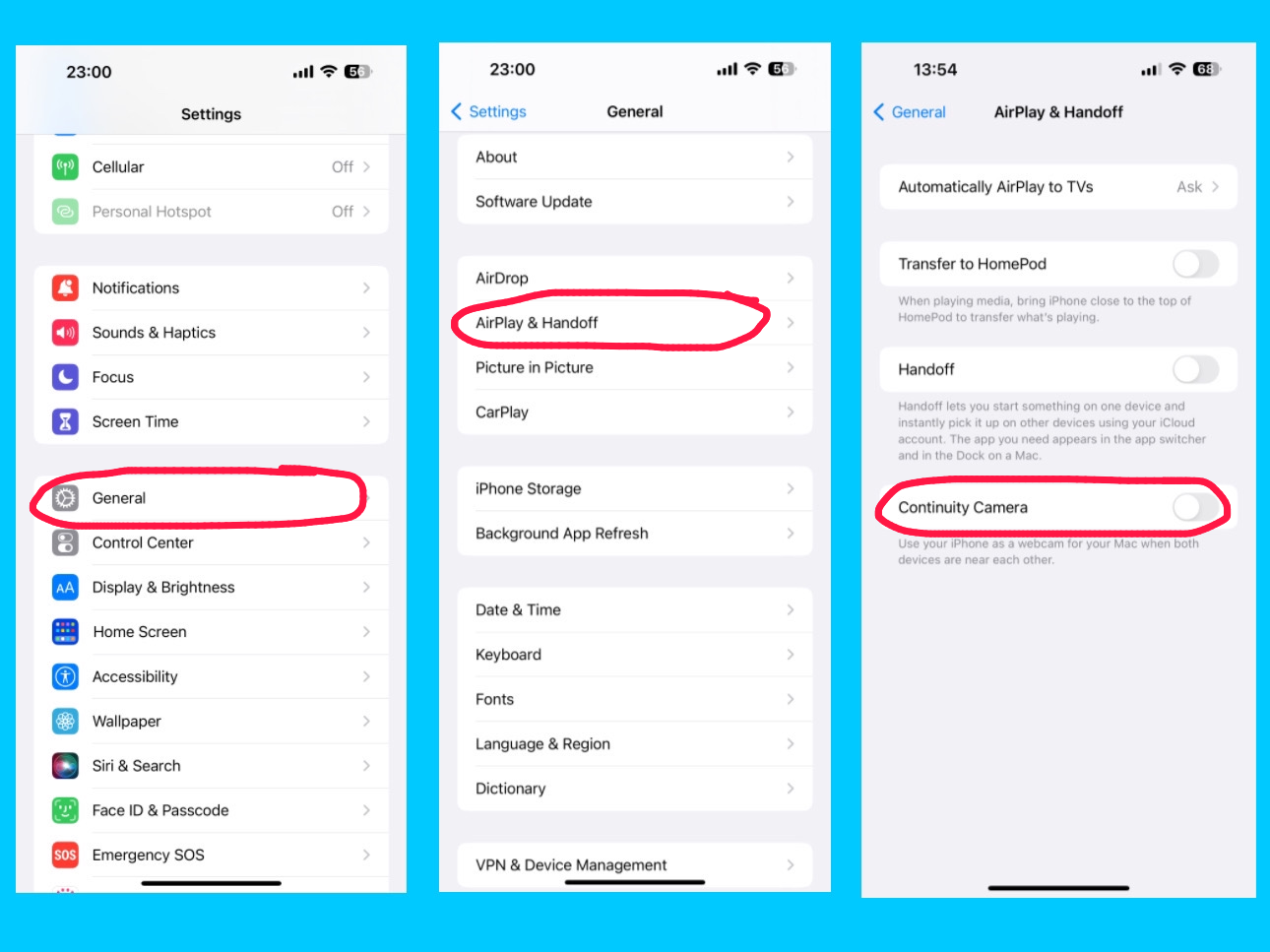
The Continuity Camera option under AirPlay & Handoff on your iPhone 14 Pro Max lets you use your iPhone as a camera or scanner for your Mac. With this feature, you can take a photo or scan a document on your iPhone, and it will instantly appear on your Mac in apps like Mail, Notes, or Finder. Continuity Camera works seamlessly across devices signed in with the same Apple ID, making it easy and fast to capture images or documents without needing cables or manual transfers.

Picture in Picture 

iPhone 14 Pro Max General Settings
Settings – General – Picture in Picture

The Picture in Picture (PiP) option on your iPhone 14 Pro Max allows you to watch videos or use FaceTime in a small floating window while using other apps. When you swipe up to go home or open another app, videos and FaceTime calls will automatically continue in Picture in Picture, so you don’t miss a moment. The PiP window can be moved around the screen, resized, or minimized, giving you a flexible and multitasking-friendly experience without interrupting your workflow or entertainment.

For example, you are on a FaceTime call and open Messages to reply to a text. The call continues in a small floating window while you type. For example, you are watching a video and check your email. The video keeps playing in a corner while you read your emails. This way, you can do multiple things at once without stopping your video or call.

CarPlay

iPhone 14 Pro Max General Settings
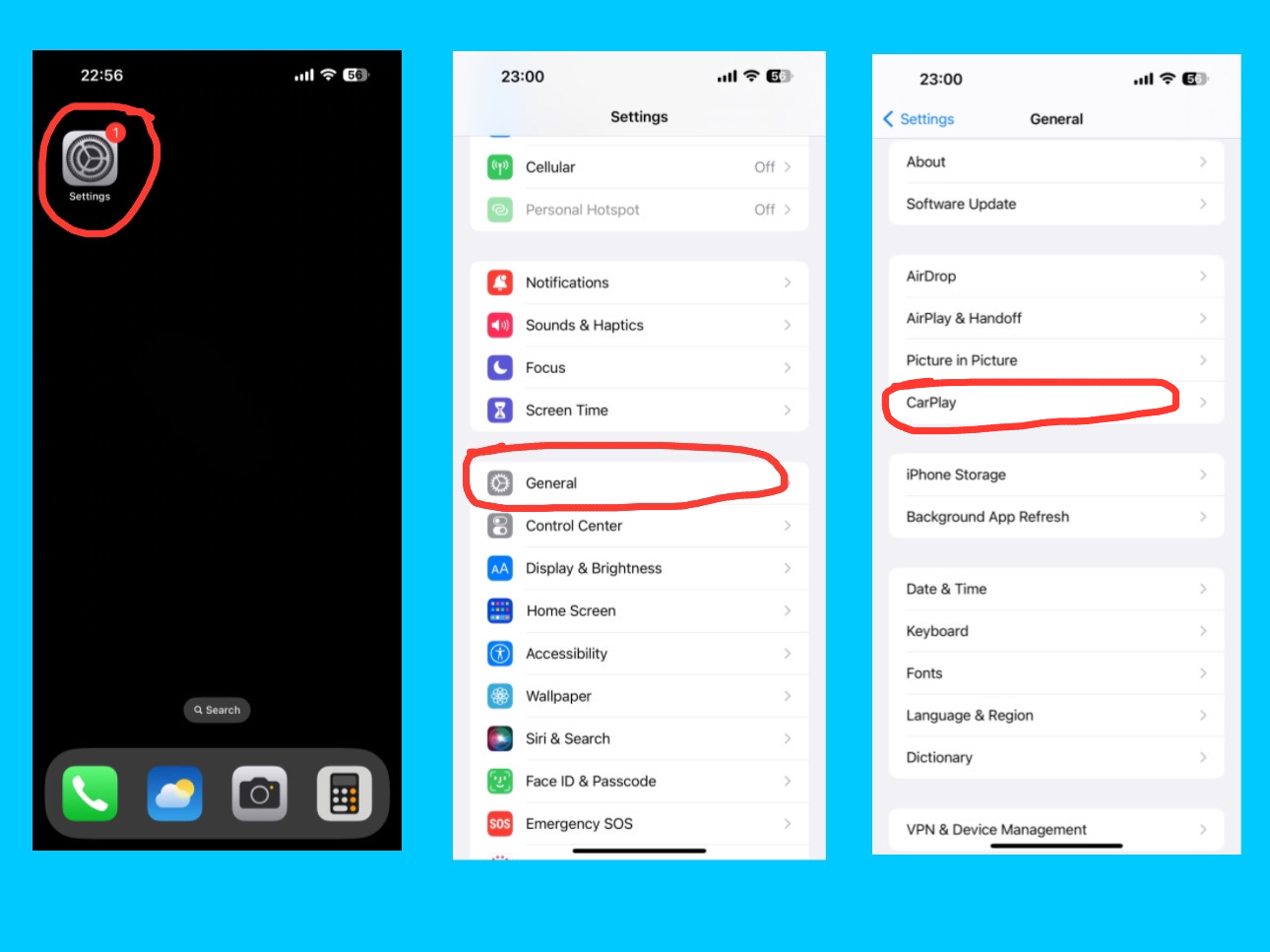
Settings – General – CarPlay

CarPlay lets you connect your iPhone to your car’s built-in display so you can safely use iPhone features while driving. Once connected, you can use apps like Maps, Music, Messages, and Phone directly on your car’s screen. You can also control CarPlay with Siri voice commands, so you can make calls, send messages, or get directions hands-free.

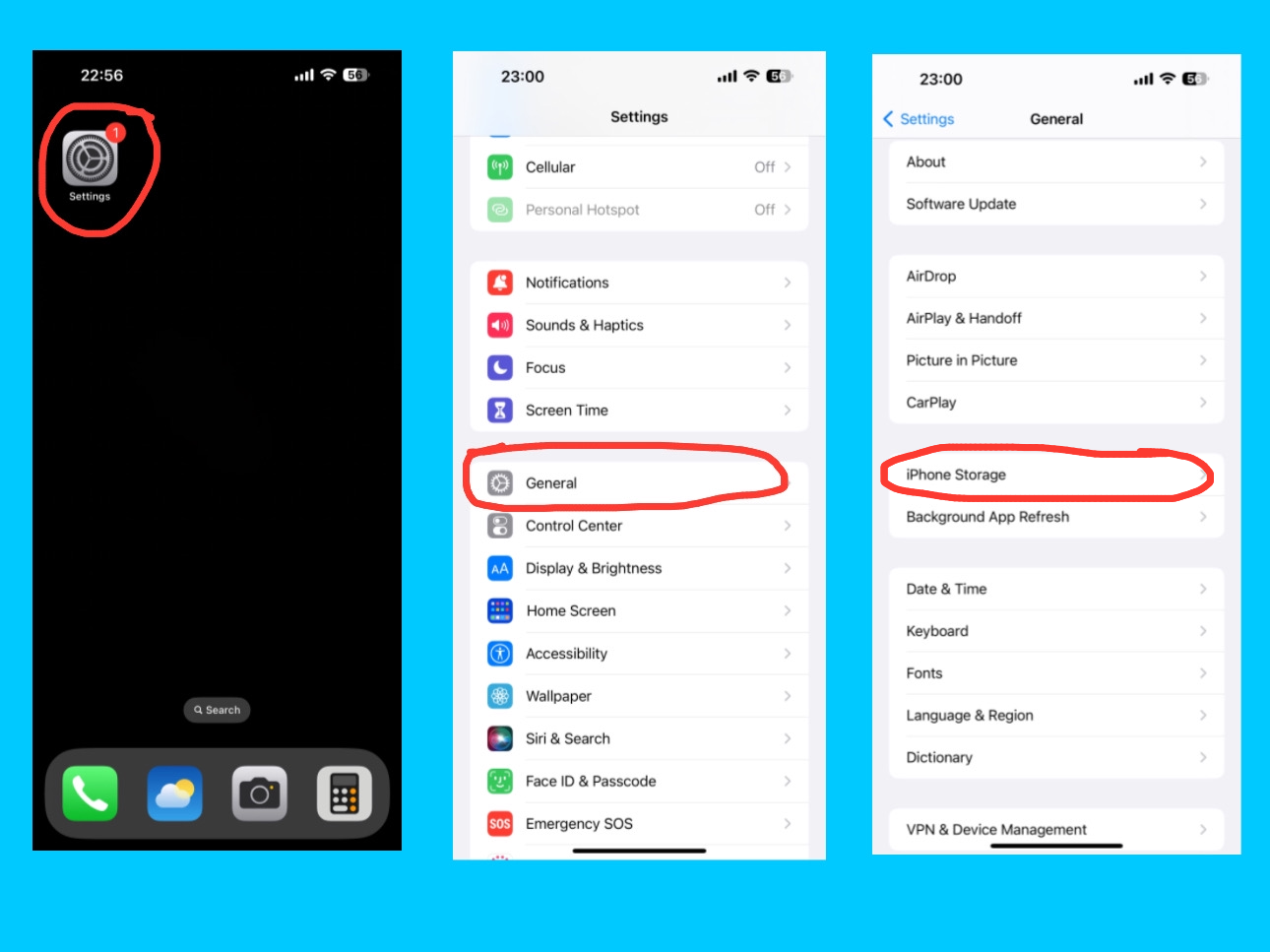
iPhone Storage

iPhone 14 Pro Max General Settings
Settings – General – iPhone Storage

The iPhone Storage setting shows how much space is being used on your device and what’s taking up that space — such as apps, photos, messages, and system data. You can check how much free storage is left and get recommendations to optimize storage, like offloading unused apps or storing photos in iCloud.

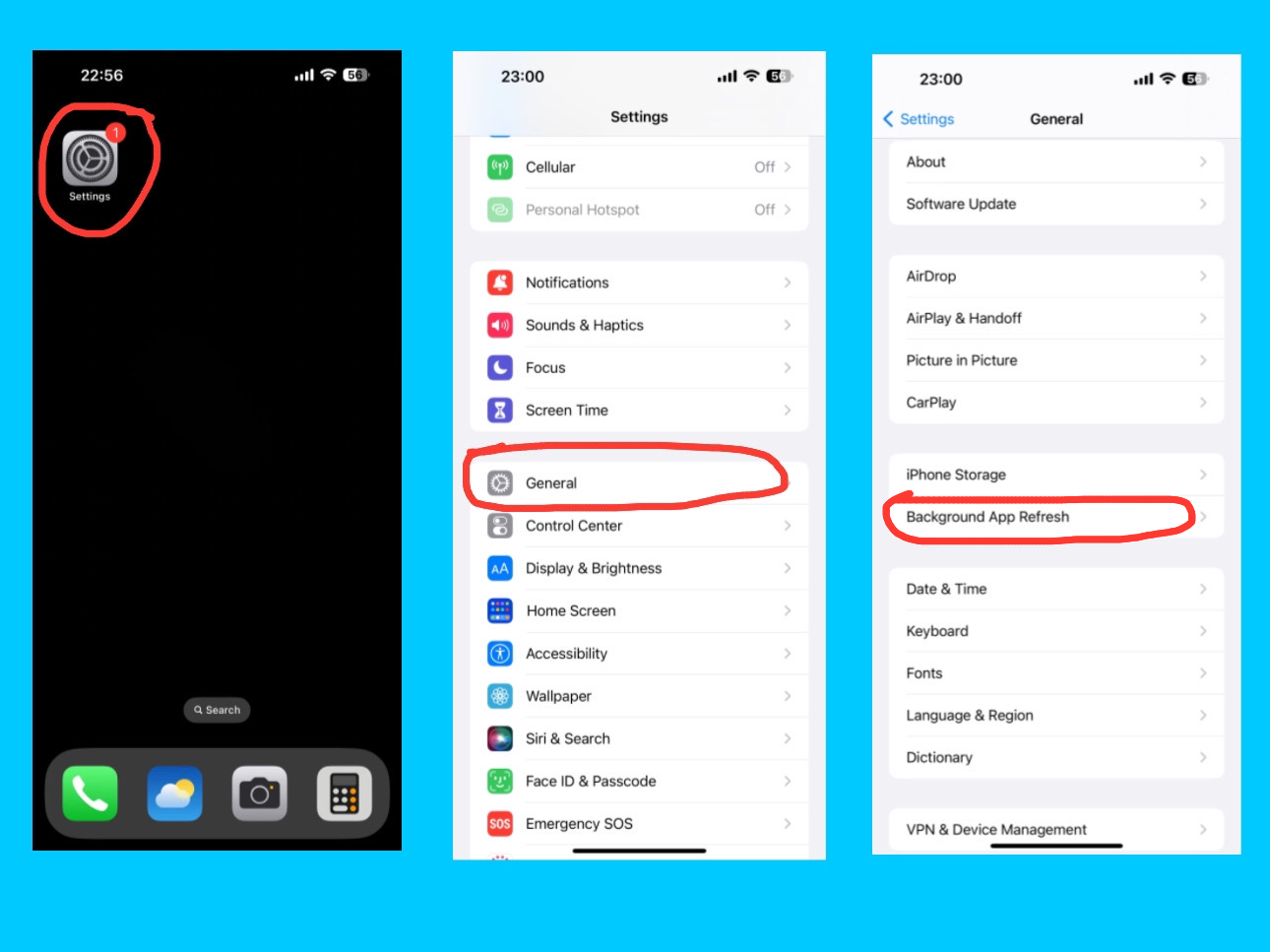
Background App Refresh

iPhone 14 Pro Max General Settings
Settings – General – Background App Refresh

Background App Refresh allows apps to update their content even when you’re not using them. For example, your email app can fetch new messages or your news app can load the latest headlines while running in the background. You can choose to turn it on for Wi-Fi, Wi-Fi & Mobile Data, or off completely.

Conclusion

Understanding the iPhone 14 Pro Max General Settings is the key to getting the most out of your device. From managing software updates and storage to using AirDrop, AirPlay & Handoff, Picture in Picture, CarPlay, and Background App Refresh, these settings make your iPhone easier, faster, and more enjoyable to use. By exploring and customizing these options, you can fully unlock the power of your iPhone 14 Pro Max and make it work exactly the way you want.