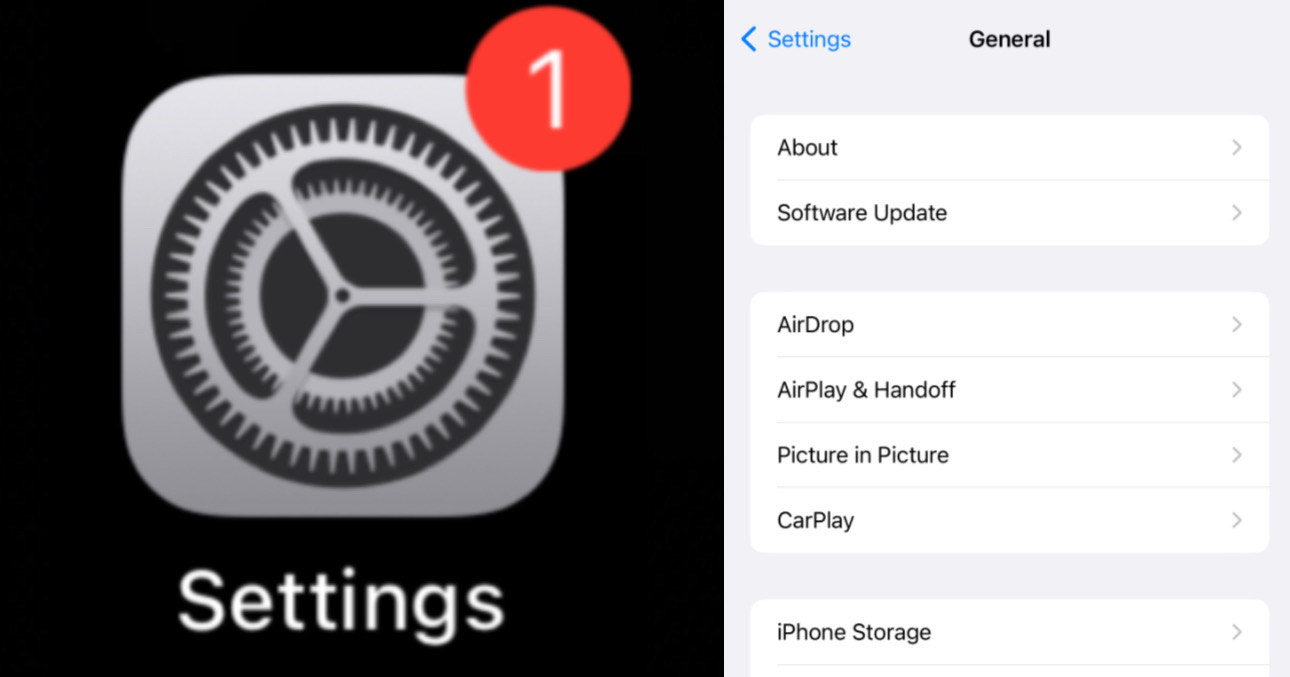
iPhone 14 Pro Max General Settings
The iPhone 14 Pro Max General Settings are where you can manage all the essential features of your device. From checking your software updates and storage to using AirDrop, AirPlay & Handoff, Picture in Picture, CarPlay, and Background App Refresh, these settings help you get the most out of your iPhone. Whether you are a beginner or an experienced user, understanding these settings makes using your iPhone 14 Pro Max easier, faster, and more fun. If you want to know about Apple ID, Airplane Mode, Wi-Fi, Bluetooth, Cellular, Personal Hotspot, Notifications, Sounds & Haptics, Focus, and Screen Time settings, you can check this post — I’ve covered all of these settings.
General
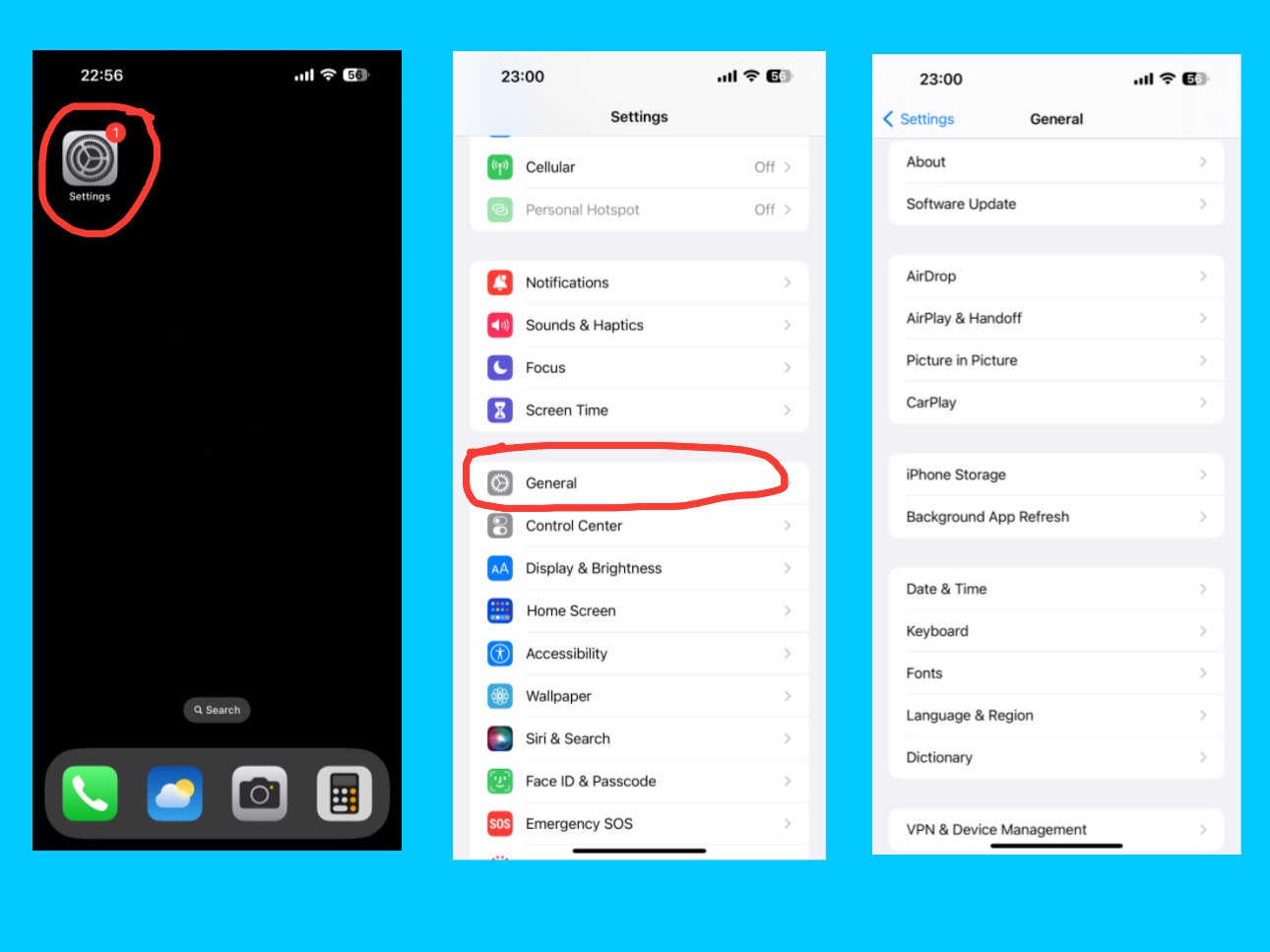
The General setting is one of the most important sections on your iPhone 14 Pro Max. It controls the core system functions and overall performance of your device. From software updates to storage, AirDrop, background app refresh, and device information — this is where you manage the main settings that keep your iPhone running smoothly. There are more features and functions in this setting. For more details, visit Apple’s official iPhone User Guide.
About
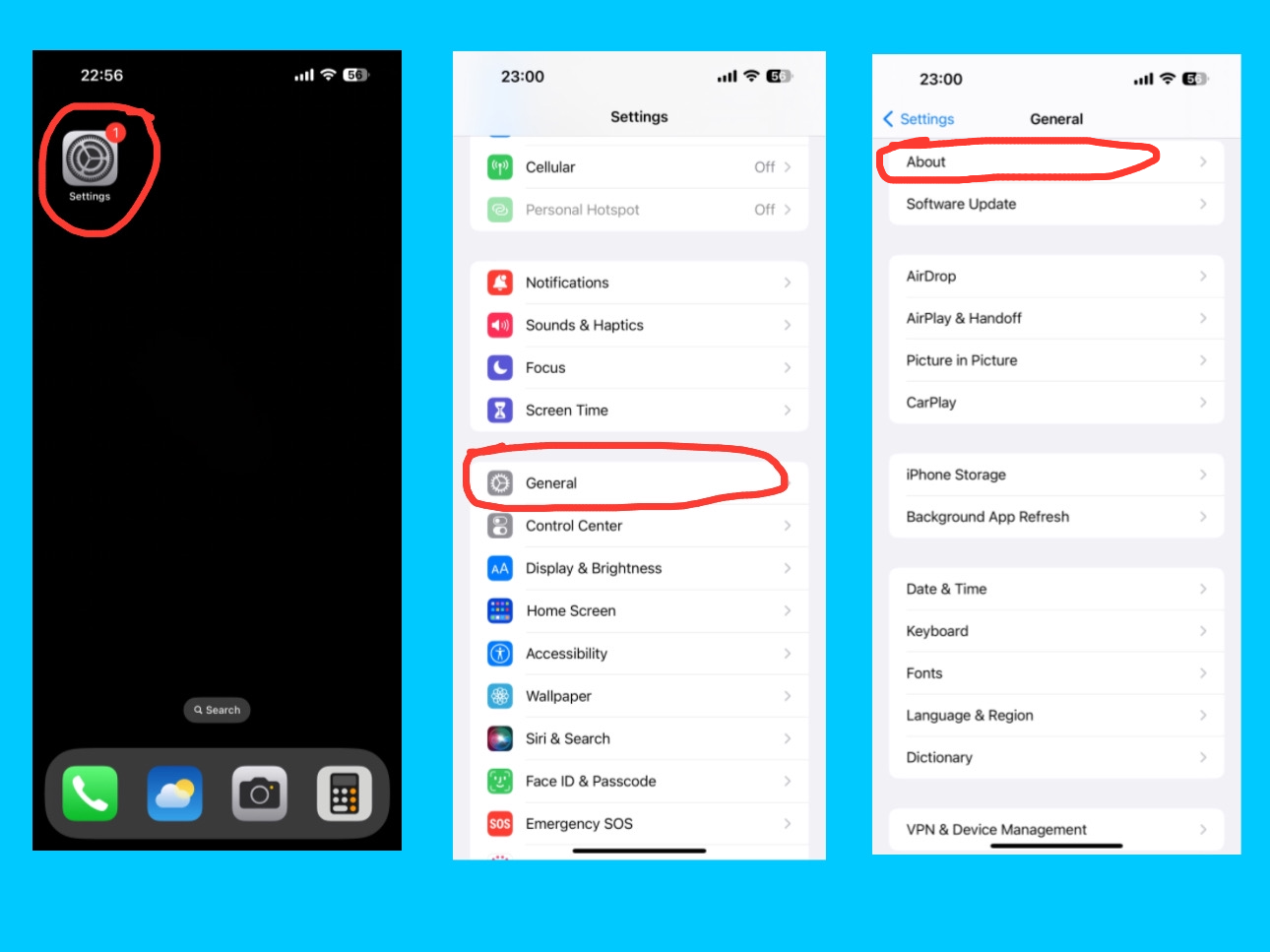
The About section in the General settings gives you a complete overview of your iPhone 14 Pro Max. Here, you can easily check important details such as your model name, model number, iOS version, serial number, and storage capacity. It also shows how much available storage you have left, along with the number of photos, videos, apps, and songs stored on your device. In addition, you can find your Wi-Fi address, Bluetooth address, modem firmware, SEID, EID, IMEI number, and ICCID number — all in one place. Additionally, you can view your SIM details, carrier name, and network information to see which service your iPhone is currently using. You can even change your iPhone’s name here to anything you like, which helps you easily identify your device when connecting to other Apple products or networks.
Coverage Expired
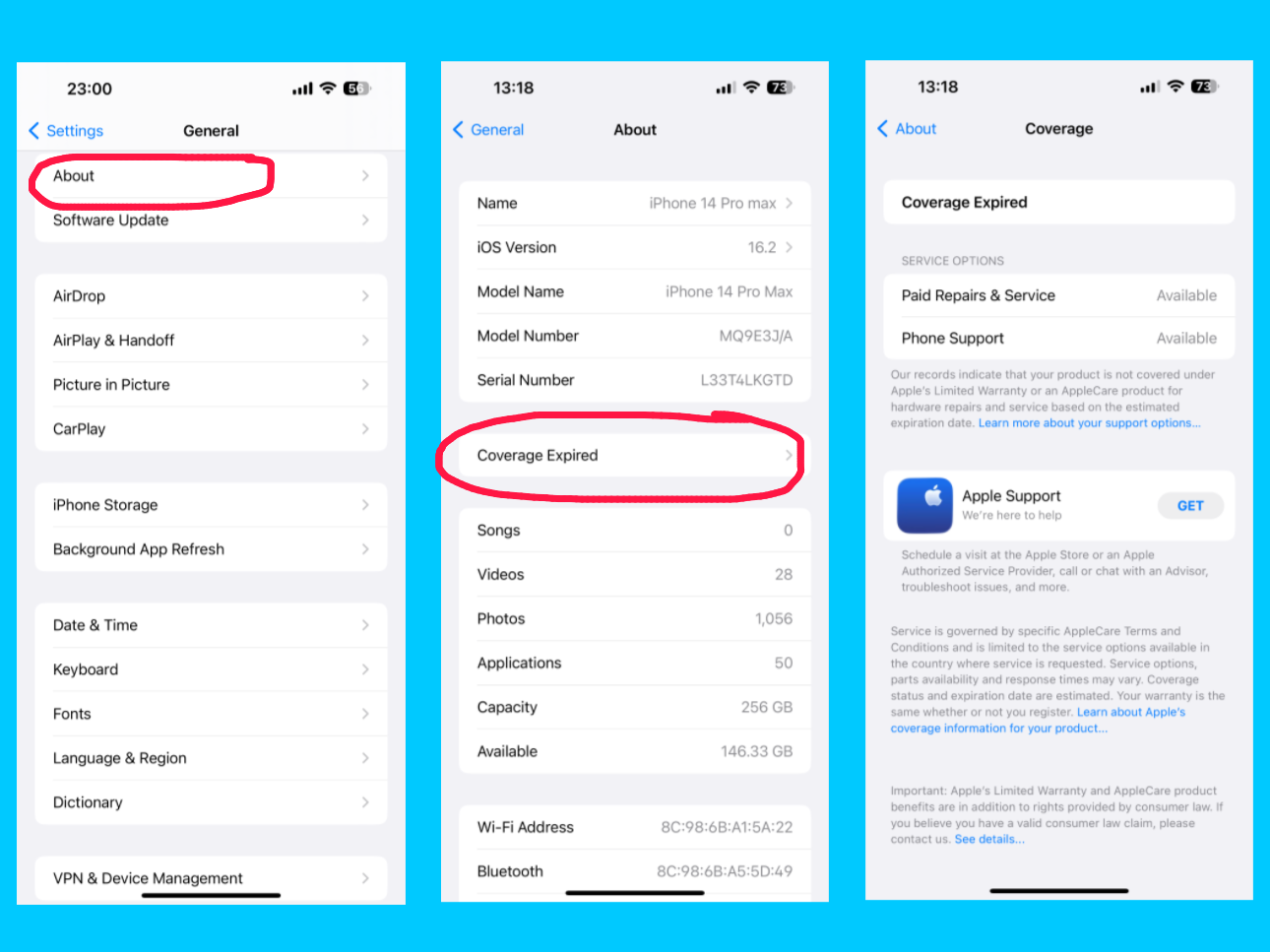
In the About section of your iPhone 14 Pro Max, you might also see a message that says “Coverage Expired.” This means your iPhone’s limited warranty or AppleCare coverage has ended. When your coverage is active, this section usually displays details about your warranty and AppleCare plan, but once it expires, it simply shows “Coverage Expired.” Even if your coverage has ended, you can still get help and services by downloading the Apple Support app. Through the app, you can schedule a visit at an Apple Store or an Apple Authorized Service Provider, call or chat with an Apple advisor, troubleshoot issues, and much more. It’s a convenient way to get expert help and keep your iPhone working smoothly, even after your warranty period is over.
Certificate trust setting
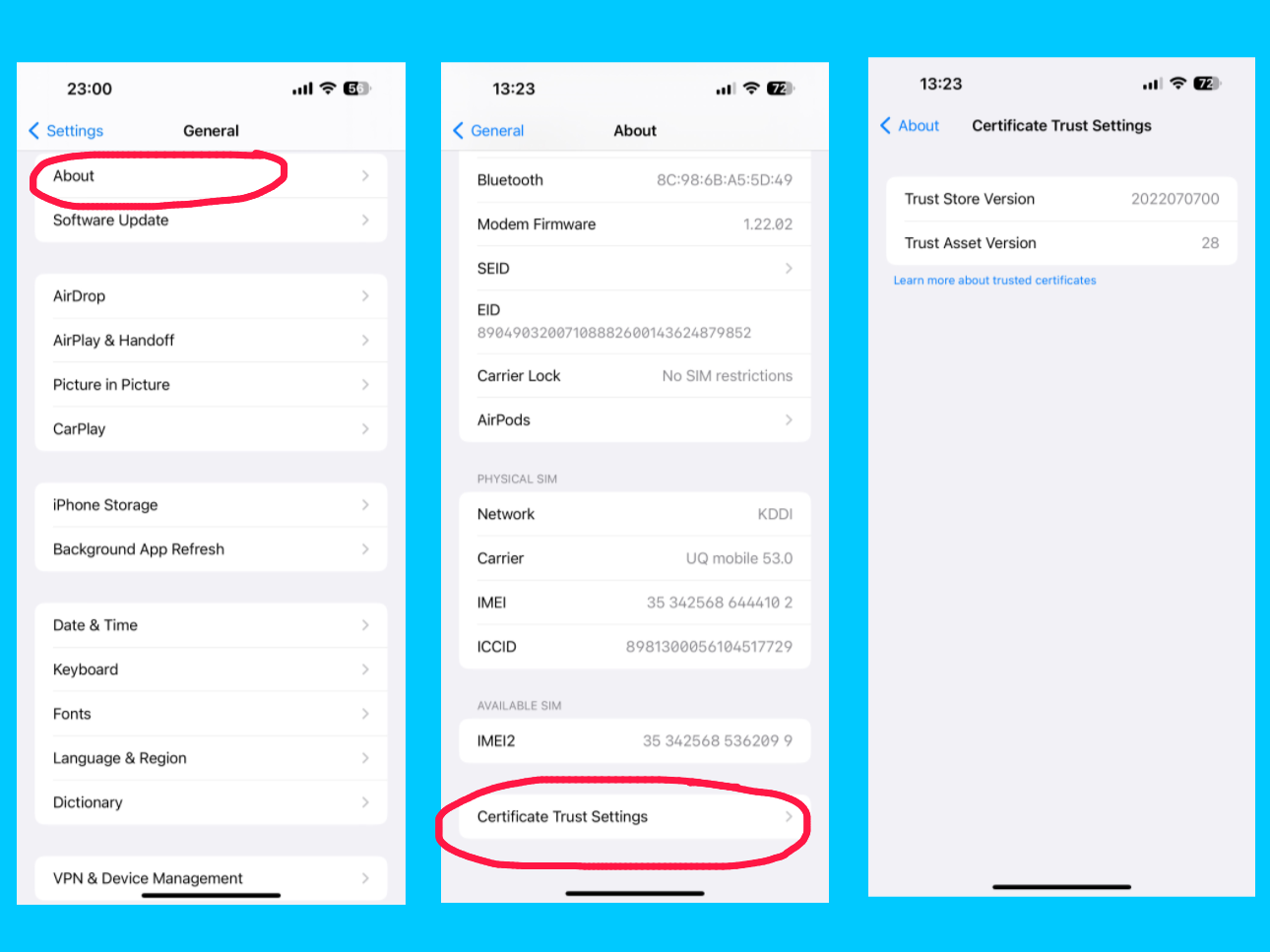
The Certificate Trust Settings in the About section of your iPhone 14 Pro Max allow you to manage which installed certificates are trusted by your device. Certificates are digital documents used to verify the identity of websites, apps, or networks and ensure secure connections. In this section, you can enable or disable trust for specific certificates, which affects how your iPhone connects securely to networks, email servers, or websites. This setting is especially useful for enterprise or school accounts, where custom certificates are required for secure access. By managing certificate trust, you can ensure your device stays secure while connecting to trusted services. Under the Certificate Trust Settings on your iPhone 14 Pro Max, you may also see Trust Store Version and Trust Access Version:
- Trust Store Version:
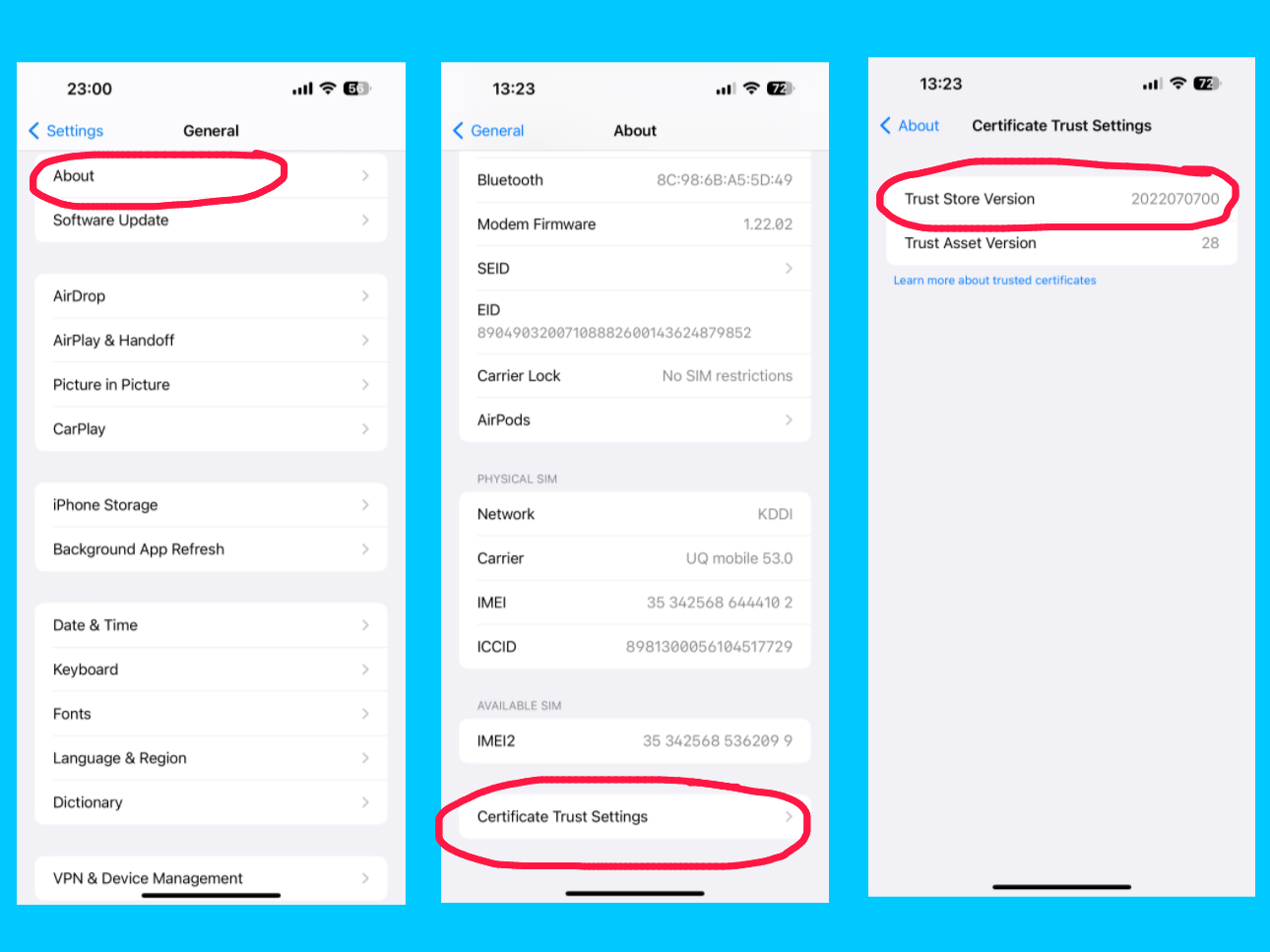
This shows the current version of Apple’s built-in list of trusted root certificates. These certificates help your iPhone verify the authenticity of websites, apps, and secure connections. Apple updates this list regularly to keep your device secure from untrusted or malicious sources.
- Trust Asset Version:
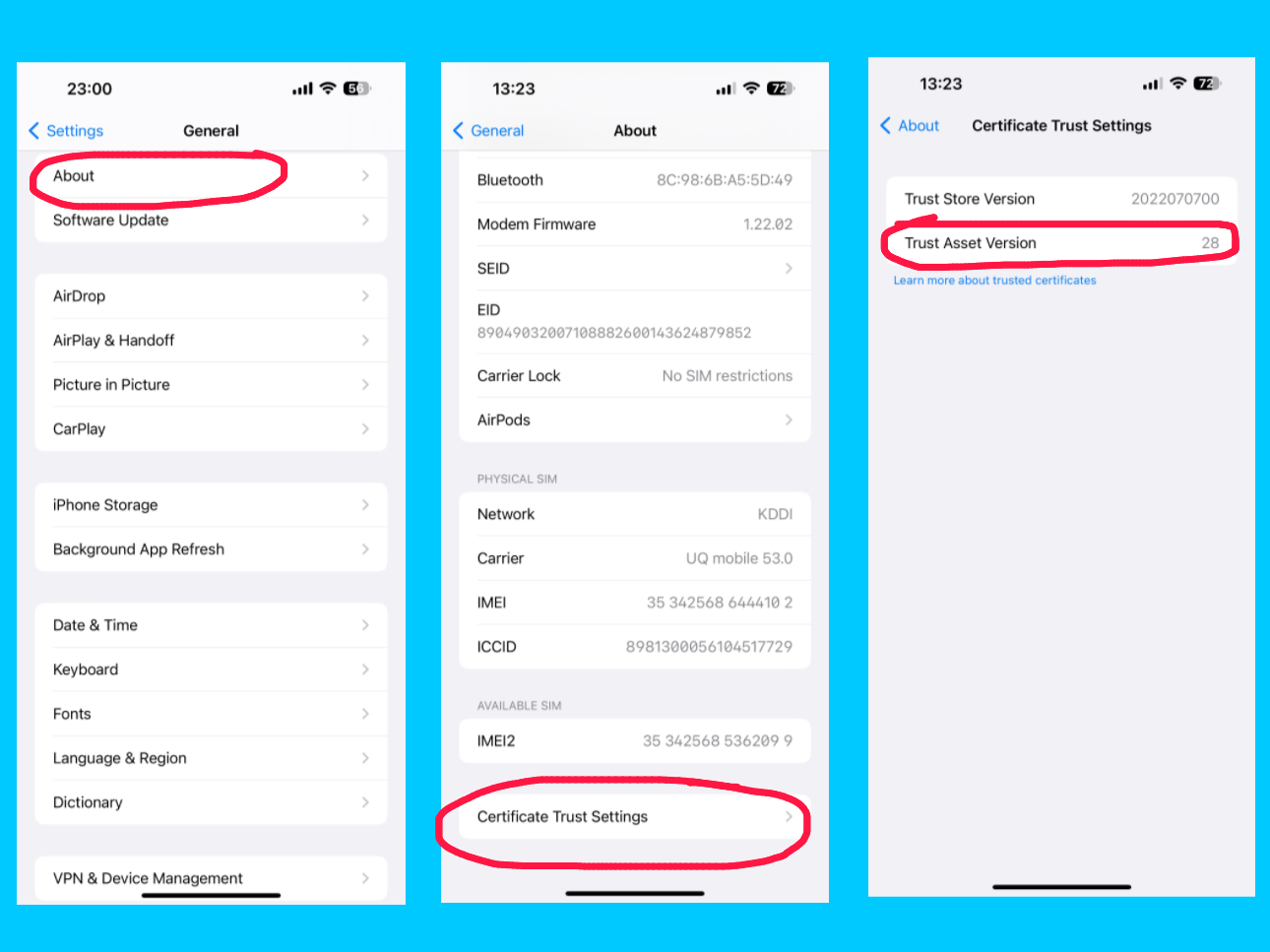
This indicates the version of the system that manages which apps and services can access the trusted certificates on your device. It ensures that only authorized apps can use certificates for secure connections, helping maintain your iPhone’s security and privacy.
These versions help your iPhone stay up-to-date and protected when connecting to networks, websites, and other services that rely on secure certificates.
Software update
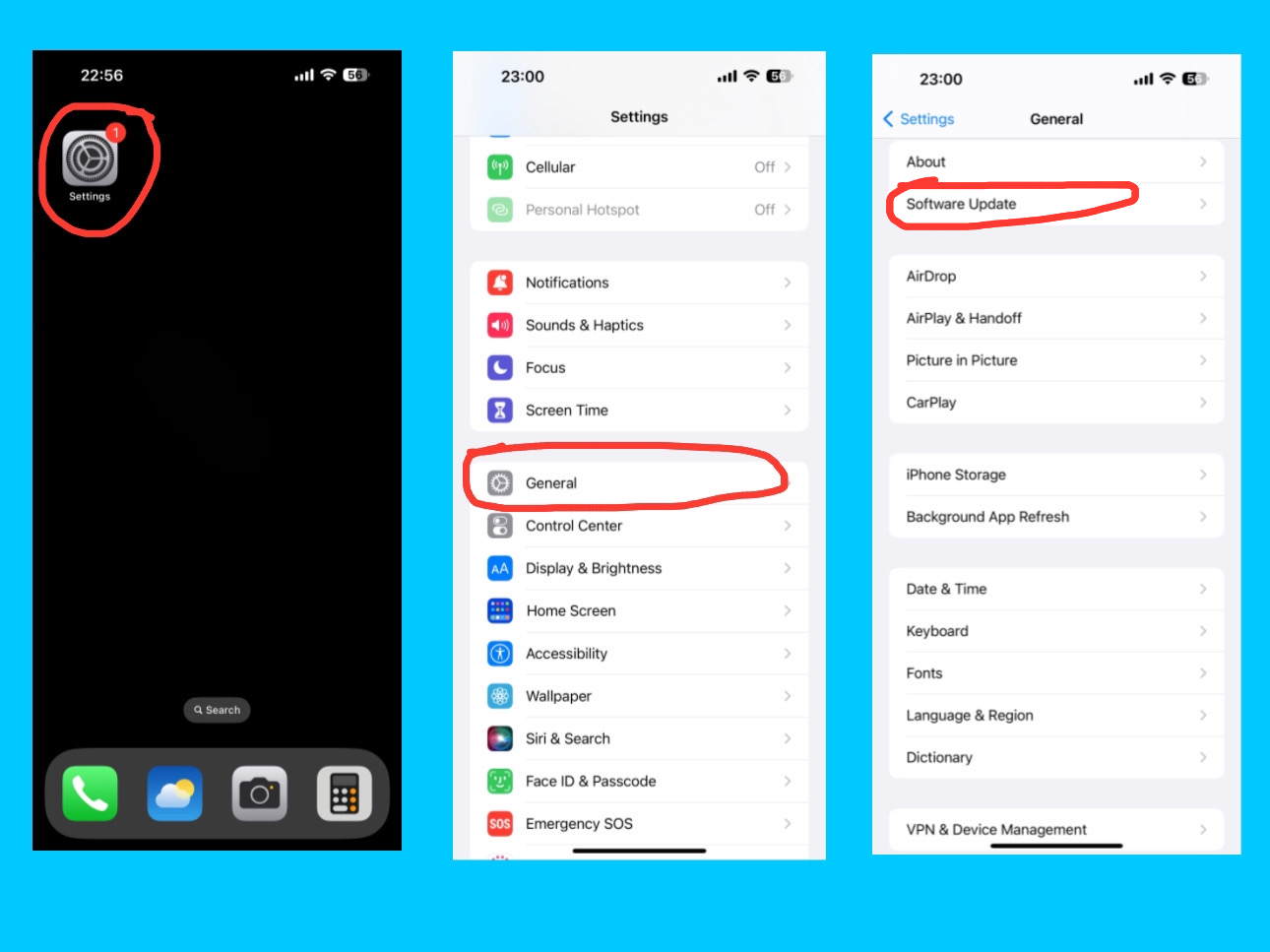
The Software Update option on your iPhone 14 Pro Max lets you check for and install the latest iOS updates. Here, you can see the current version of your iPhone as well as the latest available version that you can download and install. Keeping your device updated ensures it has the latest features, security improvements, and bug fixes, helping your iPhone run smoothly and safely. You can manually check for updates or enable automatic updates, which will download and install new iOS versions overnight when your iPhone is connected to Wi-Fi and charging. Updates often include important security patches, fixes for software issues, and new features or system improvements. You can also view your update history to see which iOS versions have been installed. Regularly updating your iPhone ensures the best performance, security, and access to all new features.
Automatic updates
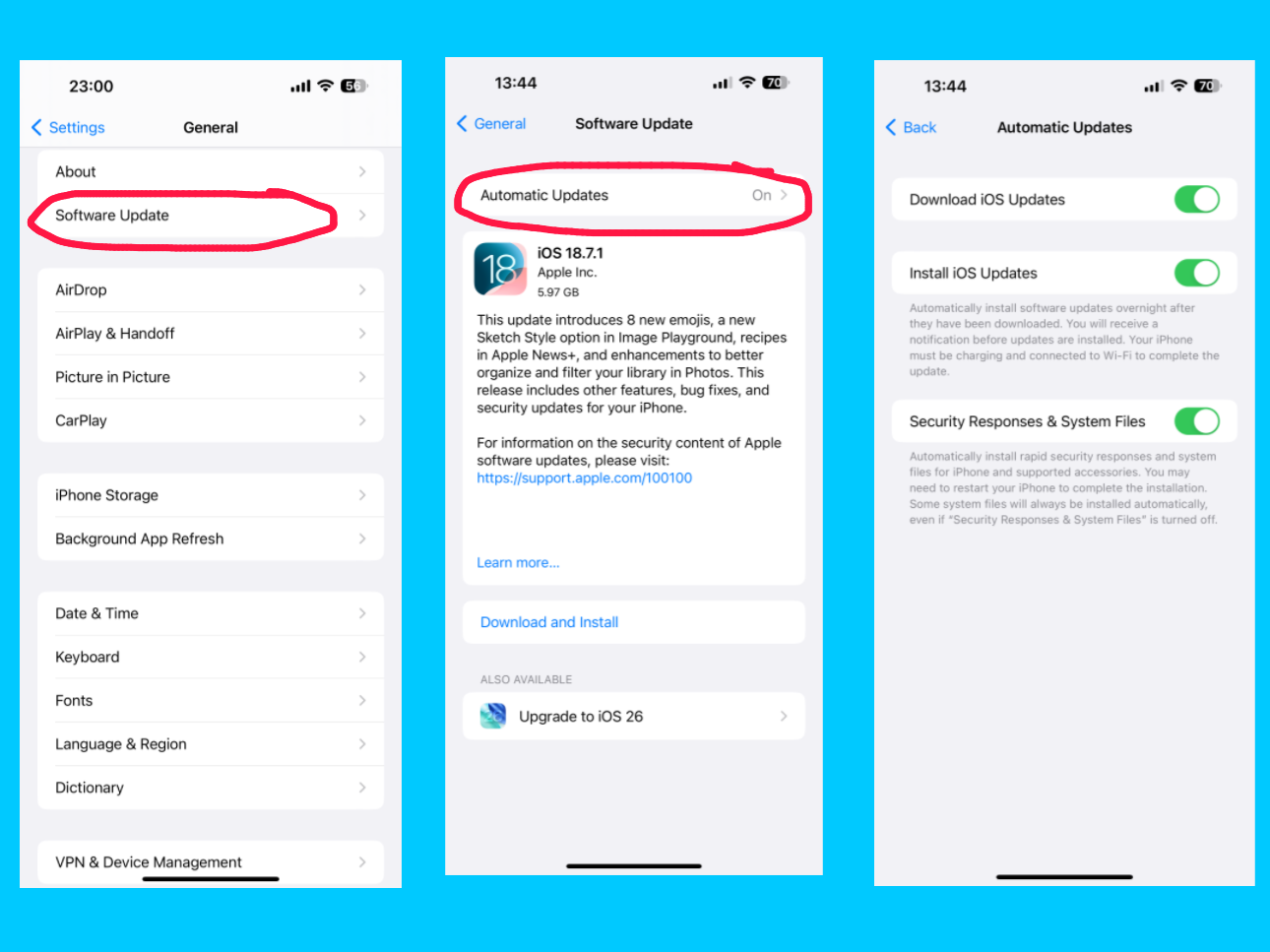
Under the Software Update setting on your iPhone 14 Pro Max, you can find the Automatic Updates option. This allows you to turn on automatic downloading and installation of iOS updates, including security patches, system files, and other important updates. Once enabled, your iPhone can download new updates in the background and install them overnight while connected to Wi-Fi and charging, ensuring your device stays secure, up-to-date, and running smoothly without any manual effort.
AirDrop
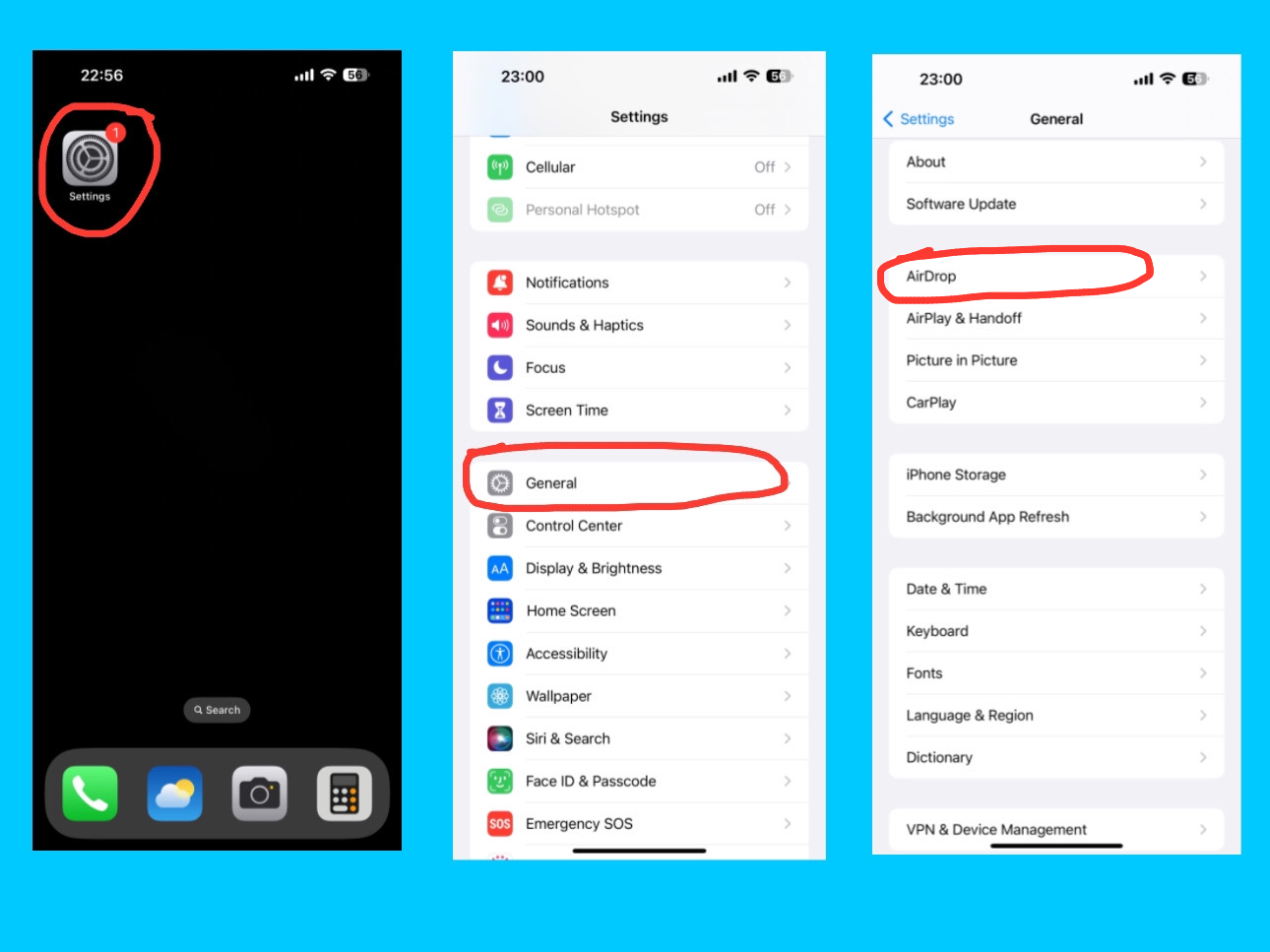
The AirDrop option allows you to instantly share files, photos, videos, contacts, and more with nearby Apple devices, like iPhones, iPads, and Macs, without using email or messaging apps. It uses Bluetooth and Wi-Fi to create a secure and fast connection between devices. AirDrop also lets you control who can send you files with three options:
- Everyone (any nearby Apple device can send you files)
- Contacts Only (only people in your contacts can send files)
- Receiving Off (you won’t receive files from anyone)
These settings help you manage privacy while keeping file transfers simple and secure across Apple devices.
AirPlay & Handoff
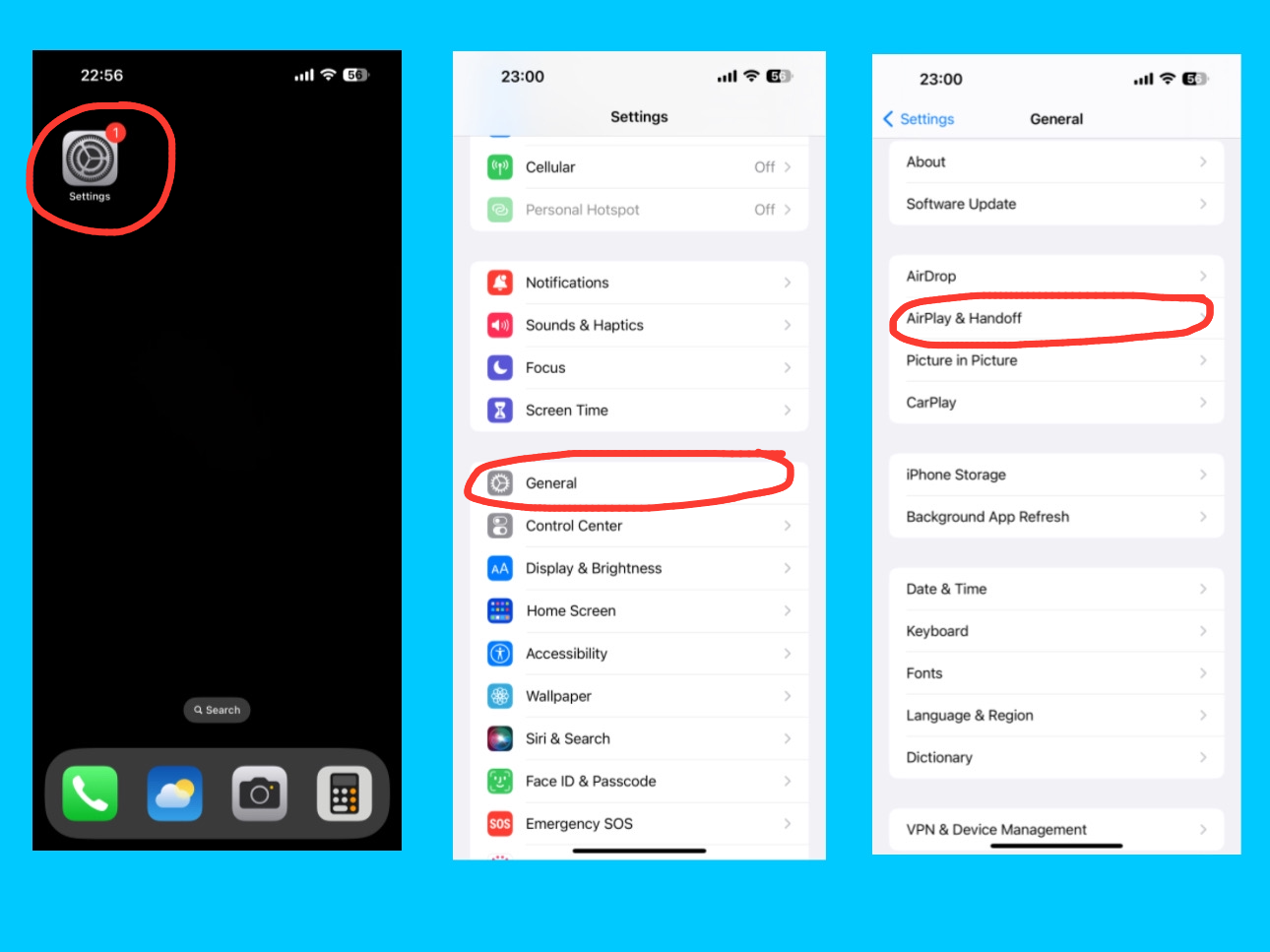
The AirPlay & Handoff option on your iPhone 14 Pro Max lets you connect and share content seamlessly with other Apple devices. With Handoff, you can start an activity, like writing an email or browsing Safari, on your iPhone and continue it on your iPad or Mac without losing progress. The AirPlay feature allows you to stream music, videos, or your screen to Apple TV or other AirPlay-compatible devices. You can also enable your iPhone to automatically detect nearby Apple TVs for instant streaming. These features work across devices signed in with the same Apple ID, making it easy to switch between devices, share content, and stay productive or entertained effortlessly.
Automatically AirPlay to TV’s
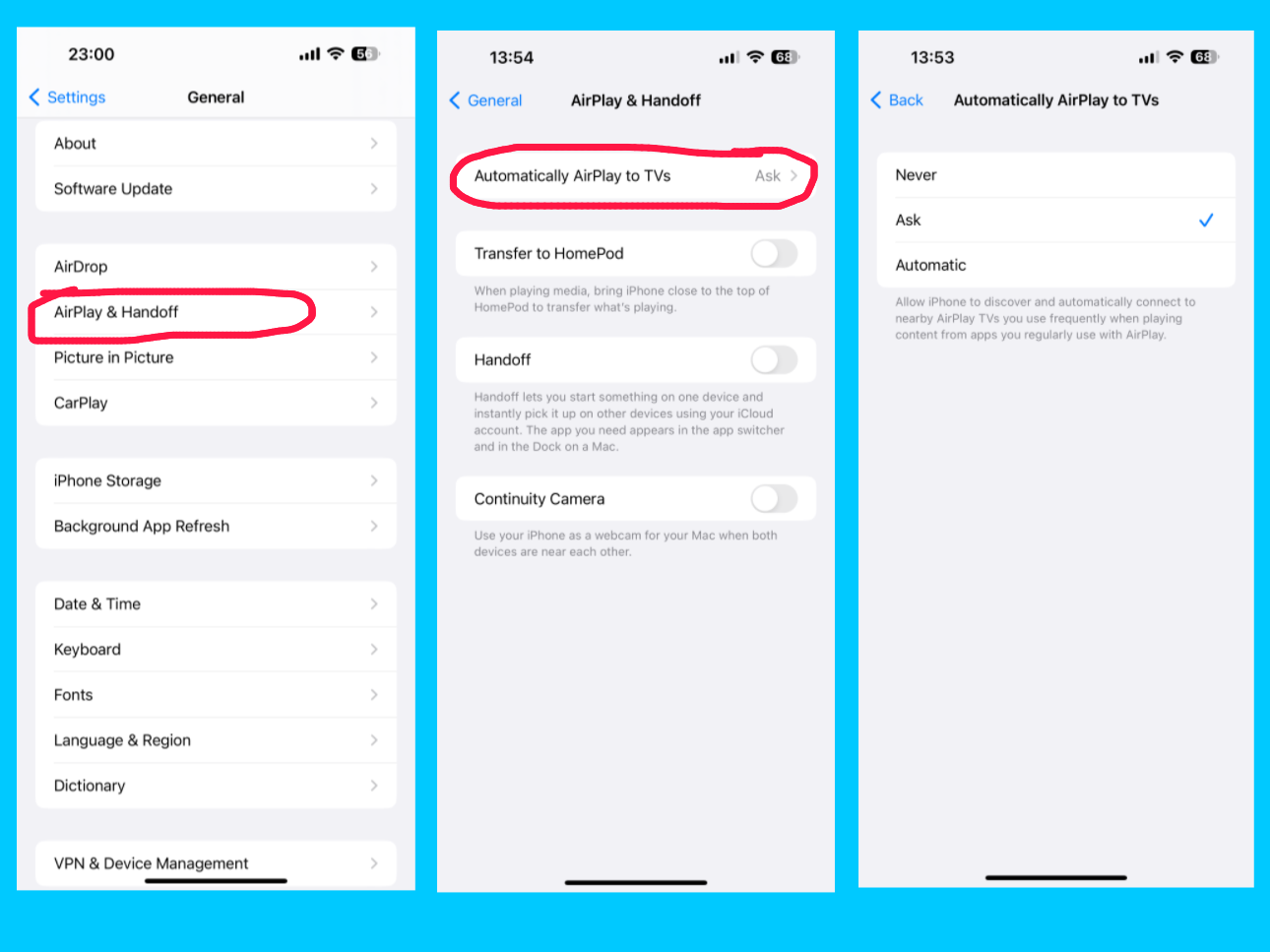
The Automatically AirPlay to TVs option under AirPlay & Handoff on your iPhone 14 Pro Max lets your device detect nearby Apple TVs or AirPlay-compatible smart TVs and connect automatically for streaming content. You can choose whether your iPhone should always, never, or only ask when connecting to a TV. This feature makes it quick and easy to stream videos, music, or your screen without manually selecting a device each time, providing a seamless entertainment experience across Apple devices.
Transfer to HomePod

 The Transfer to HomePod option under AirPlay & Handoff on your iPhone 14 Pro Max allows you to quickly move audio playback from your iPhone to a nearby HomePod. When this feature is enabled, simply bring your iPhone close to a HomePod, and the music, podcast, or any audio playing on your device will automatically transfer to the HomePod for continued listening. This provides a seamless and hands-free way to enjoy your audio on a more powerful speaker without manually connecting or selecting the device.
Handoff
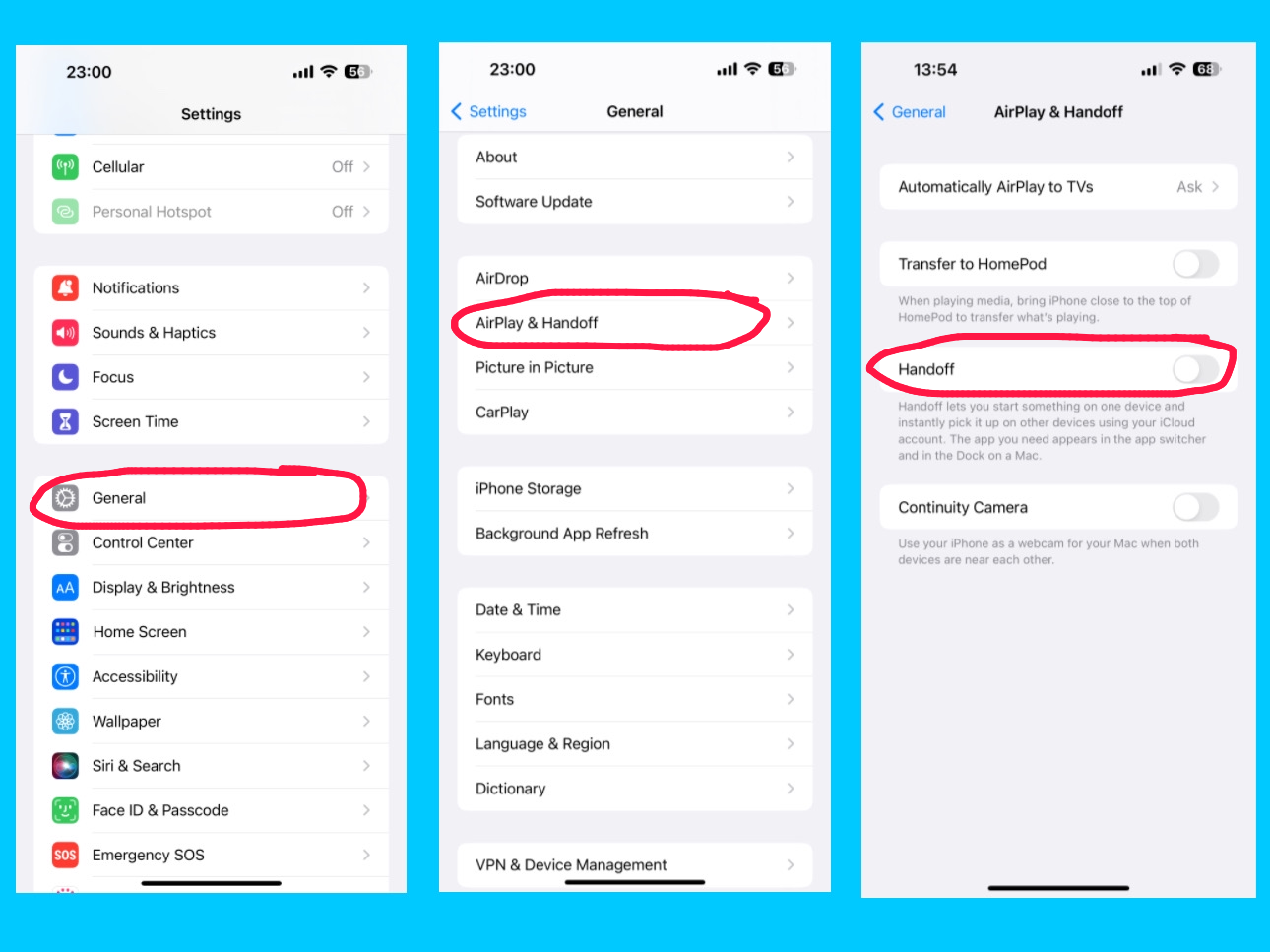
The Handoff option under AirPlay & Handoff on your iPhone 14 Pro Max allows you to start a task on one Apple device and continue it on another seamlessly. For example, you can begin composing an email, browsing a webpage, or working on a document on your iPhone and then pick up exactly where you left off on your iPad, Mac, or Apple Watch. Handoff works across all Apple devices signed in with the same Apple ID and connected via Wi-Fi and Bluetooth, making it easy to switch devices without losing progress and stay productive across your Apple ecosystem.
Continuity Camera
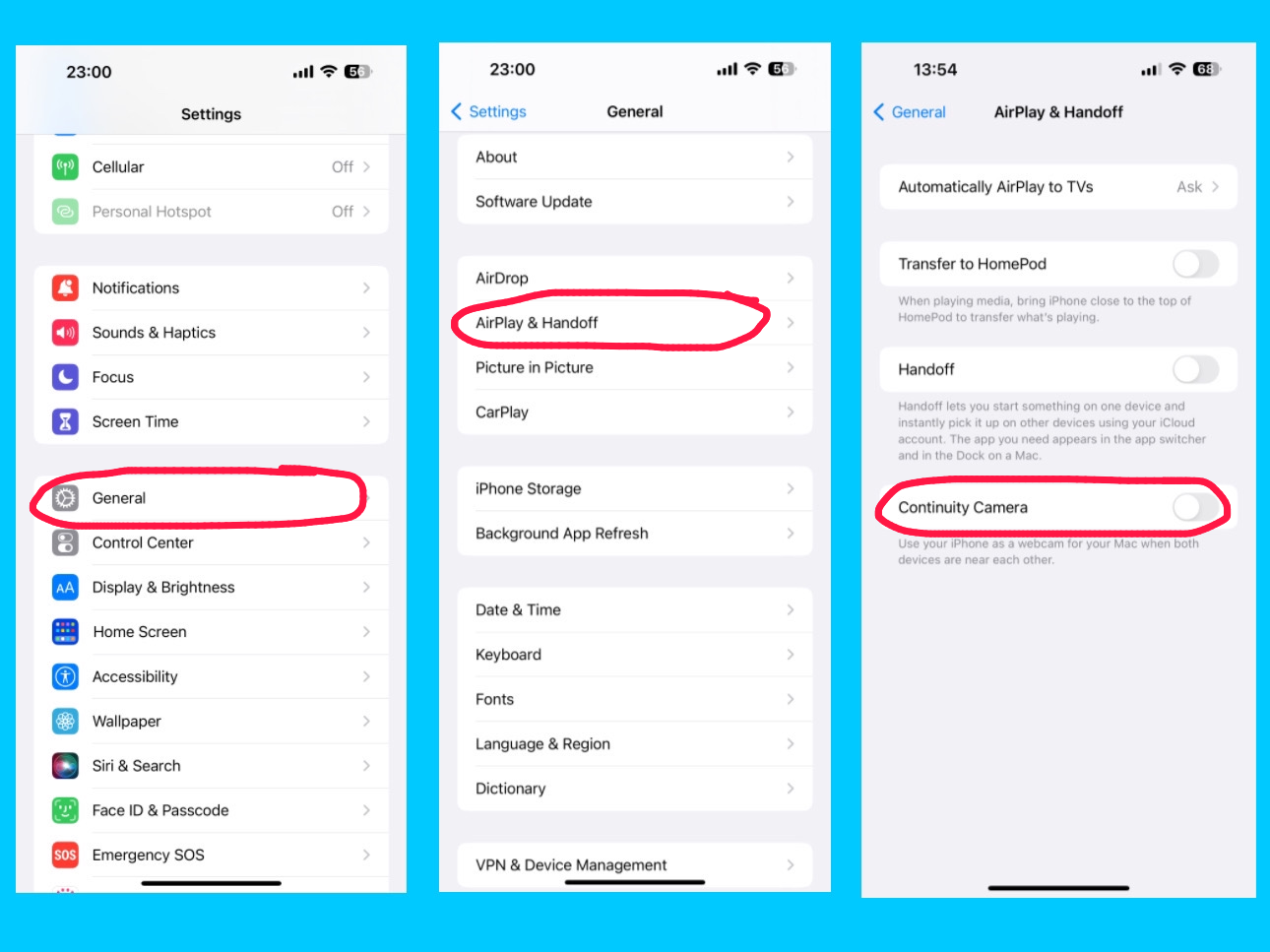
The Continuity Camera option under AirPlay & Handoff on your iPhone 14 Pro Max lets you use your iPhone as a camera or scanner for your Mac. With this feature, you can take a photo or scan a document on your iPhone, and it will instantly appear on your Mac in apps like Mail, Notes, or Finder. Continuity Camera works seamlessly across devices signed in with the same Apple ID, making it easy and fast to capture images or documents without needing cables or manual transfers.
Picture in Picture

The Picture in Picture (PiP) option on your iPhone 14 Pro Max allows you to watch videos or use FaceTime in a small floating window while using other apps. When you swipe up to go home or open another app, videos and FaceTime calls will automatically continue in Picture in Picture, so you don’t miss a moment. The PiP window can be moved around the screen, resized, or minimized, giving you a flexible and multitasking-friendly experience without interrupting your workflow or entertainment.
For example, you are on a FaceTime call and open Messages to reply to a text. The call continues in a small floating window while you type. For example, you are watching a video and check your email. The video keeps playing in a corner while you read your emails. This way, you can do multiple things at once without stopping your video or call.
CarPlay
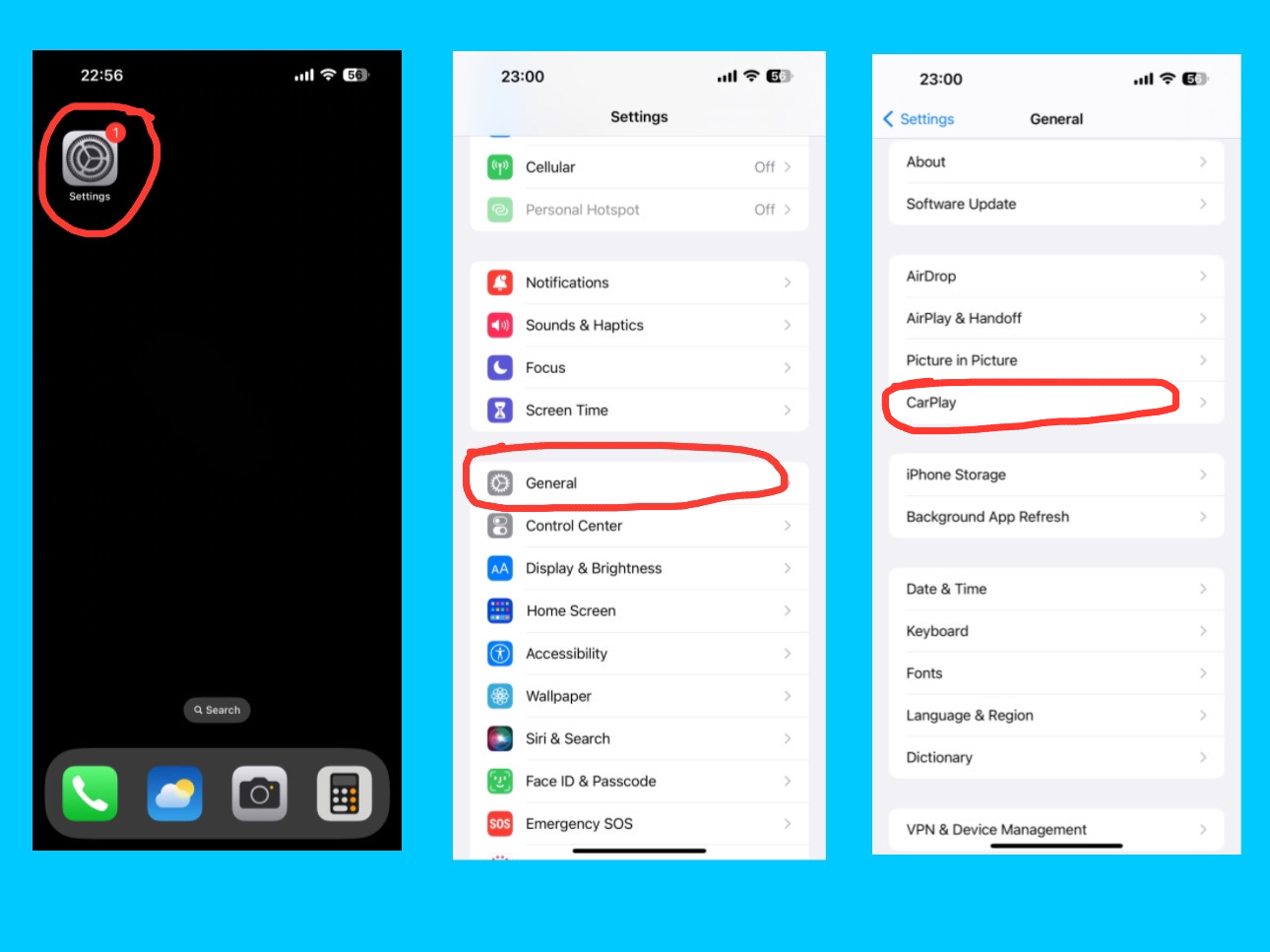
CarPlay lets you connect your iPhone to your car’s built-in display so you can safely use iPhone features while driving. Once connected, you can use apps like Maps, Music, Messages, and Phone directly on your car’s screen. You can also control CarPlay with Siri voice commands, so you can make calls, send messages, or get directions hands-free.
iPhone Storage
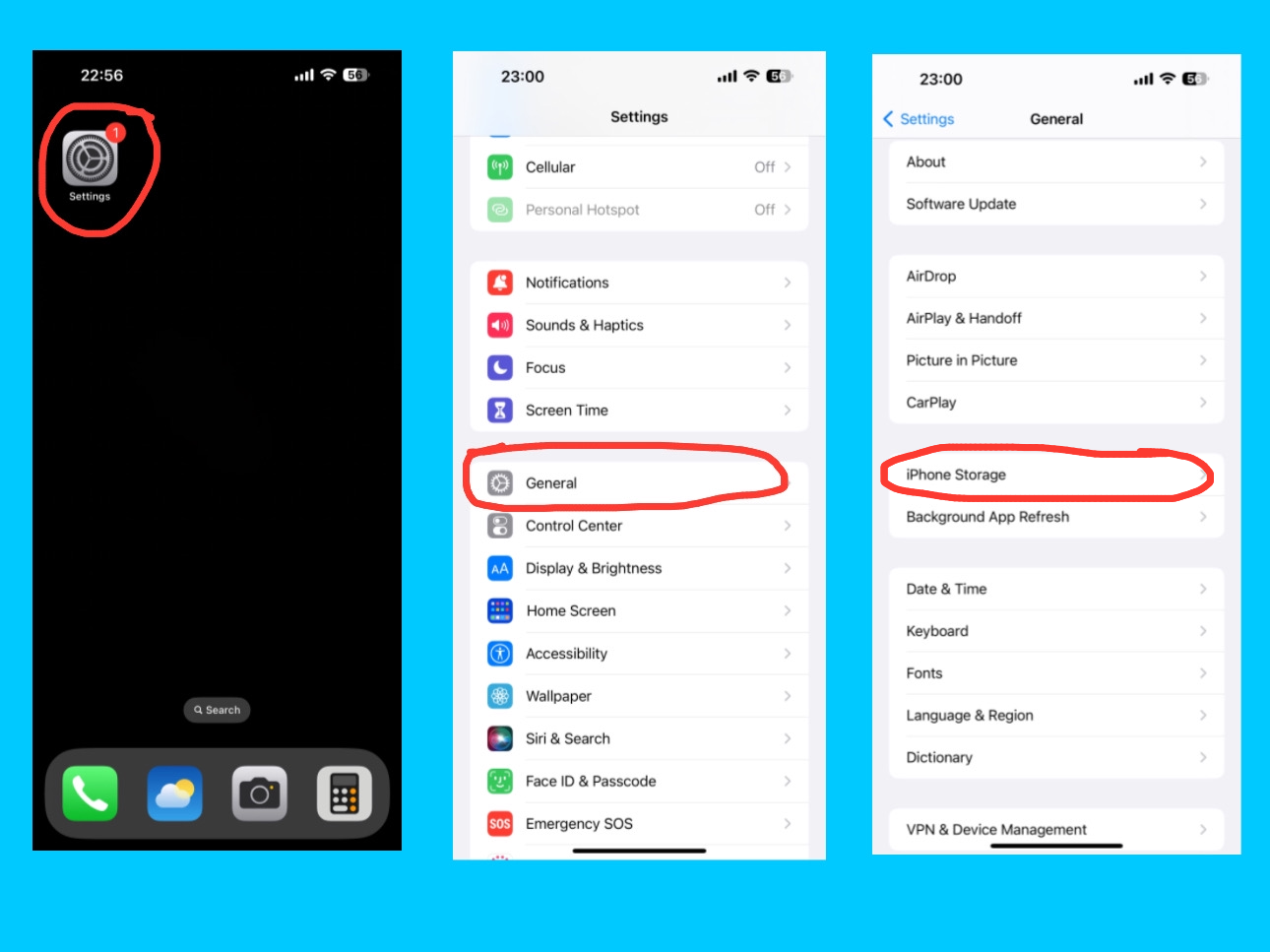
The iPhone Storage setting shows how much space is being used on your device and what’s taking up that space — such as apps, photos, messages, and system data. You can check how much free storage is left and get recommendations to optimize storage, like offloading unused apps or storing photos in iCloud.
Background App Refresh
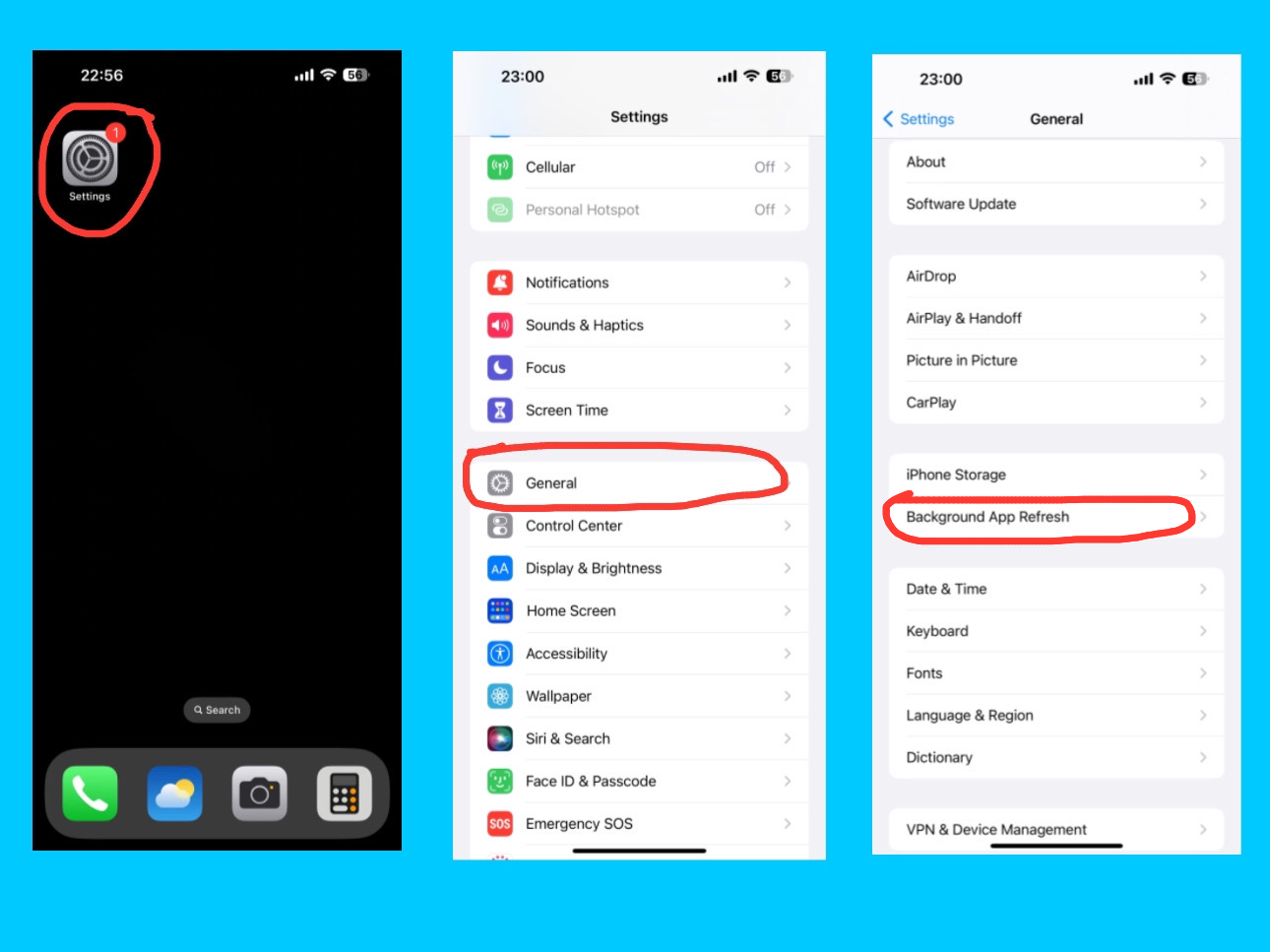
Background App Refresh allows apps to update their content even when you’re not using them. For example, your email app can fetch new messages or your news app can load the latest headlines while running in the background. You can choose to turn it on for Wi-Fi, Wi-Fi & Mobile Data, or off completely.
Conclusion
Understanding the iPhone 14 Pro Max General Settings is the key to getting the most out of your device. From managing software updates and storage to using AirDrop, AirPlay & Handoff, Picture in Picture, CarPlay, and Background App Refresh, these settings make your iPhone easier, faster, and more enjoyable to use. By exploring and customizing these options, you can fully unlock the power of your iPhone 14 Pro Max and make it work exactly the way you want.