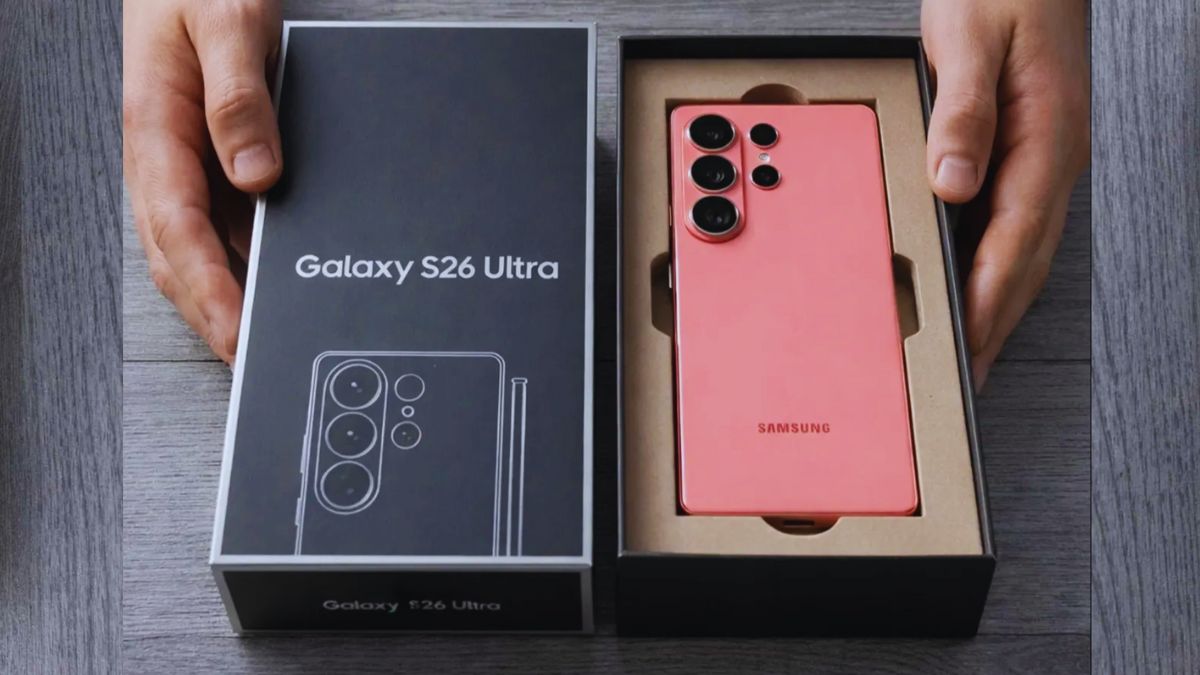
We all know that the Samsung Galaxy S26 Ultra is one of the most anticipated smartphones in the world. However, Samsung has not yet made any official announcement regarding the Galaxy S26 Ultra. According to leaks and rumors, the phone is expected to launch in January or February 2026.
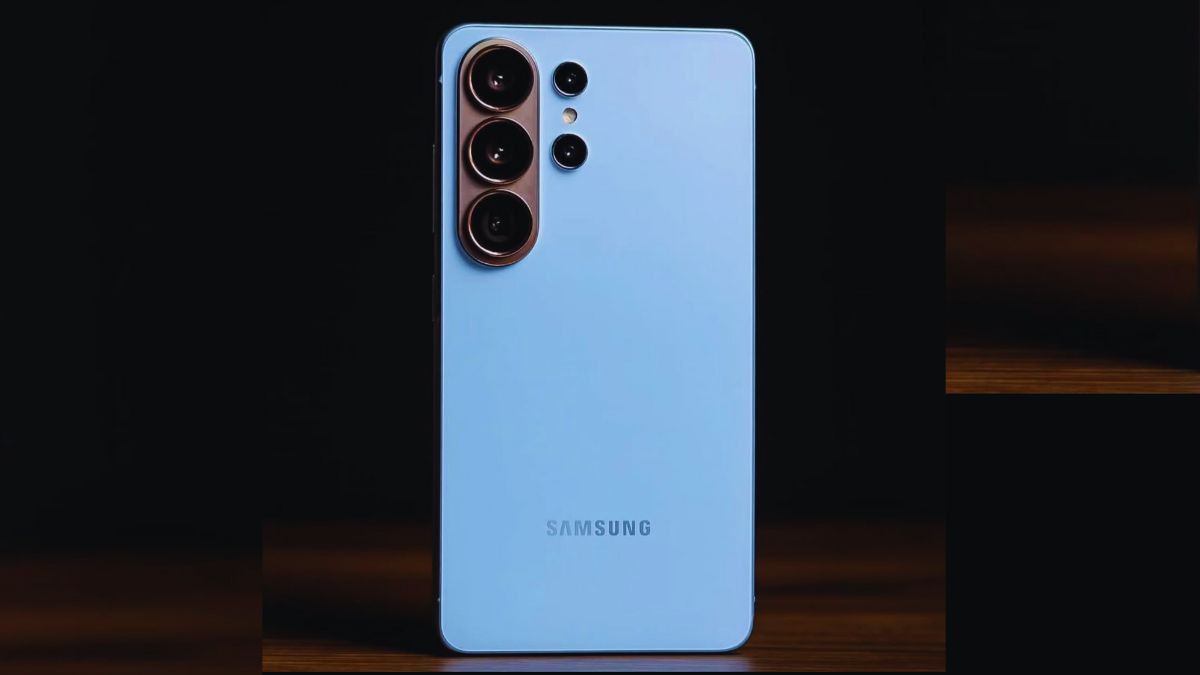
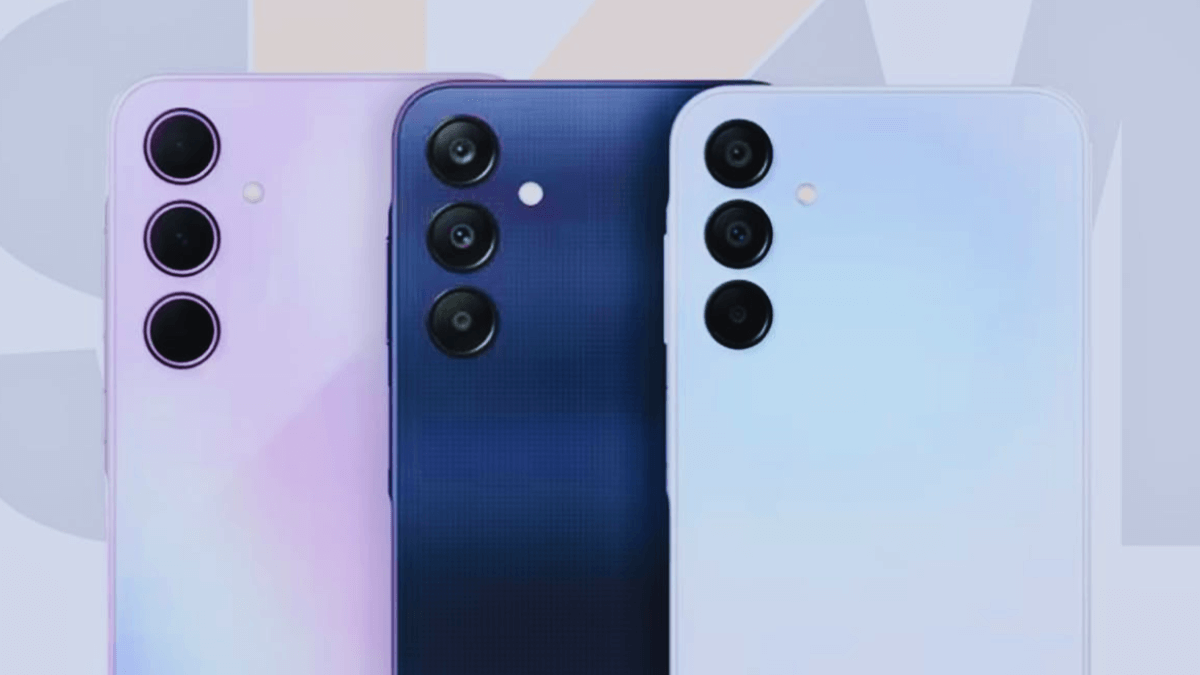
Rear view of the Samsung Galaxy S26 Ultra highlighting its triple camera system and premium design.
Recently, Samsung Galaxy S26 Ultra leaks have been trending across the internet, as many users expect this device to be one of the most powerful smartphones of 2026. Because of this excitement, people are eager to know about the Samsung Galaxy S26 Ultra release date, specifications, battery, price, and other details. As per rumors, the phone may feature a 200MP main camera and a 5000mAh battery.
Samsung Galaxy S26 Ultra specifications
The Samsung Galaxy S26 Ultra is expected to launch with Android 16 and come with many advanced features. If you are planning to buy this phone in 2026, it is important to check its specifications and expected price.
According to leaks and rumors, the phone may feature a 200MP camera, a 5000mAh battery, and the powerful Snapdragon 8 Elite Gen 5 chipset. In addition to these highlights, the Galaxy S26 Ultra is expected to offer several other premium features, which you can check in the specification table below.
The information below shows the leaked and expected specifications of the Samsung Galaxy S26 Ultra, based on current reports.
Category
Details
Operating System
Android 16, up to 7 major Android upgrades, One UI 8
60W fast charging, 35W wireless charging, 10W reverse charging
Connectivity
5G (SA/NSA), Wi-Fi 6 / 6E / 7, Bluetooth 5.4, NFC, UWB, USB-C, OTG
Audio
Stereo speakers, no 3.5 mm headphone jack
Build
Titanium frame, Gorilla Armor 2 glass
Water & Dust Resistance
IP68
Samsung Galaxy S26 Display
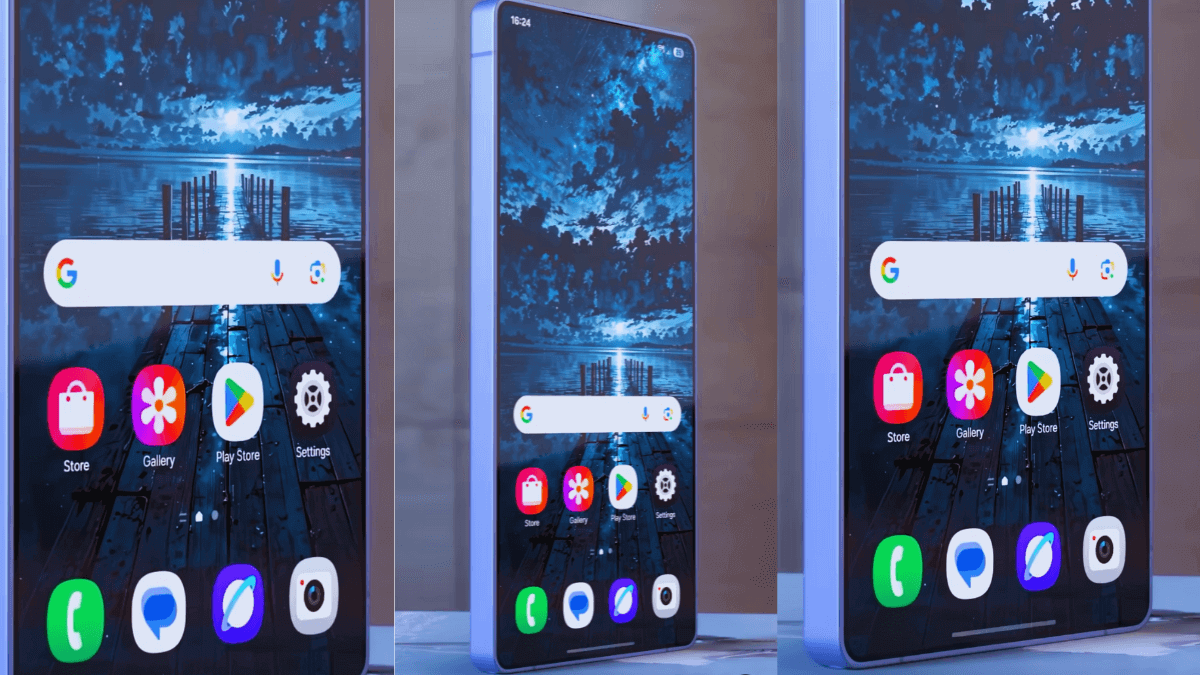
Samsung Galaxy S26 Ultra leaks reveal a large 6.9inch Dynamic AMOLED display with a smooth 120Hz refresh rate.
The phone features a 6.9-inch Dynamic AMOLED 2X display with a 1440 × 3120-pixel resolution and a 120Hz refresh rate. With up to 3000 nits of brightness, the display offers excellent visibility both indoors and outdoors, even under direct sunlight.
Samsung Galaxy S26 Camera
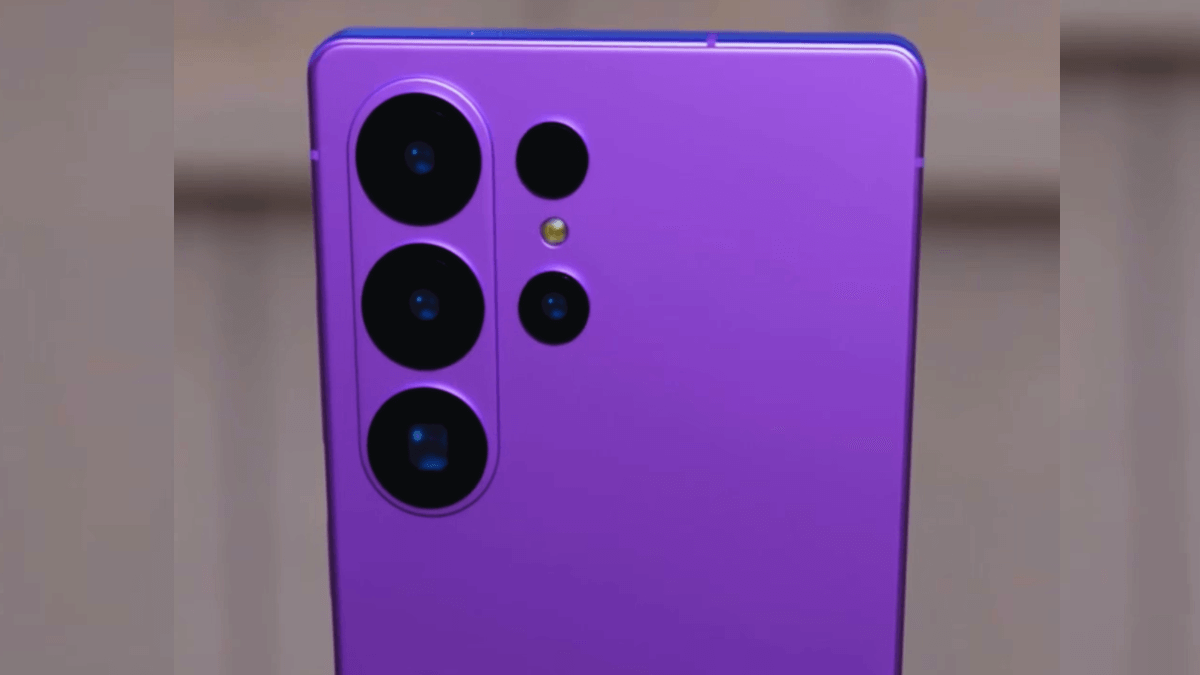
Samsung Galaxy S26 Ultra leaks suggest a powerful 200MP main camera with advanced video features.
This powerful phone features a 200MP main camera, a 50MP periscope lens, and a 12MP telephoto lens on the rear. The rear camera supports video recording at 8K @30 fps, 4K @60/120 fps, and high-frame-rate 1080p, along with advanced features such as HDR10+ and gyro-EIS.
On the front, the phone is expected to feature a 12MP camera that supports 4K video recording at 30/60 fps.
Samsung Galaxy S26 RAM & Storage
For smooth performance, a phone needs sufficient RAM, and for storing files such as photos, videos, apps, and downloads, good storage capacity is essential. Keeping this in mind, Samsung is expected to offer the Galaxy S26 Ultra with 12GB and 16GB of RAM, along with storage options of 256GB, 512GB, and up to 1TB.
Samsung Galaxy S26 Ultra battery
Every smartphone needs a powerful, large-capacity battery so users can enjoy long usage without constantly worrying about charging. Keeping this in mind, the Samsung Galaxy S26 Ultra is expected to feature a 5000mAh battery, similar to the Galaxy S25 Ultra (review) .
In addition, the phone is expected to support 60W wired fast charging, 35W wireless charging, and 10W reverse charging for added convenience.
Samsung Galaxy S26 Ultra price
The Samsung Galaxy S26 Ultra is expected to launch in the first half of 2026. According to leaks, the phone may feature a 200MP main camera, a 5000mAh battery, and a display with up to a 120Hz refresh rate, making it a great option for photographers and power users.
The expected price range for this powerful flagship phone is around $1299.99–$1399.99 for the 256GB variant, $1499.99–$1599.99 for the 512GB model, and $1699.99–$1799.99 for the 1TB storage option.
Our Final Thoughts on Samsung Galaxy S26 Ultra Leaks
You should consider waiting for this phone if you are currently using the Galaxy S23 Ultra or Galaxy S24 Ultra. However, if you are using the Galaxy S25 Ultra, the upgrade may bring only minor changes, so it might not be worth waiting unless you want the latest model. Ultimately, the decision depends on your personal needs and preferences.
The Samsung Galaxy S26 Ultra is shaping up to be one of the most exciting flagship smartphones of 2026. Based on recent Samsung Galaxy S26 Ultra leaks, the device is expected to feature a 200MP camera, a powerful chipset, a high-refresh-rate display, and long battery life, making it a strong upgrade for Samsung fans and power users. However, since all details come from leaks and early reports, the final specifications and pricing may change at launch. Stay tuned for official updates as Samsung reveals more information in the coming months.
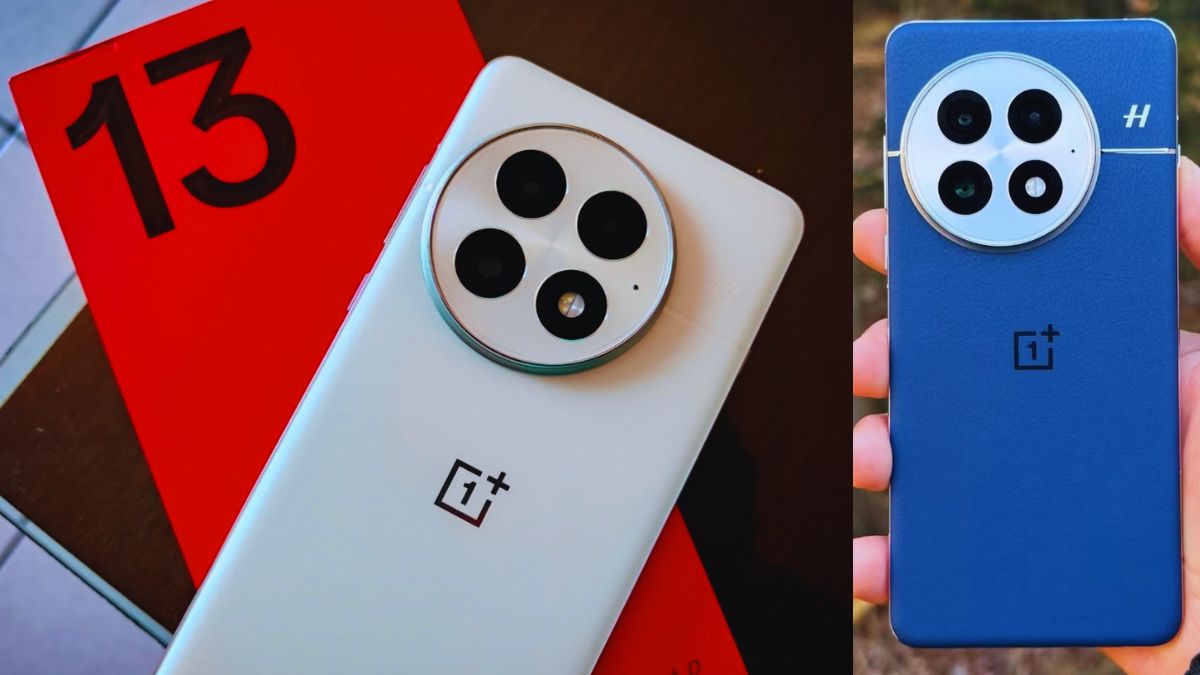
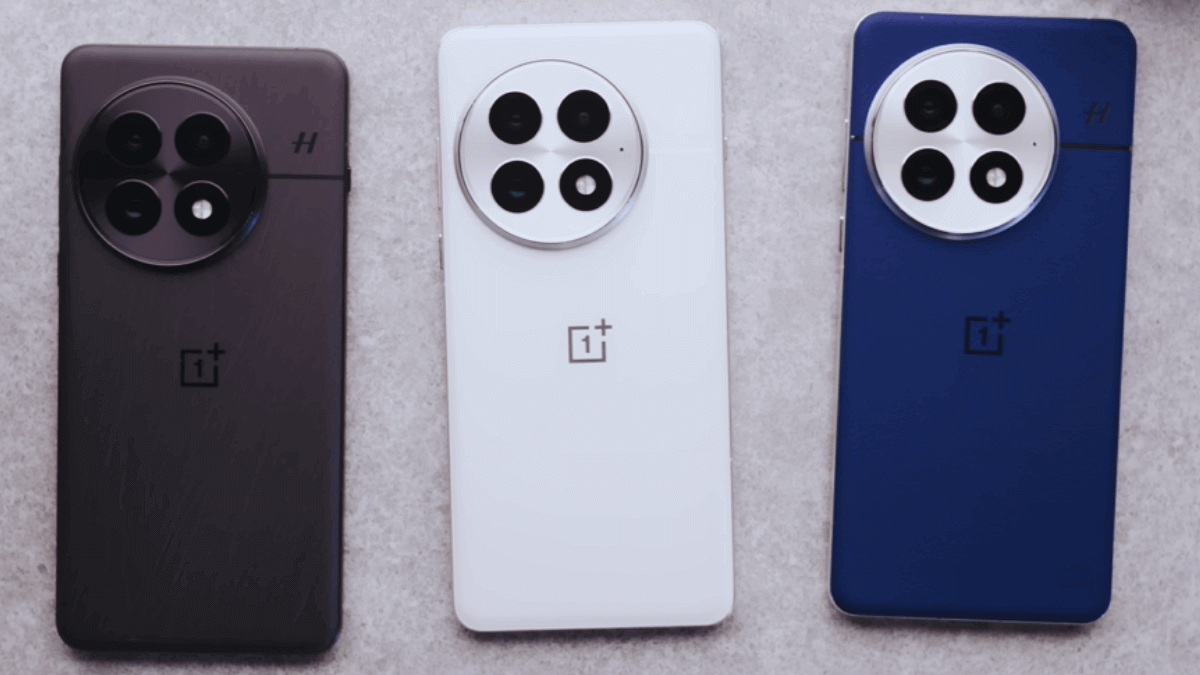
The OnePlus 13 was first released in China on November 1, 2024, and later launched globally on January 7, 2025. After its release, this smartphone has been gaining popularity due to its powerful features. People all over the world are eager to learn about the OnePlus 13 specifications, OnePlus 13 price, OnePlus 13 cases, and the OnePlus 13 vs OnePlus 13R comparison to understand the differences between these phones. The OnePlus 13 is a powerful smartphone that comes with a 50MP triple rear camera setup, a 6,000 mAh battery, and several other premium features. And This phone is available in three colors:
Black Eclipse (textured black with woodgrain)
Arctic Dawn (satin white/off-white)
Midnight Ocean (blue vegan leather)
OnePlus 13 Comes in Three Stunning Colors
OnePlus 13 specifications
This smartphone offers high-quality features and runs on Android 15. If you are planning to buy this phone, it is important to first check the OnePlus 13 specifications and price. Not only does it come with a triple rear camera setup and a 6,000 mAh battery, but it is also powered by the Snapdragon 8 Elite processor for powerful performance. Other key features are mentioned below in the table :
Specification
Details
Release Date
First released in China on November 1, 2024; globally launched on January 7, 2025
a large 6.82‑inch AMOLED display with a 1–120 Hz refresh rate
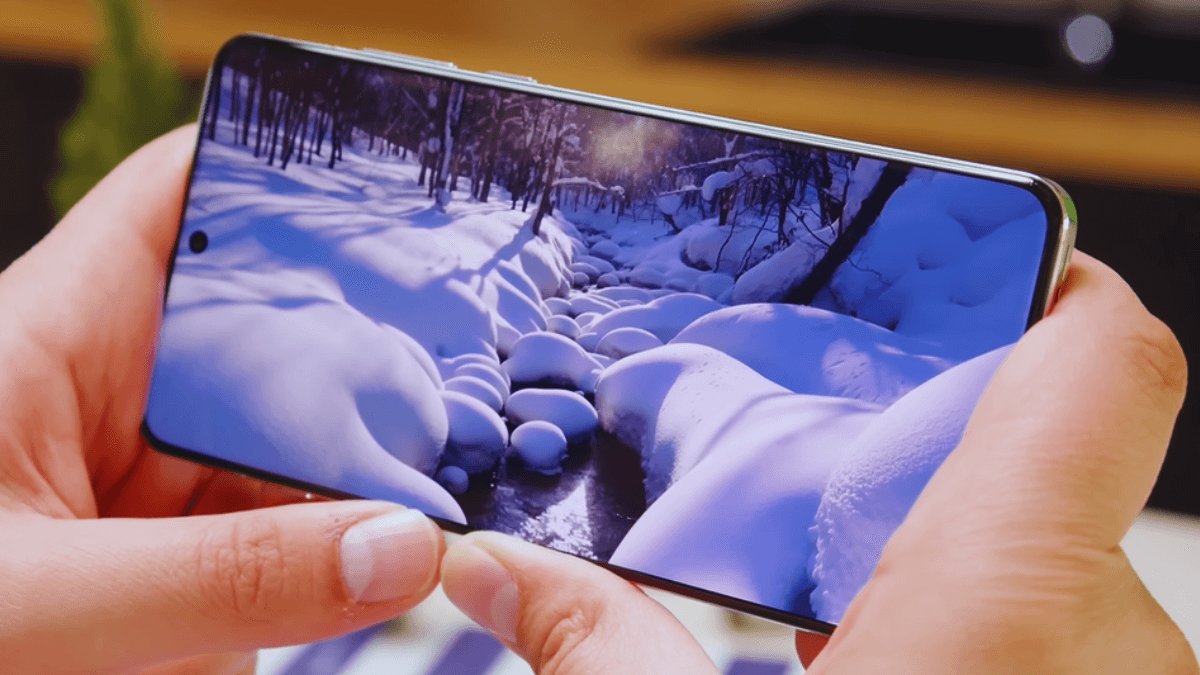
The OnePlus 13 features a 6.82‑inch AMOLED display protected by strong “Ceramic Guard” glass, a super‑ceramic material designed to resist scratches and drops better than traditional smartphone glass. It offers a 3168×1440 resolution and a 1–120 Hz refresh rate, making every swipe, scroll, and gameplay buttery-smooth. The display also supports 800 nits typical brightness, 1,600 nits in High Brightness Mode (HBM), and up to 4,500 nits peak brightness, keeping the screen clear and readable even under direct sunlight.
OnePlus 13 Camera
High-Quality Triple 50 MP Rear Cameras with 32 MP Front Camera
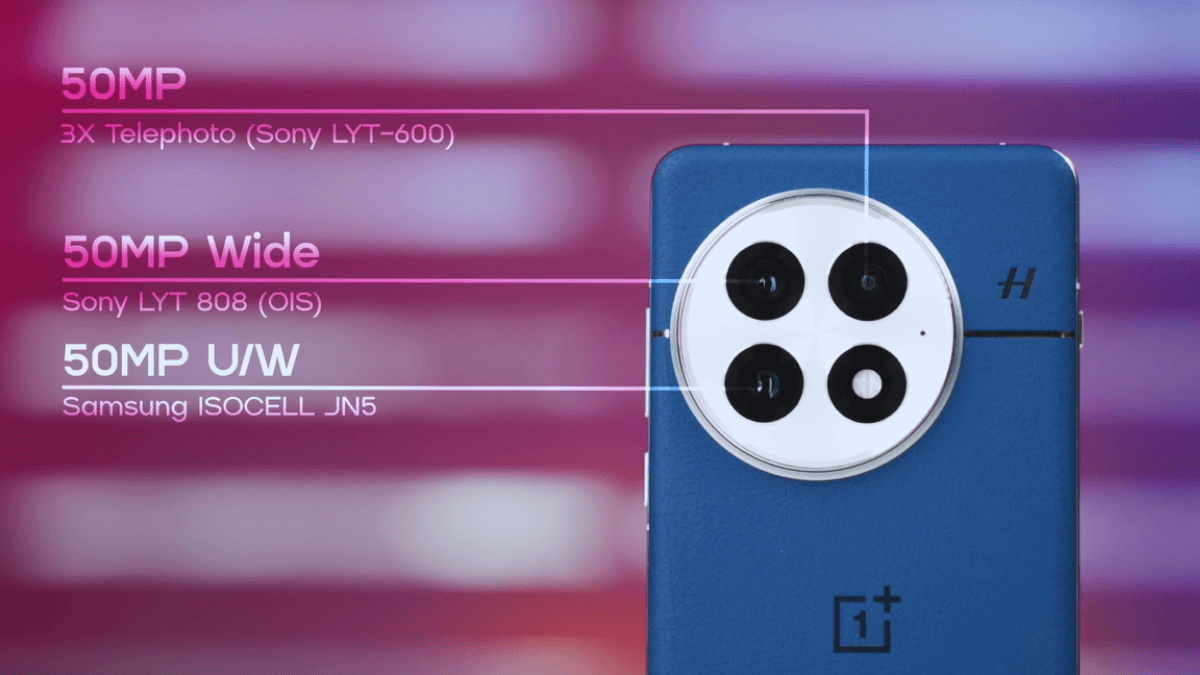
The OnePlus 13 features a triple rear camera setup, including a 50 MP main camera, a 50 MP ultra-wide camera, and a 50 MP telephoto camera. You can shoot videos at 8K@30fps, 4K@30/60fps, and 1080p@30/60/240/480fps with Auto HDR, gyro-EIS, and Dolby Vision support. Additional features include laser focus, Hasselblad color calibration, a color spectrum sensor, dual-LED flash, HDR, and panorama mode.
The OnePlus 13 also features a 32 MP front camera, which can shoot videos at 4K@30/60fps and 1080p@30/60fps with gyro-EIS. It also supports HDR and panorama mode for high-quality selfies and video calls.
OnePlus 13 RAM &Storage
In every phone, RAM is very important for handling multitasking, high-end gaming, and future updates smoothly without lag. The OnePlus 13 comes with 12 GB or 16 GB of RAM to ensure seamless performance. Storage is also crucial, as it provides plenty of space for apps, games, photos, and videos while enabling quick app launches, faster file transfers, and smooth overall operation. This phone offers 256 GB, 512 GB, and 1 TB storage options to meet different user needs.
OnePlus 13 Battery
A powerful battery is essential for a good phone, and the OnePlus 13 comes with a 6,000 mAh battery that lets you use it for a long time on a single charge. It supports 100 W wired charging, allowing you to reach 50% in just 13 minutes and 100% in 36 minutes. The phone also features 50 W wireless charging, 10 W reverse wireless charging, and 5 W reverse wired charging.
OnePlus 13 Price
When it first came out, the OnePlus 13 cost $899.99 for the 12 GB RAM + 256 GB storage model and $999.99 for the 16 GB RAM + 512 GB storage model. Prices may be different now depending on your country, so check the OnePlus official website for the latest price.
OnePlus 13 Cases
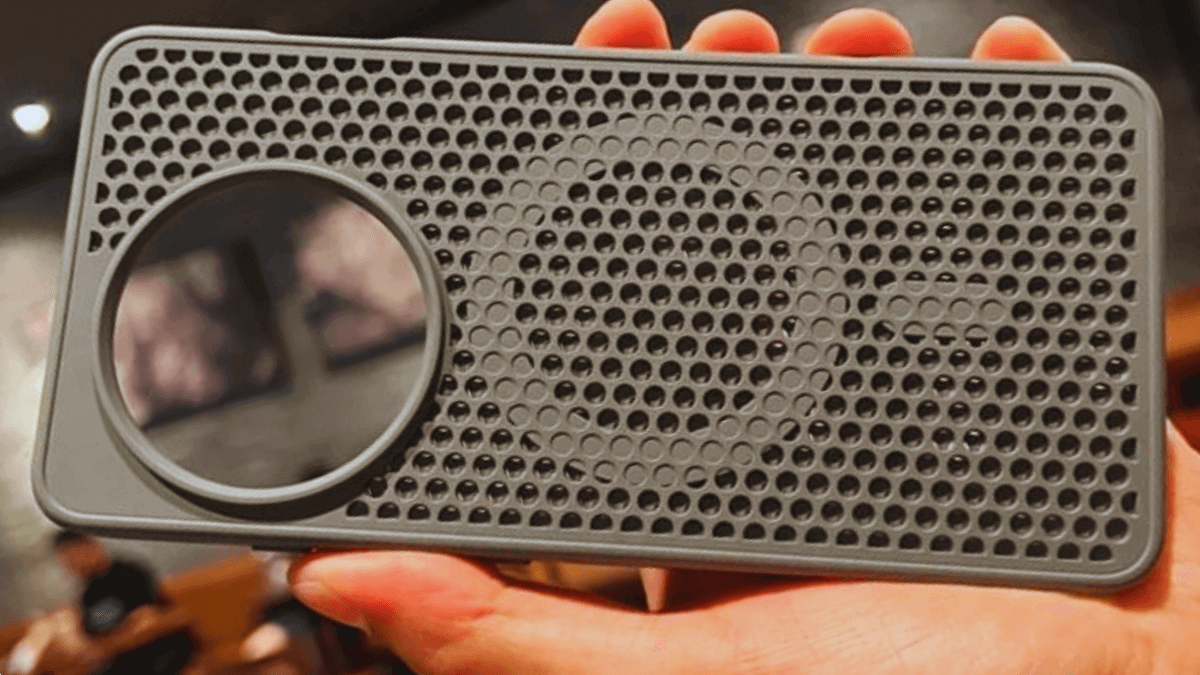
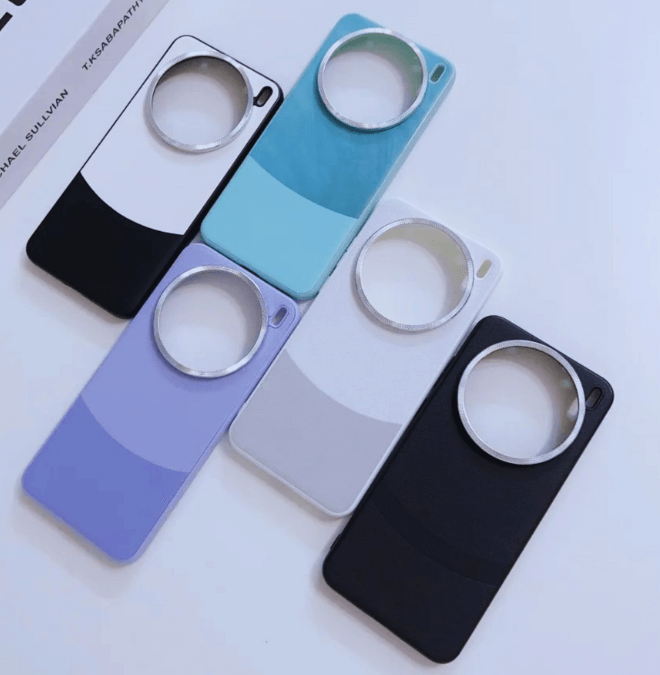
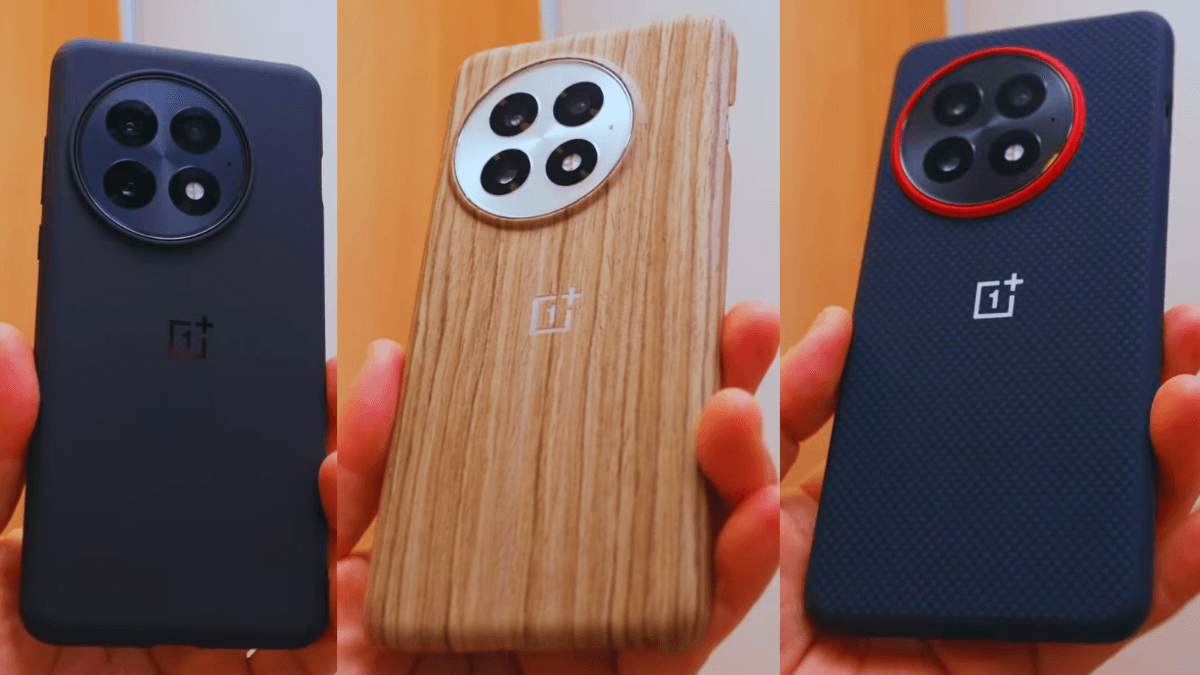
Phone cases are important for protecting your device, and the OnePlus 13 cases are widely available in the market, as shown in the picture below.
For Magsafe Magnetic Honeycomb Holes Heat Dissipation Case for the OnePlus 13.Sleek design meets reliable protection for the OnePlus 13.Three premium magnetic styles cases—Magnetic Sandstone, Magnetic Wood Grain, and Magnetic Aramid Fiber from left to right—for the OnePlus 13.
OnePlus 13 vs 13r
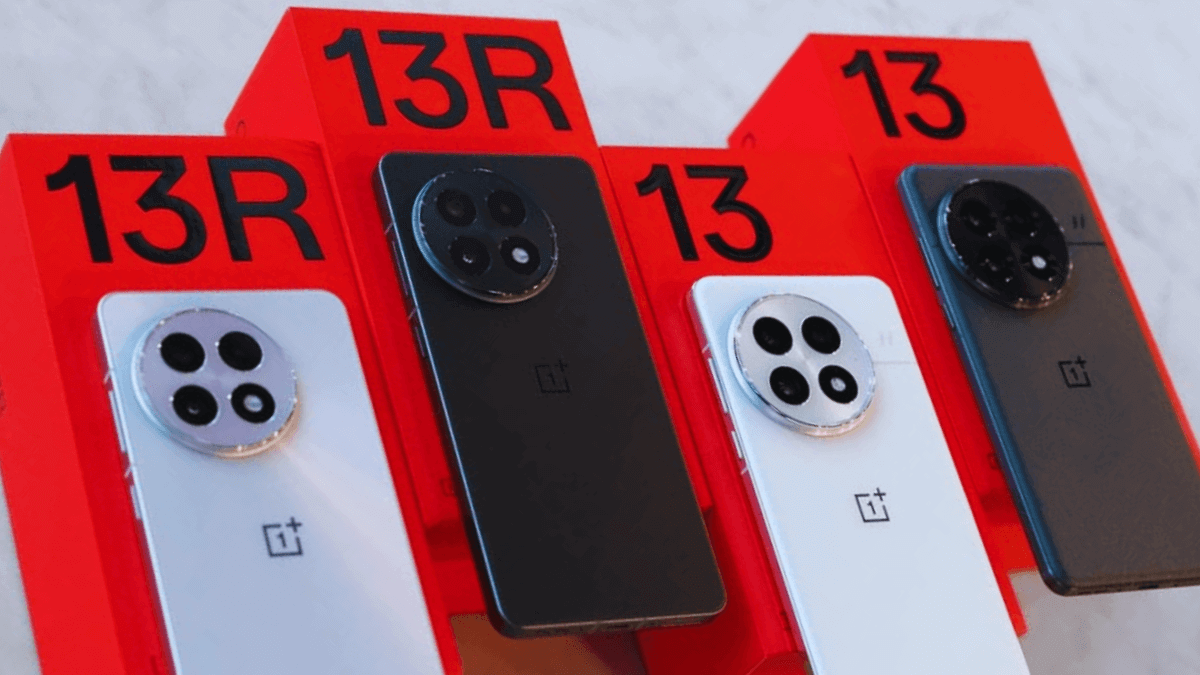
OnePlus 13 and OnePlus 13R
There are a few differences between these models, and I’ve listed them in eight points to make it easy to understand.
The OnePlus 13 has the newer Snapdragon 8 Elite chip, which makes it faster and more powerful. The OnePlus 13R uses the Snapdragon 8 Gen 3, which is still strong but a little slower than the 13.
The OnePlus 13 has a bigger 6.82‑inch screen with a sharper QHD+ display, while the OnePlus 13R has a slightly smaller 6.78‑inch screen with a 1.5K display.
The OnePlus 13 has a triple rear camera setup with a 50 MP main camera, a 50 MP ultra-wide camera, and a 50 MP telephoto camera, while the OnePlus 13R also has three rear cameras, including a 50 MP main camera, an 8 MP ultra-wide camera, and a 50 MP telephoto camera- a bit less advanced. For selfies, the OnePlus 13 features a 32 MP front camera, whereas the OnePlus 13R has a 16 MP front camera- also a bit less advanced compare to OnePlus 13.
The OnePlus 13 supports 100 W wired charging and 50 W wireless charging, while the OnePlus 13R only supports 80 W wired charging and does not have wireless charging.
The OnePlus 13 has better dust and water resistance (IP68/IP69) and a strong Ceramic Guard display, while the OnePlus 13R has slightly lower water resistance (IP65) and uses Gorilla Glass 7i.
The OnePlus 13 offers more options, including 12 GB RAM with 256 GB storage, 16 GB RAM with 512 GB storage, and up to 24 GB RAM with 1 TB storage in some markets. The OnePlus 13R has fewer choices, usually 12 GB RAM/256 GB storage or 16 GB RAM/512 GB storage.
When the OnePlus 13 was released, the price was $899.99 for the 12 GB RAM + 256 GB storage model and $999.99 for the 16 GB RAM + 512 GB storage model, while the OnePlus 13R was released at $599.99 for the 12 GB RAM + 256 GB storage model.
The OnePlus 13 is a full flagship phone with better performance, cameras, and extra features. The OnePlus 13R focuses on value, offering strong specs at a lower price but with a few compromises.
Final Verdict: Should You Buy OnePlus 13?
Yes, you should consider buying the OnePlus 13 if you are interested in a high-quality camera, long-lasting battery, ample RAM and storage, and a large screen. You can take stunning photos and shoot high-quality videos with its triple 50 MP rear cameras and 32 MP front camera. The 6,000 mAh battery with 100 W fast charging allows you to use the phone all day on a single charge. High-performance gaming and streaming are smooth thanks to the 12 GB or 16 GB RAM and 256 GB or 512 GB storage options. The 6.82‑inch large AMOLED display with a 1–120 Hz refresh rate ensures smooth scrolling and gameplay. If these features are important to you, the OnePlus 13 is definitely worth considering. However, if you’re looking for a more budget-friendly option, the OnePlus 13R still offers strong specs at a lower price.
If you prefer video content, check out this detailed review of the OnePlus 13 by Marques Brownlee. It covers the phone’s design, camera, battery, and performance in depth.
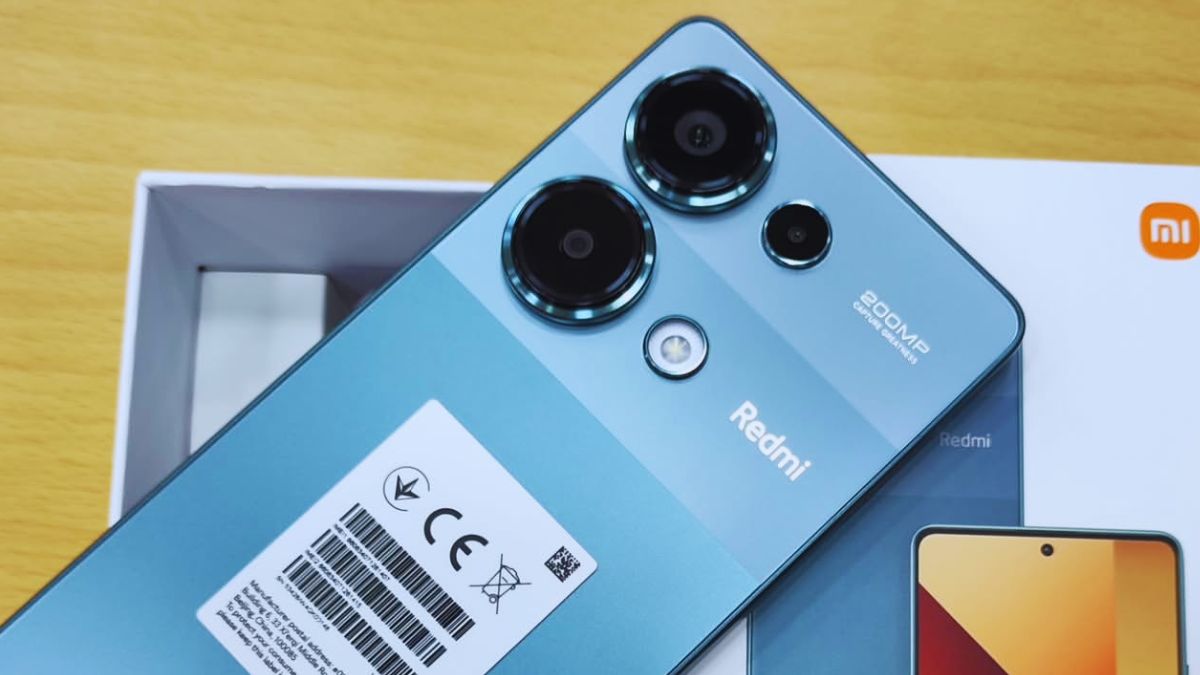
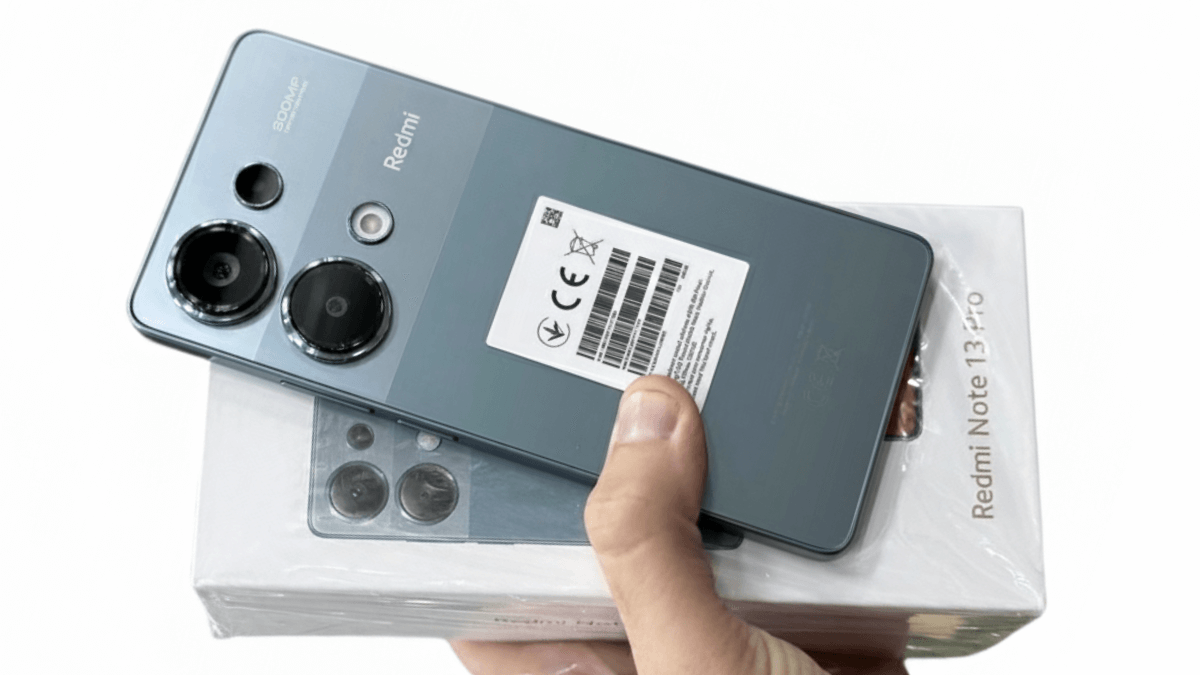
The Xiaomi Redmi Note 13 Pro, released on September 21, 2023, is a feature-packed mid-range smartphone that combines performance, design, and advanced camera technology. Equipped with a 5000 mAh ultra-large battery and 67W turbo charging, this phone keeps you powered throughout the day and charges quickly when needed. Its 6.67-inch AMOLED display features a 120Hz high refresh rate, 100% DCI-P3 wide color gamut, and an ultra-slim bezel, delivering silky-smooth visuals and vibrant, eye-catching colors. With the Xiaomi Imaging Engine, the Redmi Note 13 Pro offers fast and impressive photo capture, giving you more confidence with every shot. Built with an IP54 splash-proof design, this smartphone is both durable and stylish. In this Xiaomi Redmi Note 13 Pro Review, we’ll explore all the features, performance, and value this phone has to offer.
Sleek, stylish, and durable — the Xiaomi Redmi Note 13 Pro stands out with its modern design and premium feel.
Specifications of Xiaomi Redmi Note 13 Pro
Operating system – Android 13, up to 3 major Android upgrades, HyperOS
CPU – Octa-core (4×2.40 GHz Cortex-A78 & 4×1.95 GHz Cortex-A55)
GPU – Adreno 710
Dimensions – 161.2 x 74.2 x 8 mm
Camera – 200MP ( main ) + 8 MP ( ultra-wide ) + 2MP ( micro ) + 16MP ( front )
RAM – 8GB /16GB
Storage- 128/256GB/512GB
Screen Size: 6.67-inch AMOLED display
Display Resolution: 1220 x 2712 pixels, 20:9 ratio (~446 ppi density)
Refresh Rate: 120 Hz
Brightness: Up to 1300 nits
Water and dust resistance – IP4X / IPX5
Weight – 189 gram
Thickness – 8mm
Connectivity – Wi-Fi 802.11 a/b/g/n/ac, dual-band, bluetooth 5.2, A2DP, LE
Colors –Midnight Black, Forest Green, and Lavender Purple
SIM – Nano-SIM + eSIM
Memory card – No Card Slot
Charging – USB Type-C 2.0, OTG
Headphone – 3.5mm headphone jack
Display Quality: AMOLED Panel and Refresh Rate
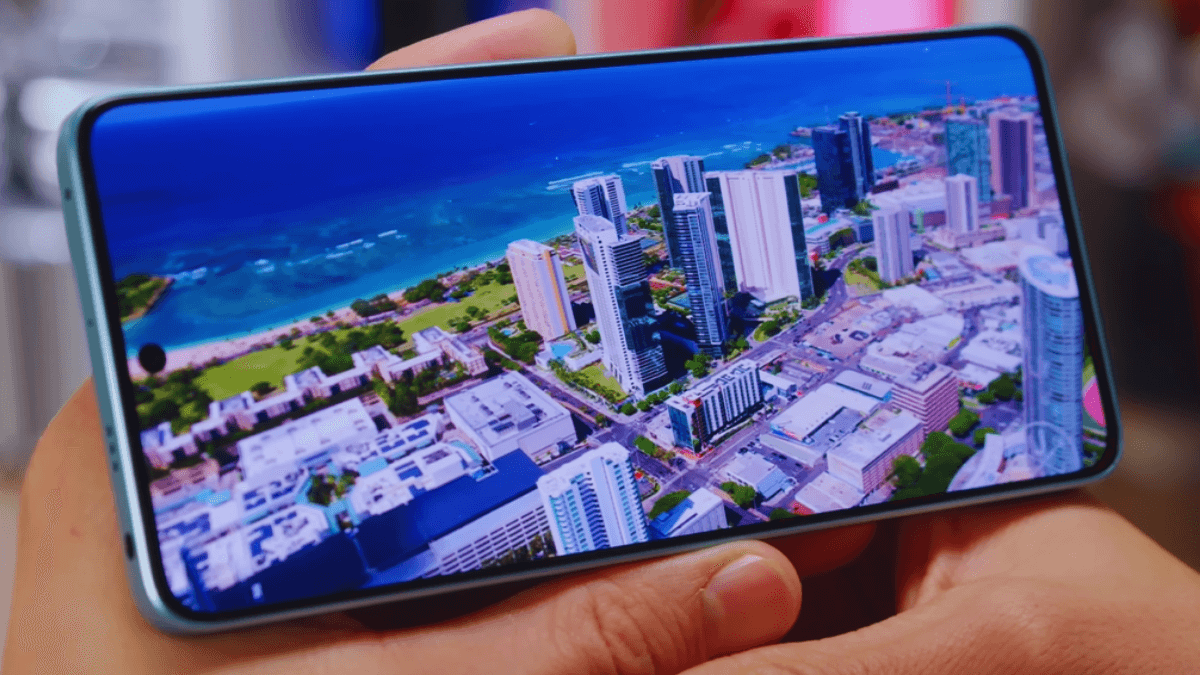
Experience vibrant visuals and silky-smooth performance with the Redmi Note 13 Pro’s 120Hz AMOLED display.
The Redmi Note 13 Pro comes with a large 6.67-inch AMOLED display, delivering vibrant colors and deep blacks for a smooth and enjoyable viewing experience. It also features a 120Hz FHD+ AMOLED display, offering smooth scrolling, sharp visuals, and vibrant colors for an even better viewing experience.
The display has been optimized for improved touch recognition and control, helping prevent accidental triggers caused by water. This phone also features a secure in-screen fingerprint sensor, allowing you to unlock the device quickly and safely by touching the display.
The front of this smartphone is protected by Corning Gorilla Glass 5, which helps reduce scratches and improves durability against everyday drops.
This phone is protected by Corning Gorilla Glass 5, which helps reduce scratches and improves durability against everyday drops.
Design and Build Quality of Xiaomi Redmi Note 13 Pro
The Redmi Note 13 Pro features a front glass protected by Corning Gorilla Glass Victus, which offers strong protection against scratches and drops. The plastic frame helps keep the phone lightweight, while the glass back gives it a premium and stylish look.
This phone features a refined design with a stylish body, giving it a modern and premium look that feels comfortable in the hand. The slim 8.0 mm body further enhances comfort during daily use. Its ultra-thin 2.25 mm bottom bezel reduces unnecessary borders, providing a modern appearance and more screen space for videos, gaming, and everyday tasks.
The Xiaomi Redmi Note 13 Pro uses a USB Type-C charging port for fast charging and data transfer. It also comes with stereo speakers, delivering louder and more immersive sound when watching videos or playing games. The phone comes with stereo speakers with a 3.5mm headphone jack, supporting 24-bit/192kHz Hi-Res audio for high-quality sound when using wired headphones. In addition, the phone supports Hi-Res wireless audio, ensuring better sound quality when using compatible wireless earphones.
The Redmi Note 13 Pro features side-mounted buttons, with the power button and volume up/down keys placed for easy reach. Their placement makes one-handed use comfortable and convenient.
.
Camera Performance: Is the Redmi Note 13 Pro Good for Photography?
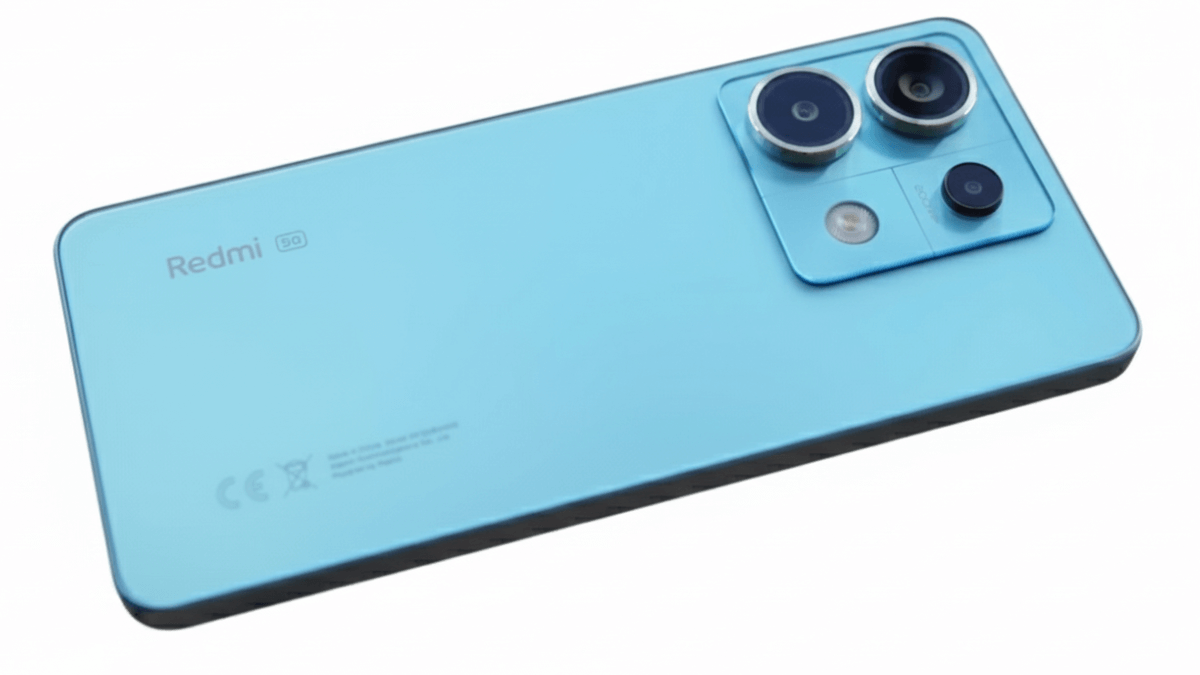
Powerful 200MP triple camera setup with 16MP front camera for stunning photos and videos.
This phone features an ultra-clear 200MP main camera with Optical Image Stabilization (OIS). With a wide f/1.7 aperture, a large 1/1.4-inch sensor, and fast multi-directional PDAF, the camera captures sharp, detailed photos in both daylight and low-light conditions making the Xiaomi Redmi Note 13 Pro camera well suited for everyday photography.
The 200MP main camera supports 4× lossless zoom, also known as optical-grade lossless zoom, allowing you to zoom in without noticeable loss of detail.
The Redmi Note 13 Pro includes an 8MP ultra-wide camera with a 118° field of view, making it ideal for landscape shots and group photos. The f/2.2 aperture delivers good results in well-lit conditions.
The 2MP macro camera lets you take close-up photos of small details like flowers, textures, and objects from a short distance.
All three rear cameras—the main, ultra-wide, and macro lenses—support video recording up to 4K at 30fps and 1080p at 30/60/120fps. The phone also uses gyro-EIS to reduce shake for smoother videos. Additional camera features like Dual-LED dual-tone flash, HDR, and panorama mode help improve photo quality in different lighting and shooting conditions.
This phone features a 16MP front camera with a wide lens, designed for clear and natural-looking selfies. It supports 1080p video recording at 30/60fps, making it suitable for video calls and social media. Features like HDR and panorama mode help capture better selfies in different lighting conditions.
The Redmi Note 13 Pro uses a professional 7P optical lens with an ultra-low reflective coating, which helps reduce glare and ghosting while allowing more light into the sensor. Thanks to 16-in-1 pixel binning, the camera creates larger 2.24µm pixels, resulting in brighter, clearer photos—especially in low-light and night scenes. Overall, the Xiaomi Redmi Note 13 Pro camera delivers a versatile and reliable photography experience for everyday users.
Battery Life and Charging Speed
This smartphone is equipped with a large 5100 mAh battery, which easily lasts a full day of regular use, including browsing, video streaming, and social media. It also supports 67W turbo charging, allowing the phone to charge quickly and get back to use in a short amount of time. With 67W turbo charging, this phone can reach 50% charge in just 16 minutes and 100% in about 46 minutes, making it quick and convenient for daily use.
Price and Availability
The Xiaomi Redmi Note 13 Pro price at launch started from $309.99 in the USA, €189.86 in Europe, £194.99 in the UK, and ₹22,998 in India, making it a strong choice in the mid-range segment. It is available in various markets around the world through official stores and online retailers, giving users an easy way to buy this feature-packed device at a reasonable price. Check the Xiaomi Redmi Note 13 Pro official site to know about the current price.
Performance and Key Features
This smartphone is powered by the MediaTek Helio G99-Ultra, a 6nm octa-core processor designed to deliver smooth performance and efficient power usage. It handles everyday tasks like browsing, social media, streaming, and multitasking with ease, offering a reliable and responsive daily experience. Overall, the Xiaomi Redmi Note 13 Pro performance ensures smooth and efficient operation for daily use.
This phone also comes with several practical features that improve everyday use. A linear vibrator provides more precise and comfortable vibration feedback when typing or receiving notifications. It includes a 3.5mm headphone jack, allowing you to use wired earphones without needing an adapter.
An IR blaster lets you use the phone as a remote control for devices like TVs and air conditioners. In addition, multifunctional NFC supports contactless payments, quick data sharing, and smart card functions, making daily tasks faster and more convenient.
Final Verdict: Is the Xiaomi Redmi Note 13 Pro Worth Buying?
So, is the Xiaomi Redmi Note 13 Pro worth buying? For most users, the answer is yes. In this Xiaomi Redmi Note 13 Pro Review, we found that the 120 Hz AMOLED display, long-lasting 5100 mAh battery with 67W fast charging, and 200 MP camera system handle daily tasks, photos, and videos really well. It also includes useful features like a 3.5 mm headphone jack, IR blaster, and NFC for convenience. While the secondary cameras aren’t the best and the software may have extra apps you don’t need, the phone still offers great value for its price. If you want a solid mid-range phone with excellent display, battery life, and camera performance, this smartphone is a smart choice.
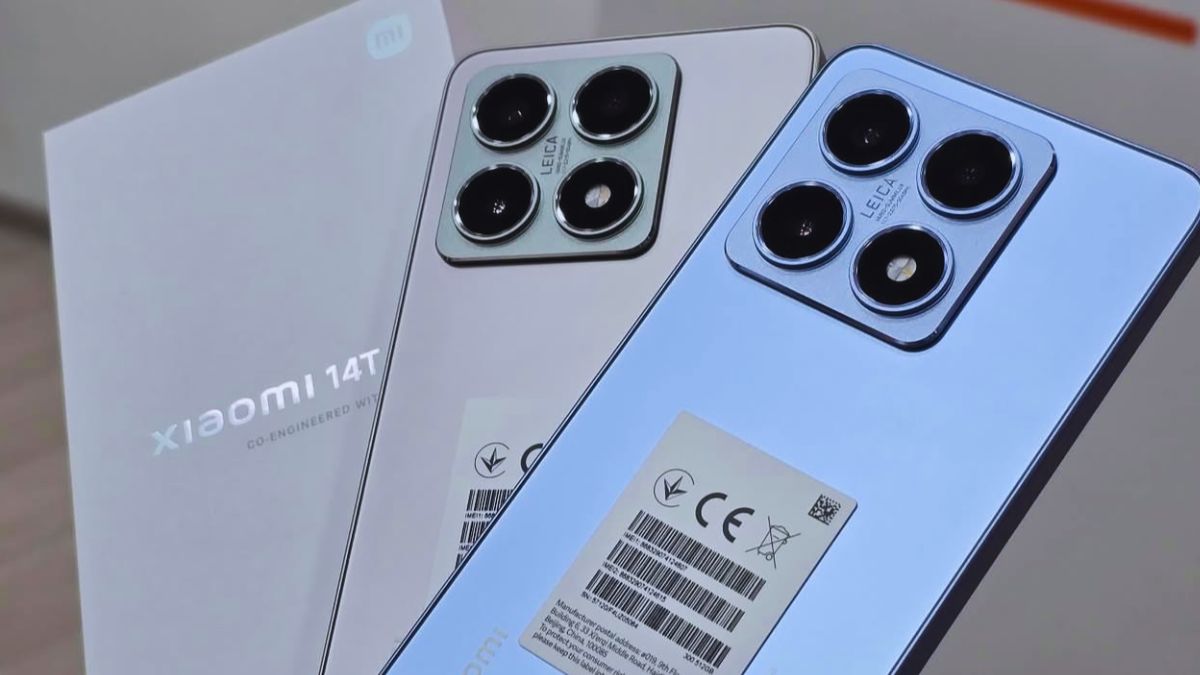
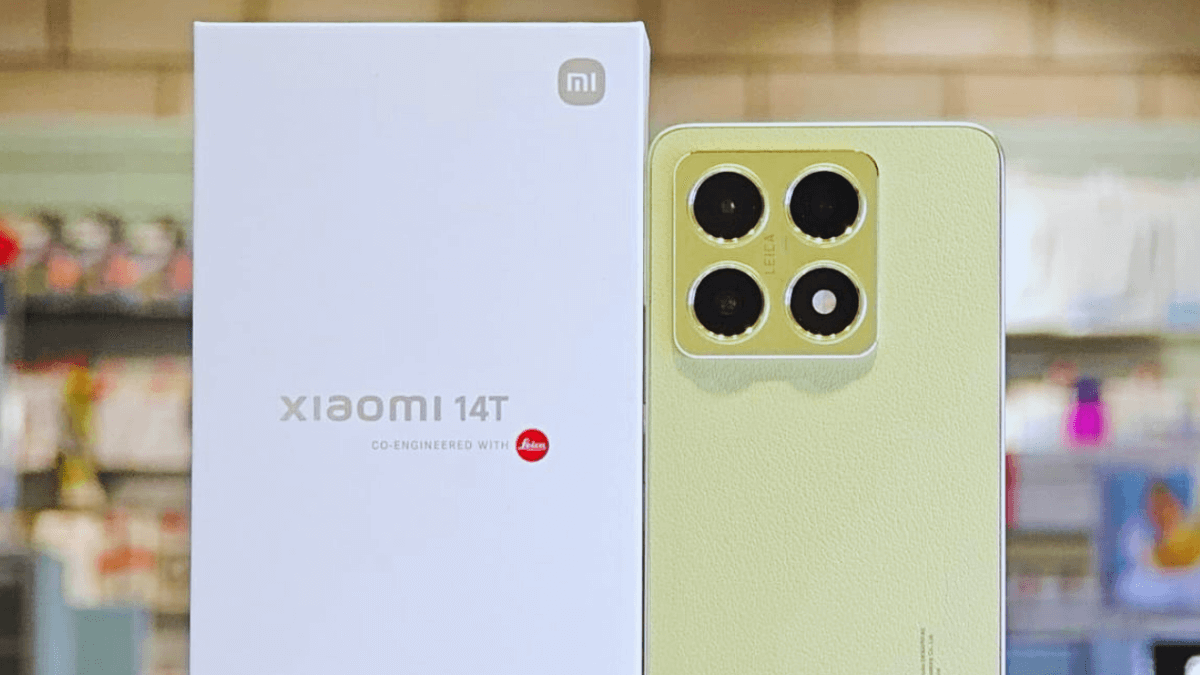
Xiaomi 14T Review:The Xiaomi 14T was released on September 26, 2024, and it brings a great mix of performance, design, and features. It has a 6.67-inch AMOLED display that is bright and smooth, perfect for gaming, videos, and everyday use. The phone comes with a triple-camera setup—a 50MP main camera, 50MP telephoto, and 12MP ultra-wide—plus a 32MP front camera for clear selfies. With a 5000mAh battery and 67W HyperCharge, it lasts all day and charges quickly. The Xiaomi 14T is available in four colors: Titan Gray, Titan Blue, Titan Black, and Lemon Green, giving users stylish options to choose from.
A sleek smartphone with premium design, vibrant display, and robust performance
Xiaomi 14T specifications
Operating system – Android 14, up to Android 15, HyperOS 2
Camera – 50MP ( main ) + 50 MP ( telephoto ) + 12 MP ( ultra-wide ) + 32MP ( front )
RAM – 12GB /16GB
Storage- 256GB/512GB/1TB
Screen Size: 6.67-inch CrystalRes AMOLED display
Display Resolution: 2712 × 1220 | 446 PPI
Refresh Rate: 144Hz
Brightness: Up to 4000 nits
Water and dust resistance – IP6X / IPX8 (immersible up to 2 m for 30 min)
Weight – 193 gram
Connectivity – Wi-Fi 802.11 a/b/g/n/ac/6e, dual-band, Wi-Fi Direct
Colors – Titan Gray, Titan Blue, Titan Black, Lemon Green
SIM – Nano-SIM + eSIM
Memory card – No Card Slot
Charging – USB Type-C 2.0, OTG
Design and Build Quality
Aluminum alloy frame with Gorilla Glass 5 front and stylish glass or PU leather back
TheXiaomi 14T features a premium design with an aluminum alloy frame and a choice of glass back or durable PU vegan leather finish, giving it a stylish and modern look. It measures 160.5 x 75.1 x 7.8 mm and weighs 193 grams, making it comfortable to hold. The phone supports Nano-SIM + eSIM and is IP68 certified, making it dust-tight and water-resistant up to 2 meters for 30 minutes. The front is protected by Corning Gorilla Glass 5, while the sides are sturdy and curved for a good grip. It has a USB Type-C port for fast 67W HyperCharge wired charging, though it does not include a 3.5mm headphone jack. The volume rocker and power button with fingerprint sensor are conveniently placed for easy access. Overall, the Xiaomi 14T combines a sleek, durable design with practical features for everyday use.
Display Quality and Viewing Experience
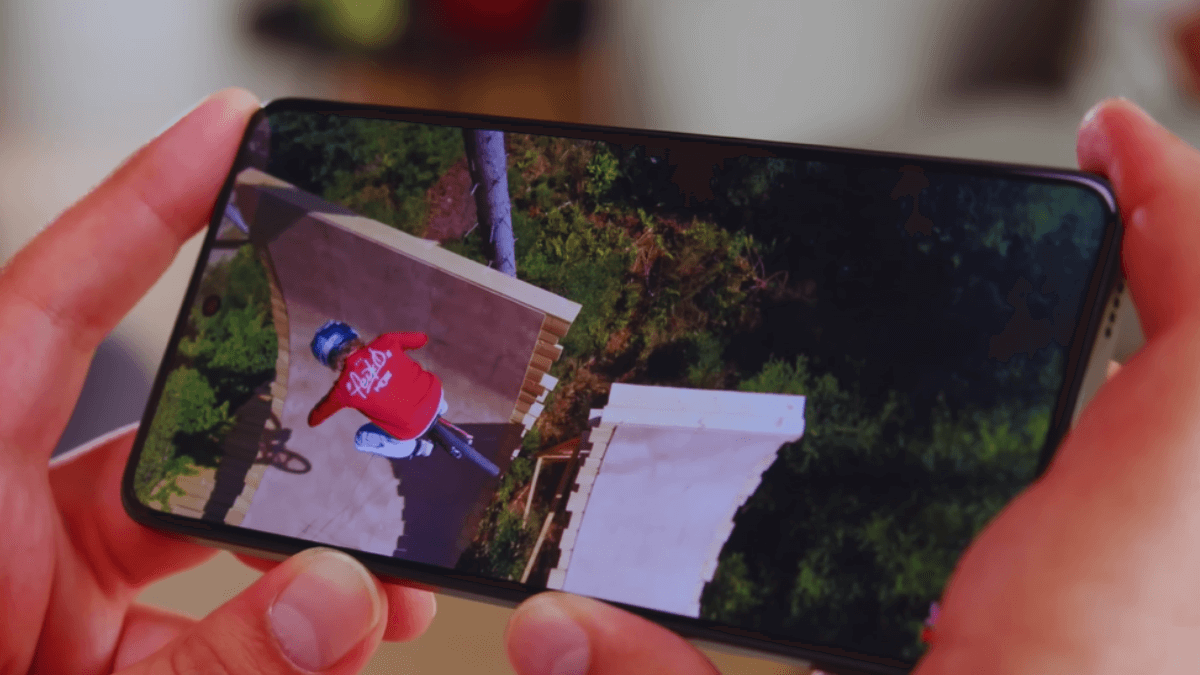
Bright, smooth, and vibrant 144Hz AMOLED screen with HDR10+
The Xiaomi 14T not only excels in camera performance but also offers an impressive display. It features a 6.67-inch AMOLED screen protected by Corning Gorilla Glass 5, delivering both durability and stunning visuals. The display supports 68 billion colors, a 144Hz refresh rate, and 2880Hz PWM, ensuring smooth scrolling and minimal eye strain. It also supports Dolby Vision and HDR10+, with high brightness modes of up to 1600 nits and a peak brightness of 4000 nits, making it bright and vivid even in direct sunlight. With a resolution of 1220 x 2712 pixels, a 20:9 aspect ratio, and a pixel density of ~446 ppi, the Xiaomi 14T provides sharp, detailed images and videos, making it ideal for both gaming and content consumption.
Xiaomi 14T camera performance
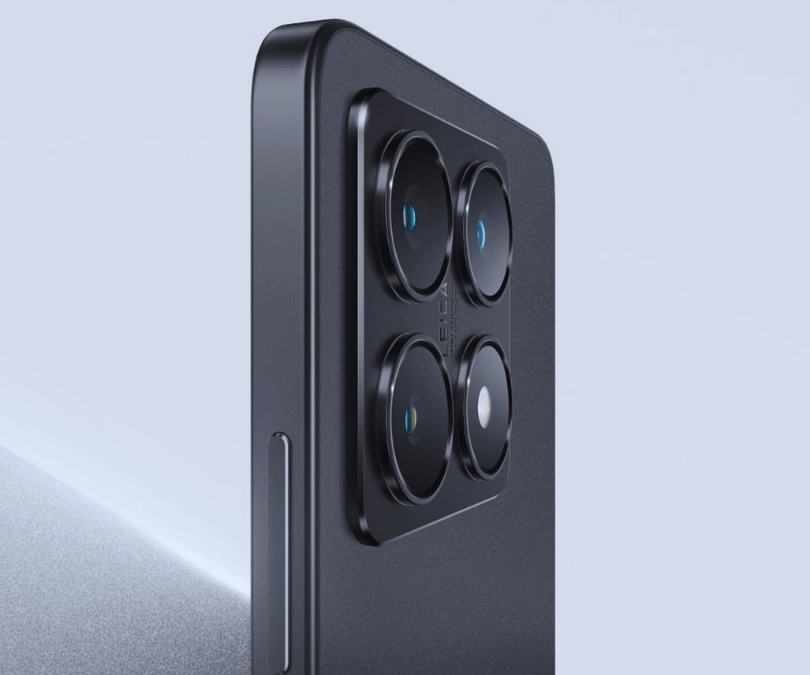
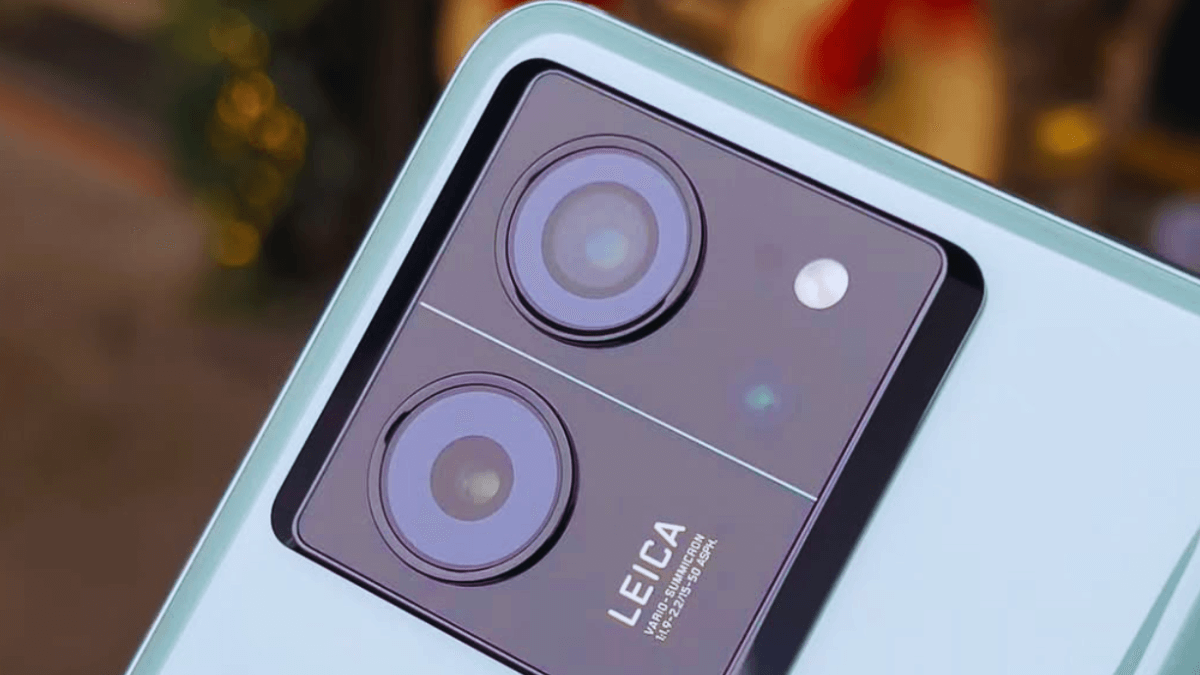
50MP main, 50MP telephoto, and 12MP ultra-wide cameras with Leica co-engineering
The Xiaomi 14T camera performance is excellent, featuring a versatile triple rear camera setup and a high-resolution front camera. The main 50MP camera has an f/1.7 aperture, 23mm wide lens, 1/1.56″ sensor, and 1.0µm pixel size, with PDAF and OIS. It can record video at 4K@24/30/60fps, 1080p@30/60/120/240/960fps, supports gyro-EIS, 10-bit Rec. 2020, and HDR10+. The 50MP telephoto camera has f/1.9, 50mm lens, 1/2.76″ sensor, 0.64µm pixels, PDAF, and 2x optical zoom. The 12MP ultra-wide camera has f/2.2, 15mm lens, 1/3.06″ sensor, and 1.12µm pixels. The triple rear cameras feature Leica lenses, Ultra HDR, LED flash, HDR, and panorama. On the front, the 32MP selfie camera has f/2.0, 25mm wide lens, 1/3.44″ sensor, and 0.64µm pixels, and can capture video at 4K@30fps and 1080p@30/60fps with HDR10+ and HDR support. Overall, the Xiaomi 14T delivers powerful camera performance for both photography and videography, offering detailed, bright, and vivid shots in every scenario.
Battery Life and Charging Speed
The Xiaomi 14T comes with a 5000mAh battery that easily handles a full day of heavy use. It supports 67W HyperCharge wired charging, letting you charge the phone to 100% in just 45 minutes. This fast-charging technology delivers extraordinary speed, making it convenient for users who are always on the go. Unlike the Pro model, the standard 14T does not support wireless charging, so you’ll need to rely on wired charging to power up quickly. Overall, the combination of a large battery and 67W HyperCharge ensures that the Xiaomi 14T keeps up with both gaming, photography, and everyday usage without worrying about running out of power.
Xiaomi 14T price and value
At launch, the Xiaomi 14T price and value was very competitive. In the USA, it was priced at around $599, in Europe it started at €649.90, and in the UK it launched at £549. Considering its premium design, triple-camera setup, 6.67-inch AMOLED display, 5000mAh battery with 67W fast charging, and IP68 water and dust resistance, the Xiaomi 14T offered strong value for money right from the release, giving users high-end features without the high-end price.
Software Experience and Features
The Xiaomi 14T is packed with premium features that make it a strong mid-to-high-range phone. It has a bright 6.67-inch AMOLED display with a 144Hz refresh rate, perfect for smooth scrolling and gaming. The triple cameras, co-engineered with Leica, include a 50MP main sensor that delivers sharp and detailed photos, while the MediaTek Dimensity 8300 Ultra chip ensures fast performance for apps and games. Its 5000mAh battery with 67W HyperCharge keeps the phone running all day and charges quickly when needed. The phone is also IP68 rated, has stereo speakers, and comes with advanced AI features. Everything runs on Android 14 with HyperOS, offering a clean interface, useful customization options, and extended software support, making the Xiaomi 14T a versatile and reliable choice for both everyday use and Xiaomi 14T gaming performance.
Final Verdict: Is Xiaomi 14T Worth Buying?
The Xiaomi 14T is a strong choice if you want a phone with a high-quality screen, good everyday performance, and long battery life without paying flagship prices. Its bright 144Hz AMOLED display, reliable MediaTek Dimensity 8300 Ultra performance, and fast 67W charging make it easy to use all day long. In this Xiaomi 14T Review, we found that the triple camera tuned with Leica takes solid photos, while the 5000mAh battery keeps you going through a busy day, and the phone’s IP68 water and dust resistance is a nice bonus. While the battery life and some camera aspects aren’t perfect, the Xiaomi 14T offers great value for money overall, making it worth buying for most users who want a premium experience without a premium price tag.
The Xiaomi 13T was officially introduced on September 26, 2023, as a smartphone that balances strong performance with modern features, making it a solid choice for many users. In this Xiaomi 13T Review, the phone stands out with its MediaTek Dimensity 8200 Ultra chipset, which delivers smooth performance for daily tasks, gaming, and multitasking. It also comes with a large 6.7-inch display, offering an immersive viewing experience for videos and browsing. To support long usage, Xiaomi equipped the 13T with a 5000 mAh battery, ensuring reliable all-day power for everyday use.
A powerful all-rounder with a smooth display, strong performance, and long-lasting battery.
Specifications
Operating system – Android 13, up to 4 major Android upgrades, HyperOS
A modern and slim design that feels comfortable and stylish in hand.
The Xiaomi 13T design and build focus on both style and everyday durability, making it one of the practical Xiaomi 13T features. The phone has a glass front protected by Corning Gorilla Glass 5, while the back comes in either a glass finish or a silicone polymer (eco-leather) option, paired with a plastic frame for a comfortable grip. With a slim 8.5mm thickness, the device feels sleek and easy to hold. It also offers IPX8 water resistance and IP6X dust resistance, giving extra protection against splashes and dust. For audio, the stereo speakers deliver clear and immersive sound. Additional Xiaomi 13T features include a USB Type-C 2.0 port with OTG support and Nano-SIM + eSIM compatibility, making it convenient for both daily use and travel.
Display: Smooth AMOLED Screen with Stunning Colors
The Xiaomi 13T display is one of the standout Xiaomi 13T features, offering a premium viewing experience for everyday use. It comes with a CrystalRes AMOLED display protected by Corning Gorilla Glass 5, making it both beautiful and durable. The screen supports a 144Hz refresh rate, which means smooth scrolling, fast response, and an excellent gaming experience. With up to 2600 nits brightness, the display stays clear and easy to read even under direct sunlight. The 2712 × 1220 pixel resolution combined with 446 PPI pixel density delivers sharp text and detailed visuals, while support for 68 billion colors ensures natural, true-to-life color reproduction for videos, photos, and apps.
Xiaomi 13T Leica Camera: A Big Upgrade for Photography Lovers
Capture clear photos and steady videos with the powerful triple-camera system of the Xiaomi 13T.
The Xiaomi 13T camera system offers a versatile and reliable photography experience for daily use. It features a 50MP main camera with an f/1.9 aperture, 24mm wide lens, PDAF, and OIS, allowing you to capture sharp and stable photos even in low-light conditions. For zoom shots, the phone includes a 50MP telephoto camera with an f/1.9 aperture, 50mm lens, PDAF, and 2x optical zoom, which is great for portraits and distant subjects without losing quality. The 12MP ultra-wide camera with an f/2.2 aperture and 15mm lens is ideal for landscapes and group photos.
On the front, the 20MP selfie camera comes with an f/2.2 wide lens, 0.8µm pixel size, and HDR support, and it records 1080p video at 30fps with HDR10+, delivering clear selfies and smooth video calls. For video recording, the Xiaomi 13T supports 4K at 30fps with HDR10+, as well as 1080p at 30/60/120fps with gyro-EIS, ensuring smooth and high-quality videos.
Xiaomi 13T Battery Life: All-Day Power with Fast Charging Support
The Xiaomi 13T battery life is designed to easily last through a full day of regular use. The phone comes with a 5000 mAh battery, which is great for browsing, watching videos, gaming, and daily tasks without worrying about frequent charging. When the battery runs low, 67W Xiaomi Turbo fast charging makes things very convenient, charging the phone up to 50% in just 15 minutes. A full charge takes only about 42 minutes, so you can quickly power up and get back to using your phone. Overall, the Xiaomi 13T battery life offers a strong balance of long-lasting power and fast charging speed for everyday users.
Xiaomi 13T Price: Is It Worth the Money?
When looking at the Xiaomi 13T price at launch, the phone offered strong value for its specs and features. At the time of its release on September 26, 2023, the Xiaomi 13T was officially priced around $490 USD for the base 8GB + 256GB model, making it a competitive choice in the mid-range segment with flagship-level performance, a large display, and capable cameras without breaking the bank.
Final thoughts : Should you buy this phone ?
In this Xiaomi 13T Review, the phone proves to be a well-balanced option for users looking for strong features at a reasonable price. It delivers a smooth AMOLED display, reliable camera performance, solid battery life with fast charging, and a modern design that feels premium in daily use. While it may not compete with ultra-flagship devices in every area, it offers excellent value for everyday users who want a dependable and feature-rich smartphone. Overall, if you’re looking for a stylish phone with a great display, capable cameras, and long-lasting battery performance, the Xiaomi 13T is definitely worth considering.
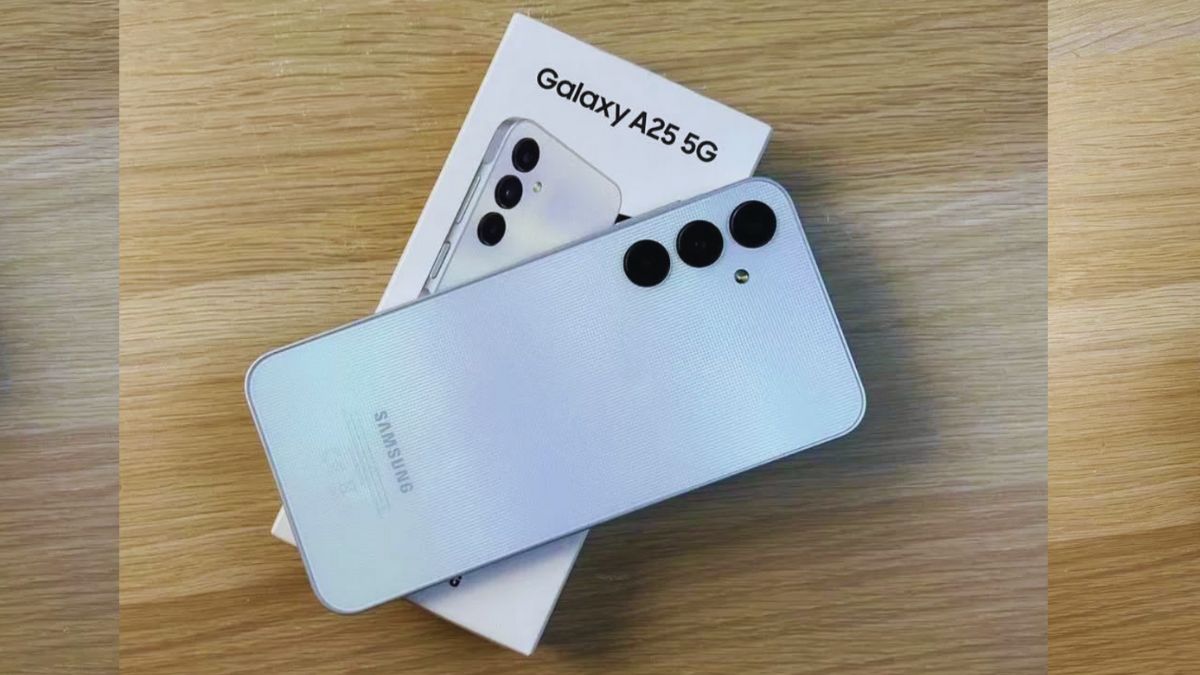
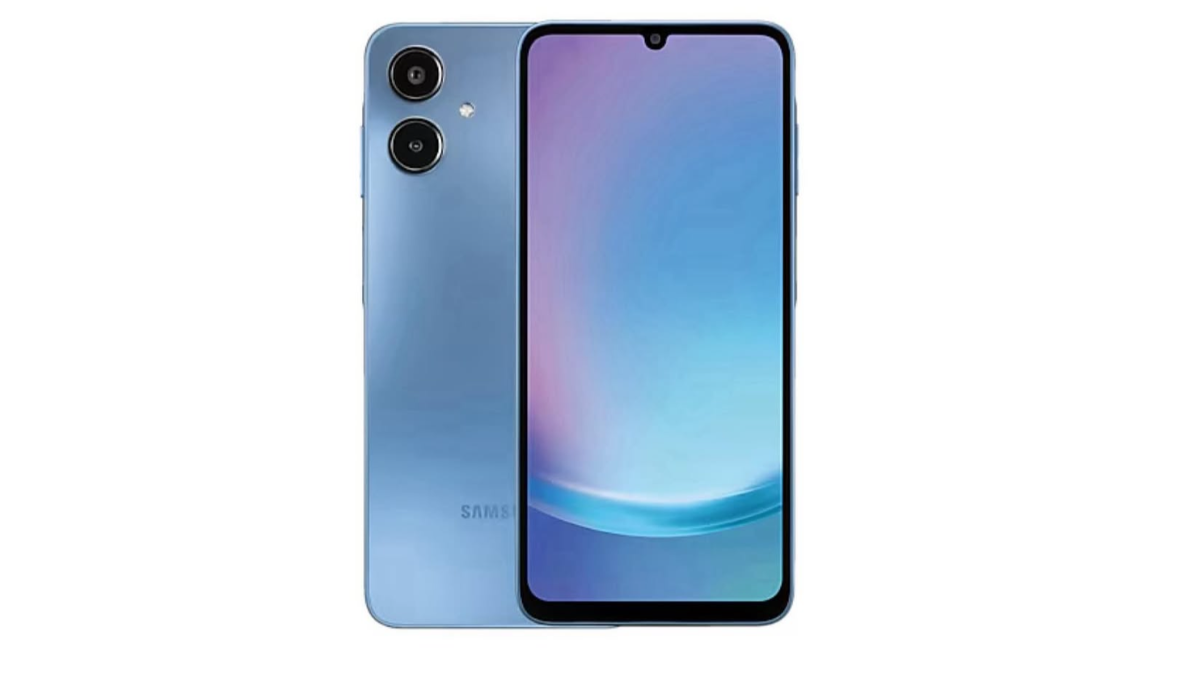
Welcome to this Samsung Galaxy A25 Review, where we take a look at one of Samsung’s most popular budget-friendly phones. The Samsung Galaxy A25 5G was announced on December 11, 2023, and officially released on December 16, 2023. It comes with a slim 8.3 mm (0.33 inches) body and a large 6.5-inch display, offering a comfortable and modern design. The phone includes a strong 5,000mAh battery, a triple camera system with a powerful 50MP main camera, and smooth performance powered by the Exynos 1280 chip. According to the Samsung Galaxy A25 specs, it also supports fast charging, has stereo speakers, and benefits from Samsung’s reliable software updates. These Samsung Galaxy A25 features make it a great choice for users who want solid performance at an affordable price.
Samsung Galaxy A25 Front and Back Design Overview
Specifications – Samsung Galaxy A25 5G
Operating system : Android 14, up to 4 major upgrades, One UI 7
Processor : 2.4GHz, 2GHz
Chipset : Exynos 1280 (5 nm)
CPU : Octa-core (2×2.4 GHz Cortex-A78 & 6×2.0 GHz Cortex-A55)
GPU : Mali-G68
Dimensions : 161 x 76.5 x 8.3 mm (6.34 x 3.01 x 0.33 inch)
Screen : 6.5 inches ( 164.2mm )
Camera : 50MP Main + 8MP Ultra wide + 2MP Macro + 13MP Selfie
Connectivity : 5G, Wi-Fi 6 (802.11 a/b/g/n/ac), Bluetooth 5.3, NFC, and comprehensive location services (GPS, GLONASS, etc.), plus a USB-C port and a 3.5mm headphone jack
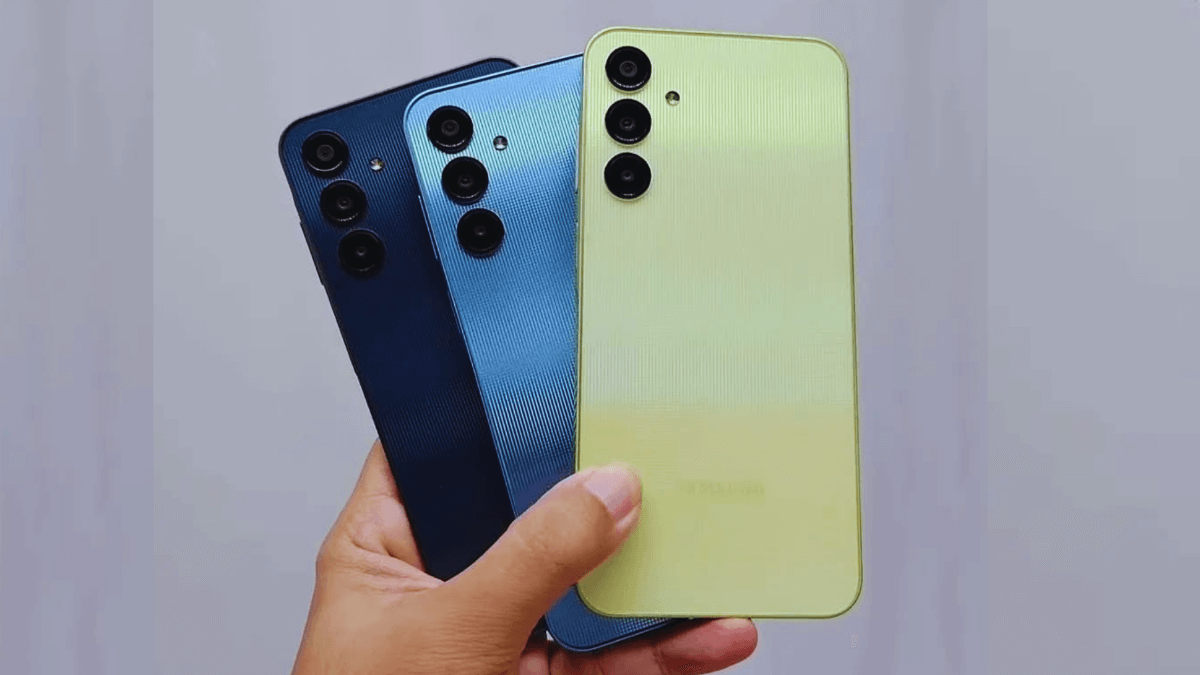
Colors : Blue Black, Blue , Yellow
All three color options of the Samsung Galaxy A25, designed to match different styles and preferences.
Camera Performance & Features
The triple camera system of the Samsung Galaxy A25, designed for clear and detailed everyday photos.
The Samsung Galaxy A25 5G comes with a versatile triple rear camera that makes taking photos easy and enjoyable. It has a 50MP main camera with an ƒ/1.8 aperture, OIS, and EIS, so your pictures stay clear and stable even when your hands move. The camera also supports LED flash, panorama, and HDR, and it can record videos in 4K@30fps and 1080p@30/60fps with gyro-EIS for smoother results. The phone also includes an 8MP ultrawide camera with an ƒ/2.2 aperture for wide landscape shots, and a 2MP macro camera with an ƒ/2.4 aperture for close-up photos. You also get digital zoom up to 10x on the rear camera. On the front, the 13MP selfie camera with an ƒ/2.2 aperture captures sharp selfies and records 1080p@30fps video. Overall, these Samsung Galaxy A25 features offer high-resolution photos, steady videos, wide-angle shots, and reliable performance, even though replacing the protective lens glass may be needed in some cases.
Design Quality and Display Experience
The clean and minimal design of the Samsung Galaxy A25, built for comfortable everyday use.
This phone offers a clean and modern design with a comfortable feel in the hand. It comes with a 6.5-inch Super AMOLED display that delivers bright and vibrant colors, protected by Corning Gorilla Glass 5 for better durability. The screen supports 1,000 nits brightness (HBM) and Eye Comfort Shield, making it easy to use both outdoors and at night. The display has a 1080 x 2340 resolution, a 19.5:9 ratio, and around 396 ppi, giving you sharp and clear visuals for videos, browsing, and gaming. The body size is 161 x 76.5 x 8.3 mm, and it is built with a glass front, plastic frame, and plastic back, keeping it lightweight. The Samsung Galaxy A25 features also include Dual-SIM support, USB Type-C, and a 3.5mm earjack, which many users still appreciate. Overall, these Samsung Galaxy A25 specs make the Samsung Galaxy A25 5G a practical and user-friendly phone for everyday use.
Battery Life and Charging Performance
The Samsung Galaxy A25 5G comes with a large 5,000mAh battery that can easily last up to 2 days on normal use, making it very reliable for daily tasks. According to the Samsung Galaxy A25 specs, the phone offers up to 21 hours of video playback and up to 124 hours of audio playback, which is great for watching movies or listening to music for long periods. It supports 25W Super Fast Charging, so you can recharge the battery quickly, although the charger is sold separately. One thing to note is that wireless charging is not supported, but the fast wired charging is still very convenient. Overall, these Samsung Galaxy A25 features make the phone a strong choice for users who want long battery life and fast charging performance.
Price and Availability of A25 5G
The Samsung Galaxy A25 5G was launched at an affordable price, making it a good choice for budget-friendly users. In the United States, the Samsung Galaxy A25 price started at around $300 (specifically $299.99), offering strong value for its features. In Europe, the phone was released for around €300, which also placed it in the mid-range segment. With this pricing, the Samsung Galaxy A25 5G became easily accessible to many users looking for a powerful phone without spending too much.
Final Thoughts: Should You Buy the Samsung Galaxy A25?
In this Samsung Galaxy A25 Review, the phone is a good choice for people who want a reliable and affordable smartphone. The Samsung Galaxy A25 5G works smoothly for everyday tasks like watching videos, using apps, and browsing the internet. The Samsung Galaxy A25 features a clear display, a long-lasting 5,000mAh battery, and a 50MP triple camera that takes good photos. It also supports fast charging and has stereo speakers. Even though it doesn’t have wireless charging or top-end performance, it still gives great value for its price. Overall, if you need a simple, strong, and budget-friendly phone, the Galaxy A25 is a smart buy.
The Xiaomi 15 Ultra sets a strong first impression as a next-generation flagshi released on February 27, 2025, with a global launch on March 2, 2025. In this Xiaomi 15 Ultra Review, the phone shows how it blends a refined, classic design with the latest mobile technology. The device uses the powerful Snapdragon 8 Elite Mobile Platform built on a 3nm process, which helps it deliver fast, smooth, and efficient performance for both daily tasks and professional use. The phone also runs on Xiaomi HyperOS 2, giving it a cleaner, smarter, and more AI-driven user experience.
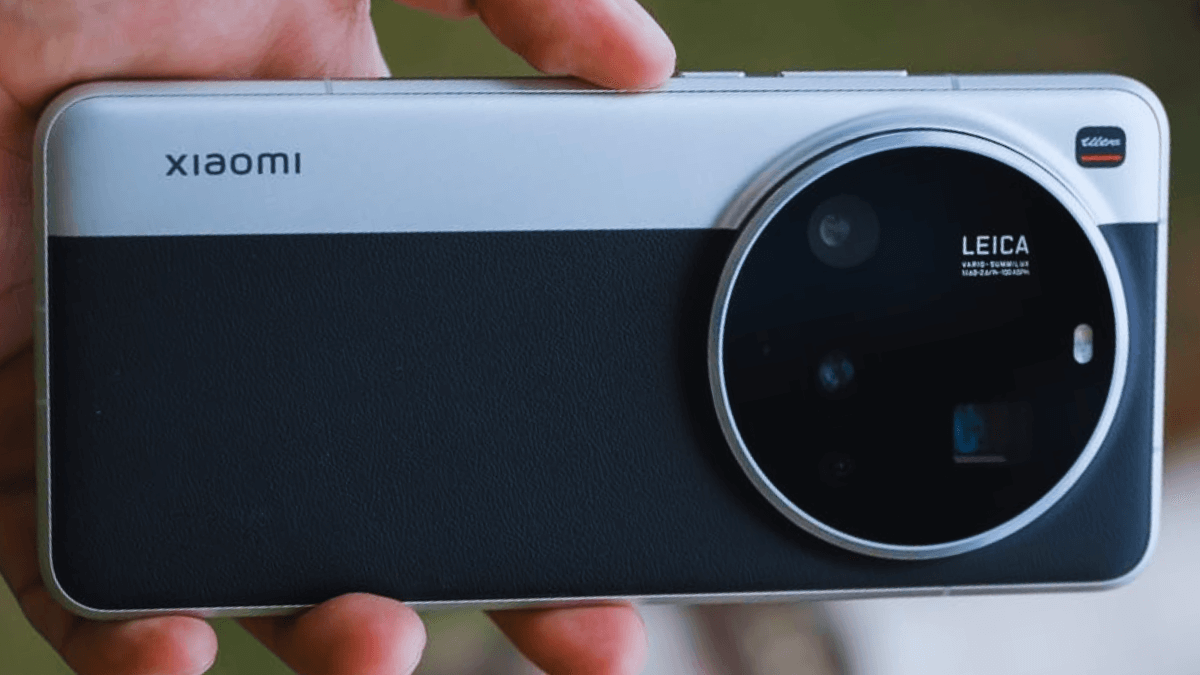
One of the biggest highlights of this phone is its new Leica Summilux optical lens system, which offers full focal-length coverage and makes it easy to capture beautiful, detailed photos in any situation. With its premium build, strong performance, and advanced camera features, the Xiaomi 15 Ultra clearly positions itself as one of the Best phones 2025 and stands proudly as a true Xiaomi 2025 flagship.
Xiaomi 15 Ultra – Experience unmatched performance, premium design, and next-gen mobile innovation.
Specifications
OS: Xiaomi HyperOS 2 (based on Android 15)
Dimensions: 161.3 x 75.3 x 9.35mm
Processor: Snapdragon 8 Elite chip
Camera : 50MP Main + 50MP ultra-wide + 50MP telephoto (macro capable) + 200MP telephoto ( for distant subjects ) + 32 MP Front
Screen : 6.73inch
Refresh rate : 120Hz LTPO AMOLED display
Brightness: Up to 3200 nits peak
Resolution: 3200 x 1440 (WQHD+)
RAM: 12GB / 16GB LPDDR5X
Storage: 256GB / 512GB / 1TB UFS 4.0
Durability: IP68 dust and water resistance
Connectivity: Wi-Fi 7, Bluetooth 6.0, NFC, USB-C 3.2
Weight : 226gram
Colors : Black, White, Silver Chrome, Green
Camera System: The Highlight of the Xiaomi 15 Ultra
Capture every moment with stunning clarity — powered by Xiaomi’s latest Leica Summilux optics.
This phone uses Xiaomi’s Guardian Structure and a refined camera-inspired design, giving it a strong and premium look. It has a round and smooth camera module, and it uses 3D camera deco with Corning Gorilla Glass 7i and an anti-scratch coating, making it tougher with 82% higher nanoindentation hardness. The camera system is powered by the next-gen Leica quad camera setup, and it includes a 1-inch 50MP main lens, a 50MP ultra-wide lens, a 50MP 70mm floating telephoto lens, and a 200MP 100mm periscope telephoto lens. All of these lenses are Leica-tuned, and they deliver natural colors, excellent clarity, and strong performance in both bright and low-light situations.
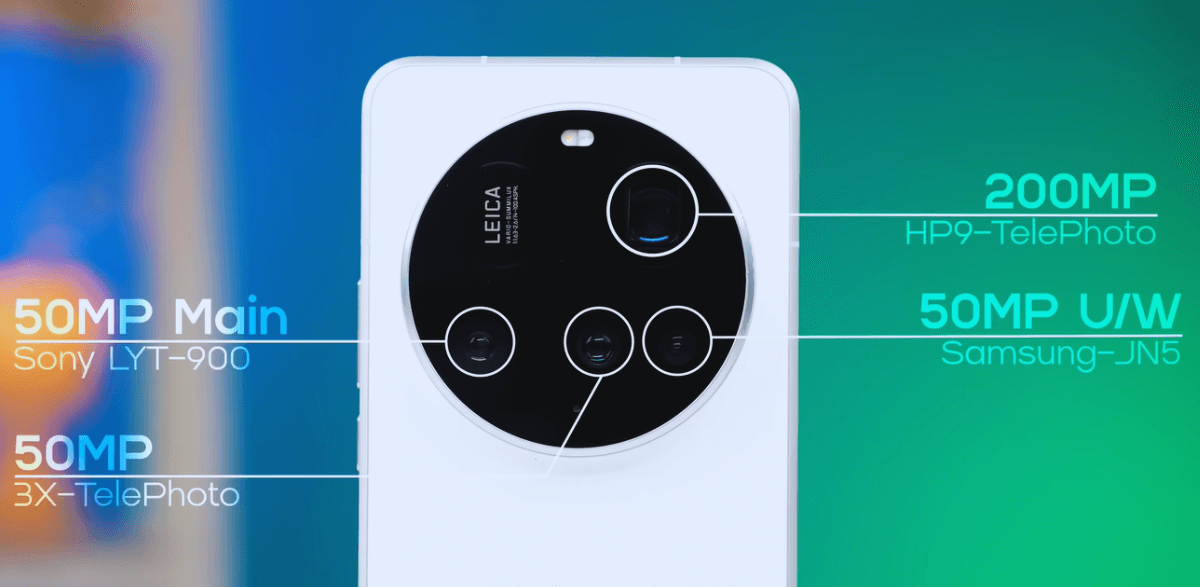
The main camera uses a 50MP 1-inch Sony LYT-900 sensor, and it supports variable focal lengths of 23mm, 28mm, and 35mm with an f/1.63 aperture and OIS for clear and stable shots. The ultra-wide camera is a 50MP Samsung sensor with a 14mm focal length, f/2.2 aperture, and a 6P lens, giving it sharp and wide landscape performance. The floating telephoto lens uses a 50MP Sony IMX858 sensor, and it offers a 70mm focal length, f/1.8 aperture, OIS, and the ability to take macro shots from just 10cm away. The periscope telephoto lens features a 200MP Samsung HP9 sensor, and it supports 100mm optical zoom and 200mm in-sensor zoom, letting it capture far-away subjects with high detail and strong low-light clarity. The front camera is 32MP, and it delivers sharp selfies with good color accuracy.
This phone uses Xiaomi’s AISP 2.0 AI photography system, and it enhances every photo by improving light, sharpness, and color automatically. The camera supports all-focal-length photography, and it gives users creative freedom from ultra-wide to long-range telephoto zoom. The lenses use advanced Sony and Samsung sensors, and they capture more light for stronger night performance. The 70mm floating telephoto lens provides excellent macro ability and spatial compression, making portraits look more professional. It also supports 67mm filters with an adapter, and this gives photographers more creative control like real camera equipment.
Overall, this phone delivers a powerful and flexible camera experience with excellent optical zoom, strong low-light performance, and pro-level features across all lenses.
Design & Build Quality
Xiaomi 15 Ultra – Premium Build, Iconic Design
The Xiaomi 15 Ultra has a premium design with a strong 6M42 high-strength aluminum frame that feels solid and comfortable in your hand. Its quad-curved wraparound frame is CNC-crafted, giving it a smooth and elegant look while still being very durable. This phone blends classic camera-style design with modern durability, making it stand out as a true Xiaomi 2025 flagship.
It also comes with IP68 dust and water resistance, so it can handle everyday accidents with ease. To keep performance smooth, it uses the Xiaomi 3D Dual-Channel IceLoop cooling system, which helps manage heat even during heavy tasks. The phone runs on the powerful Snapdragon 8 Elite chipset, and this makes it one of the Best phones 2025 in both performance and build quality. Overall, the Xiaomi 15 Ultra offers a tough, stylish, and premium design that feels great to use every day.
Display: Next-Level Visual Experience
Xiaomi 15 Ultra – Stunning UltraVision Display
The Xiaomi 15 Ultra has a beautiful 6.73-inch WQHD+ (3200×1440) LTPO AMOLED display that delivers sharp details and rich colors. This screen supports an adaptive 1–120Hz refresh rate, making everything feel smooth whether you are scrolling, gaming, or watching videos. It also gets extremely bright with up to 3200 nits peak brightness, so it stays clear even under strong sunlight. The phone features Xiaomi Shield Glass 2.0, which adds strong protection with +25% better drop resistance, helping the screen stay safe during daily use. Its All Around Liquid Display design with elegant curves and ultra-thin bezels gives it a premium, immersive look. For better video quality, the display supports Dolby Vision, HDR10+, and HDR Vivid, making movies and photos look more dynamic and realistic. Overall, this advanced screen easily makes the Xiaomi 15 Ultra one of the Best phones 2025 for display quality.
Battery Life & Charging Speed
The Xiaomi 15 Ultra comes with a strong 5410mAh battery, giving you enough power to last through a full day of heavy use. It supports 90W wired charging and 80W wireless charging, so even if the battery runs low, you can recharge it very quickly. This combination of a big battery and ultra-fast charging makes this phone reliable for gaming, streaming, and daily multitasking. Although the charger needs to be purchased separately, the overall battery experience is still excellent. With such impressive battery performance, the Xiaomi 15 Ultra stands out as a true Xiaomi 2025 flagship and easily ranks among the Best phones 2025 for users who want long-lasting power and fast charging.
Key Features of Xiaomi 15 Ultra
Xiaomi 15 Ultra features the next-generation Xiaomi Guardian Structure, crafted with exquisite detail, like the new form high-strength aluminum frame, Corning Gorilla Glass 7i protected camera deco, and durable back, giving users a more reassuring experience.
The brand-new photography kit features an innovative detachable shutter button and thumb support. The exclusive Fastshot mode interface provides a new-level Leica shooting experience.
Price and Availability
The Xiaomi 15 Ultra is priced at $1,335.81 in the United States, £895.00 in the United Kingdom, and €847.40 in countries like Germany, France, and Spain. This makes it a premium flagship phone, but still more affordable than many other top-level devices in the same category. For users who want powerful performance, an advanced camera system, and a stylish design, the Xiaomi 15 Ultra offers strong value for its price in every region.
Final Verdict – What Makes It the Potential Best Phone of 2025 ?
The Xiaomi 15 Ultra stands out as one of the strongest candidates for the Best phones 2025 title because it delivers an excellent balance of performance, design, and camera quality. With its powerful Snapdragon 8 Elite chip, advanced Leica camera system, strong battery life, and premium build, this phone offers everything users expect from a true flagship. Its display, fast charging, and AI-powered HyperOS 2 experience make it even more reliable for daily use and creative work.
When looking at the overall package, this device truly shows why many people consider it one of the most complete smartphones of the year. In this Xiaomi 15 Ultra Review, it becomes clear that the 15 Ultra is not just another high-end phone—it is a serious Xiaomi 2025 flagship that has the potential to be the best phone of 2025.
Many people wonder why you need an Apple Watch, and the answer becomes clear once you start using one.. The Apple Watch has become one of the most popular gadgets in the world, and there’s a good reason for that. It’s not just a watch—it’s a health tracker, fitness coach, safety device, and mini-smartphone on your wrist. Whether you want to improve your health, stay connected to the people you care about most, or simply make your daily life easier, the Apple Watch can help more than you might expect. In this post, we’ll look at the most important benefits of having an Apple Watch and why it might be the perfect device you didn’t know you needed.
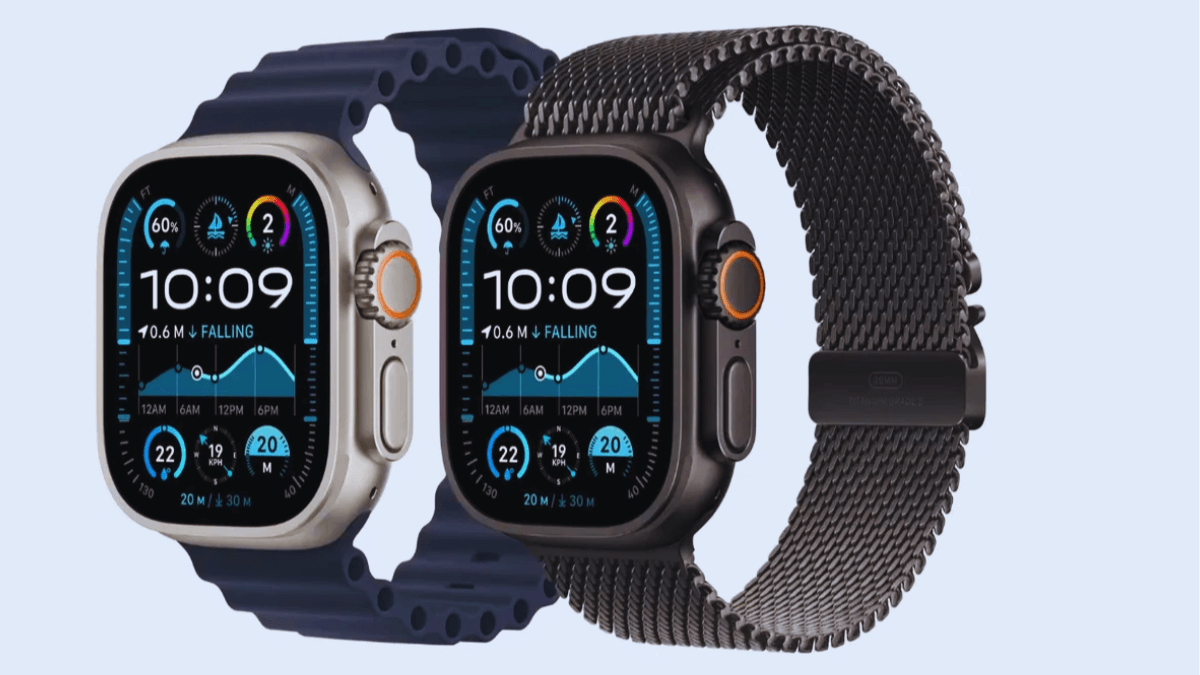
Experience next-level performance, health tracking, and connectivity with the Apple Watch Ultra 3. Rugged, stylish, and packed with advanced features.
Health Tracking That Actually Makes a Difference
One of the biggest Apple Watch benefits is how it helps you understand your health in real, everyday situations. The Apple Watch may be small, but its powerful features make a big difference in staying healthy and aware. I will now explore this in detail.
Get Notified When Your Blood Pressure Is High
The Apple Watch can help you stay on top of your blood pressure by notifying you if it detects signs of high blood pressure. It uses a special optical sensor on your wrist to collect heart data, and an algorithm analyzes how your blood vessels respond over a 30-day period. This way, the watch can alert you to possible hypertension early, helping you better understand your health and take action when needed.
Receive Real-Time Heart Notifications & Alerts
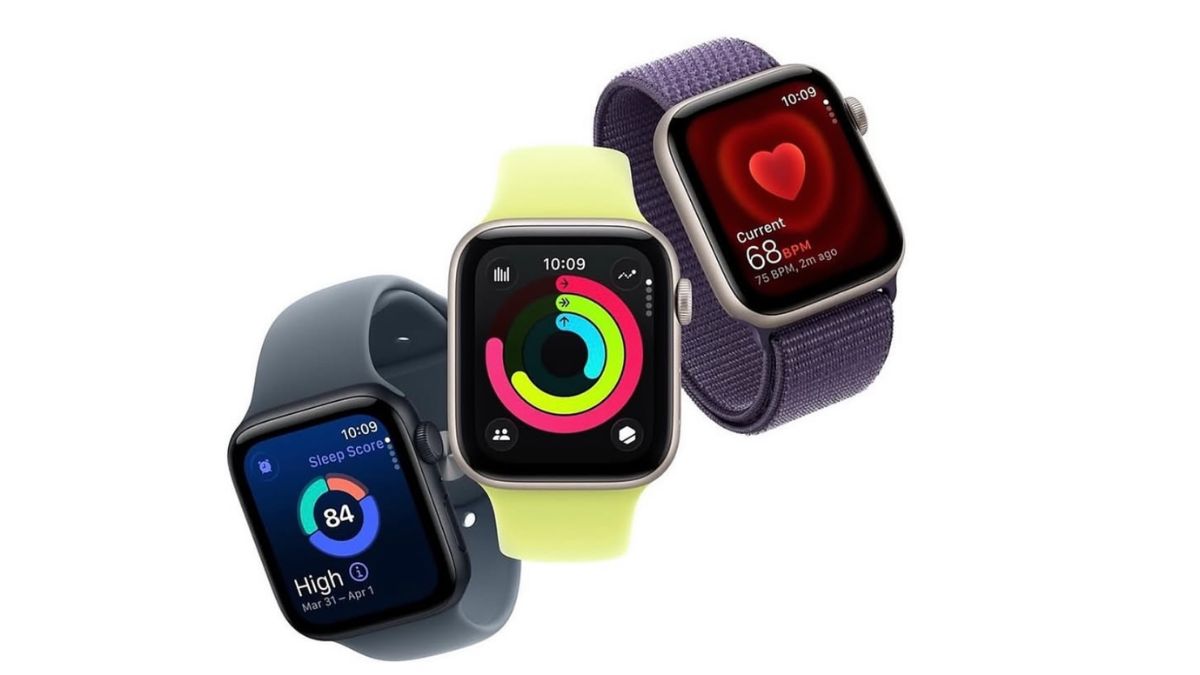
Apple Watch notifies you instantly when your heart rate is too high or too low — helping you stay informed and safe.
Your Apple Watch keeps track of your heart rate all day, and can alert you if things are off. If your heart rate goes higher or lower than the limits you set, the watch will send a notification. so You can take action and consult your doctor. It can also check for irregular rhythms that may suggest atrial fibrillation (AFib), and let you know if something unusual is detected. These alerts make the Apple Watch a powerful tool for staying on top of your heart health—and they work quietly in the background, so you don’t have to watch your wrist every second.
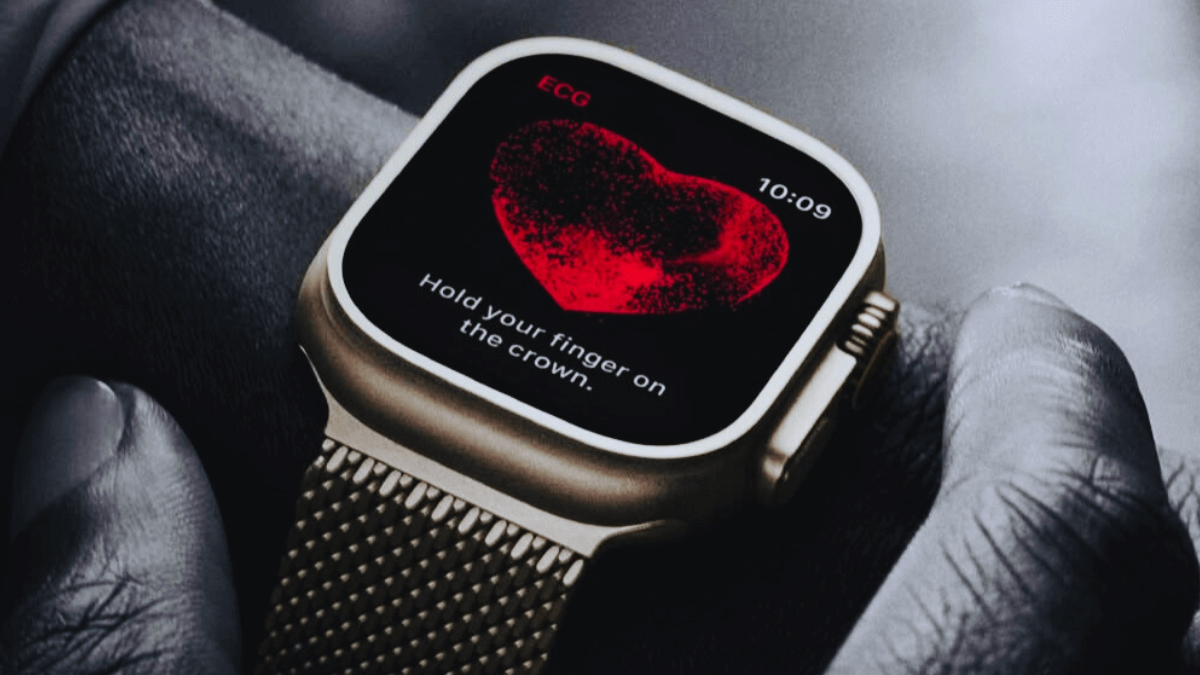
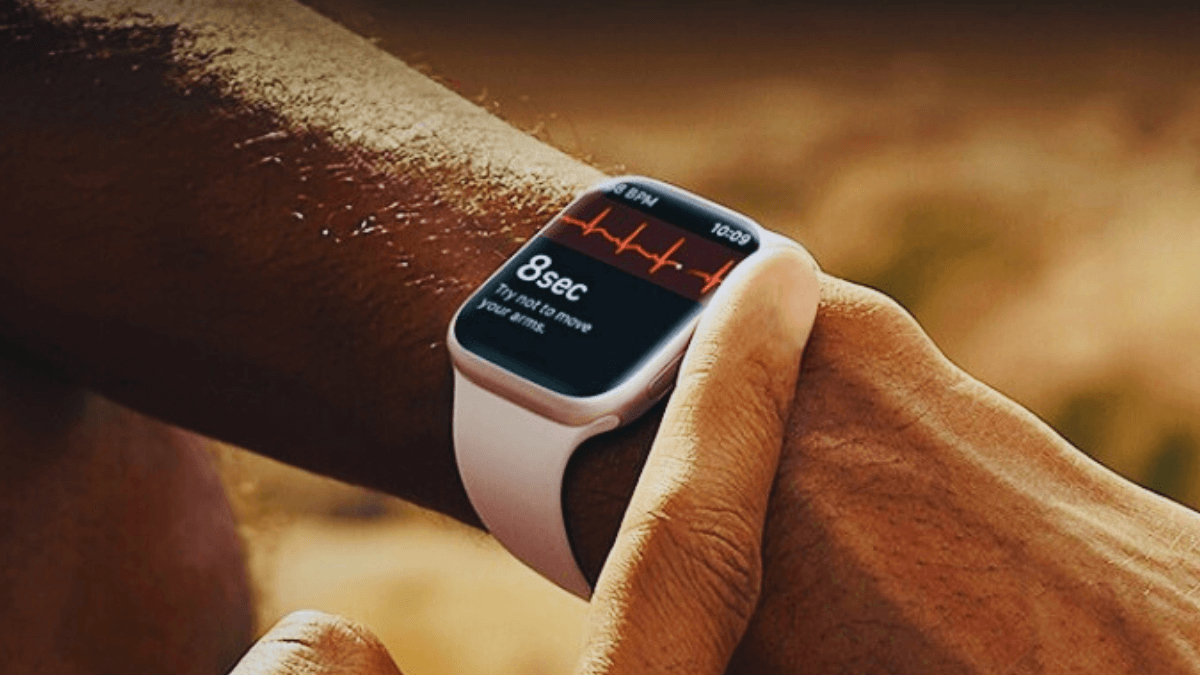
ECG on Your Wrist Anytime, Anywhere
The Apple Watch ECG app helps you record your heartbeat and detect irregular rhythms anytime.
With the ECG app, With the ECG feature on the Apple Watch, you can check your heart rhythm anytime, right from your wrist. The watch uses built-in sensors to measure your heartbeat when you place your finger on the Digital Crown. In just 30 seconds, it can tell you if your heart rhythm is normal or if there might be signs of irregularity, like atrial fibrillation (AFib). The results are saved in the Health app on your iPhone, so you can easily share them with your doctor if needed.
Better Sleep, Better Health
Apple Watch helps identify signs of sleep apnea by tracking breathing patterns and nightly disruptions.
The Apple Watch can help you sleep better and improve your overall health. By wearing it at night, it tracks how long you sleep and the different sleep stages, like light, deep, and REM sleep. You can also set bedtime reminders and wake-up alarms to keep a consistent sleep routine. In the morning, the watch shows a summary of your sleep, helping you understand your habits and make small changes for healthier rest.
Track Your Daily Health Status
The Apple Watch makes it easy to keep an eye on your overall health every day with the Vitals app. It tracks important metrics like your heart rate, respiratory rate, wrist temperature, and sleep duration. Over time, it learns what’s normal for you and can alert you if something seems unusual. This helps you understand your body better and take small steps to stay healthy, even before any problems appear.
Understand Your Cycle Easily and Accurately
The Cycle Tracking app on Apple Watch helps you keep track of your period, symptoms, and even basal body temperature. It can also use your heart rate and wrist temperature while you sleep to predict your next period or fertile window more accurately. This feature can be especially helpful for family planning, giving you insights when you need them most. You can also turn on notifications to get alerts about upcoming periods or fertile windows. As always, your data is private and secure, so you can track your cycle confidently.
Fitness Features That Keep You Motivated Every Day
The Apple Watch is packed with features to help you stay active and reach your fitness goals. From tracking your daily movement and workouts to sending reminders and celebrating your achievements, it keeps you motivated every day. With tools like Activity Rings, custom workouts, heart rate tracking, and training insights, the watch makes it easier and more fun to stay on top of your health and fitness routine. I will now explore this in detail.
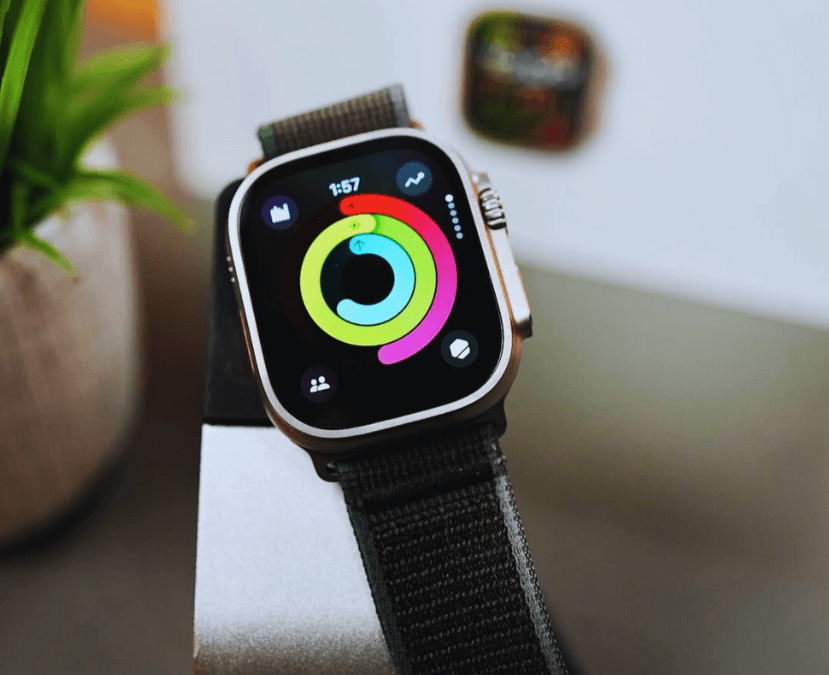
Complete Your Rings, Achieve Your Fitness Goals
Apple Watch Activity Rings help you move more, stand often, and stay active — one ring at a time.
The Apple Watch for health and fitness helps you stay active every day with its three Activity Rings: Move, Exercise, and Stand. The Move ring shows how many active calories you burn through any kind of movement, from walking to climbing stairs. The Exercise ring tracks how many minutes of exercise you do, whether it’s a run, a walk, or a short burst of activity. The Stand ring reminds you how often you stand and move for at least one minute during 12 different hours of the day. These Apple Watch features give gentle reminders, personalized coaching, and rewards as you close each ring, making it fun and easy to reach your fitness goals, one ring at a time.
Measure How You Move, Anytime, Anywhere
Your Apple Watch tracks all the ways you move — not just workouts. From strength training and running to Pilates and yoga, it offers a variety of ways to monitor your activity. The watch measures your active calories, how many minutes you exercise, and how often you stand throughout the day. It also shows your progress with helpful metrics like Heart Rate Zones, Power, and Elevation, so you can see how hard you’re working and how far you’ve come. These features make it easy to stay active and keep track of your fitness anytime, anywhere.
Boost Your Fitness Routine
The Apple Watch gives you many ways to stay active — from strength training and running to Pilates and yoga. You can create custom workouts with time and distance intervals, including periods for warm-up, cooldown, and recovery. The watch tracks important metrics like Heart Rate Zones, Power, and Elevation, so you can see how hard you’re working and monitor your progress. With the Up Next workout view, you always know what’s coming in your session, helping you stay organized and focused. These Apple Watch features make it easier to push yourself, stay consistent, and improve your fitness over time.
A powerful tool for Reaching Fitness Goals
The Apple Watch is more than just a timepiece — it’s a smart fitness partner that helps you reach your daily activity goals. With the Activity app, you can track how many calories you burn, how many minutes of exercise you do, and how often you stand. The watch also provides training load insights, showing how the intensity and duration of your workouts affect your body over time. This helps you make informed decisions about when and how to adjust your workouts, especially if you’re training for a big event. Gentle reminders, personalized coaching, and digital awards motivate you to stay consistent and reach your fitness goals.
Durable for Any Adventure, On Land or Underwater
The Apple Watch is built to handle all kinds of adventures, whether you’re hiking, biking, running, or enjoying water activities like swimming and surfing. For snorkeling, the Depth app, depth gauge, and water temperature sensor on Apple Watch Series 11 let you explore safely down to 6 meters. If you want to go deeper, the Apple Watch Ultra 3 supports scuba diving up to 40 meters and provides information about your depth, time underwater, and water temperature. The watch also has a Water Lock feature to prevent accidental taps in wet conditions and eject water from the speaker afterward. With these features, the Apple Watch is a durable companion for exploring both land and water.
Access Maps Without Internet
You don’t need an internet connection to use maps on your Apple Watch. With the Maps app, you can see detailed hiking maps for all U.S. national parks. You can also create your own hiking routes and download them to your iPhone, and they’ll automatically sync to your watch so you can navigate offline. Once on your watch, you get turn‑by‑turn directions, place names, and estimated arrival times, making it easy to stay on track even in areas with no signal. This feature makes your Apple Watch a reliable companion for exploring trails, parks, and outdoor adventures.
Connectivity : Stay Connected Without Checking Your Phone
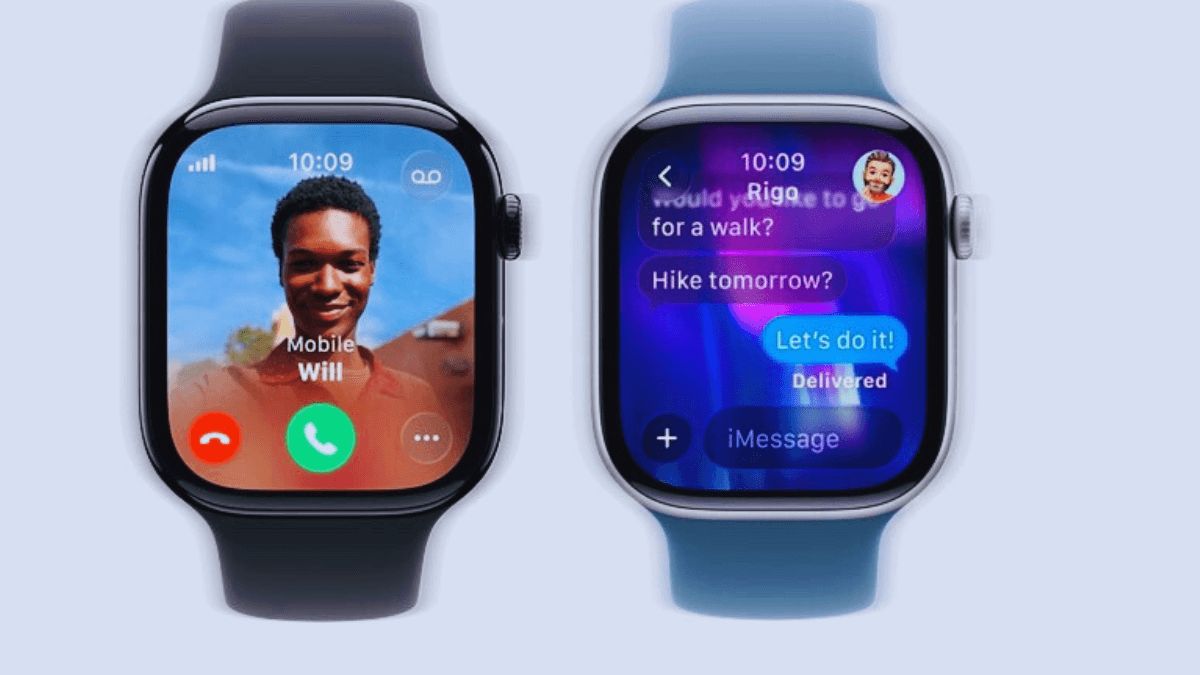
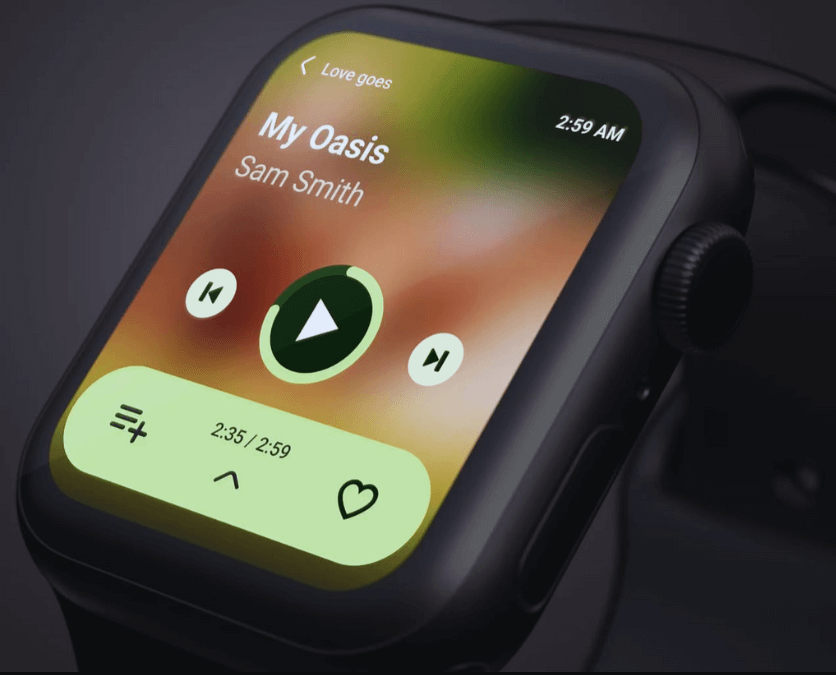
Apple Watch keeps you connected to calls, messages, and notifications — even when your phone isn’t around. Image credit: Apple (apple.com)
The Apple Watch makes it easy to stay connected on the go. You can call, text, pay, listen to music, and use apps — all without having your iPhone nearby. With a cellular plan that supports 5G, everything is faster, whether you’re streaming music, downloading apps, or sending messages. These Apple Watch features let you stay in touch no matter where you are.
Enjoy your favorite songs anywhere — download, play, or stream music right from your Apple Watch.
With Apple Music, you can stream over 100 million songs directly on your watch. You can also download new apps straight from the App Store, and make purchases quickly and securely using Apple Pay. The convenience of doing all this from your wrist is one of the major Apple Watch benefits, so you never have to pull out your phone.
Apple Watch is great for the whole family. With Apple Watch for Kids, even children without their own iPhone can make calls, text, ask Siri questions, listen to music, use apps, and share their location safely. It’s a smart way to keep everyone connected while giving kids independence.
Traveling abroad is easier too. The watch can automatically translate messages into your preferred language using Apple Intelligence from your iPhone. You can also download languages to your watch so you can use the Translate app without Wi‑Fi, cellular, or your iPhone. These Apple Watch features make communication seamless wherever you go.
Finally, the Smart Stack on the watch suggests the most relevant information throughout the day. You can see your sleep score in the morning, get notified about rain, or know when your Uber is arriving — all right from your wrist. This personalized convenience is one of the biggest Apple Watch benefits, helping you stay organized and connected without constantly checking your phone.
Safety Features That Can Save Your Life
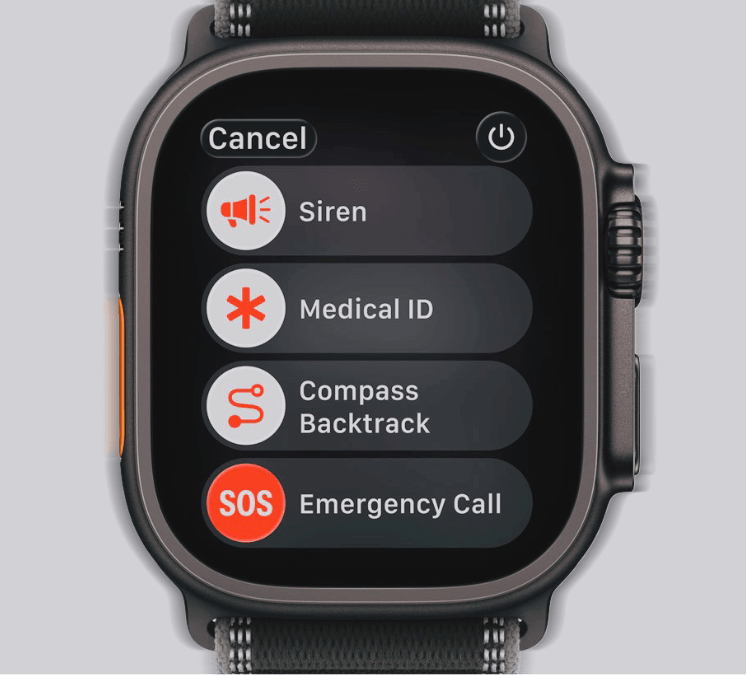
Apple Watch provides safety features like Fall Detection and Emergency SOS to keep you protected at all times. Image credit: Apple (apple.com)
The Apple Watch puts emergency assistance at your fingertips. By pressing and holding the side button, you can quickly connect with emergency services and get help when you need it most.
The watch includes safety features designed to protect you in serious situations. It can detect if you’ve had a hard fall or been in a severe car crash and automatically contact emergency services, share your location, and notify your emergency contacts. Even if you’re off the grid, the Apple Watch Ultra 3 can reach help via satellite, making sure you’re never completely out of reach.
Apple Watch also offers peace of mind on your wrist with the Check In feature. You can notify a friend or loved one when you arrive at a destination automatically. You can even start a Check In from the Workout app — for example, when going for a run at night — so someone knows you’re safe.
Change Your Style in Seconds
With the Apple Watch, changing your style is fast and easy. You can switch watch bands in different styles, materials, and colors, and choose from watch faces that you can fully customize. Change the colors, layouts, and information shown on your watch face to match your mood, outfit, or the moment. These Apple Watch features make it simple to make your watch truly your own.
Final Verdict
If you’re wondering why you need an Apple Watch, the answer is simple: it’s a complete companion for your health, fitness, and safety. With features that track your activity, workouts, sleep, heart health, and cycles, it helps you stay aware and motivated every day. Its connectivity options keep you in touch even without your phone, while built-in safety tools give peace of mind for you and your loved ones. Whether you’re exploring the outdoors, working on your fitness goals, or simply staying connected, the Apple Watch offers benefits that make everyday life easier, healthier, and safer. It’s a device designed to support you wherever life takes you.
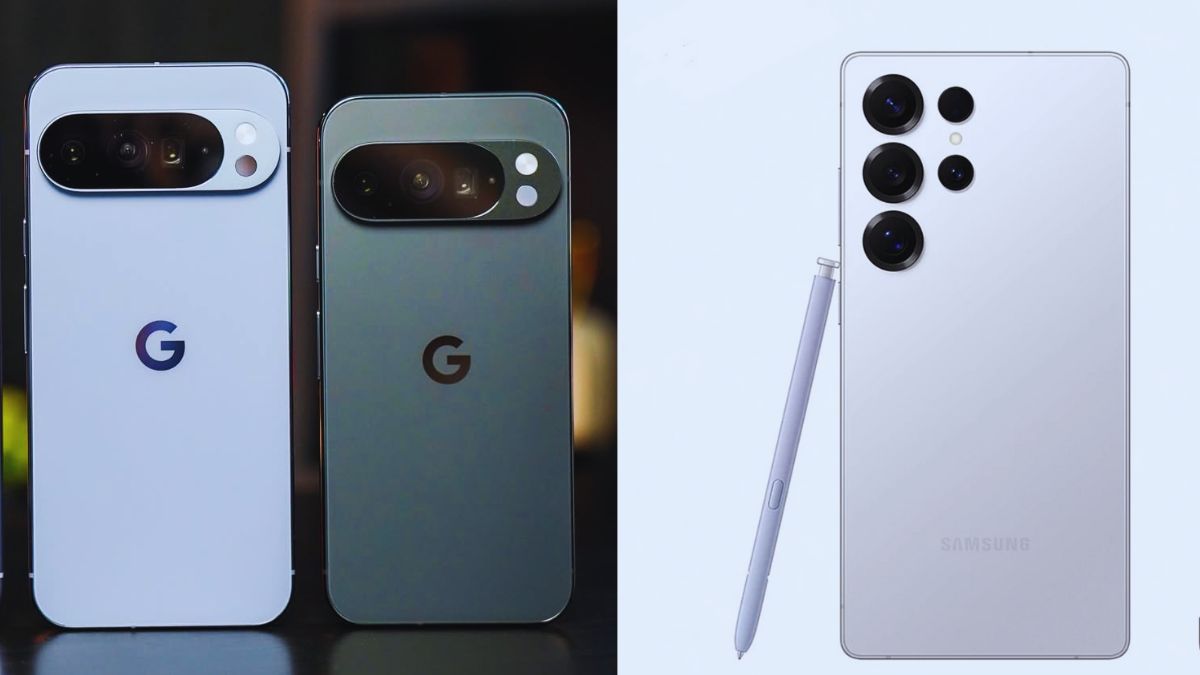
When it comes to Android smartphones, the biggest rivalry has always been Google Pixel vs Samsung Galaxy. Both brands represent the very best of what Android can offer—combining powerful hardware, sleek design, and cutting-edge innovation. While Samsung has long dominated the market with its feature-packed Galaxy lineup, Google’s Pixel phones bring a pure, AI-driven Android experience that’s hard to match. Whether you’re looking for the best camera, smoothest software, or most value for your money, this comparison will help you decide which flagship truly deserves a spot in your pocket.
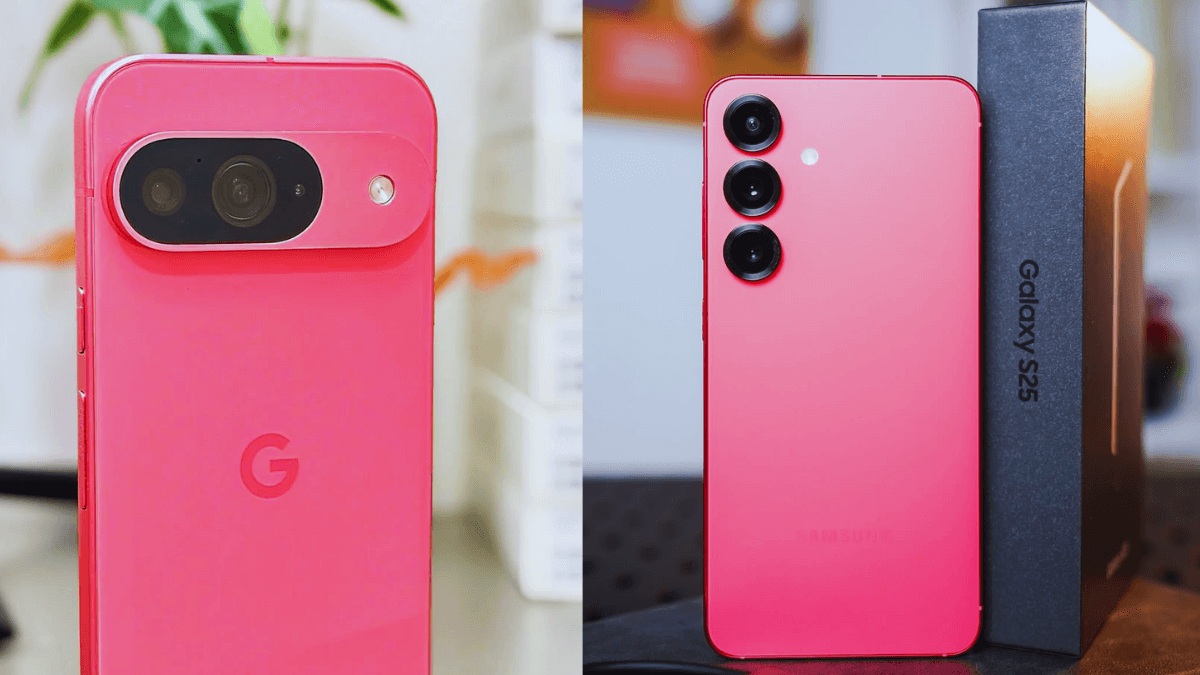
Design of Google Pixel 9 and Galaxy S25 from left to right.
Introduction : Google Pixel vs Samsung Galaxy
The Google Pixel series represents Google’s vision of what an ideal Android smartphone should be—simple, intelligent, and deeply integrated with Google’s software ecosystem. The first Pixel phone was launched in October 2016, marking Google’s move from the Nexus line (which it co-developed with other manufacturers) to building its own fully in-house smartphone hardware. Since then, the Pixel lineup has grown to include models like the Pixel, Pixel Pro, and Pixel Fold, catering to both casual users and tech enthusiasts. Renowned for their exceptional camera performance, powered by Google’s computational photography and AI-driven image processing, Pixel devices have redefined smartphone photography standards. Beyond the camera, Pixel phones are celebrated for their clean Android experience, timely updates, and exclusive AI features like the Google Assistant, Magic Eraser, and Call Screen. With each generation, Google continues to blend sleek design, smart features, and software optimization to create a seamless Android experience that reflects the company’s deep integration of hardware and artificial intelligence.
The Samsung Galaxy series is one of the most iconic and successful smartphone lineups in the world, representing Samsung Electronics’ innovation and dominance in the mobile industry. The Galaxy brand was first introduced in June 2009 with the launch of the Samsung Galaxy GT-I7500, running on the early Android operating system. Over the years, Samsung has expanded the Galaxy family into multiple sub-series, including the Galaxy S (flagship smartphones), Galaxy Note (stylus-equipped productivity devices), Galaxy Z (foldable phones like the Z Fold and Z Flip), and Galaxy A and M series (mid-range and budget options). Known for their cutting-edge AMOLED displays, powerful Exynos and Snapdragon processors, and feature-rich One UI software, Galaxy devices have consistently pushed boundaries in design, performance, and innovation. From introducing curved screens to pioneering foldable phone technology, Samsung’s Galaxy lineup has evolved into a global symbol of Android excellence and premium craftsmanship.
Design and Build Quality: Pixel vs Galaxy
When it comes to design, both Google Pixel and Samsung Galaxyphones look premium, but they approach it differently—especially when you compare materials, size, and ergonomics. Samsung Galaxy phones use sleek metal-and-glass construction with glossy finishes and curved displays. They often feel futuristic and luxurious, with large screens that make a bold impression. The phones are designed to feel solid in the hand, with rounded edges and careful attention to comfort despite their larger size.
Google Pixel phones, on the other hand, focus on simplicity and practicality. They usually have matte or textured finishes that resist fingerprints and feel comfortable to hold. The distinctive camera bar on the back gives them a unique look, while the overall size and shape are designed to fit well in your hand, making them very user-friendly. In short, if you want flashy, luxurious design, the Galaxy stands out. If you prefer a clean, minimalist phone that feels comfortable and practical, the Pixel is the winner.
Display and Visual Experience
When it comes to display quality, both the Samsung Galaxy and Google Pixel phones offer stunning screens, but they stand out in different ways. The Samsung Galaxy series, like the S24 and newer models, uses Dynamic AMOLED 2X technology, delivering incredibly bright and vibrant displays with deep blacks and rich contrast. With a peak brightness of around 2,600 nits and an adaptive 1–120Hz refresh rate, Galaxy screens look sharp and smooth whether you’re scrolling through apps or watching videos outdoors.
The Google Pixel phones also have impressive displays, using high-quality OLED panels that focus more on color accuracy and natural tones rather than oversaturated colors. Recent Pixel models, like the Pixel 8 and Pixel 9, reach up to 2,000 nits of brightness and support a 120Hz refresh rate, offering a great balance between brightness and smooth performance.
if you love bright, colorful, and eye-catching screens, the Samsung Galaxy takes the win. But if you prefer realistic colors and a softer, more natural viewing experience, the Google Pixel might be the better choice.
Camera Performance: Who Takes the Better Shot?
When we compare image quality, low-light performance, AI processing, and more, the battle between Samsung Galaxy and Google Pixel gets really interesting. Samsung Galaxy flagship models often feature a 200 MP main camera along with ultra-wide and telephoto lenses, capturing incredible detail in well-lit scenes. They also include powerful optical zoom and advanced low-light modes thanks to large sensors and smart image processing. Samsung’s software and AI enhancements help reduce noise and bring out fine details even in tricky lighting conditions.
Google Pixel phones focus on smart software and AI as much as hardware. Recent Pixel models use a 50 MP main camera with features like Super Res Zoom and Night Sight, which improve photos in low light and help with framing and composition. The AI processing ensures images have natural skin tones, reduced noise, and consistent quality, even in challenging conditions. While Galaxy phones excel in resolution and zoom, Pixel phones rely on intelligent computation to make photography simple and reliable.
if you want maximum detail and zoom options, the Galaxy is the winner. If you prefer a phone that takes great photos effortlessly, especially in low light, the Pixel stands out for its smart AI processing.
Performance and Software Experience
When we compare processors, RAM, smoothness, Android updates, and UI between Google Pixel and Samsung Galaxy, both phones deliver strong performance, but in different ways.
On the Pixel side, Google’s newer phones use Tensor-series chips designed for AI and efficiency. Recent Pixel models come with up to 12 GB or 16 GB of RAM, which helps with multitasking and smooth performance. Pixel phones are also known for getting Android updates immediately, so you always have the latest features and security. The Pixel UI is clean and simple, focusing on speed and ease of use.
Samsung Galaxy phones, on the other hand, use top-tier processors like Snapdragon or Exynos and offer high RAM for powerful multitasking. Samsung’s One UI adds many extra features and customization options on top of Android, making the interface rich but sometimes a bit heavier than Pixel’s clean UI. Samsung also provides up to four major Android updates and five years of security updates for its devices, keeping them secure and up-to-date.
if you want fast, clean software with timely updates, the Pixel is a great choice. If you prefer feature-rich UI, powerful hardware, and flexibility, the Galaxy stands out. Both are excellent, but it depends on whether you like simplicity or extra features.
Battery Life and Charging Speed
When we compare battery life and charging speed between the Google Pixel 9 (and its close siblings) and the Samsung Galaxy S25 (and its siblings), both are strong—but their focus and accessories differ a bit.
On the Pixel side, Google has equipped its phones with large batteries and fast‑charging support. For example, the Pixel supports up to 45 W wired charging with a USB‑C charger, and wireless charging is also included. Google uses USB‑C port for charging and recommends a USB‑C power adapter that supports USB Power Delivery (PD) for best results. The combination of a decent battery size and smart software means you’ll get reliable day‑long use, and the charging setup is straightforward.
On the Galaxy side, Samsung’s S25 series also offers large battery capacities (e.g., up to 5,000 mAh in the Ultra model) and fast‑charging capabilities. The S25 Ultra and S25 Plus support up to 45 W wired charging, while the base S25 model supports around 25 W wired charging. The charging port is USB‑C, and you’ll need a USB‑C charger that supports PPS (Programmable Power Supply) and the right wattage to hit full speed. Samsung’s phones also support wireless charging (around 15 W in the S25 series) and a “reverse wireless charging” feature, which lets you use your phone to charge other devices. One thing to note: many Galaxy phones do not include the wall charger adapter in the box, so you may need to purchase one separately to achieve the maximum speeds.
if you want the fastest possible wired charging and lots of battery power, go with the Galaxy line—but make sure you have the right charger. If you prefer a phone that gives you strong battery life and a solid charging experience with minimal fuss (and you’re okay with slightly less blazing speed), the Pixel is a great choice.
Price & Market Value
When it comes to value, both Google Pixel and Samsung Galaxy offer flagship-level features, but at different price points. The Google Pixel 9 starts in the U.S. at around $799 for the 128 GB model and about $899 for the 256 GB version. For this price, you get Google’s clean software experience, fast updates, strong cameras, and a solid, practical design. It’s a great option if you want a high-quality Android phone without paying for extra premium features.
The Samsung Galaxy S25 starts at $799 for the base 128 GB model, $999 for the Plus version, and $1,299 for the Ultra variant. The higher price gives you more hardware features, including larger displays, advanced cameras, more RAM, and extra software capabilities. If you’re willing to invest more, you get a phone packed with extras and higher-end specs. In short, choose the Pixel for value and simplicity, or the Galaxy if you want premium features and are okay spending more.
Final Verdict
When comparing Google Pixel vs Samsung Galaxy, it’s important to recognise that each brand offers several models across different price ranges. On the Pixel side you’ll find models like the Google Pixel 9, the more premium Google Pixel 10, and mid‑range or “a” variants (such as the Pixel 9a) aimed at value‑conscious buyers. Meanwhile the Galaxy line includes flagship models like the Samsung Galaxy S25, the ultra‑premium Samsung Galaxy S25 Ultra, and also more affordable options in the “A” or mid‑range series. By covering the full spectrum of models from both brands, you get a clearer view of how value, features, and performance vary — and how the choice in the Google Pixel vs Samsung Galaxy debate depends on which model you pick.
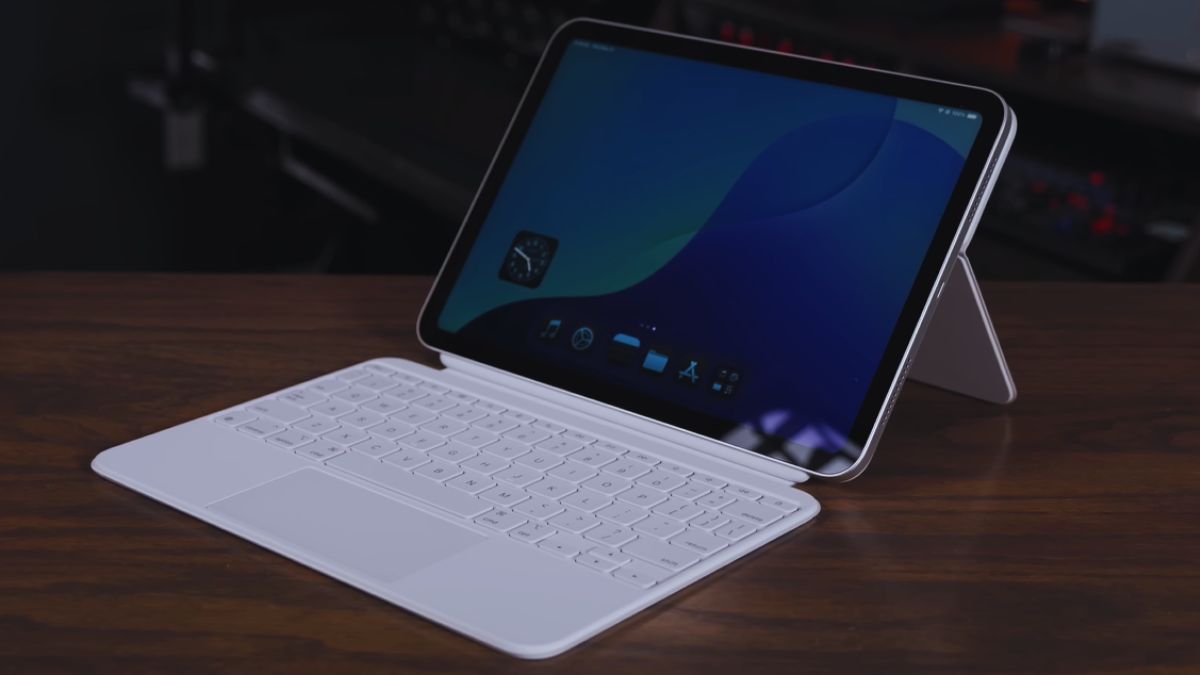
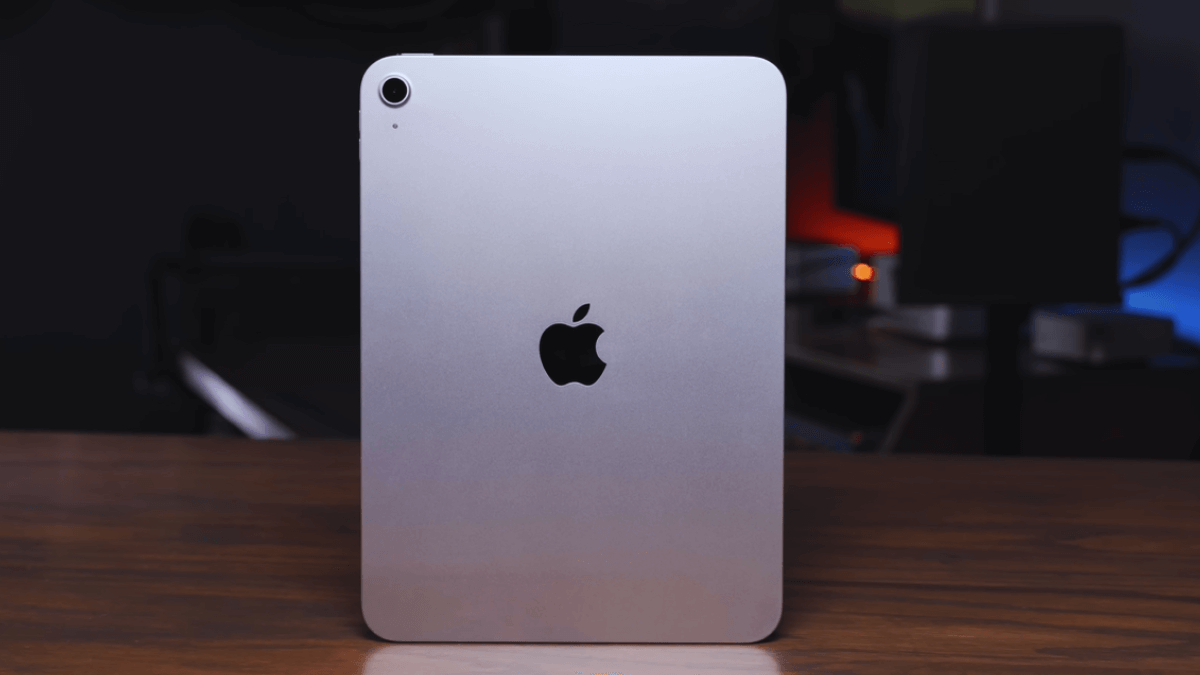
Apple iPad A16 (11th Generation) Review: This iPad was released in March 2025 and is designed for students, professionals, and everyday users. It is powered by the A16 Bionic chip, which makes apps run smoothly, multitasking easy, and games or creative work fast. The 10.9-inch Liquid Retina display shows bright and sharp colors, and the cameras are improved for photos, videos, and video calls. Other highlights include long battery life, USB-C charging, and support for the latest iPadOS features. This iPad is available in Silver, Space Gray, Blue, and Pink, combining style, performance, and functionality in one device.
The Apple iPad 11th Generation (2025) showcases its slim, sleek design and premium build from an angled perspective.
Design and Display
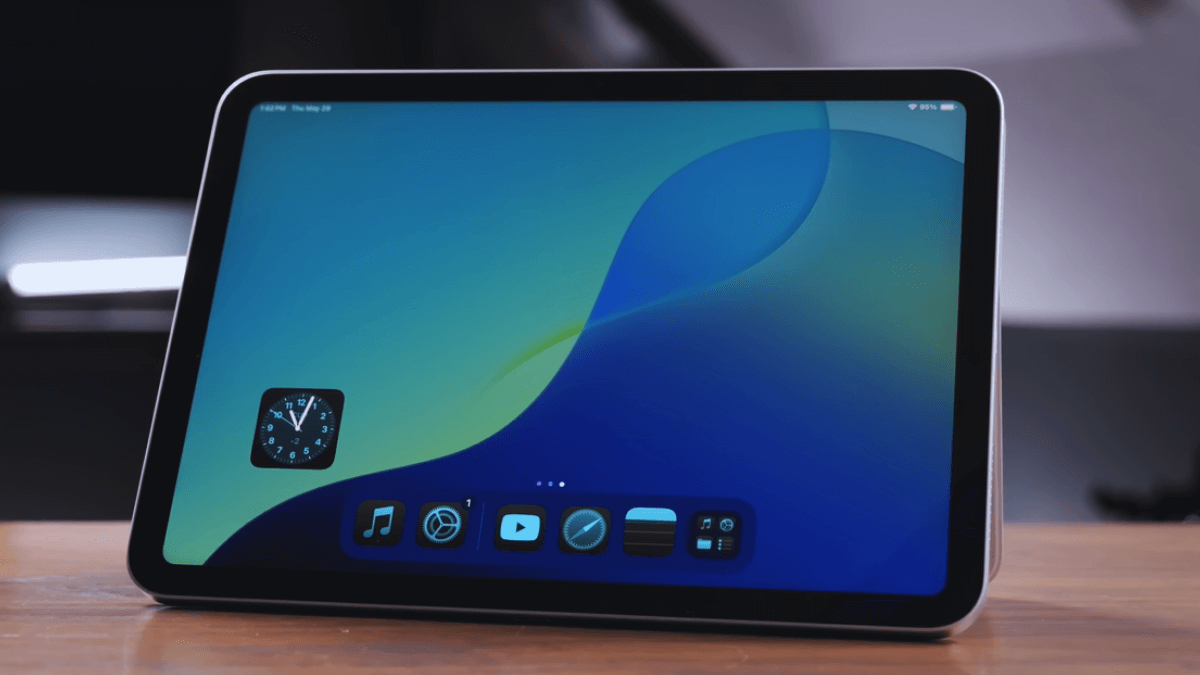
The 10.9-inch Liquid Retina display of the Apple iPad 11th Generation (2025) delivers bright colors, sharp details, and a smooth visual experience.
The Apple iPad 2025 (11th Generation) has a simple and stylish design that feels light and easy to hold. It’s about 7.0mm thick and weighs around 470 grams, so you can carry it anywhere without feeling heavy. The tablet has a 10.9-inch Liquid Retina display that shows bright and clear colors, making videos, photos, and apps look great. With a brightness of up to 600 nits, the screen stays easy to see even under sunlight. The flat edges and smooth rounded corners give it a clean, modern look. Made from strong aluminum, the iPad looks premium and feels solid in your hands — perfect for studying, working, or relaxing with your favorite shows.
Performance and A16 Chip Power
The Apple iPad 2025 (11th Generation) is powered by the A16 Bionic chip, the same powerful processor used in Apple’s latest iPhones. This chip makes everything run fast and smooth — whether you’re browsing the web, editing photos, or playing graphics-heavy games. The A16 chip includes a 6-core CPU and a 5-core GPU, giving the iPad excellent performance for multitasking and creative work. Apps open quickly, animations feel fluid, and switching between tasks is effortless. It also handles video editing, drawing, and online meetings without any lag. Thanks to its efficient design, the iPad stays cool and saves battery even during heavy use. Overall, the Apple iPad 2025 delivers impressive speed and performance that makes everyday tasks and entertainment feel easy and enjoyable.
Camera and Multimedia Experience
The Apple iPad 11th Generation (2025) features a 12MP rear camera and a 12MP Ultra Wide front camera with Center Stage for sharp photos and video calls.
The Apple iPad 2025 (11th Generation) comes with improved cameras that make video calls, photos, and videos look clearer and sharper. On the back, it has a 12-megapixel wide camera that captures bright and detailed pictures, while the 12-megapixel Ultra Wide front camera with Center Stage keeps you perfectly in frame during video calls. Whether you’re joining an online class, attending meetings, or chatting with friends, the camera adjusts automatically to keep you visible. The iPad also records 4K video, making it great for content creators and vloggers. When it comes to sound, the stereo speakers deliver clear and rich audio, perfect for watching movies or listening to music. Combined with the Liquid Retina display, the Apple iPad 2025 offers a smooth and immersive multimedia experience that’s ideal for both work and fun.
Battery Life and Charging
The Apple iPad 2025 (11th Generation) delivers up to a full day of use under typical conditions, letting you browse the web, watch videos, or work without constantly needing a charger. In testing, it managed around 11 hours and 25 minutes of continuous usage on Wi‑Fi. For charging, the tablet uses a USB‑C port and supports standard wired charging. A full charge takes approximately 2 hours, and it reaches about 33% charge in the first 30 minutes. While the charging speed isn’t the fastest on the market, the iPad balances long-lasting battery life with practical charging, making it a reliable choice for everyday use.
Pros and Cons
The Apple iPad 2025 (11th Generation) is a versatile tablet that performs well for work, study, and entertainment. Like any device, it has its strengths and weaknesses, so it’s important to consider both before making a purchase. Here’s a quick overview of its main advantages and drawbacks:
Pros:
Powerful A16 Chip: Handles multitasking, gaming, and creative apps smoothly.
Lightweight and Sleek Design: Easy to carry and stylish, with a 10.9-inch Liquid Retina display.
Long Battery Life: Can last up to a full day on typical usage.
High-Quality Cameras: 12MP rear and front cameras with Center Stage for clear video calls.
Good Storage Options: Available in 128GB, 256GB, and 512GB variants.
Cons:
No Fast Charging: USB-C charging is standard but not the fastest.
Limited Base Storage: 128GB may not be enough for heavy users without opting for higher-priced models.
Price
The Apple iPad 2025 (11th Generation) launched in the U.S. at a starting price of $349 for the 128 GB Wi‑Fi model. Higher‑storage versions were priced around $449 for 256 GB and $649 for 512 GB. These pricing tiers made the 11th‑generation iPad one of the most accessible full‑sized iPads in Apple’s lineup, offering the A16 chip and improved storage without raising the base cost. The actual price may vary based on region, storage capacity, and connectivity (Wi‑Fi vs Wi‑Fi + Cellular), so be sure to check the official Apple website for the current, official price in your country.
Final Verdict
Thank you for reading this Apple iPad A16 (11th Generation) Review. The iPad is a great all-around tablet that is easy to use and powerful. With the A16 Bionic chip, 10.9-inch Liquid Retina display, better cameras, and long battery life, it works smoothly for school, work, games, or watching videos. Its slim design, light weight, and colors—Silver, Space Gray, Blue, and Pink—make it look good and easy to carry. While charging is not super fast and the base 128GB storage may not be enough for everyone, the Apple iPad A16 (11th Generation) is a solid choice for anyone looking for a reliable, modern tablet in 2025.