
iPhone 14 Pro Max Settings Guide
The iPhone 14 Pro Max is packed with powerful features and smart settings that let you personalize your device, stay organized, and protect your data. From managing your Apple ID and iCloud to controlling notifications, Focus modes, and Screen Time, knowing how to adjust these settings can make your iPhone experience smoother and more productive. In this iPhone 14 Pro Max Settings Guide, we’ll talk all the important settings upto Screen Time so you can get the most out of your iPhone 14 Pro Max. If you are also using an iPhone 15, iPhone 16, or iPhone 17 series, you can access similar settings on those devices as well.
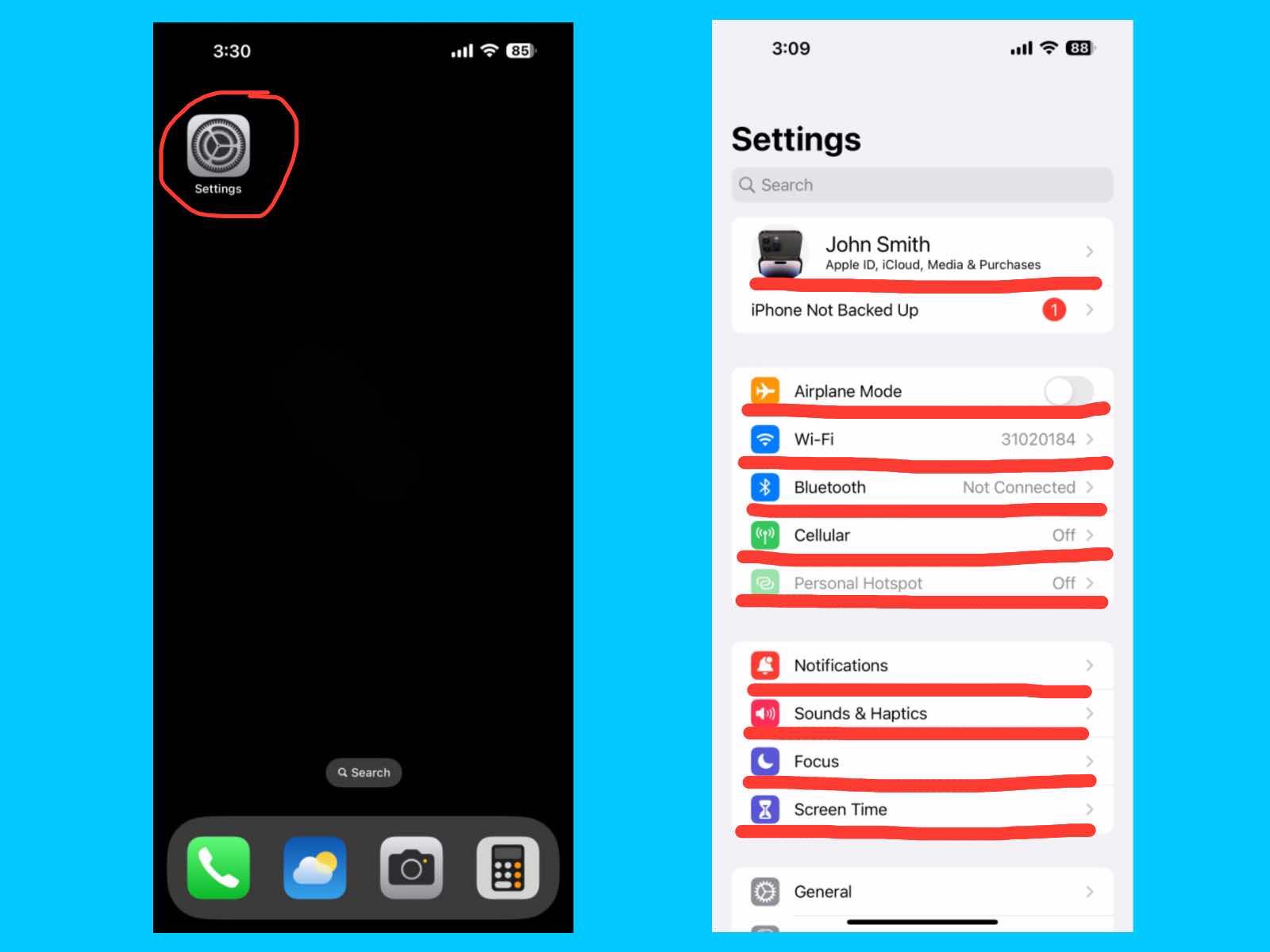
Apple ID, iCloud, Media & Purchase
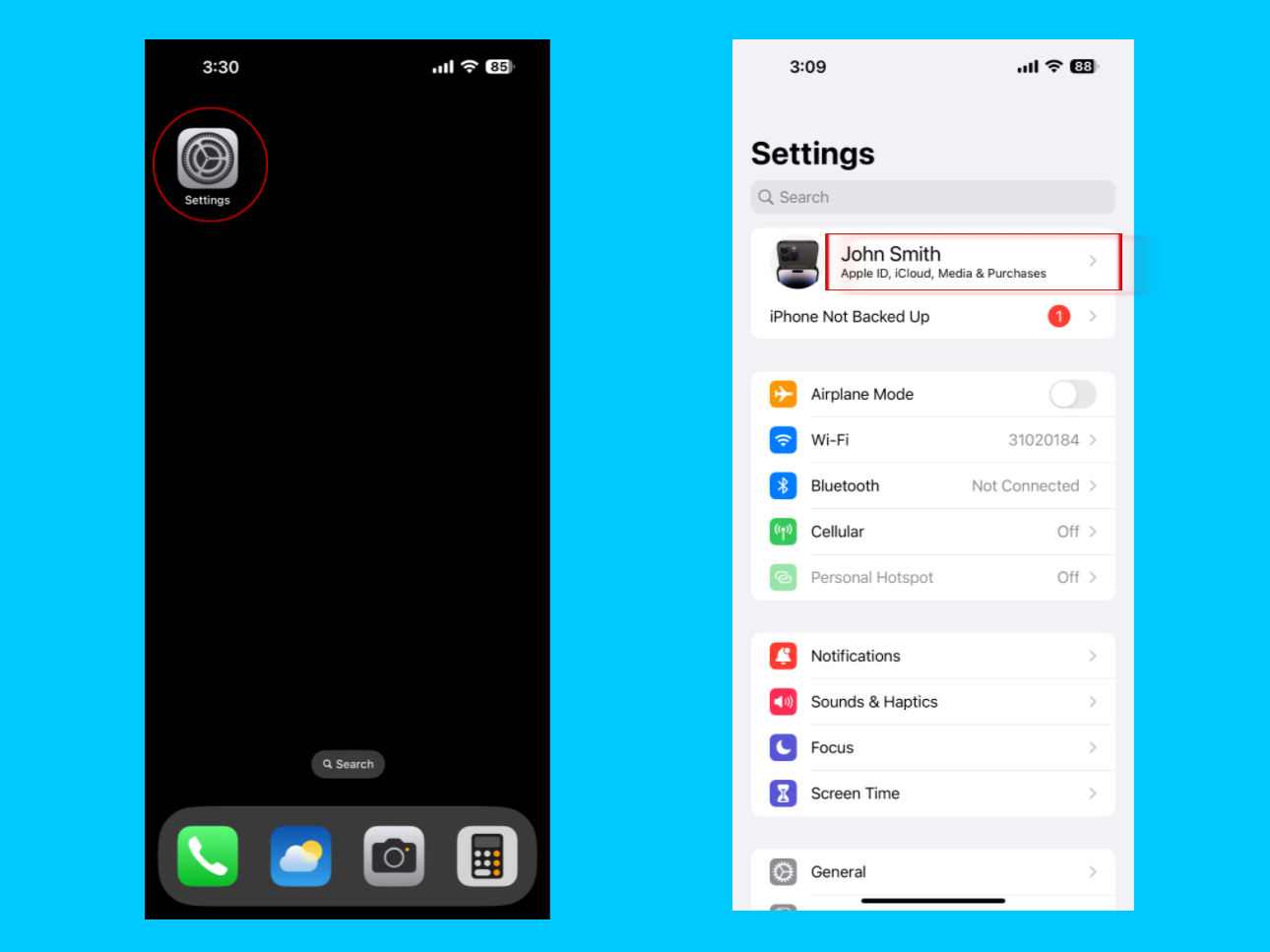
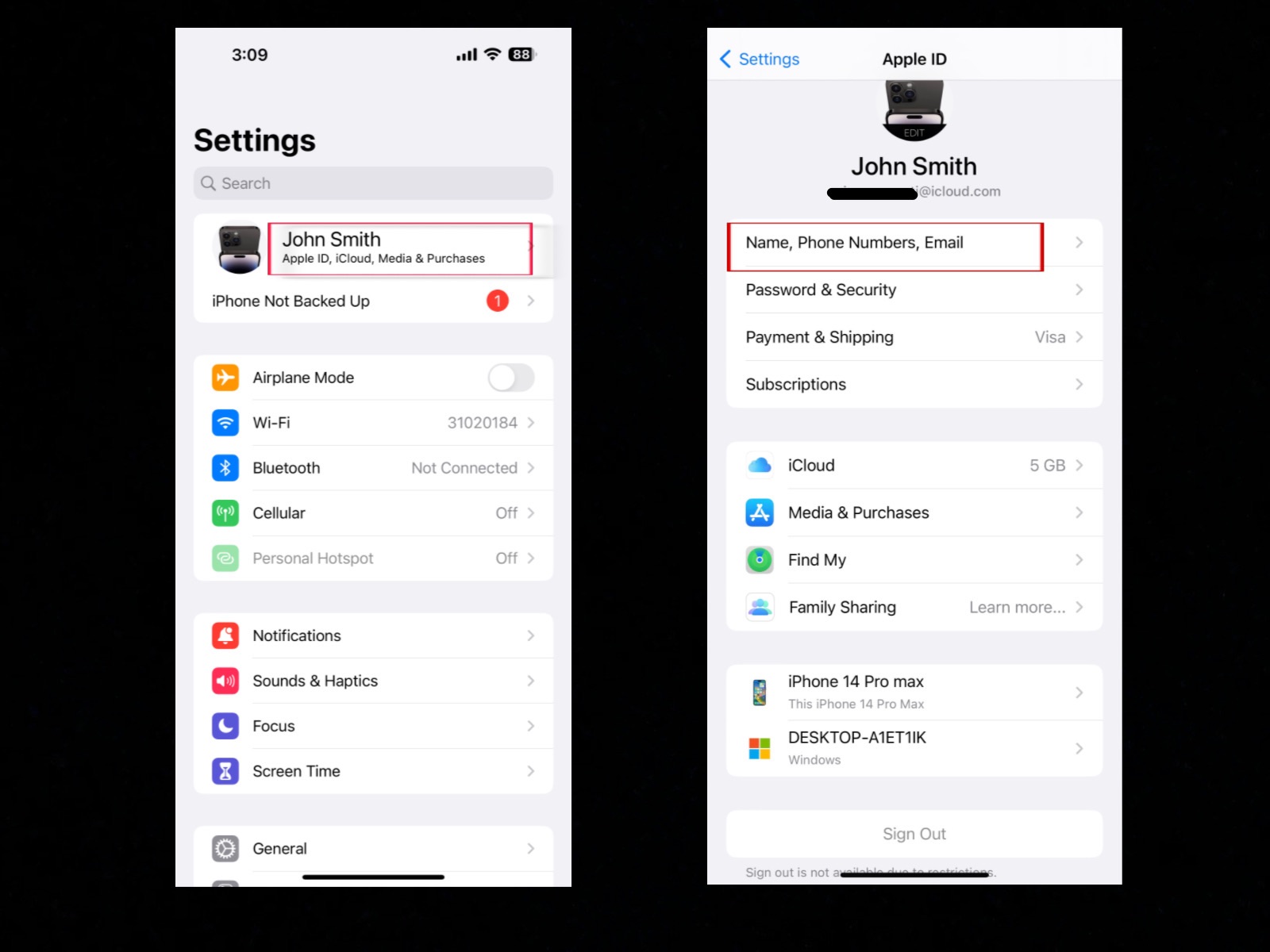
Name, Phone Numbers, Email
This section in your iPhone settings shows the personal details linked to your Apple ID. Here you can update your name, Date of birth, add or change your phone numbers, and manage the email addresses connected to your account. You have to add one Apple ID to activate your phone.
Apple ID :
Apple ID is your personal account that you use for everything on your iPhone. With just one Apple ID, you can sign in to all Apple services like the App Store, iCloud, Apple Music, and more. It stores your information such as email, phone number, payment details, and keeps your Apple devices connected. so Always use a secure password and enable two-factor authentication to protect your account.
- Name: The full name you registered with your Apple ID.
You can always change your name as your choice. - Phone Numbers: The numbers Apple can use to reach you for FaceTime, iMessage, or account verification.
-
Email: The email addresses linked to your Apple ID for sign-in, recovery, or receiving updates.
You need an Apple ID to use Apple services like iCloud, the App Store, FaceTime, and iMessage. Adding a phone number is optional, but it is useful for verifying your account, using FaceTime and iMessage, and recovering your account if needed.
So, Always keep your primary phone number and recovery email up to date, so you don’t lose access to your Apple ID if you forget your password or change your phone.
Announcements
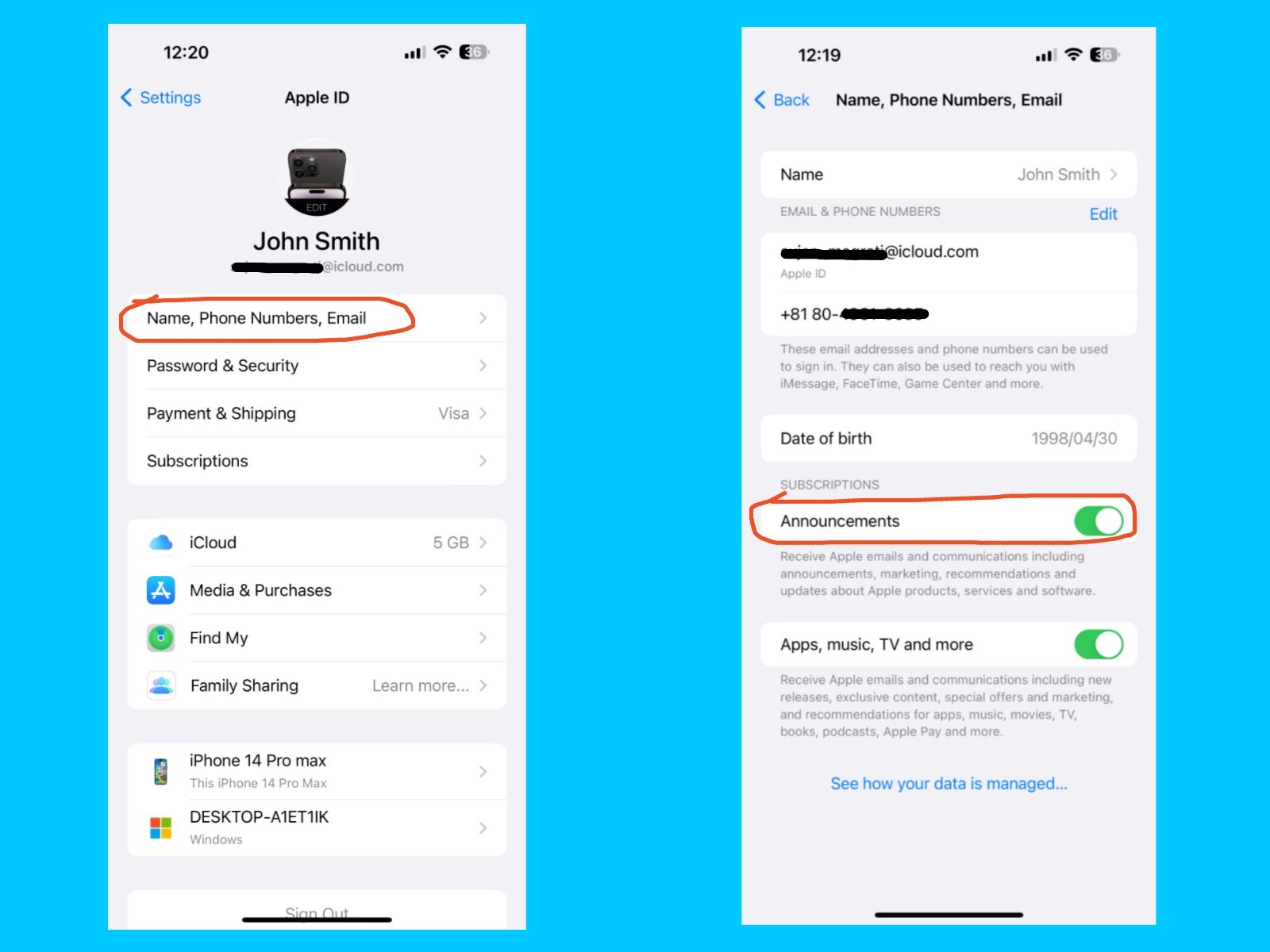
You can receive Apple emails with announcements, marketing, and recommendations. You can also get updates about Apple products, services, and software to stay informed and enjoy the latest offers related to your Apple ID, iCloud, and Apple services. When it’s turned on, Apple may send emails or notifications about new features, product launches, and recommendations.
Apps, Music, TV, and More
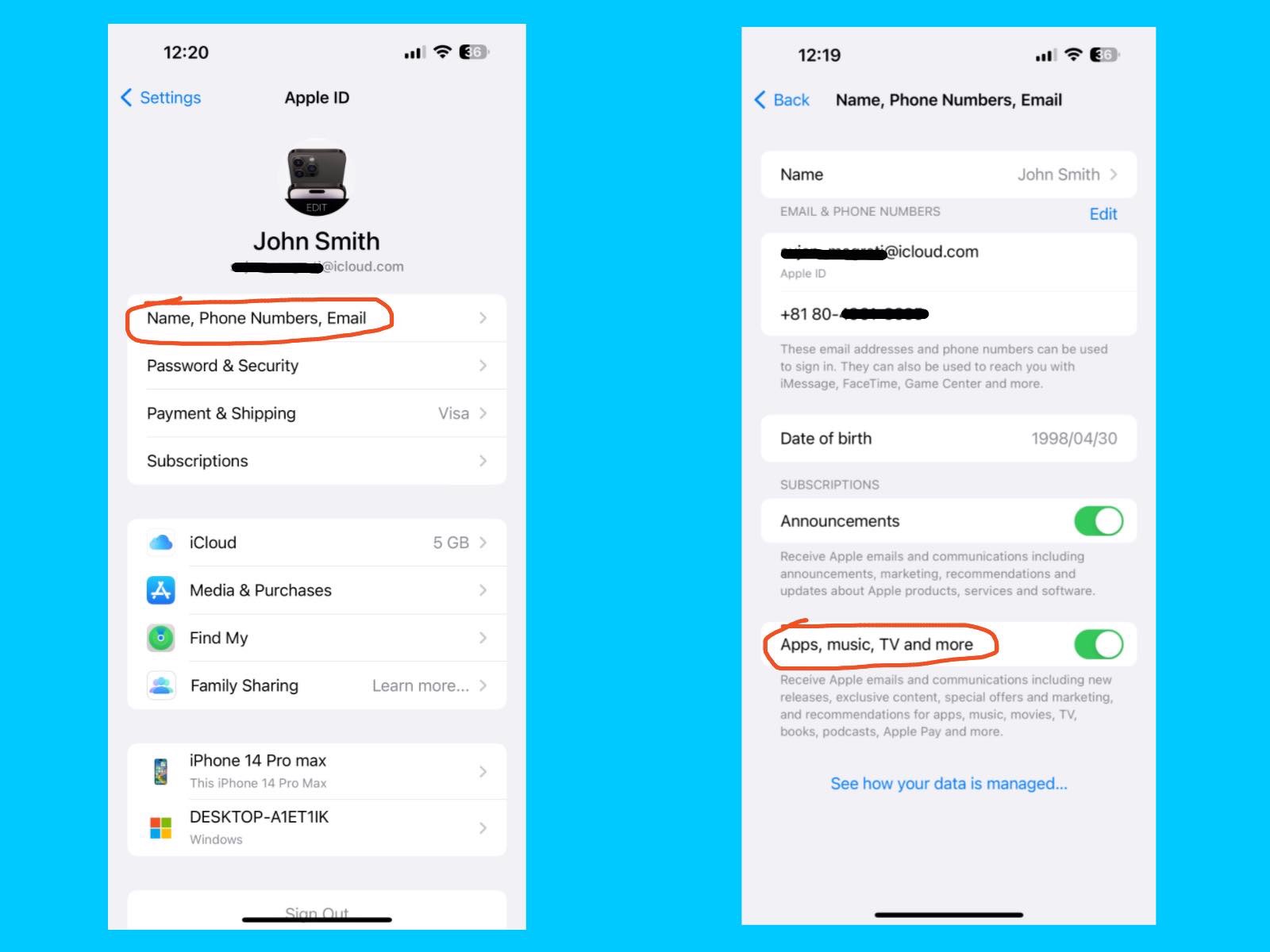
You can get Apple emails with updates, special offers, and recommendations. You can stay informed about new products, apps, music, movies, books, and more. With these emails, you can easily discover the latest from Apple and enjoy exclusive content and deals.
Password & Security
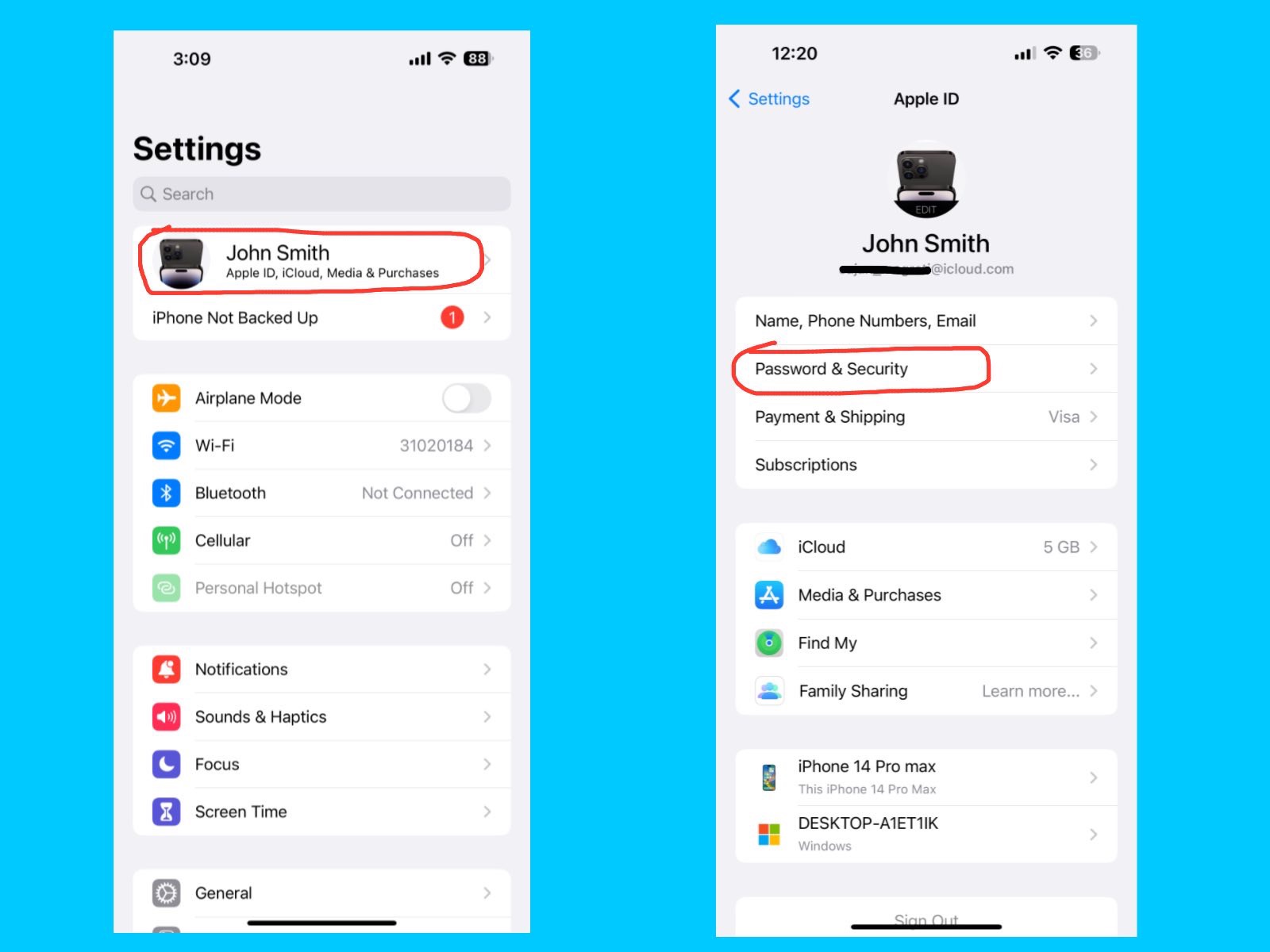
The Password & Security section helps you protect your Apple ID and personal data. Here, you can manage your password, enable extra security measures, and control how Apple verifies it’s really you.
Key features :
- Change Password:
You can update your Apple ID password whenever needed. - Two-Factor Authentication (2FA):
This feature adds an extra layer of security by requiring a code when signing in from a new device. - Trusted Phone Numbers & Devices:
You can set up phone numbers or devices that can receive verification codes. -
Account Recovery:
It helps you regain access if you forget your password or get locked out. You can add a friend or family member as a recovery contact for your account. The person you choose must be at least 13 years old and have an Apple device. You can also create a 28-character Recovery code like MN98-UH14-6G4U-NURP-9X3J-MQ88-HB5H, which helps you access your account. - Legacy Contact
The Legacy Contact feature lets you choose a trusted person, such as a family member or close friend, who can access your Apple account and personal data if something happens to you. This includes photos, messages, files, and other information stored in iCloud. Apple provides a special access key that your Legacy Contact can use after your death, ensuring your important memories and information are passed on safely. - Automatic Verification
The Automatic Verification feature on your iPhone helps confirm your identity automatically when signing in to apps, websites, or Apple services. It works in the background, so you don’t need to enter verification codes manually, making logging in faster and smoother. Apple keeps this process private, ensuring your passwords and codes stay secure. This feature turned on for convenience, but make sure your device is protected with a passcode or Face ID so only you can use it.
Payment & Shipping
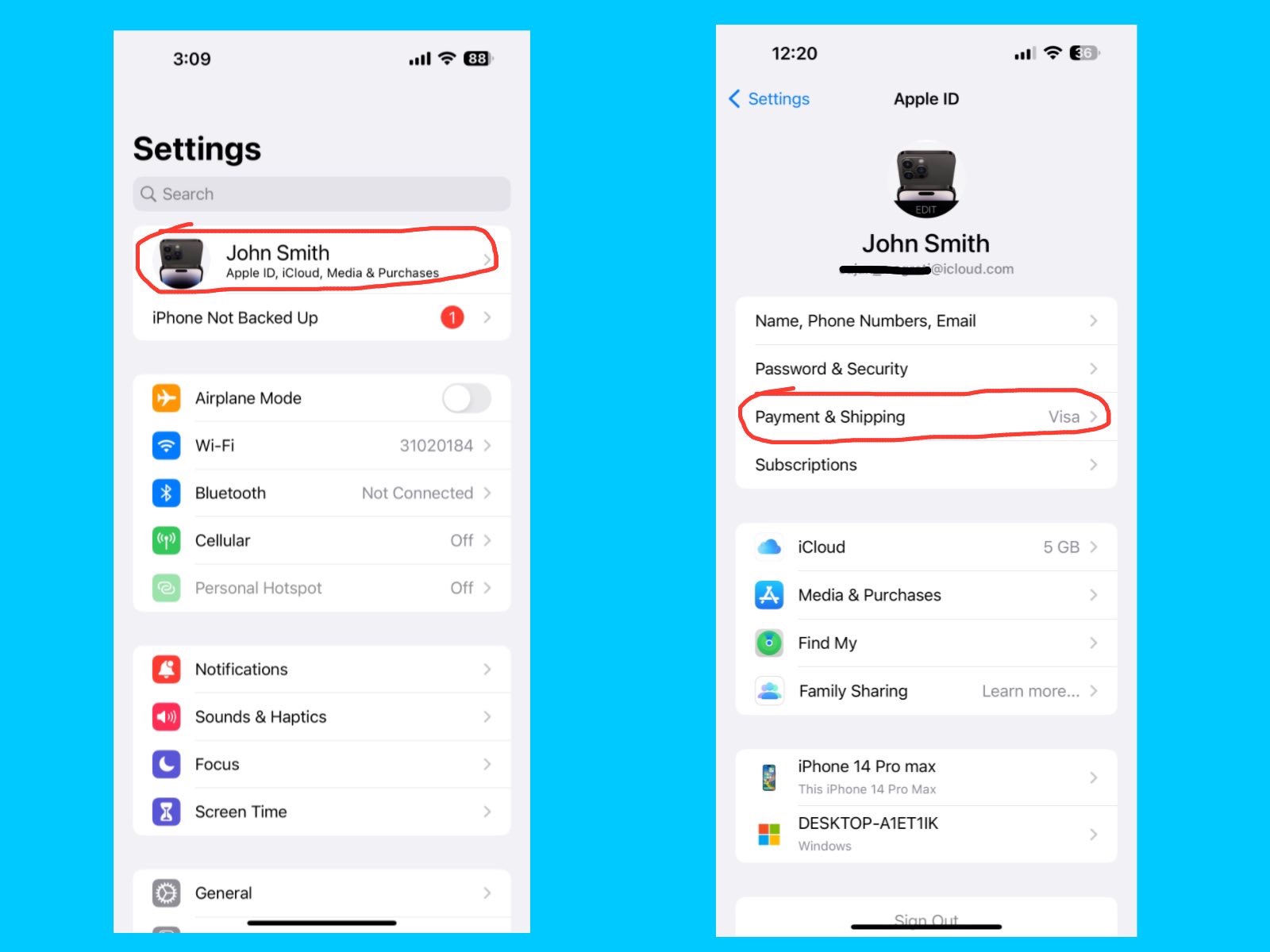
The Payment & Shipping section on your iPhone lets you manage the payment methods and delivery addresses linked to your Apple ID. It is used for purchases on the App Store, iTunes Store, Apple Books, and Apple online store. Here, you can add, remove, or update credit/debit cards or Apple Pay, and manage your billing and shipping addresses for products you order from Apple. Keeping this information up to date ensures smooth checkout and avoids failed purchases or subscription interruptions.
Subscriptions
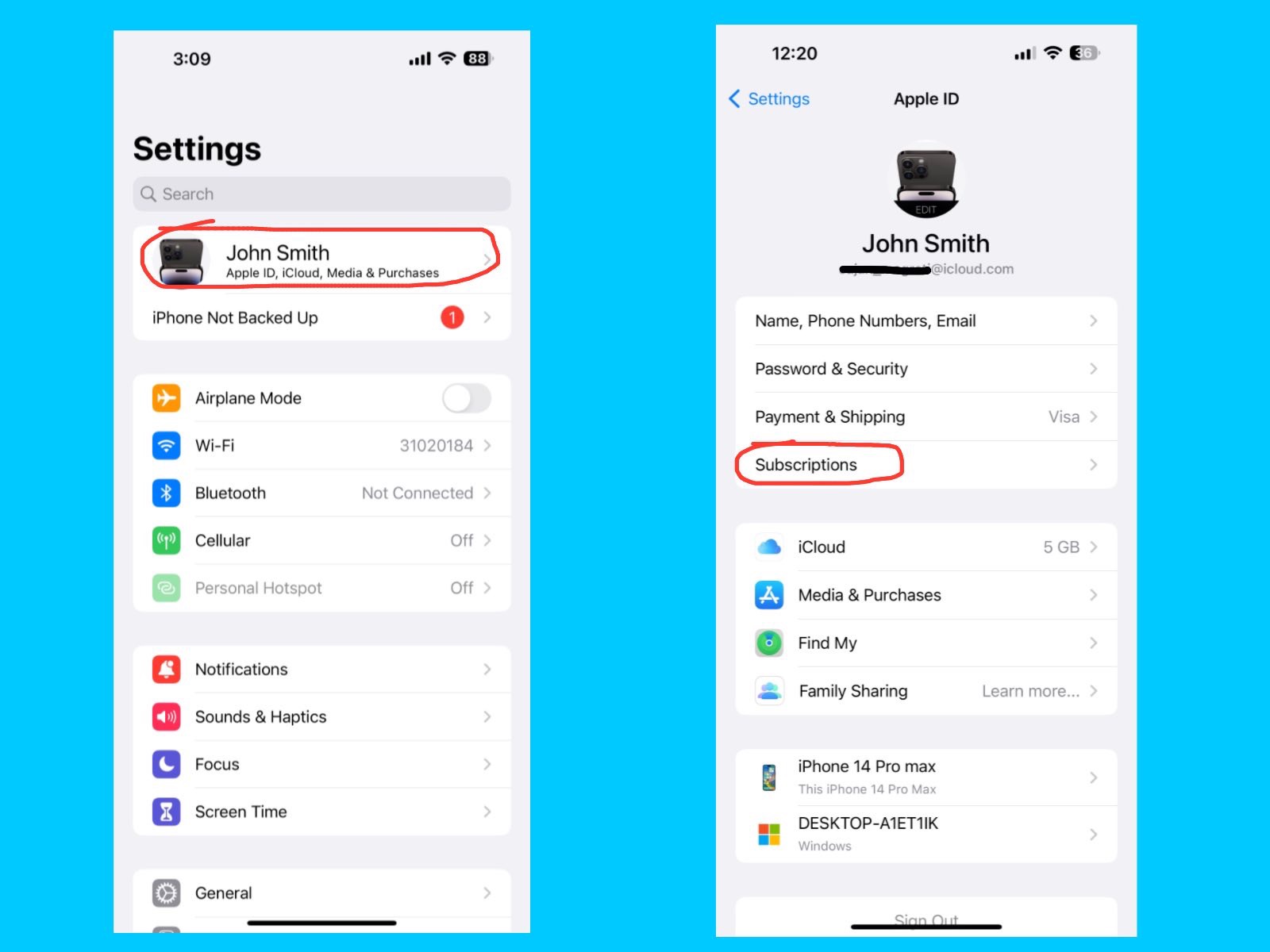
The Subscriptions section lets you manage all your active subscriptions linked to your Apple ID, such as Apple Music, Apple TV+, Apple Arcade, or third-party apps from the App Store. Here, you can view, change, or cancel any subscription and see billing details for each service. Keeping this section organized helps you avoid unwanted charges and ensures you’re only paying for the services you actually use.
iCloud
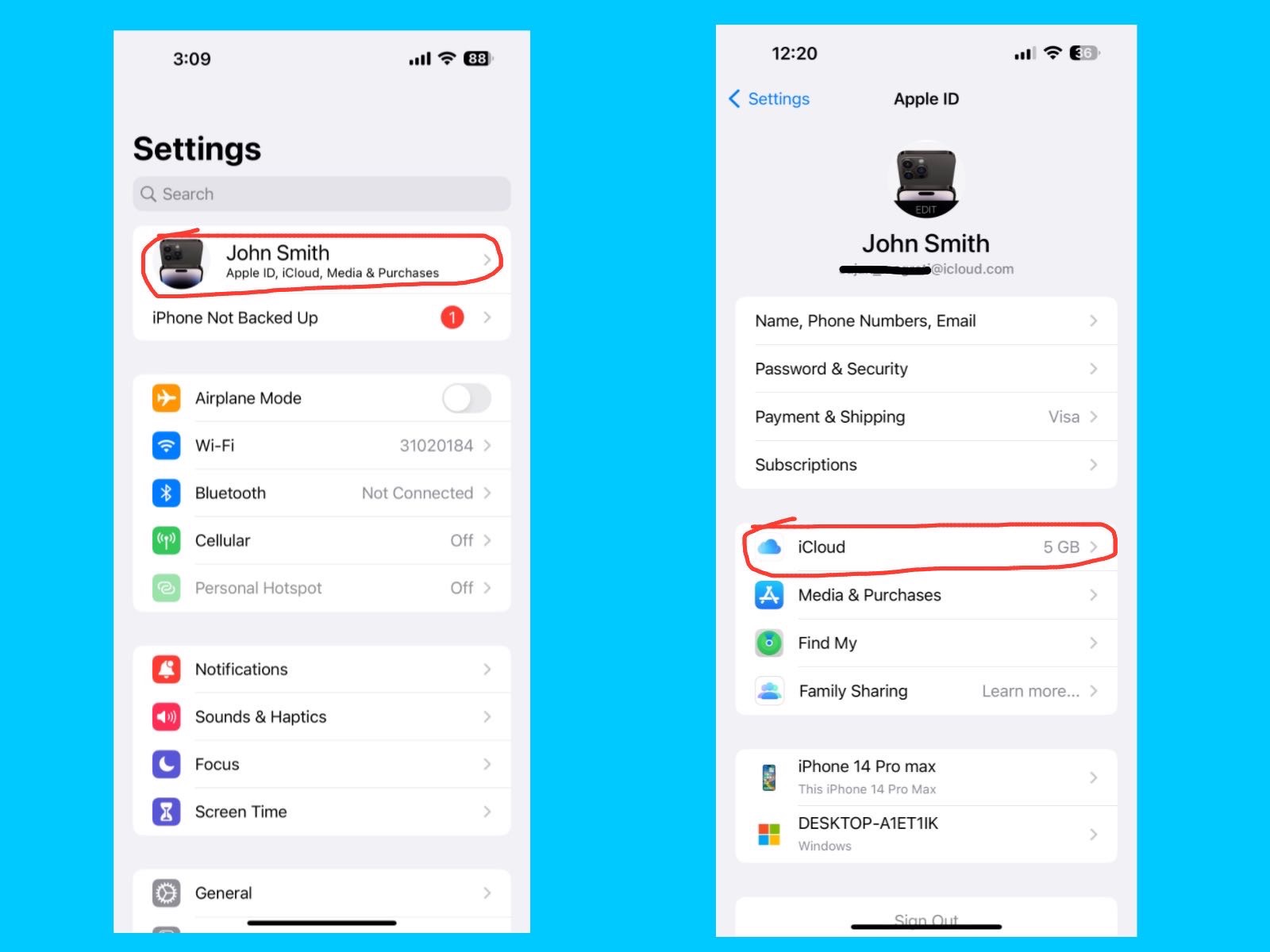
iCloud is Apple’s cloud storage service. It automatically saves your photos, videos, contacts, notes, backups, and app data online. This means if you lose your iPhone or switch to a new one, you can easily restore everything. The iPhone 14 Pro Max comes with 5GB of free iCloud storage. You may need to upgrade (50GB, 200GB, or 2TB plans) if you store lots of photos or videos.
Media & Purchases
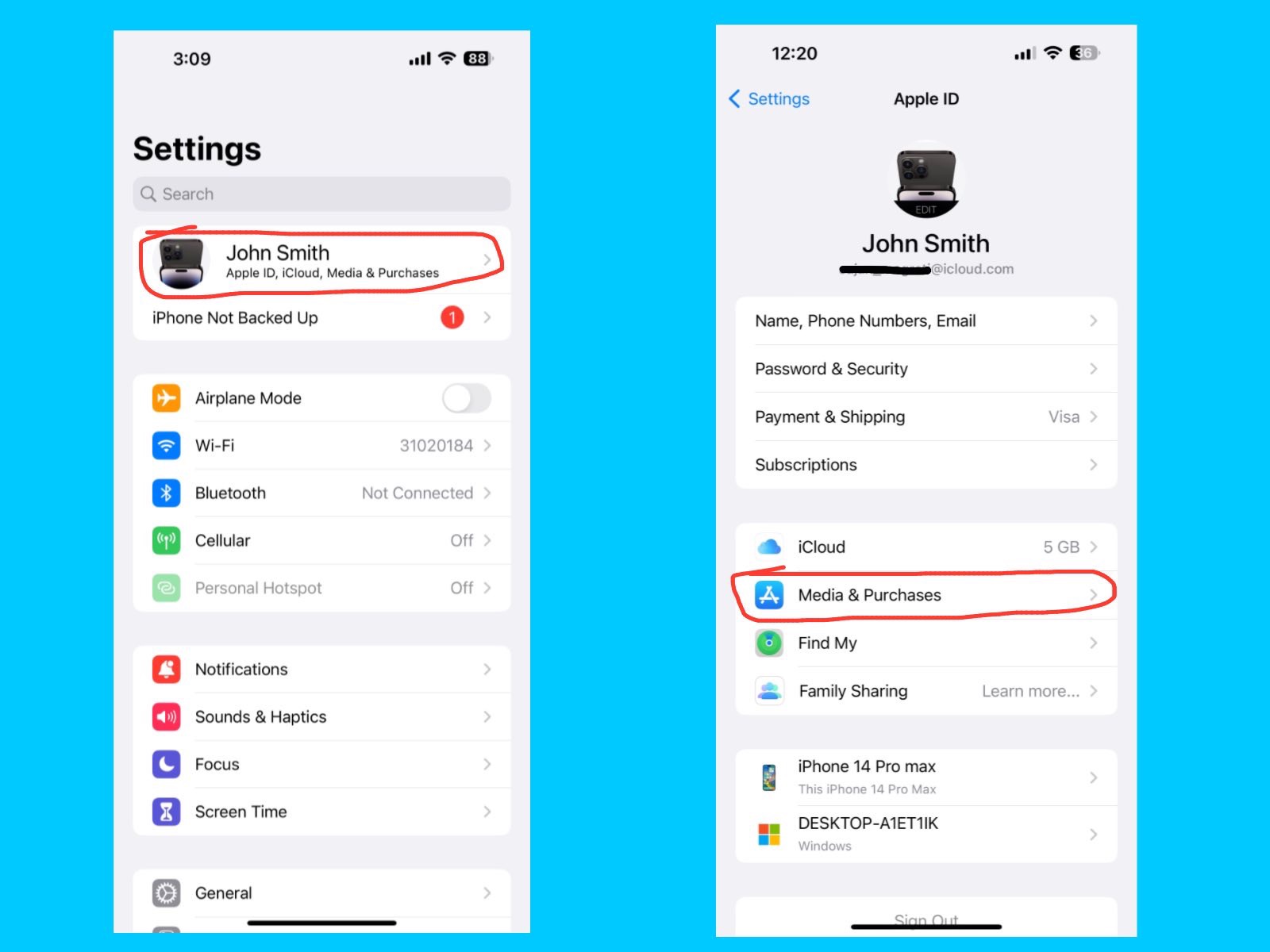
This setting controls everything related to the App Store, iTunes Store, Apple Books, and Apple Music purchases. You can manage your payment methods, view your purchase history, and handle subscriptions all in one place. If you share purchases with family, turn on Family Sharing so multiple users can enjoy apps, music, and iCloud storage under a single plan.
Find My
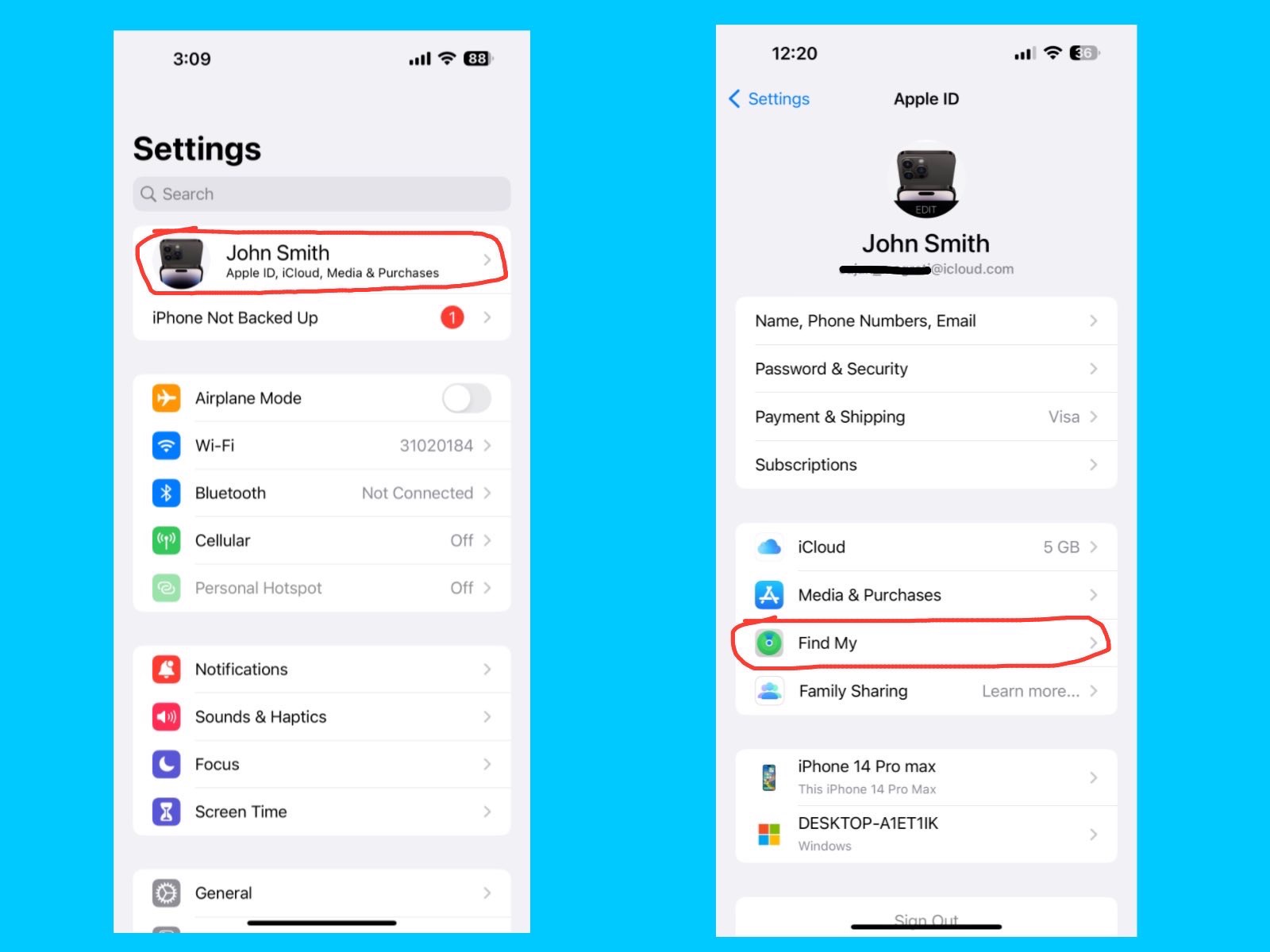
The Find My feature helps you locate your iPhone, other Apple devices, and even friends or family who share their location with you. You can also lock or erase your device remotely if it’s lost or stolen, keeping your personal data safe. So, always keep Find My iPhone turned on, as it is essential for tracking your device and protecting your information.
Family Sharing
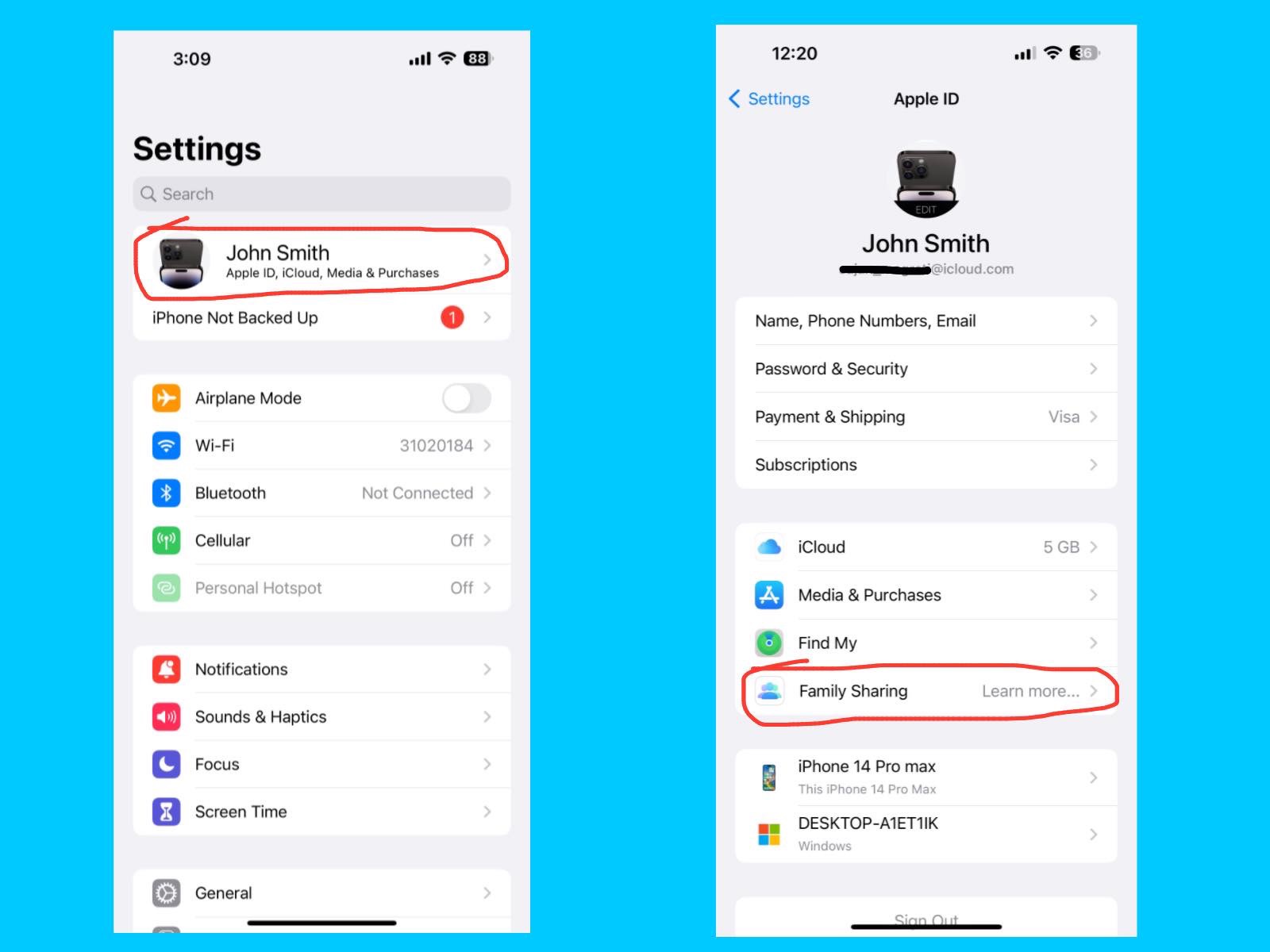
Family Sharing lets you share Apple services, purchases, and subscriptions with your family members without sharing accounts. You can share App Store apps, Apple Music, Apple TV+, iCloud storage, and more. It also allows parents to set screen time limits and approve kids’ purchases. so, Family Sharing makes it easy and affordable for multiple people to enjoy Apple services under one plan while keeping each account separate.
Airplane Mode
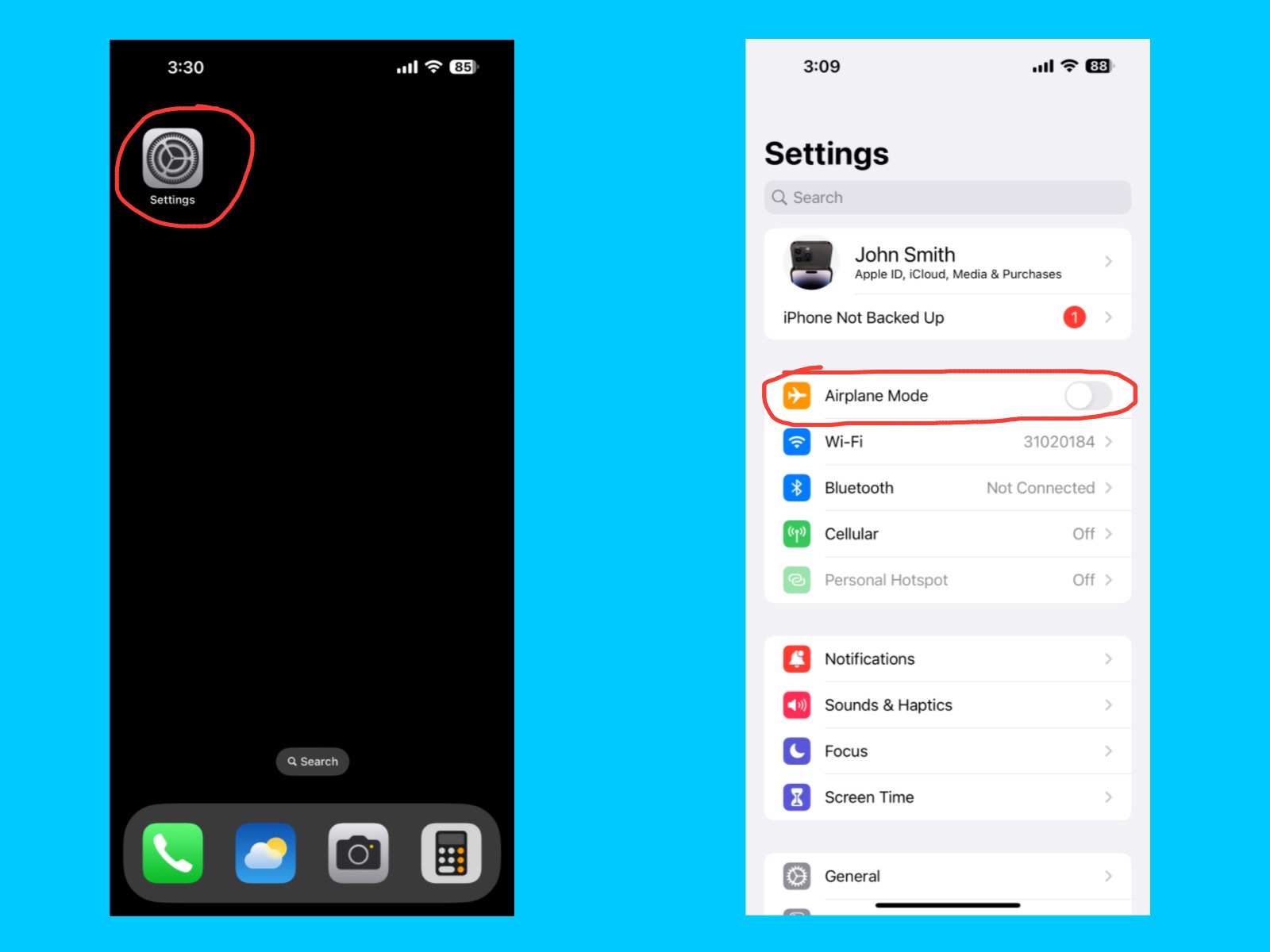
Airplane Mode temporarily turns off all wireless connections on your iPhone, including cellular, Wi-Fi, Bluetooth, and GPS. It’s useful when you’re on a flight, in areas with poor signal, or want to save battery. You can also manually turn Wi-Fi or Bluetooth back on while Airplane Mode is active if needed.
Wi-Fi
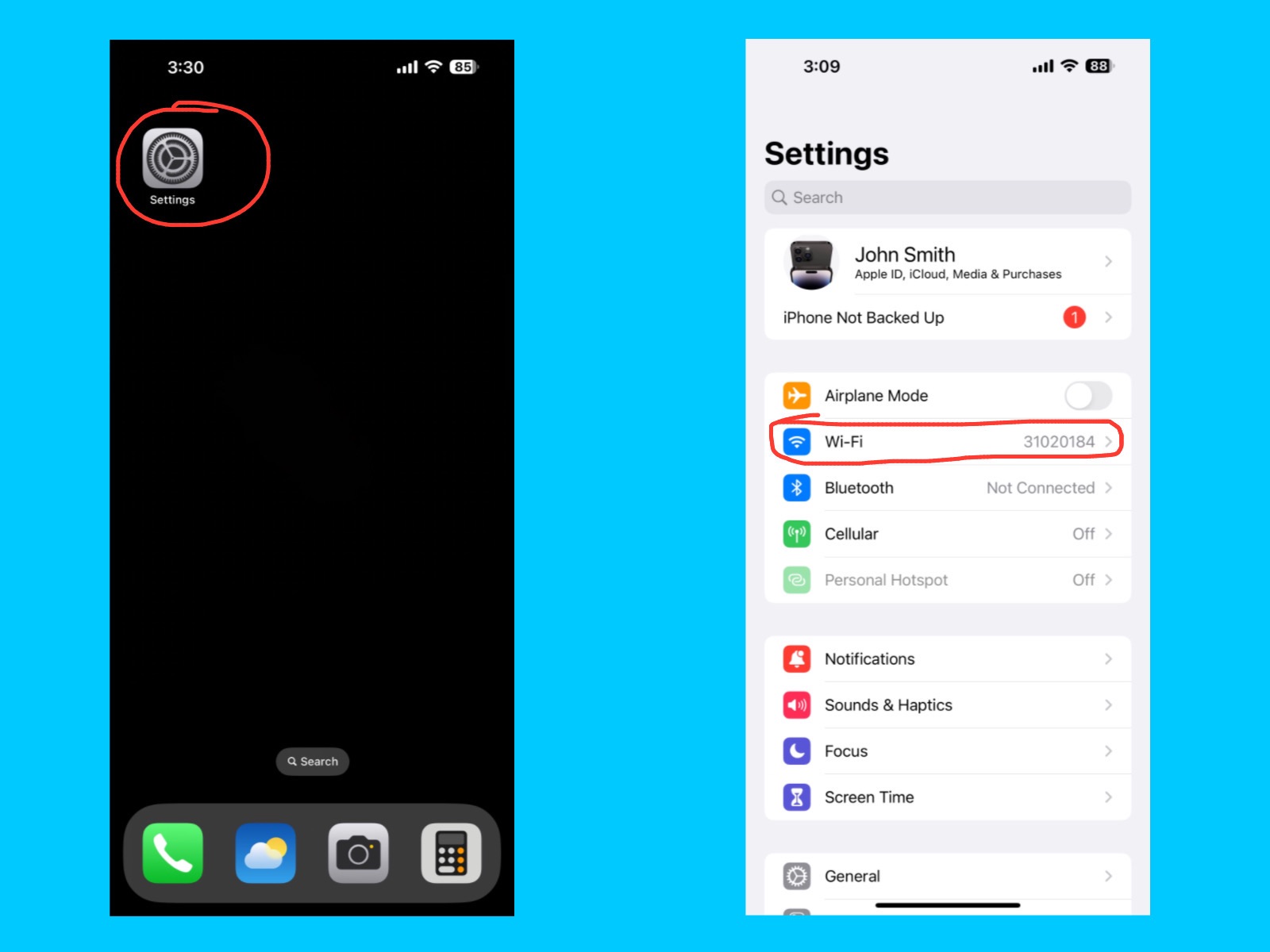
The Wi-Fi setting lets your iPhone connect to wireless internet networks for browsing, streaming, downloading apps, and more. You can choose a network, enter passwords, and manage saved networks here. Using Wi-Fi also helps save cellular data and can make downloads and streaming faster.
Bluetooth
Cellular
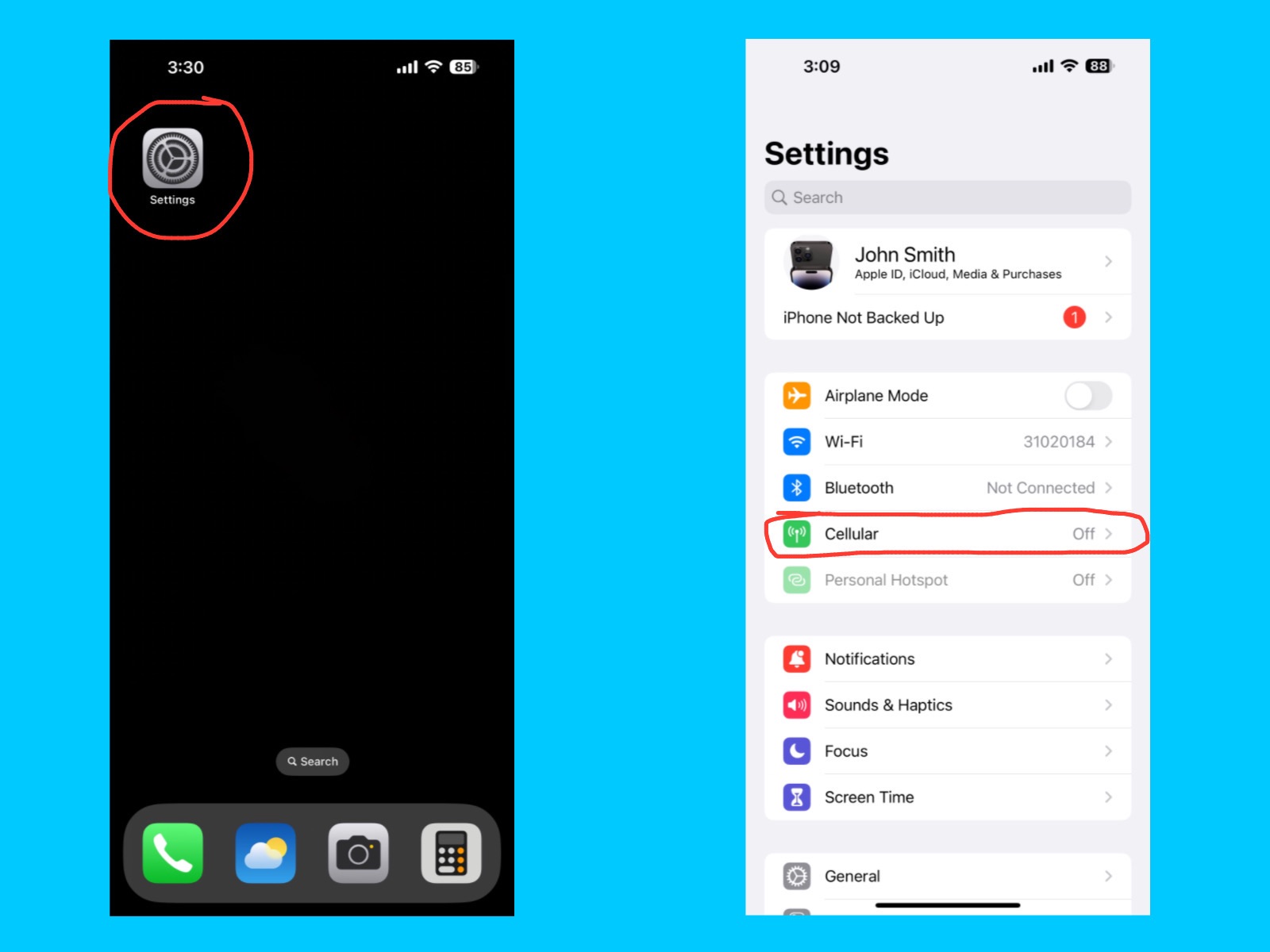
The Cellular setting lets your iPhone connect to your mobile network for calls, messages, and internet access when Wi-Fi is unavailable. Here, you can turn cellular data on or off, manage data usage, enable roaming, and check which apps are using your mobile data.
Personal Hotspot
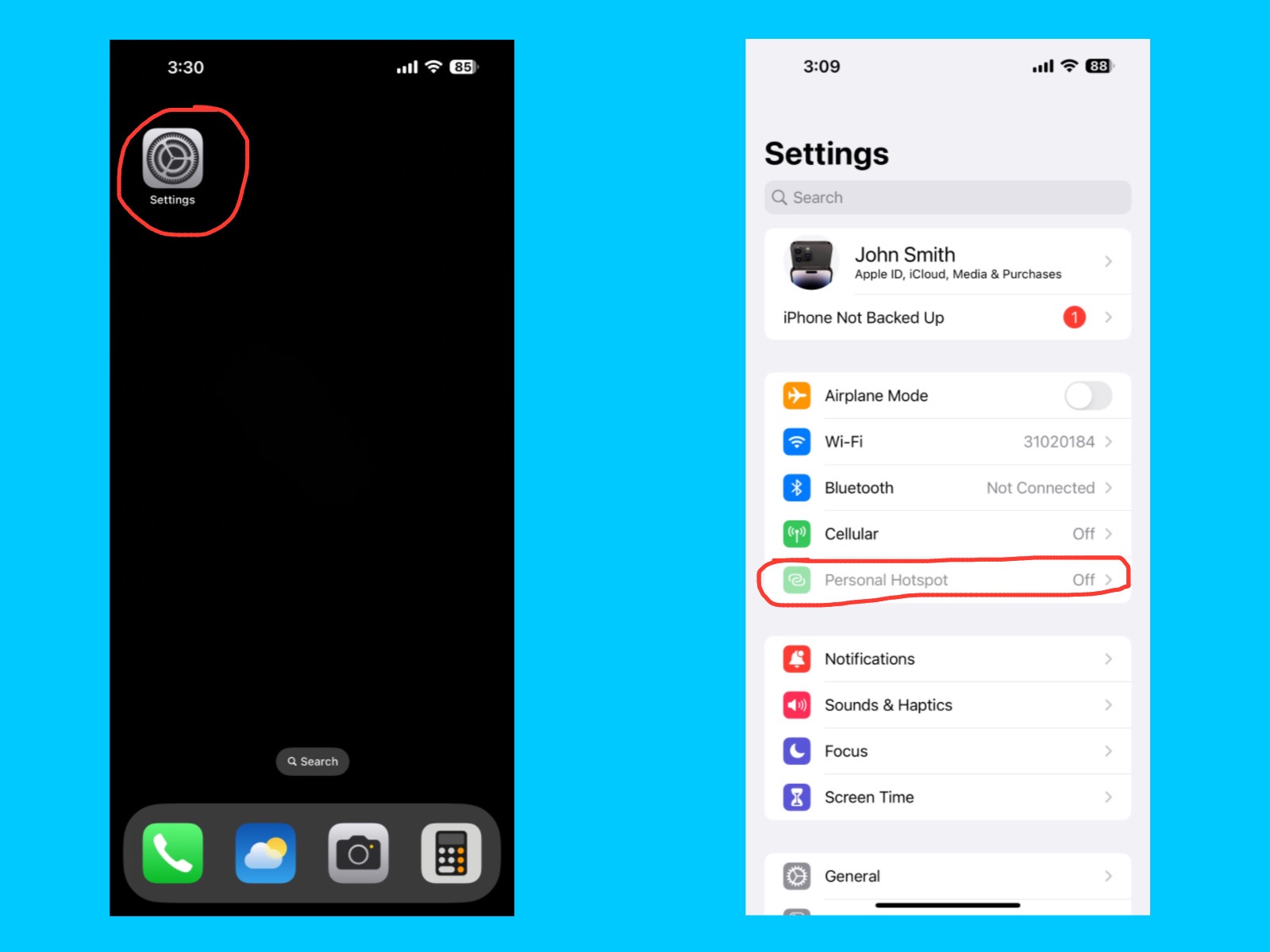
The Personal Hotspot feature lets your iPhone share its cellular internet connection with other devices, like laptops, tablets, or friends’ phones. This turns your iPhone into a mini Wi-Fi router, allowing other devices to connect using Wi-Fi, Bluetooth, or USB.
Notifications
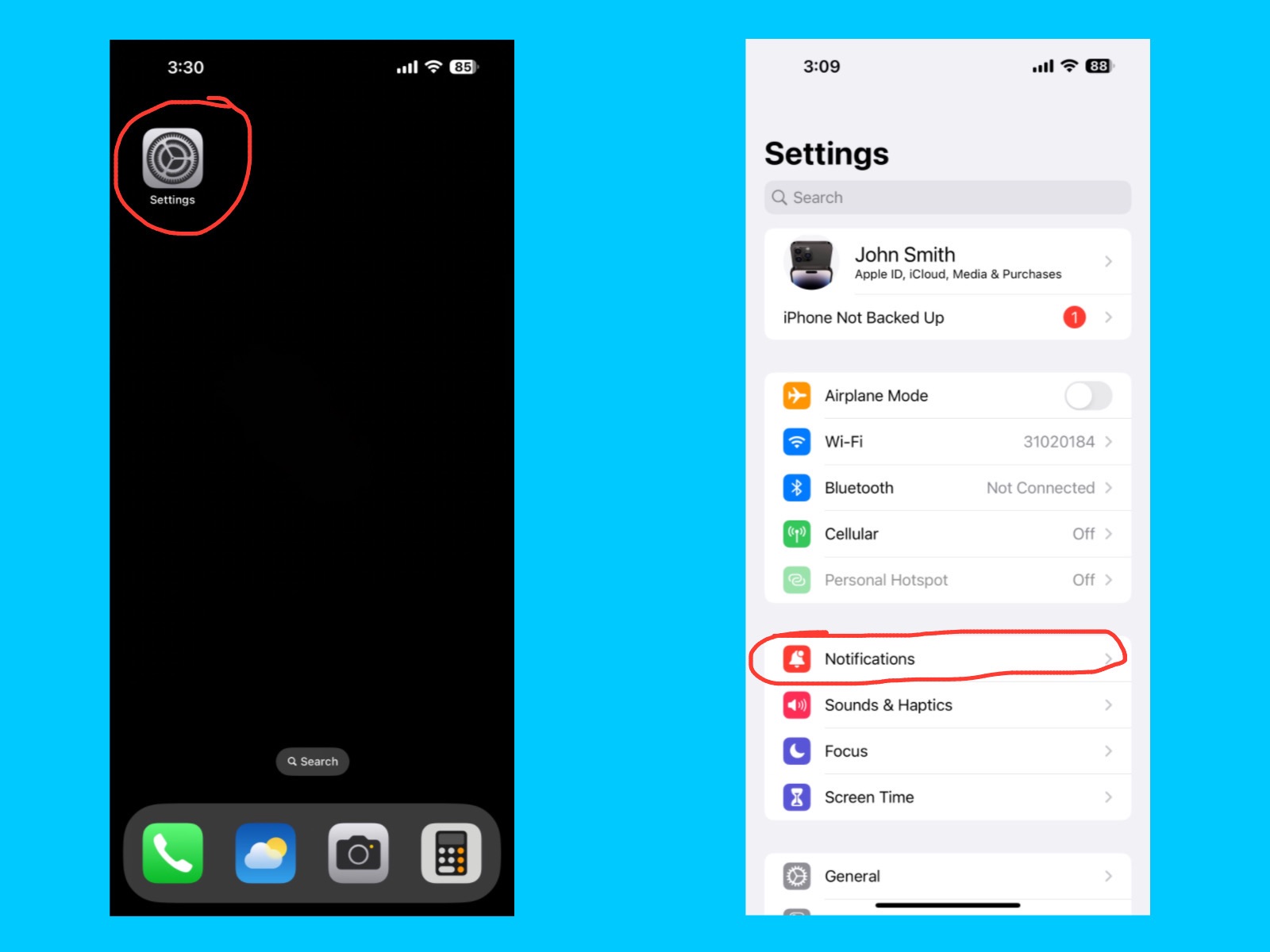
The Notifications setting lets you control how apps alert you with banners, sounds, badges, or alerts on your iPhone. You can customize notifications for each app, choose to show them on the Lock Screen, and decide whether to allow sounds or vibrations.
In the Notifications settings, you can choose how your notifications appear on the Lock Screen. You can display them as a count, a stack, or a list, making it easier to see what’s important at a glance and stay organized.
Scheduled Summary
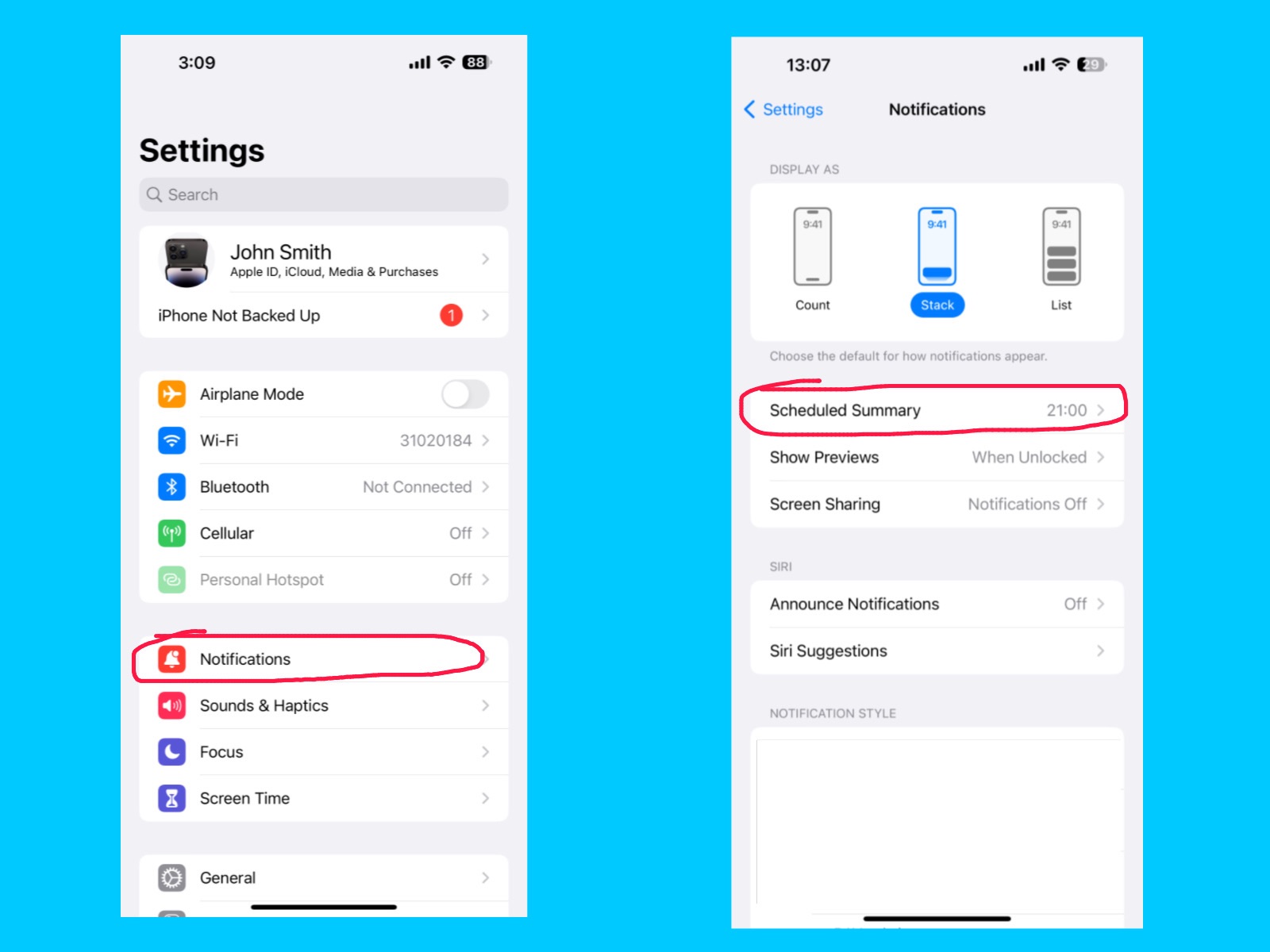
The Scheduled Summary feature lets you collect non-urgent notifications and deliver them at specific times instead of showing them immediately. This helps reduce distractions throughout the day and allows you to check notifications all at once when it’s convenient.
Show Preview
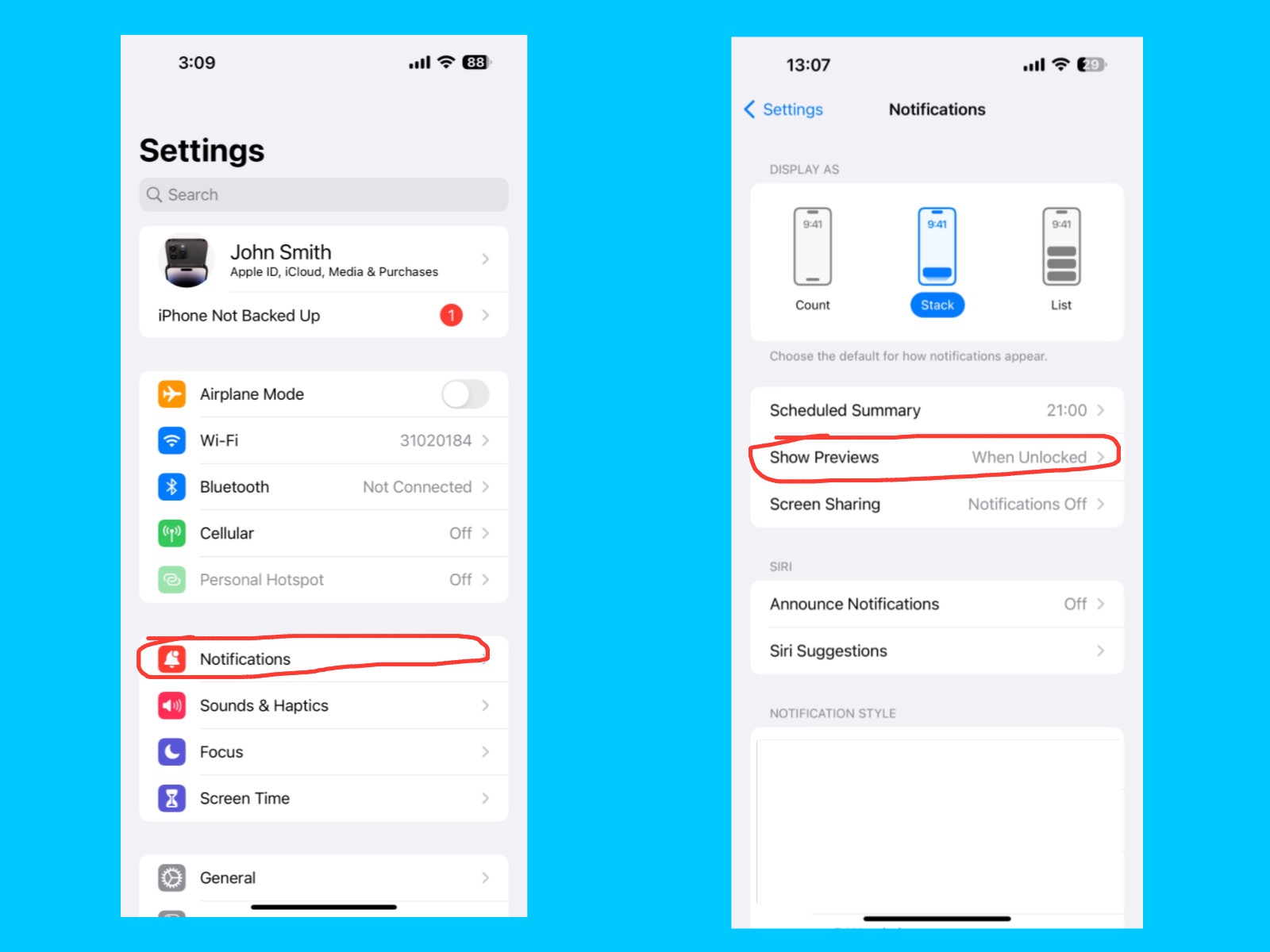
On your iPhone 14 Pro Max, the Show Previews setting lets you control how much of your notifications appear on the Lock Screen. You can find it under Settings → Notifications → Show Previews. There are three options: Always (shows full message even when locked), When Unlocked (shows details only after unlocking), and Never (hides message content completely). For better privacy, choose When Unlocked, so message details appear only after Face ID recognizes you.
Screen Sharing
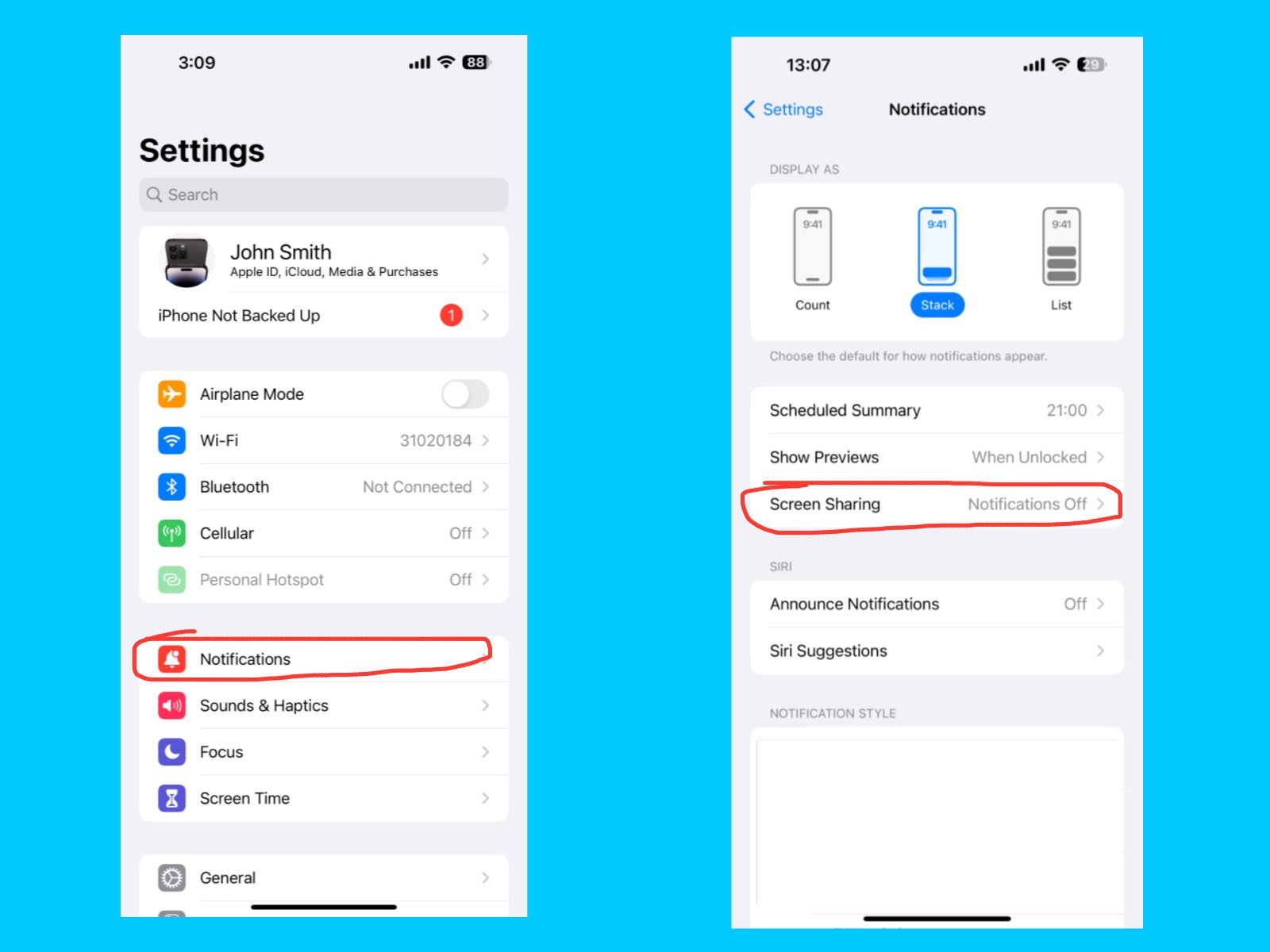
The Screen Sharing feature lets you share your iPhone screen with others during calls or meetings. This is useful for presentations, troubleshooting, or showing content like photos and apps in real time.
Announce Notifications
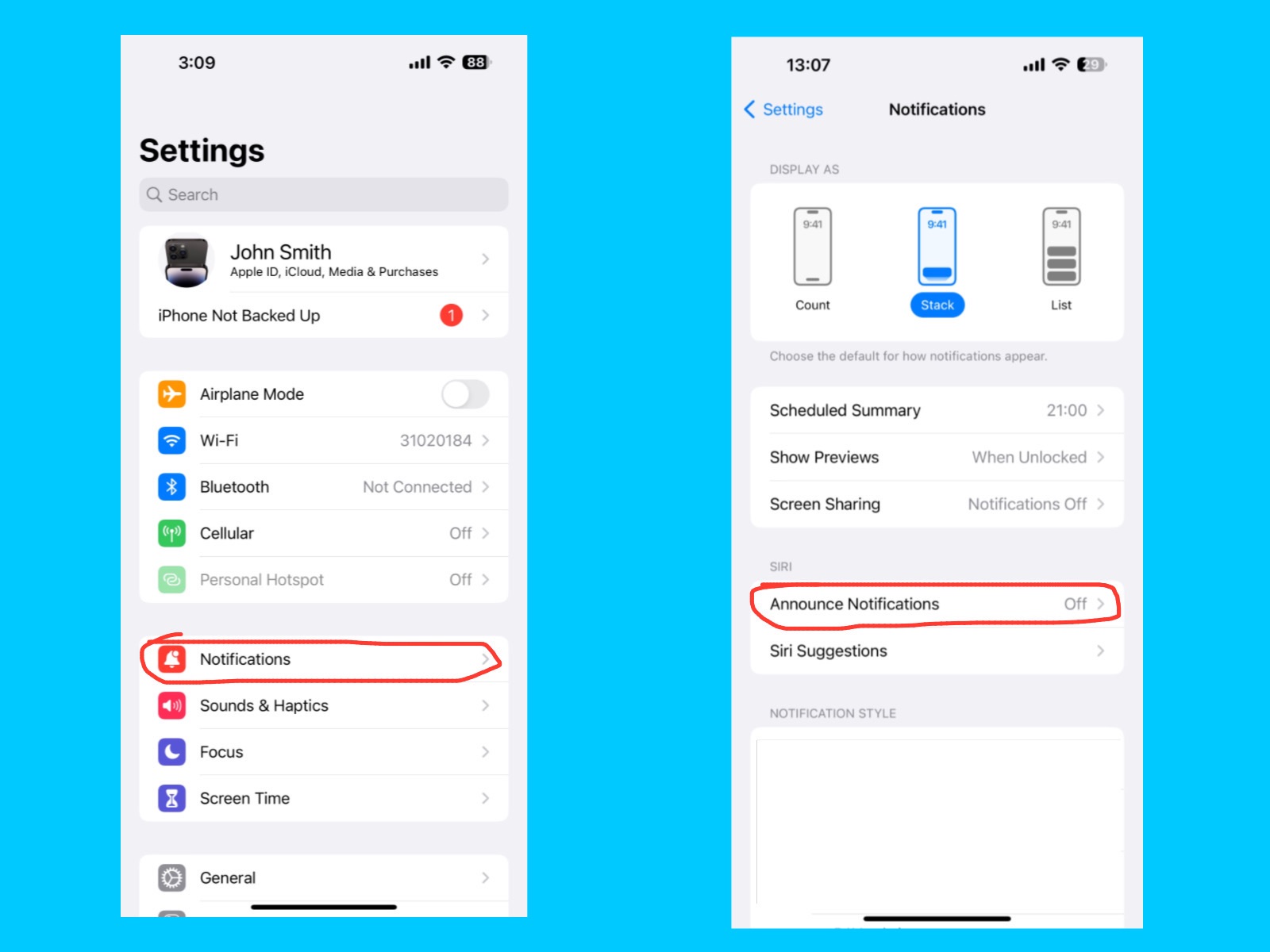
The Announce Notifications feature allows Siri to read incoming notifications aloud through your AirPods, Beats headphones, or CarPlay. This is useful when you’re driving, exercising, or otherwise busy, so you can hear important messages without looking at your iPhone.
Siri suggestions
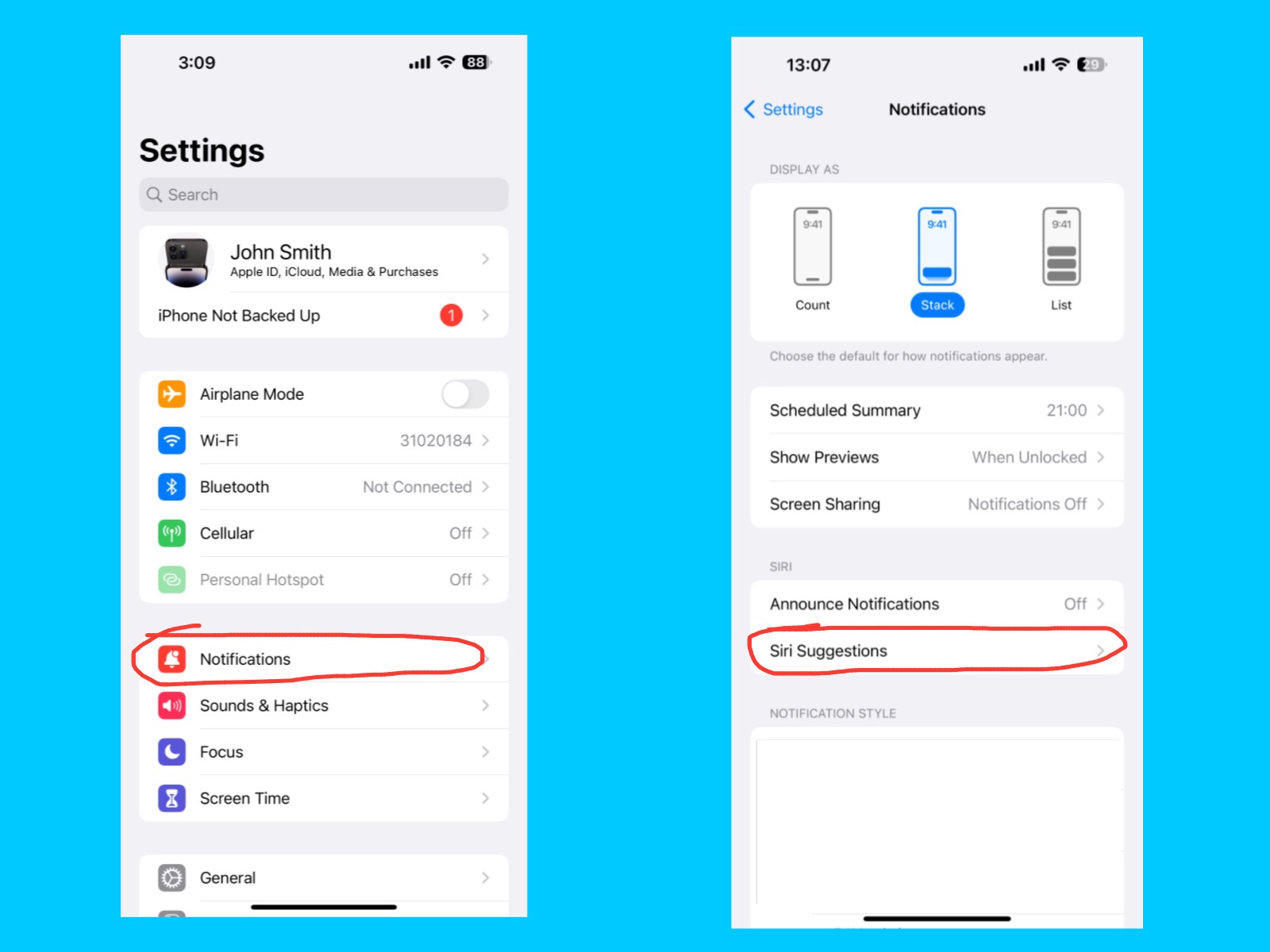
The Siri Suggestions feature gives you personalized app and action recommendations based on how you use your iPhone. Siri can suggest shortcuts, apps, or actions on the Lock Screen, Home Screen, Search, or in Share Sheets to help you get things done faster. For example, if you often open YouTube in the morning, Siri might suggest the YouTube app on your Lock Screen or Home Screen. It can also suggest shortcuts, like calling a friend you contact every day or opening your favorite playlist, to help you do things faster.
Sounds & Haptics
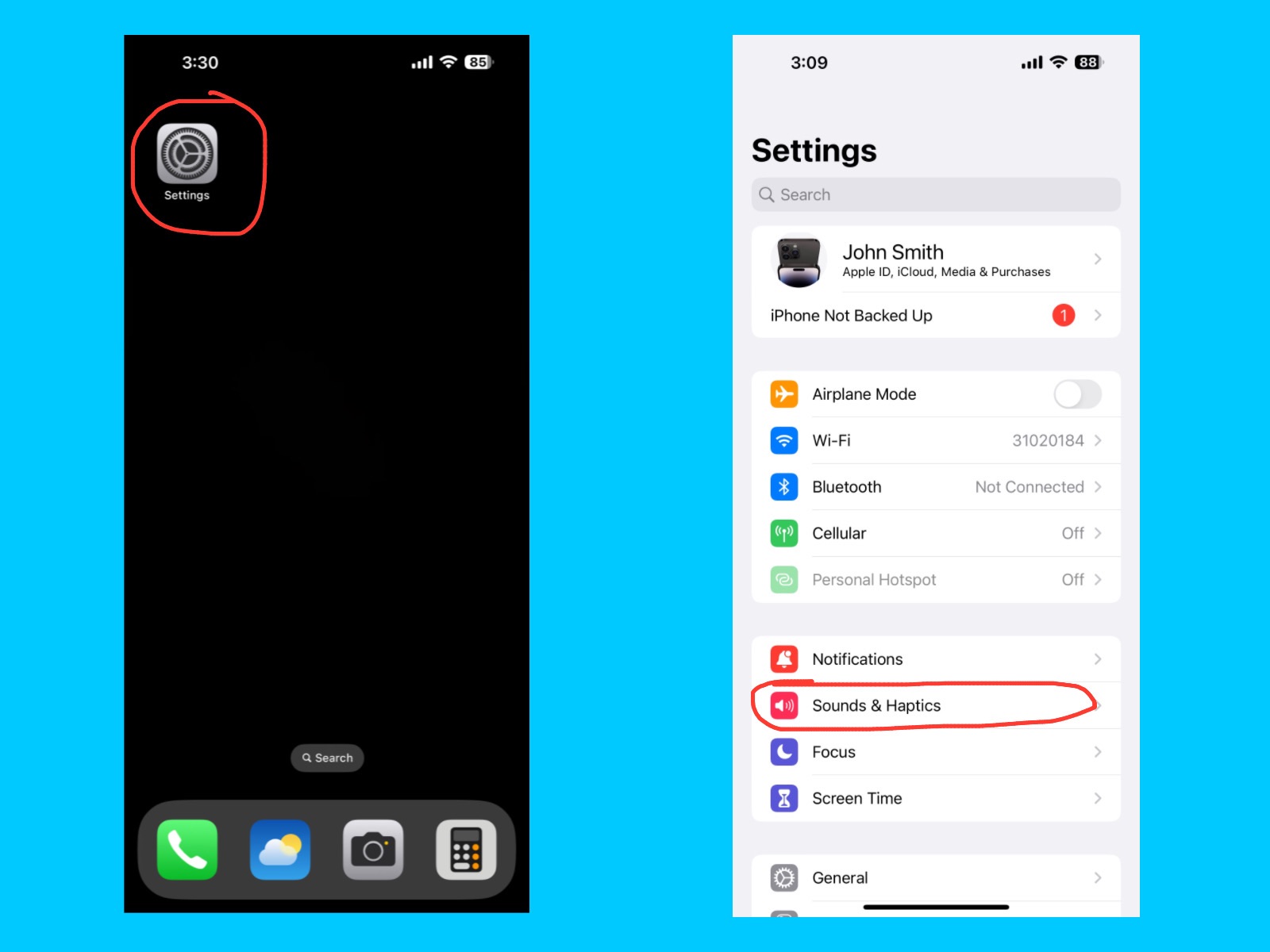
The Sounds & Haptics setting lets you adjust ringtones, alert tones, and vibration patterns on your iPhone. You can control the volume for calls, notifications, and system feedback, as well as turn vibration on or off.
[ Haptics means touch feedback that your iPhone gives when you do something. For example, Feeling a small vibration when you tap a button, Or a stronger vibration when you receive a notification. ]
Headphone Safety
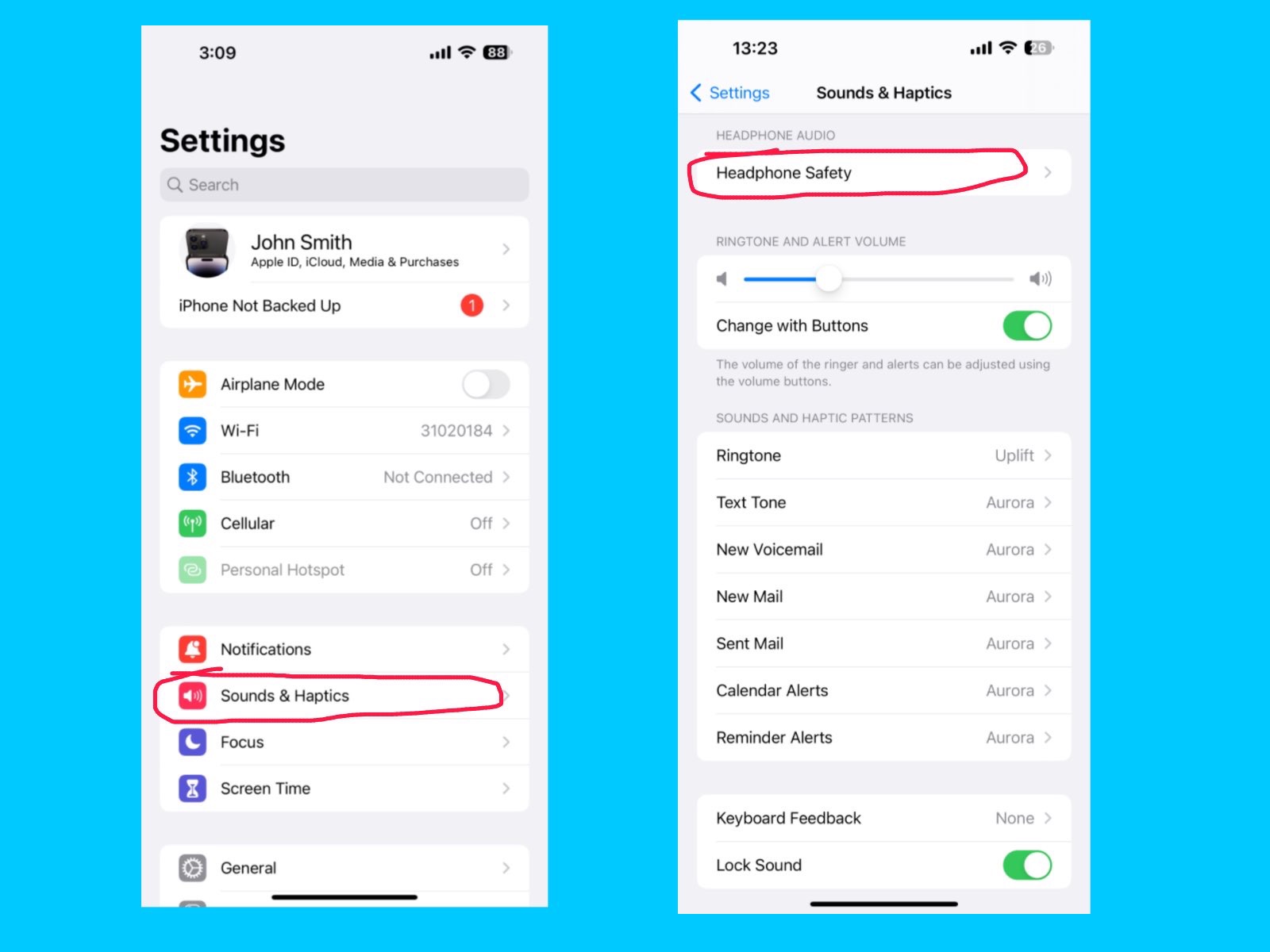
The Headphone Safety feature helps protect your hearing by monitoring the volume of your headphones. If the sound is too loud for a long time, your iPhone can reduce the volume automatically or give you a warning. This feature turned on to listen safely and prevent long-term hearing damage, especially when using AirPods or other headphones for extended periods.
Focus
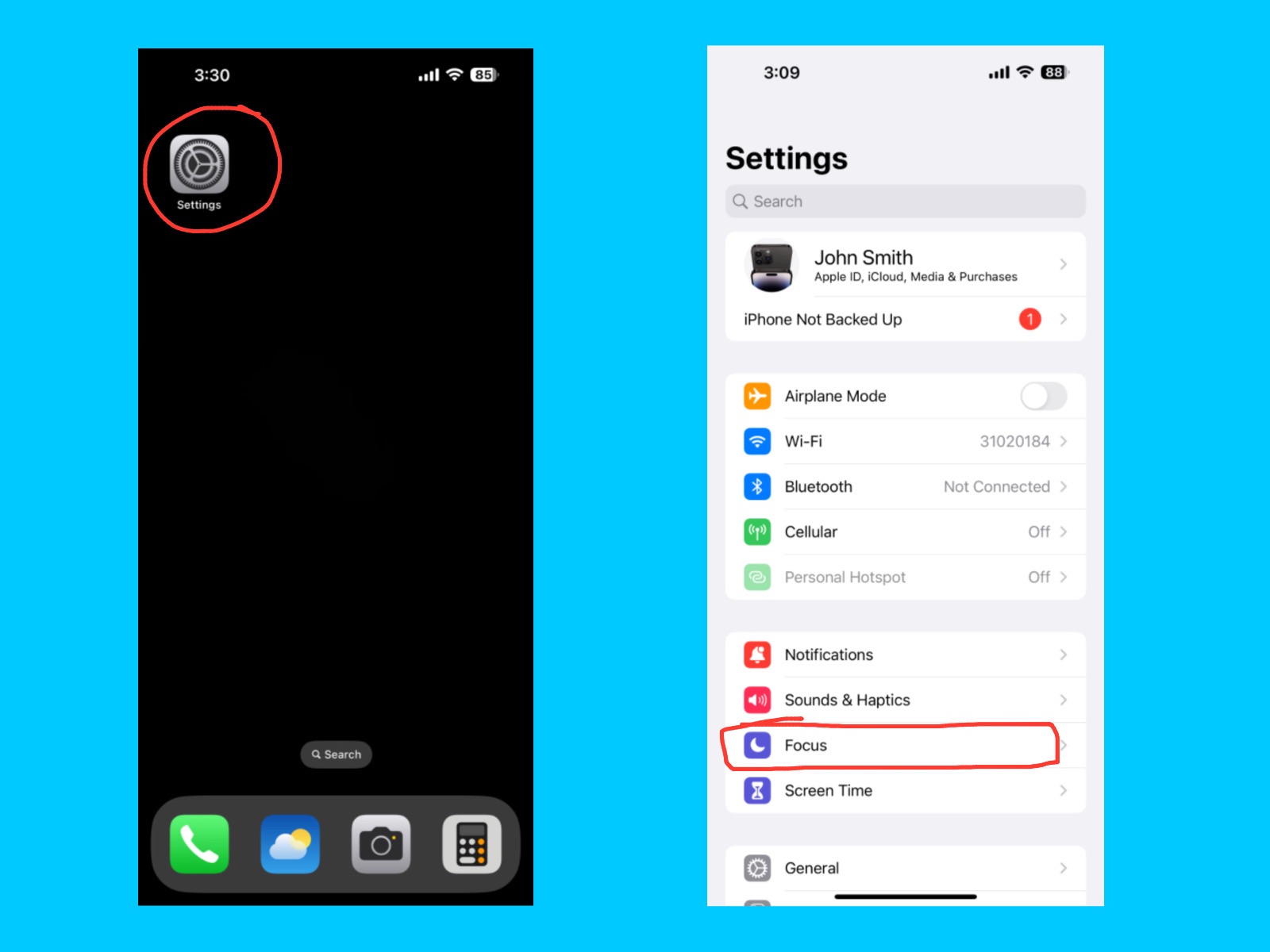
The Focus feature helps you stay concentrated by controlling which notifications, calls, and apps can alert you at specific times. You can create different Focus modes like Work, Personal, Sleep, or Driving, and customize which people or apps can send notifications during each mode. You can use Focus feature to reduce distractions and improve productivity, while still allowing important notifications to come through.
Do Not Disturb
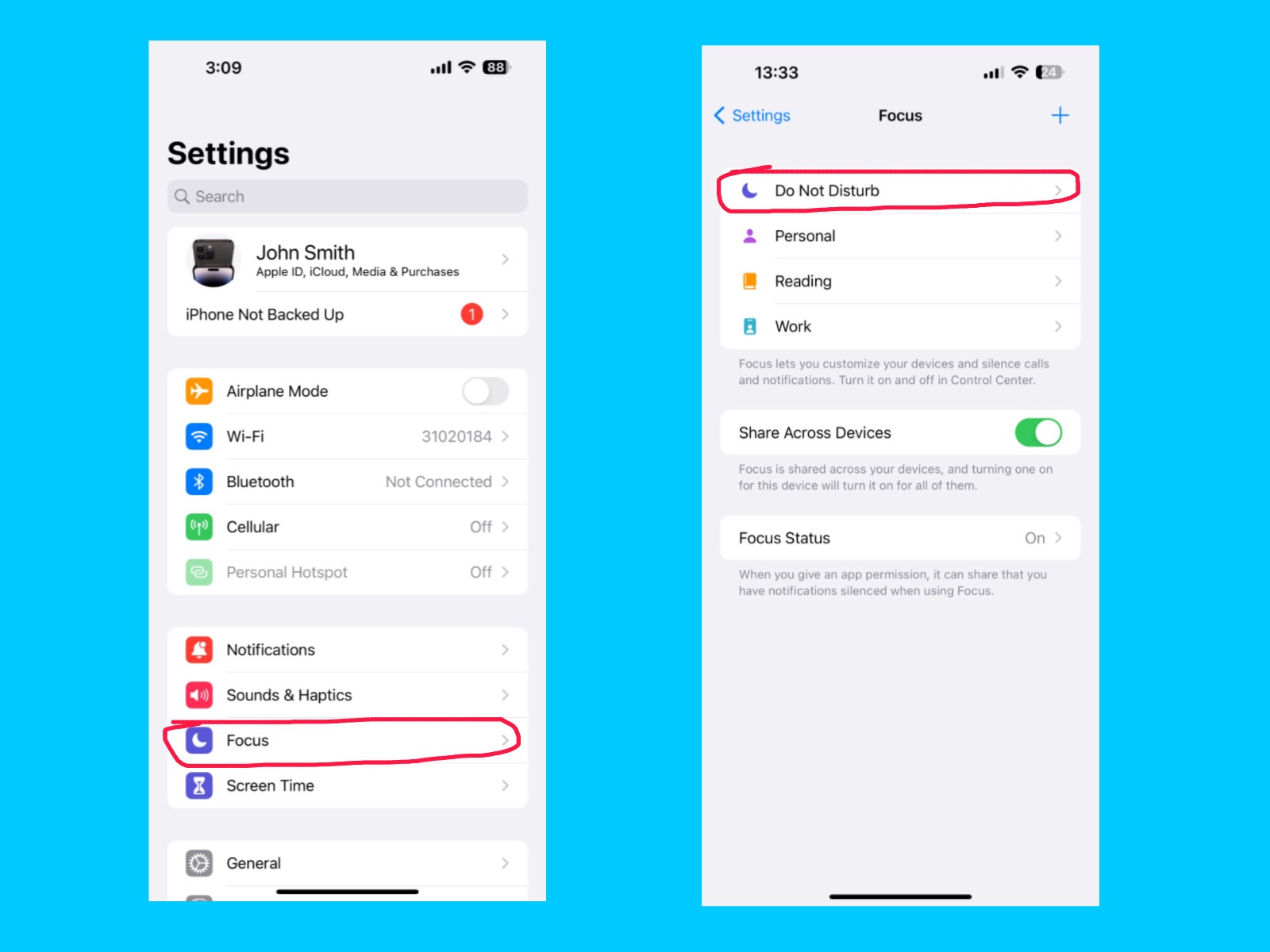
The Do Not Disturb feature lets you silence calls, alerts, and notifications temporarily so you can focus, sleep, or relax without interruptions. You can schedule it for certain times or turn it on manually, and choose exceptions for important contacts or apps. You can use Do Not Disturb during meetings, study time, or bedtime to avoid distractions while still receiving essential alerts from people you trust.
With this feature, notifications from selected people and apps will be allowed, while all others will be silenced.
Personal
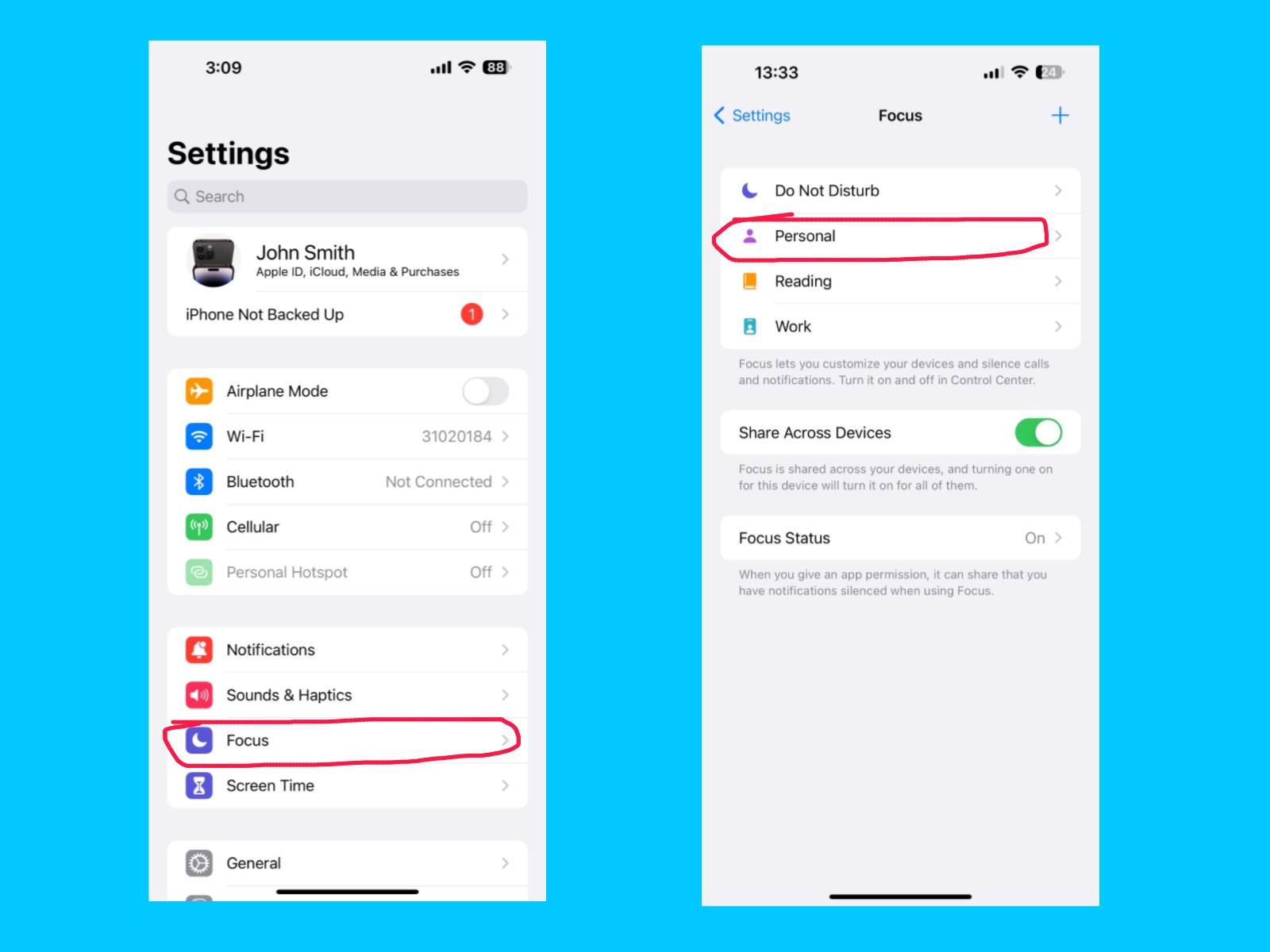
You can silence notifications by selecting specific people or apps. Additionally, you can customize your Lock Screen or Home Screen to help limit distractions and stay focused throughout the day.
Smart Activation
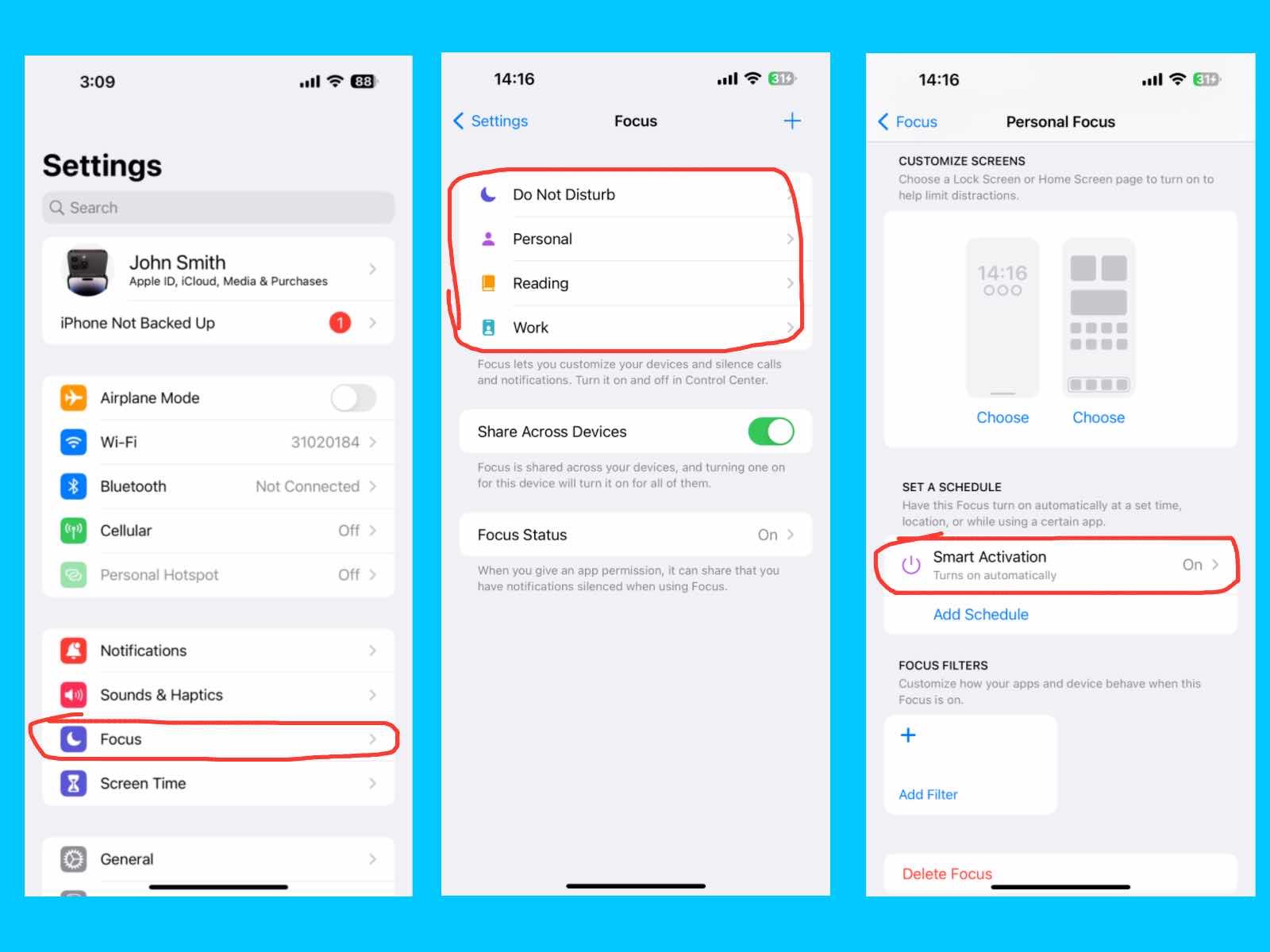
The Smart Activation feature automatically turns on your Personal Focus mode based on your activity, location, or app usage. For example, it can activate Work Focus when you arrive at the office or Personal Focus when you’re at home. You can use Smart Activation to automatically reduce distractions without manually switching Focus modes throughout the day.
Reading
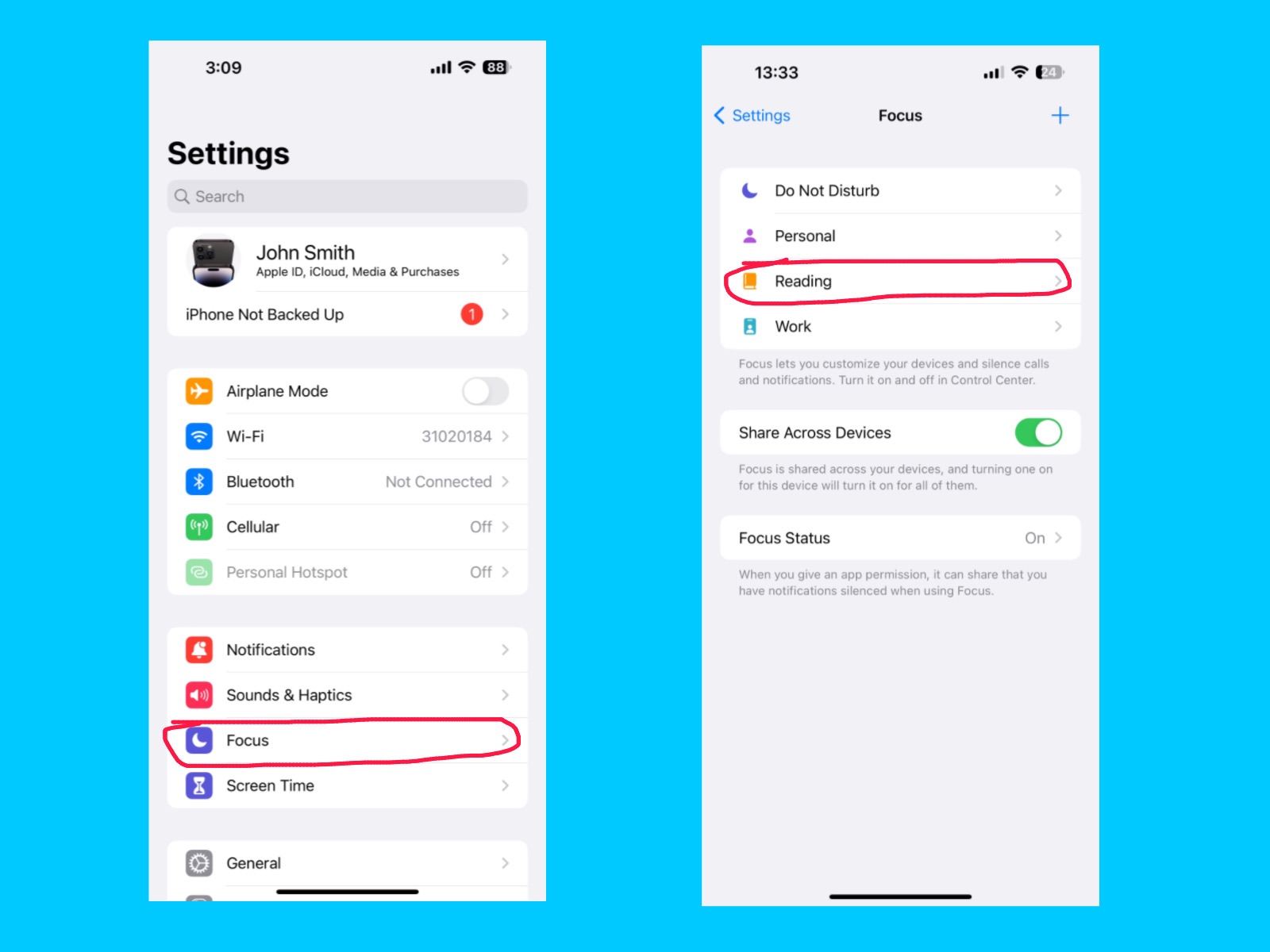
The Reading option helps you customize your reading experience on your iPhone by adjusting text size, display colors, and background in apps like Books, Safari, or other reading apps. You can also reduce interruptions by choosing only the notifications you want to receive. You can use Reading settings to reduce eye strain, especially during long reading sessions or at night. These feature also have a smart activation option
Work
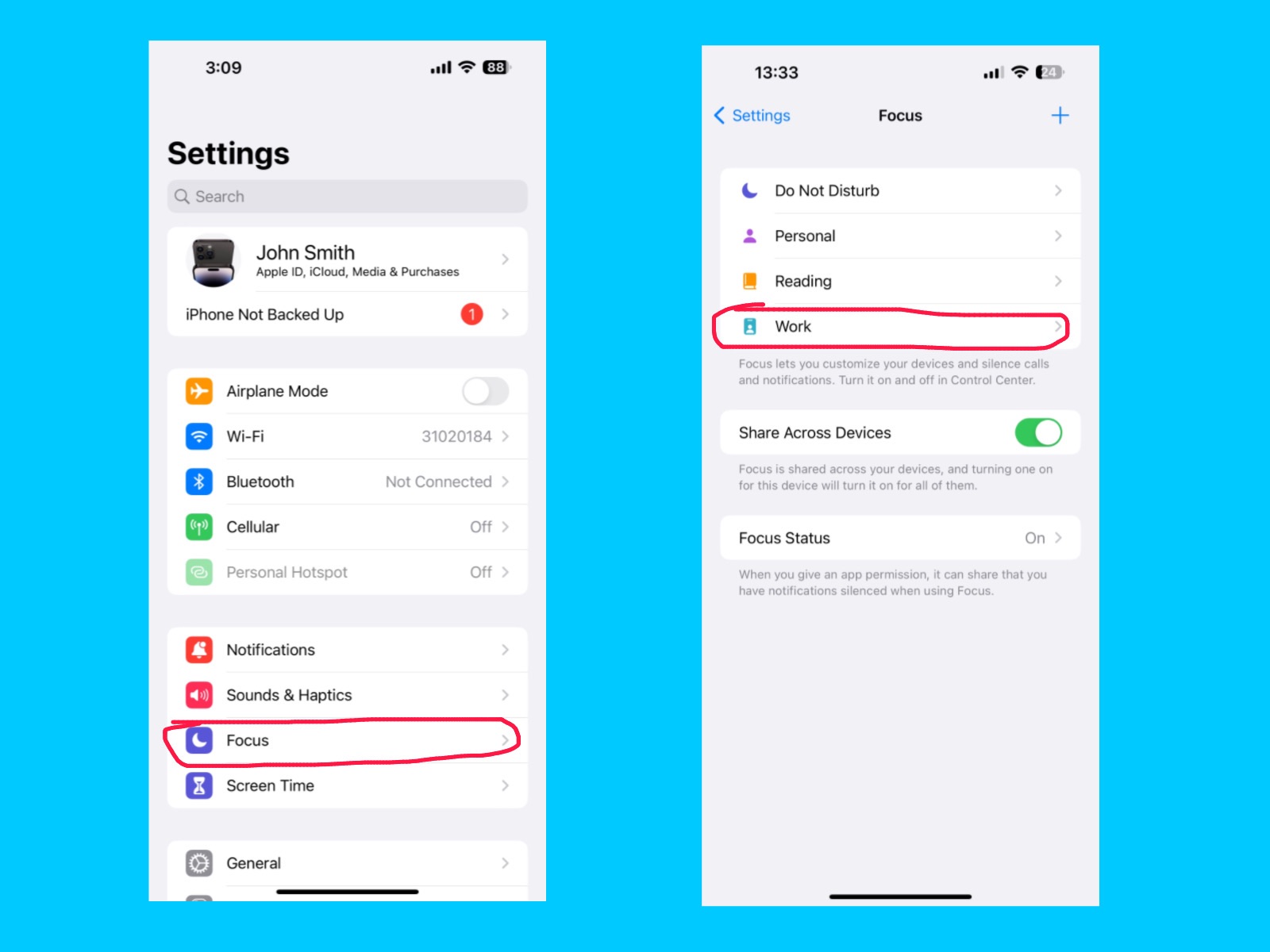
The Work Focus mode helps you stay productive by limiting distractions during your work hours. You can choose which people and apps are allowed to send notifications while silencing all others. This feature can also automatically turn on Focus mode at a set time, location, or while using a certain app. You can customize your Lock Screen and Home Screen to show only the apps and widgets you need for work. You can use Work Focus to maintain concentration and improve productivity during office hours or study time. These feature also have a smart activation option.
Screen Time
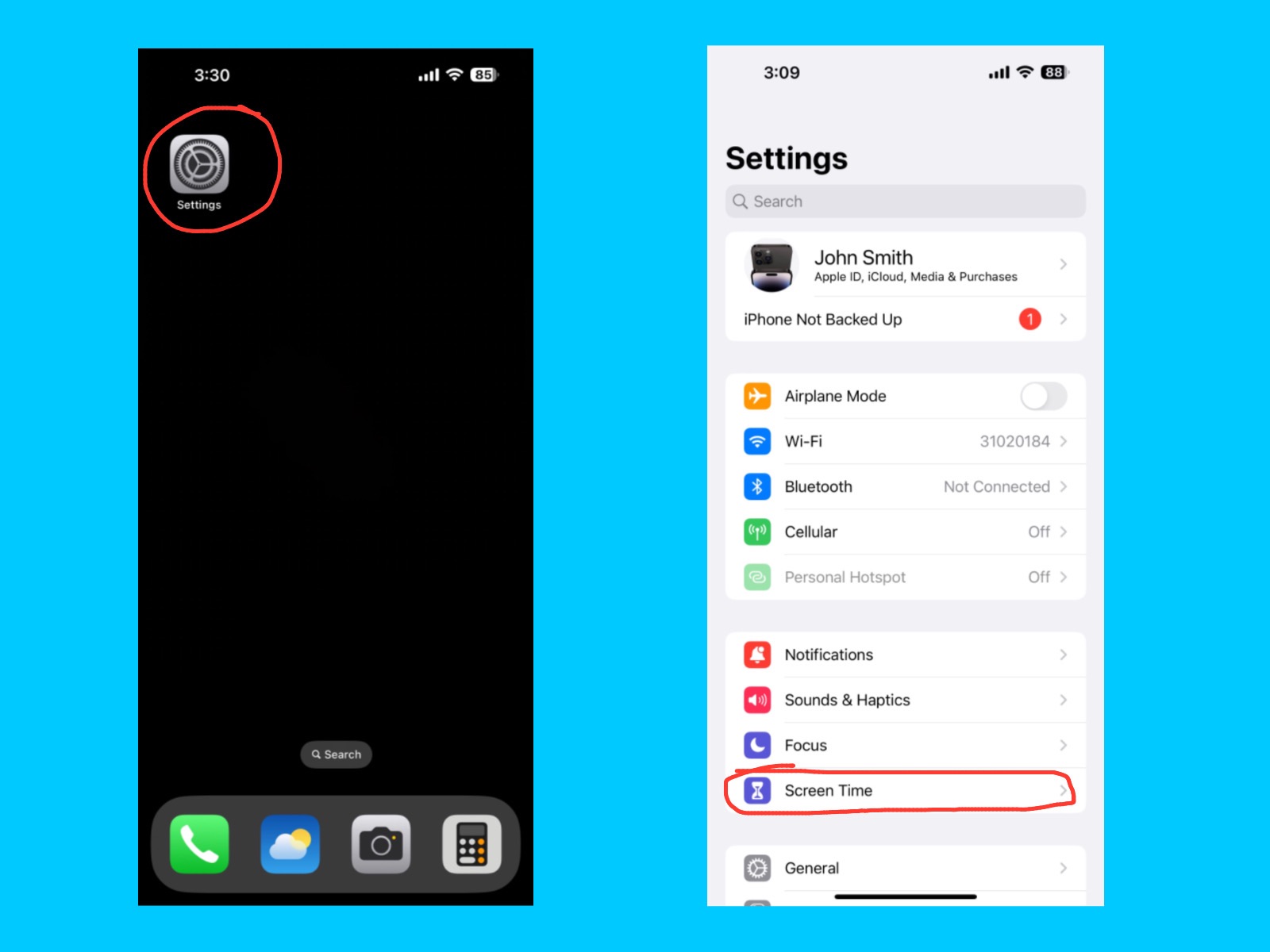
The Screen Time feature lets you monitor and manage how you use your iPhone. You can see how much time you spend on apps, websites, and categories, and set daily limits to reduce distractions. It also allows you to set downtime and app restrictions for yourself or your family. You can use Screen Time to balance your device usage, improve productivity, and encourage healthy habits for you or your kids.
Downtime
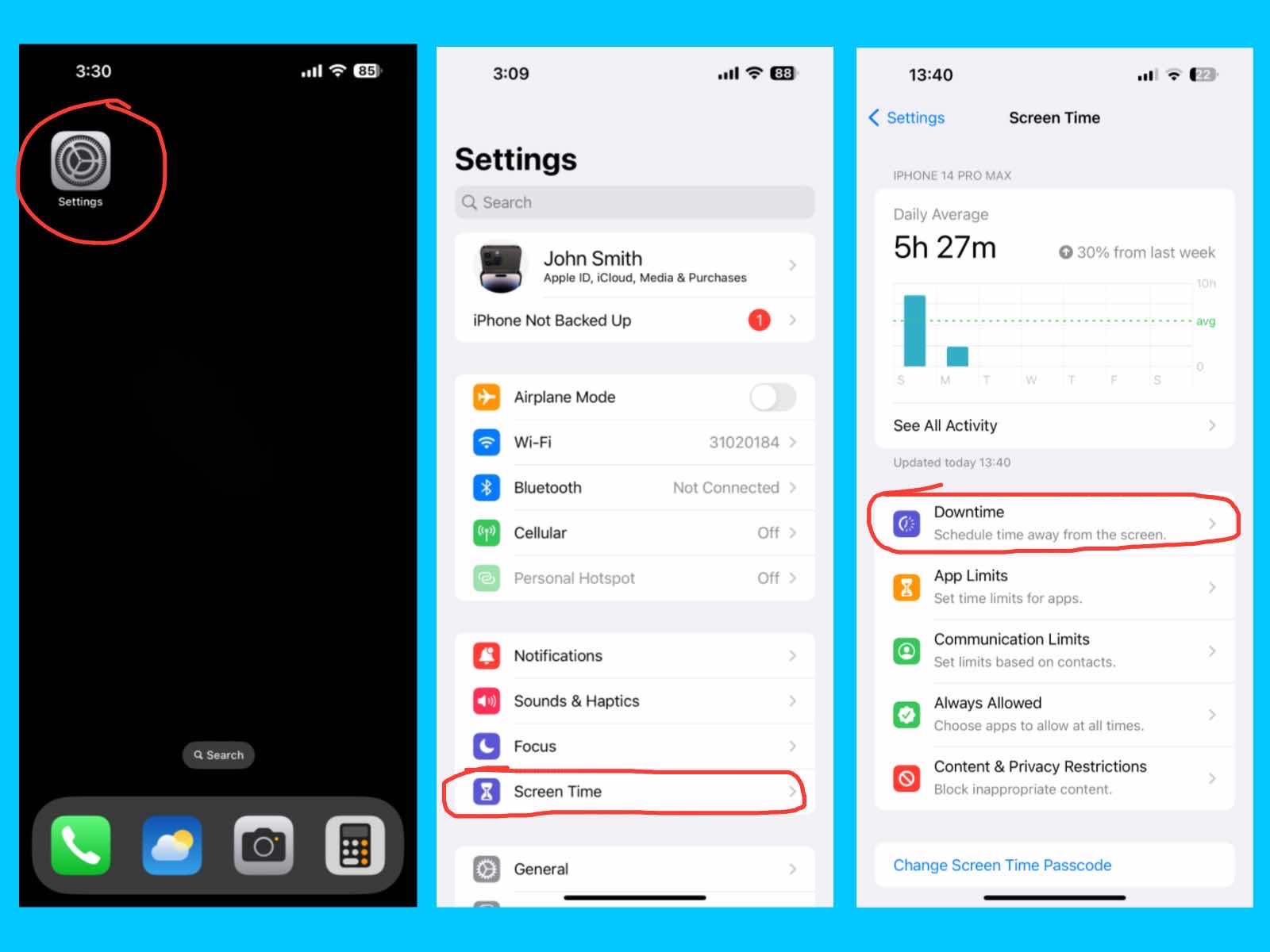
This feature lets you schedule times when only certain apps and phone calls are allowed. It is useful for sleep, study, or family time to help you avoid distractions.
App Limits
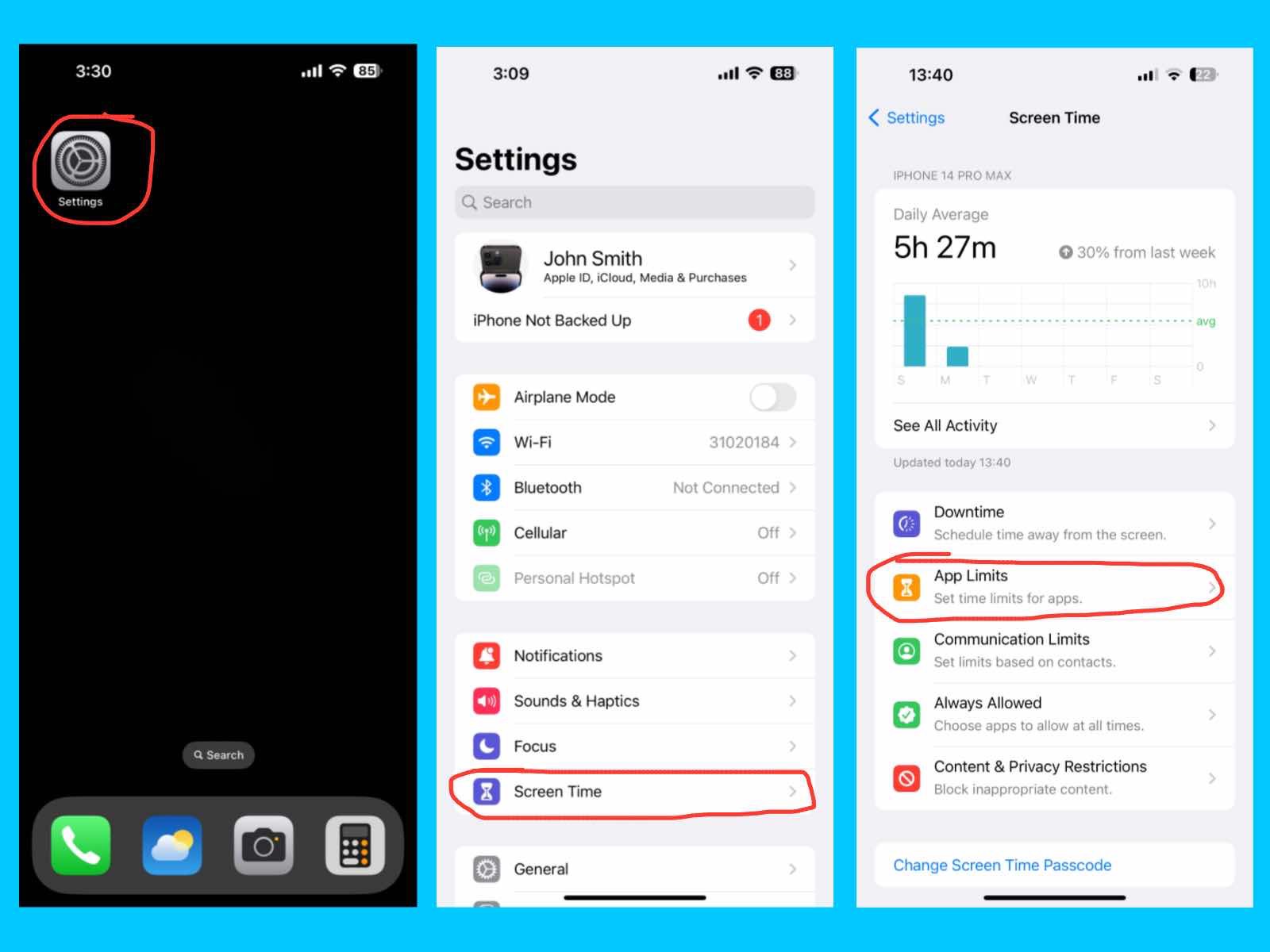
This feature lets you set daily time limits for specific apps or app categories. It helps you manage screen time and prevents overuse of social media, games, or other apps.
Communication Limits
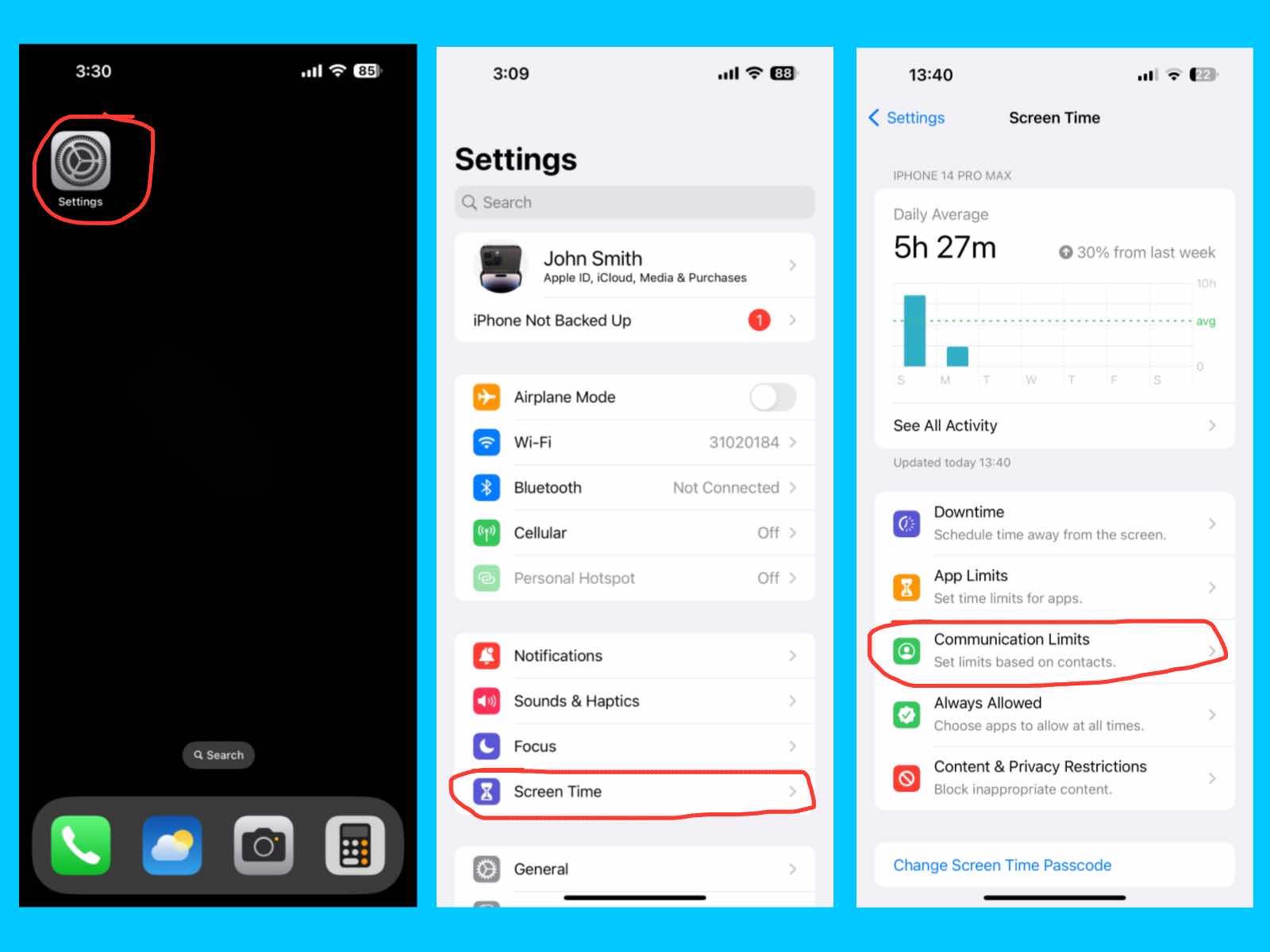
This feature lets you control who you or your child can call, message, or FaceTime during allowed screen time or downtime. It helps keep communication safe and focused.
Always Allowed
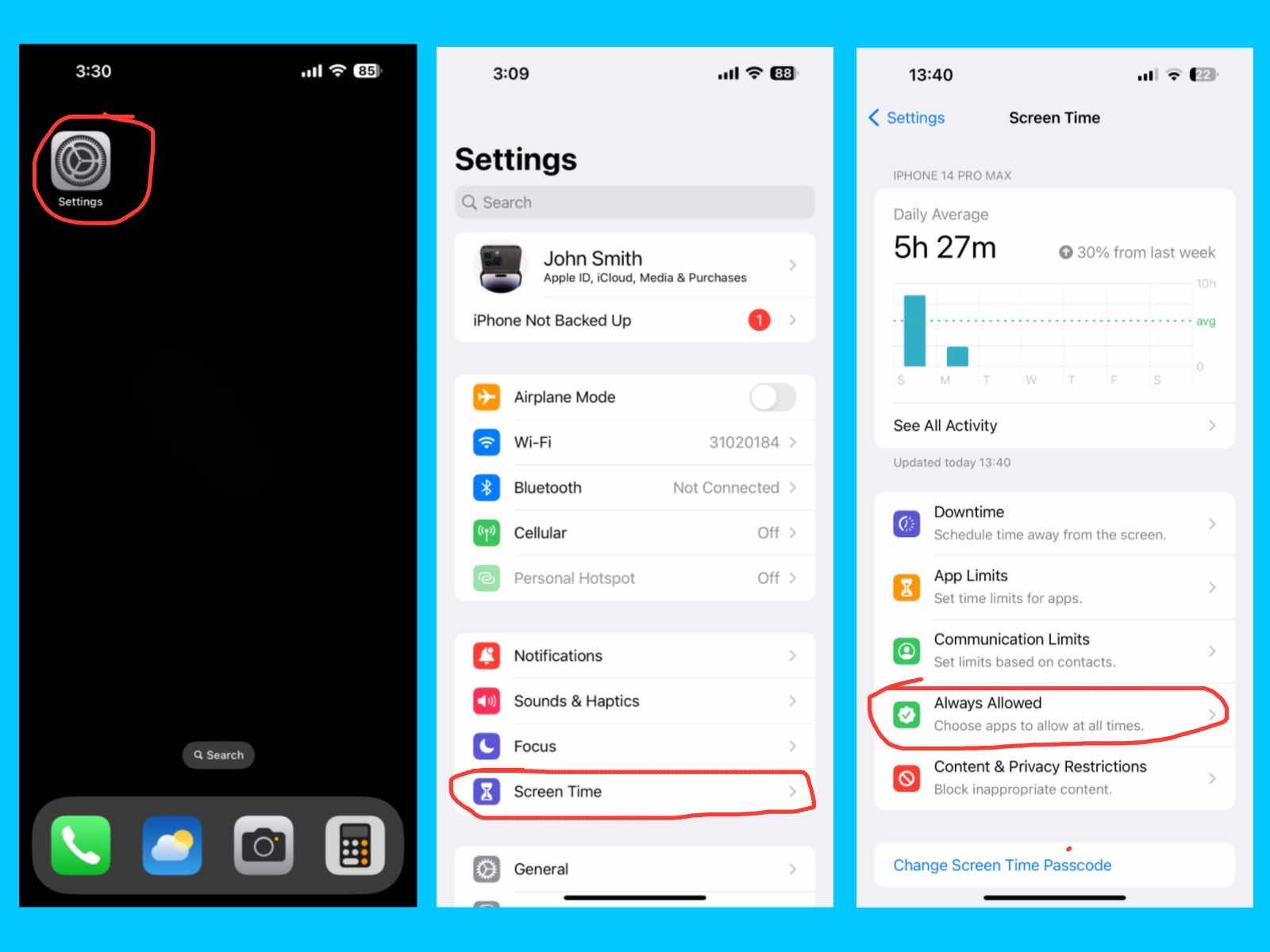
This feature lets you choose apps that are always accessible, even during downtime or when app limits are reached. Common examples include Phone, Messages, or educational apps.
Content & Privacy Restrictions
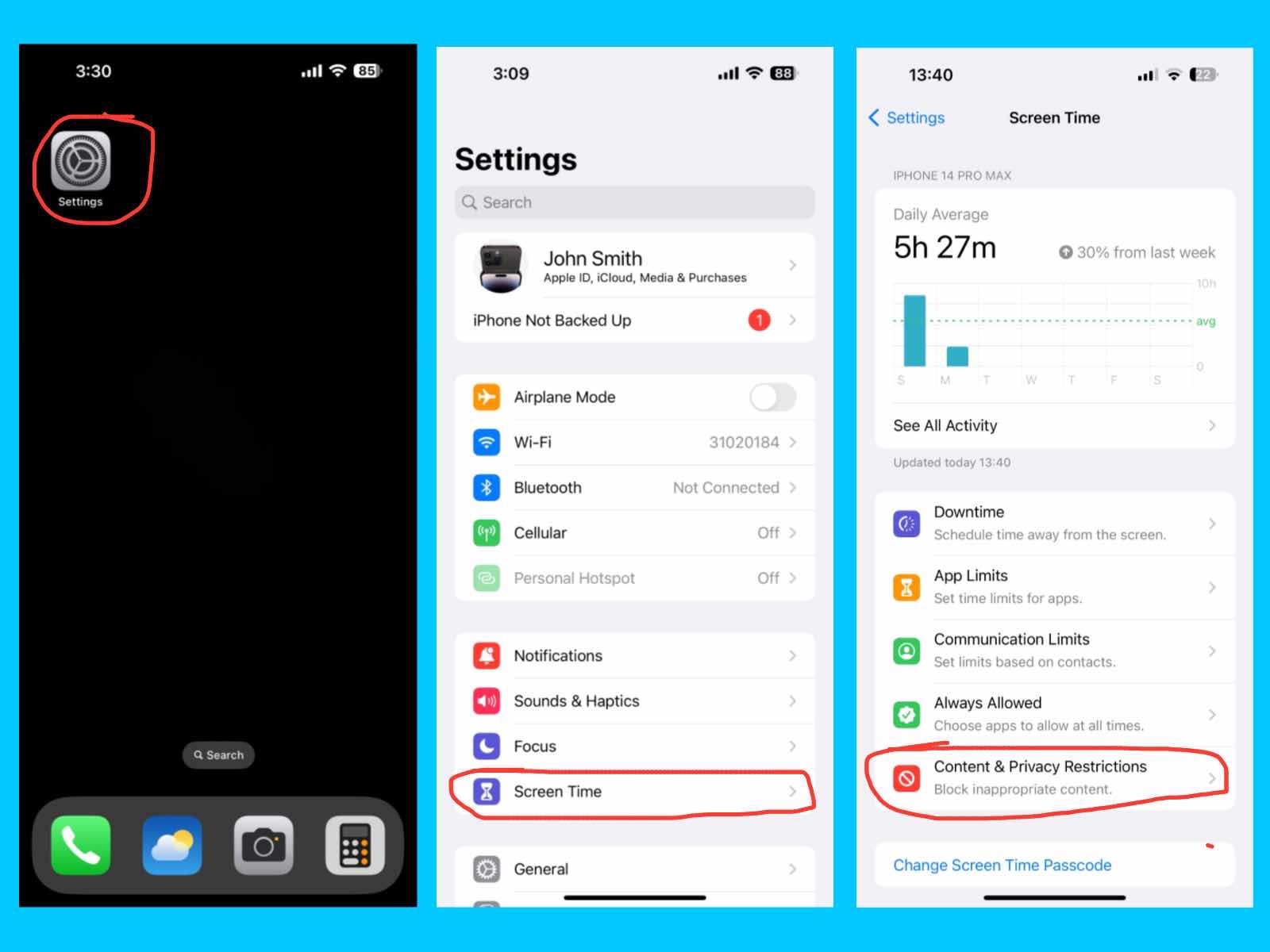
This feature lets you restrict explicit content, purchases, downloads, and privacy settings. It helps parents control what kids can access and protects sensitive information.
Change Screen Time Passcode
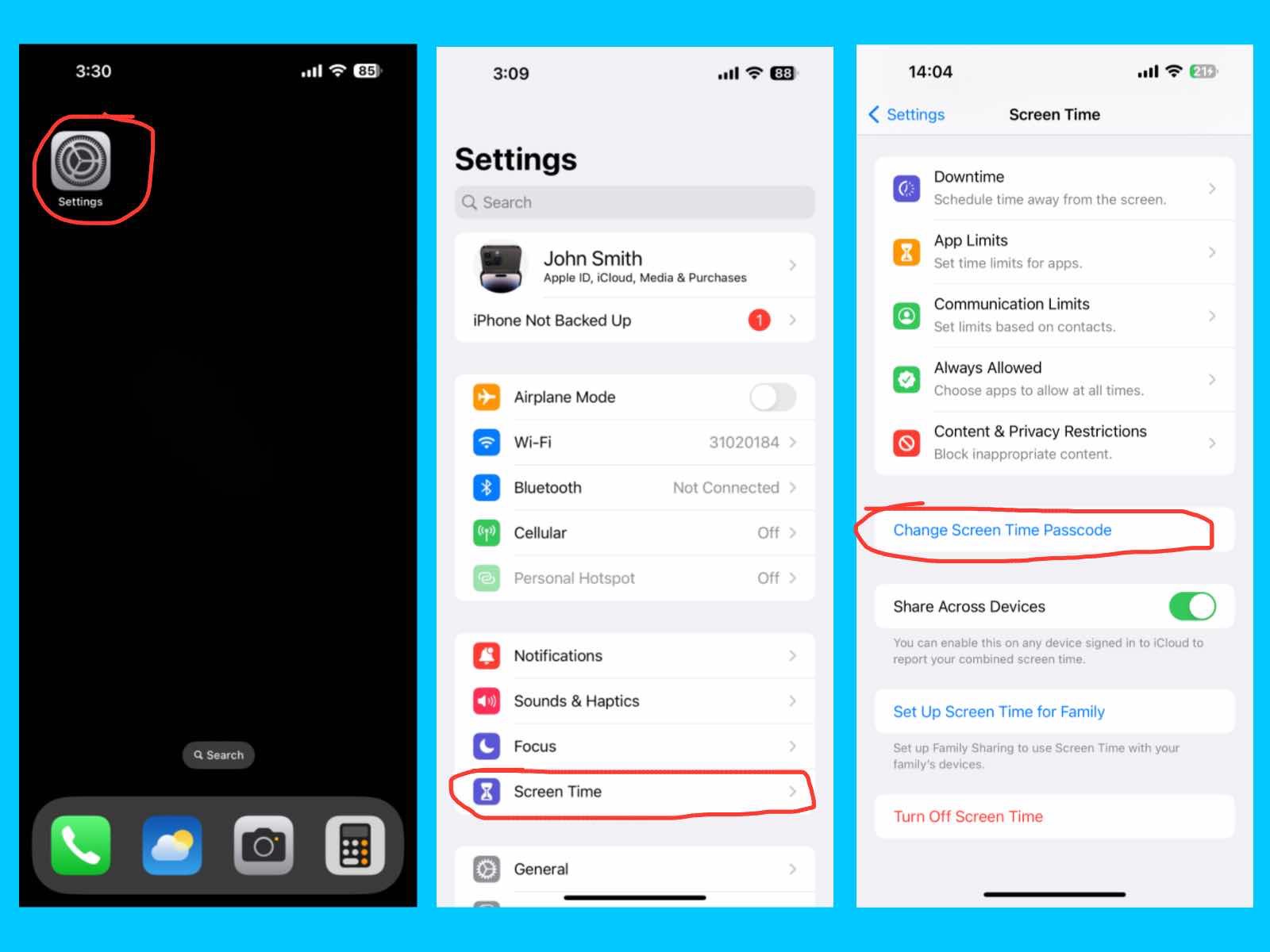
The Change Screen Time Passcode option lets you update or reset the passcode used to secure your Screen Time settings. You can use a unique passcode different from your device passcode to ensure that only you (or a trusted parent) can modify app limits, downtime, or content restrictions, especially if you share your iPhone with family members.
Share Across Devices
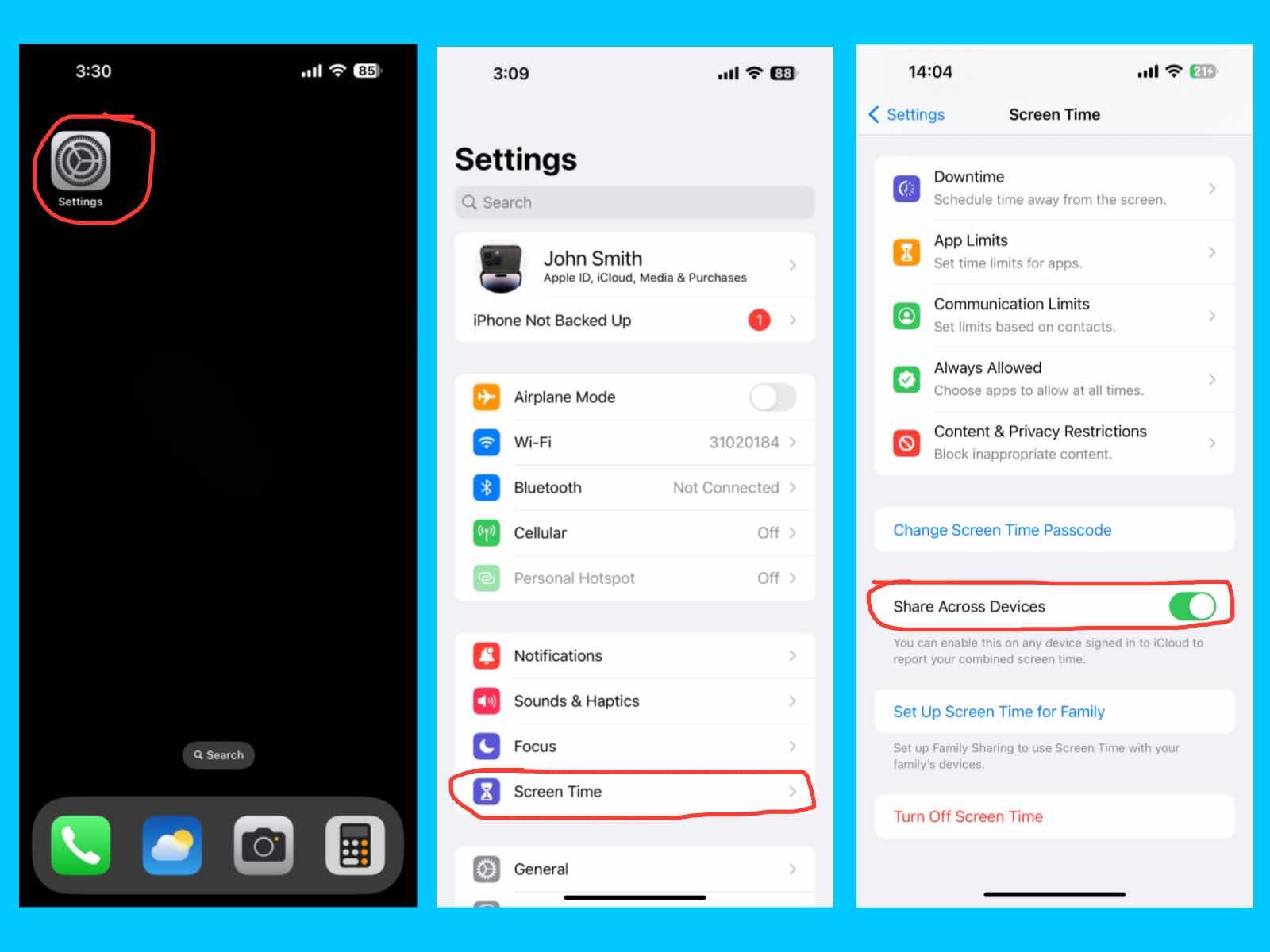
The Share Across Devices feature lets your Screen Time settings and usage data sync across all Apple devices signed in with the same Apple ID. This ensures that limits, downtime, and app usage reports are consistent on your iPhone, iPad, and Mac, giving you a complete view of your device usage.
Set up Screen Time for Family
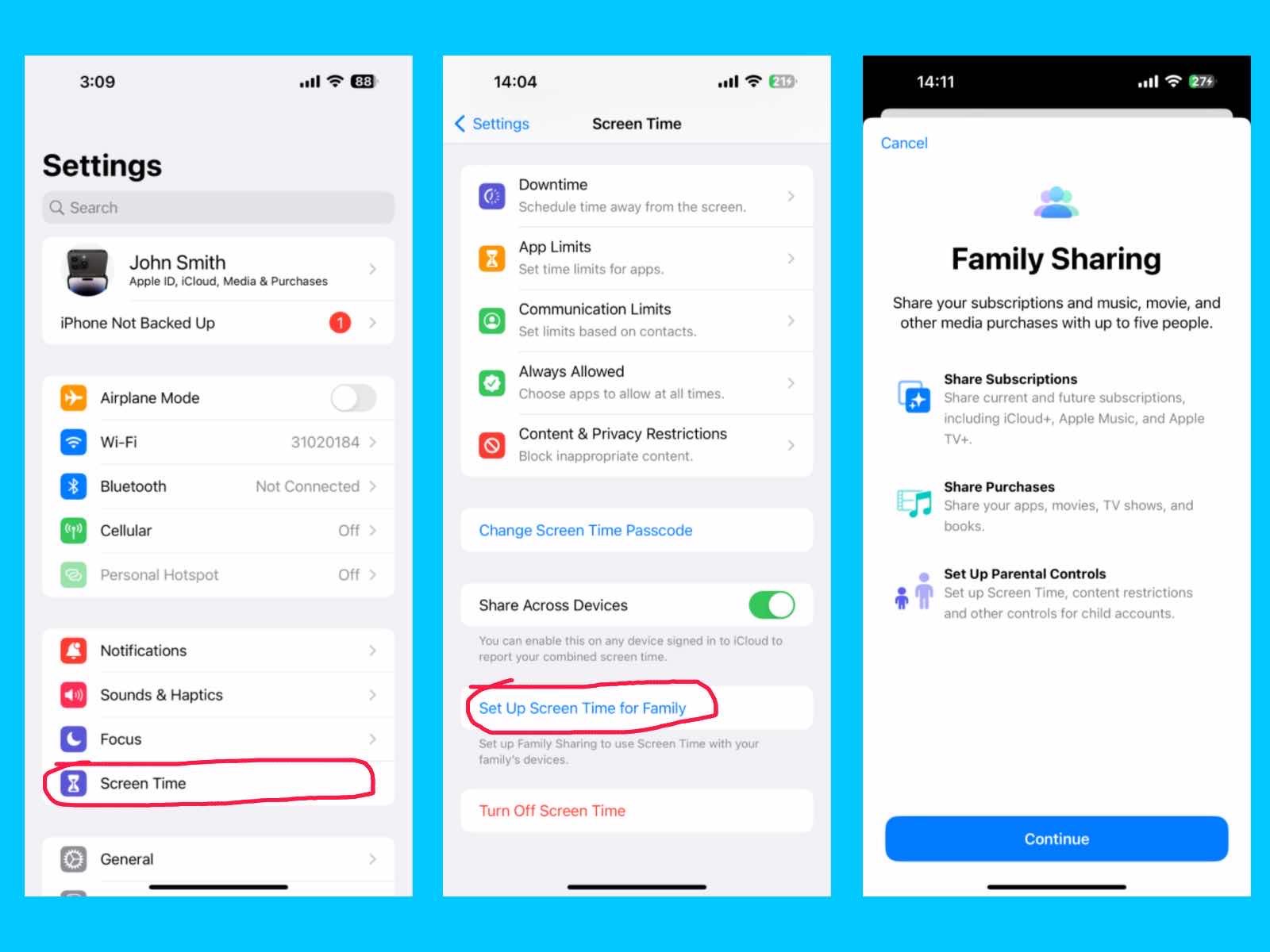
The Set Up Screen Time for Family feature on your iPhone 14 Pro Max helps you manage and monitor how your family members use their devices. It’s perfect for parents who want to set limits and promote healthy screen habits. With Family Sharing, you can also share your subscriptions and media with up to five people. This includes sharing iCloud+, Apple Music, Apple TV+, and other current or future subscriptions. You can even share your apps, movies, TV shows, and books across family members. Plus, you can set Screen Time limits, content restrictions, and other controls for child accounts to keep everything safe and balanced.
Turn Off Screen Time
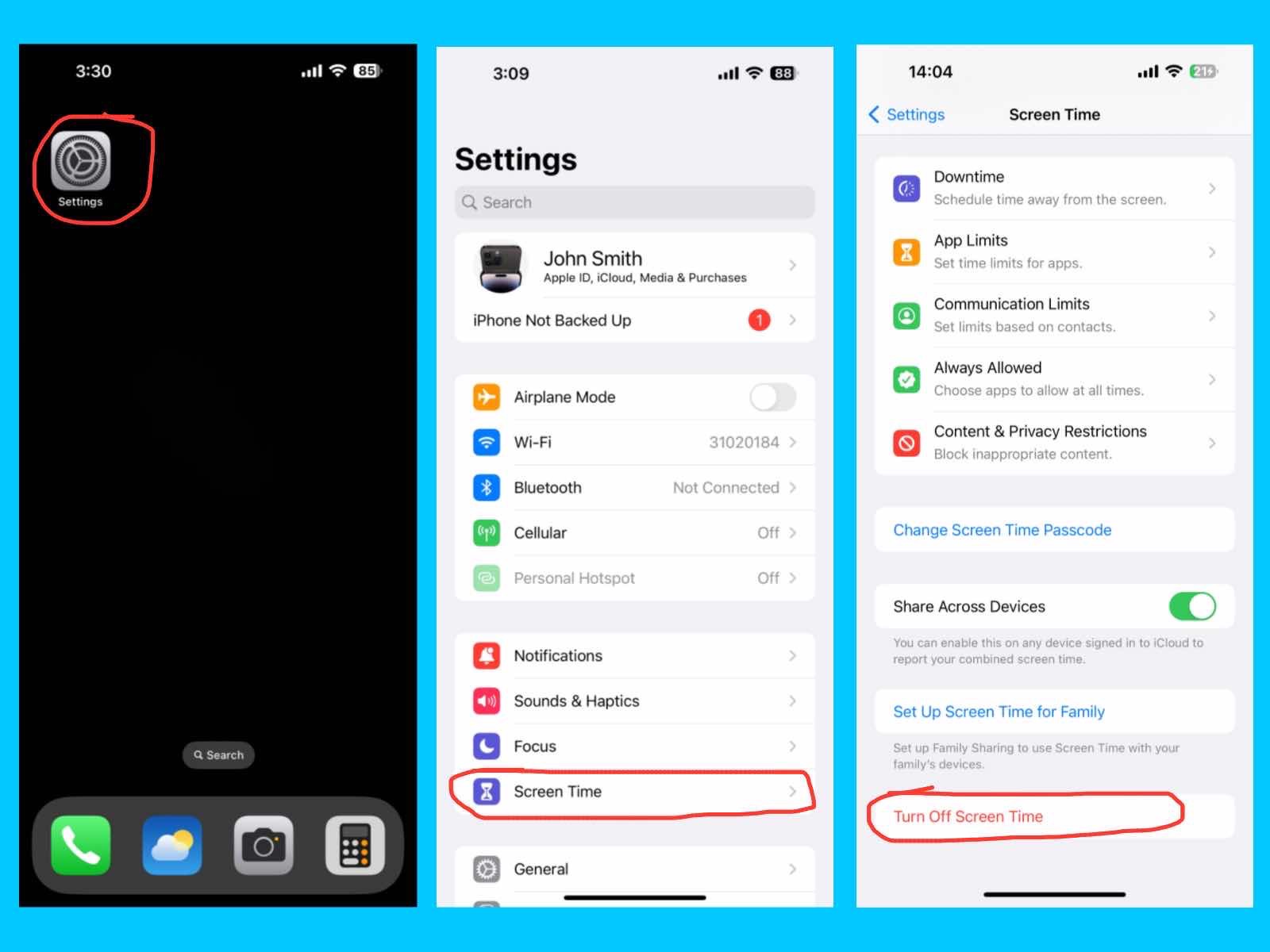
The Turn Off Screen Time option lets you completely disable all Screen Time features on your iPhone. This removes app limits, downtime schedules, and content restrictions, giving you full access to your apps and device. Only turn off Screen Time if you no longer want usage tracking or limits, as this will remove all monitoring and controls previously set.
Conclusion
In this blog post, I explored the key settings of the iPhone 14 Pro Max, including Apple ID, iCloud, media and purchases, Airplane Mode, Wi-Fi, Bluetooth, Cellular, Notifications, Sounds & Haptics, Focus, and Screen Time. If you are the user of the Apple then, Understanding these settings helps you customize your iPhone, stay productive, protect your data, and manage your device efficiently. By adjusting these features to fit your needs, you can enjoy a smoother, more personalized iPhone experience.