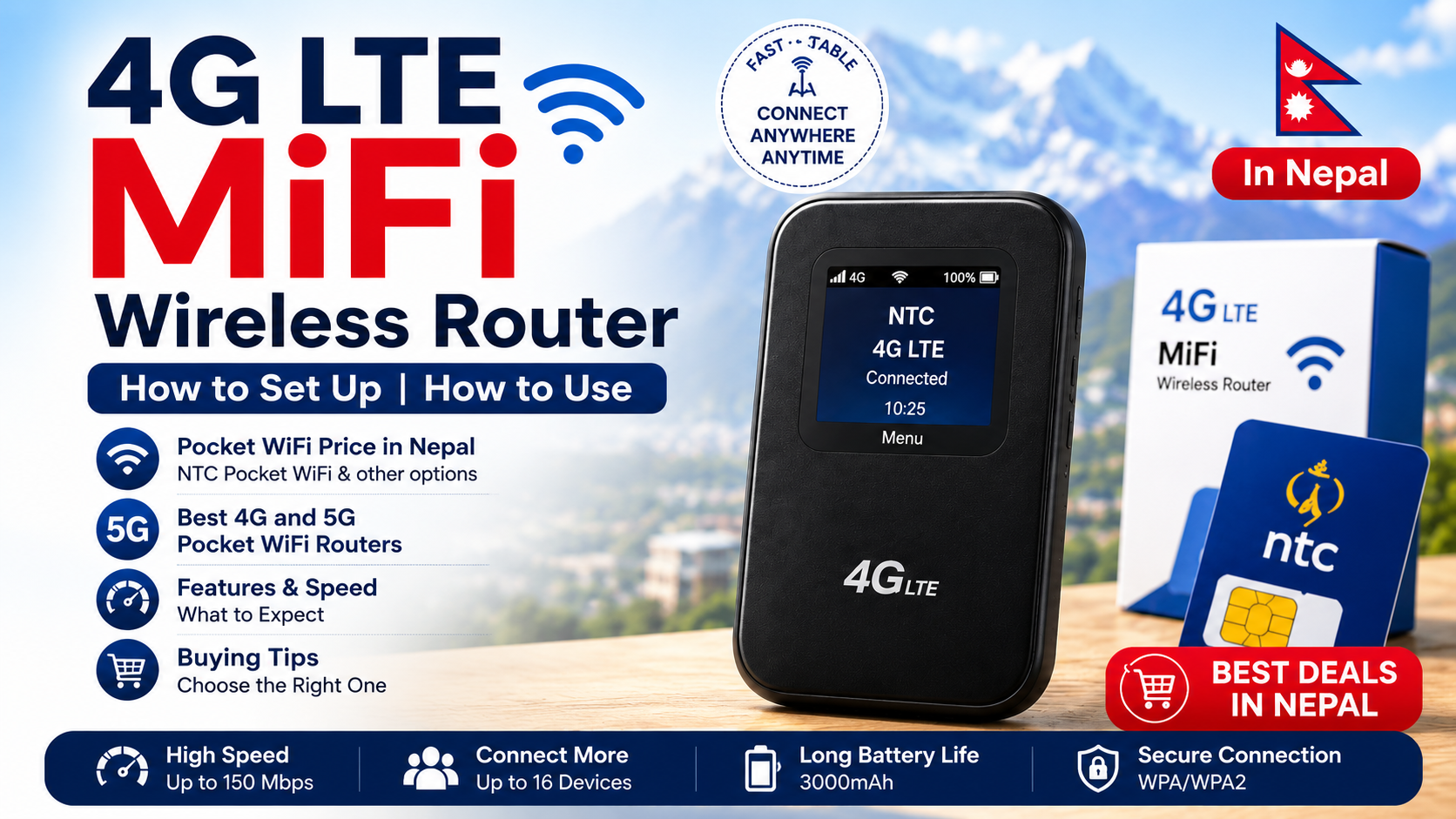
A 4G LTE MiFi wireless router is a device that uses a SIM card to provide you with internet through Wi-Fi. The MiFi allows smartphones, laptops, tablets and other devices to connect to the internet when you are traveling or when there is no fixed broadband connection. I have seen many people use the MiFi to stay connected during road trips or long flights.
In Nepal portable internet devices are commonly used with networks like NTC and Ncell. As 5G networks continue to expand 5G portable Wi-Fi routers are also becoming more popular, among people who want mobile internet connectivity. The portable internet devices are becoming more in demand because they provide a way to stay online wherever you go.
How to Set Up and Use a 4G LTE MiFi Wireless Router
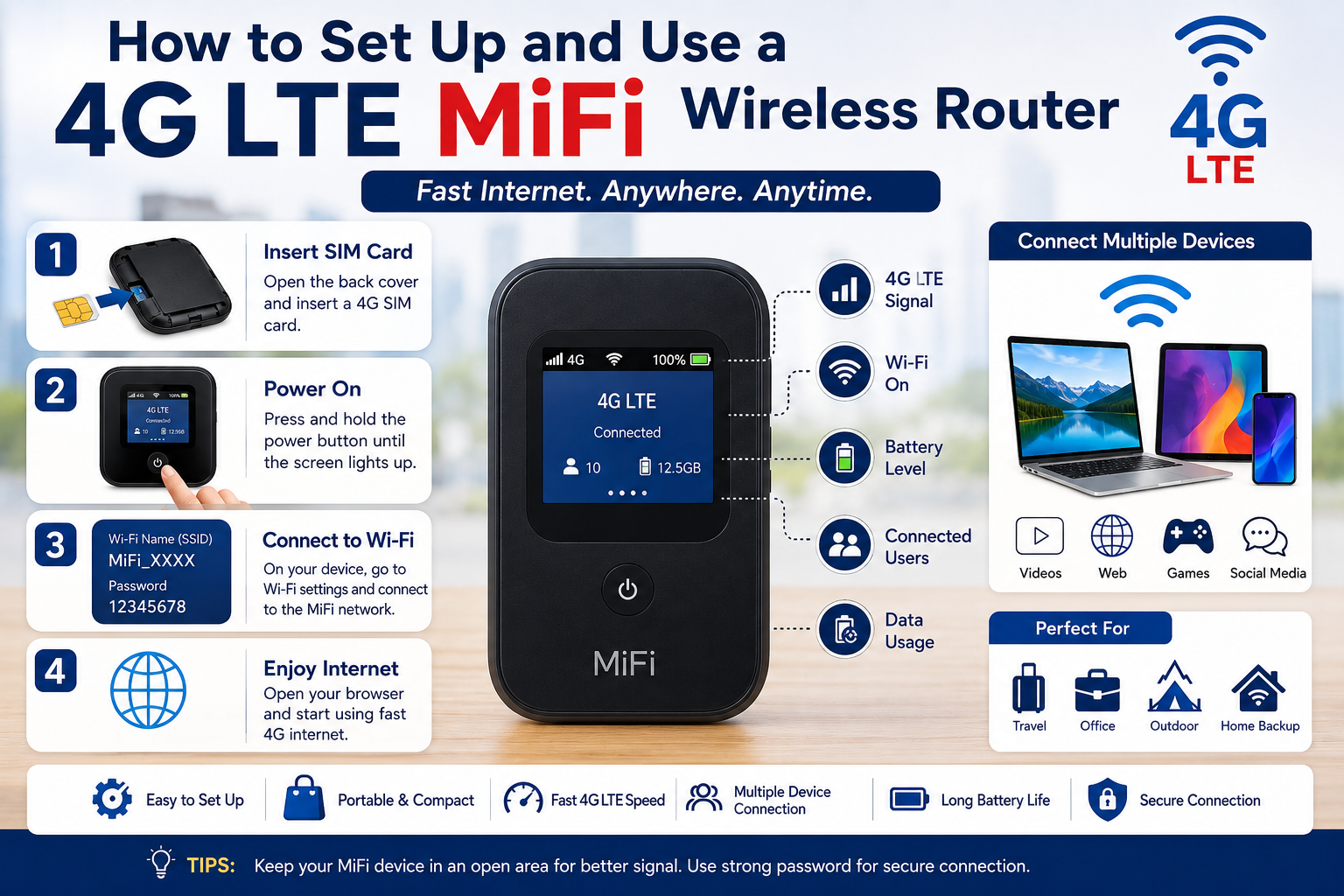
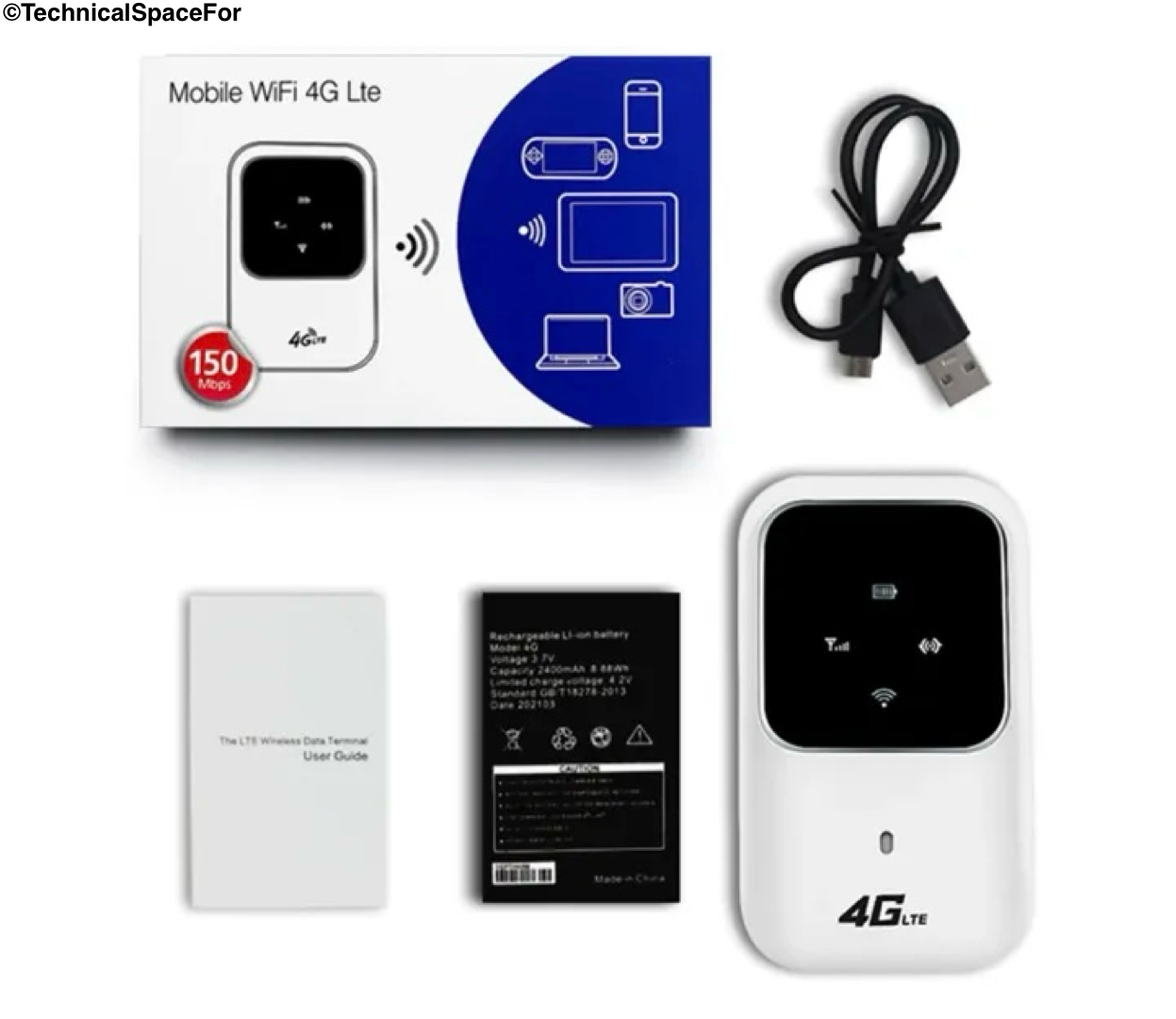
A 4G LTE MiFi wireless router is a portable device that uses a SIM card to give you internet access via Wi‑Fi. 4G LTE MiFi lets you, your smartphone, laptop, tablet and other compatible devices join the internet without wires. 4G LTE MiFi also works with USB connections, on some models giving you options.
What’s Included in the Box
- MiFi device × 1
- Battery × 1
- Type-C charging cable × 1
- User manual × 1
The recommended power adapter output is DC 5V/1A. Check the specific device manual to find the correct charging requirements.
Installing the SIM Card and Battery
Before you start using your MiFi router make sure to install the SIM card and battery
- First open the cover of the device.
- Then insert the SIM card in the direction.
- Next place the battery inside. Close the back cover securely.
- Finally,. Hold the power button to turn on the device.
Check that the SIM card is active and has a working data plan. If it doesn’t work contact your carrier.
Understanding the LED Indicators
The LED lights on your MiFi router tell you the status.
- Signal LED: It shows how strong the network signal is.
- Battery LED: It shows the battery level. If the device is charging.
- Wi-Fi LED: It turns on when the Wi-Fi is active.
- Message LED: It lights up when there is an SMS message.
The color and behavior of the LEDs may be different depending on the model of your MiFi router.
Connecting to MiFi Wi-Fi
To connect your phone or computer to the MiFi follow these steps.
- Go to the Wi-Fi settings on your device.
- Look for the MiFi SSID (network name) in the list of networks.
- Select it. Enter the Wi-Fi password.
- Tap Connect.
The default Wi-Fi name and password are usually printed on the device itself or on the label.
Accessing Router Settings
To change settings on your MiFi router you need to access the management page Connect your device to the MiFi network Open a web browser Type in the router’s management address. This is usually found in the user manual or on the device Log in using the username and password provided by the manufacturer.
Changing Wi-Fi Name and Password
To change your Wi-Fi name and password go to the WLAN or Wi-Fi settings Find the SSID setting. Enter a new network name Then set a password Use a password to keep your connection safe from unauthorized users.
APN Settings
Some SIM cards need the APN settings to be set manually Go to the APN settings in the router menu Enter the APN provided by your mobile network operator Save the changes. Restart the router if needed.
How to Reset the MiFi Router
If you need to reset your MiFi router to factory settings use the reset button Locate the Reset button or Reset hole on the device Use a pin or paperclip to press and hold the button for 10 seconds Follow the instructions provided by the manufacturer A factory reset will erase all saved settings, including Wi-Fi networks and passwords.
Important Safety Tips
- Use the charger and battery recommended by the manufacturer.
- Keep the device away, from water. Avoid exposing it to extreme heat.
- Do not drop the router. Try to open it yourself.
- Make sure the ventilation areas are not blocked to allow cooling.
4G & 5G MiFi Router Price Comparison in Nepal
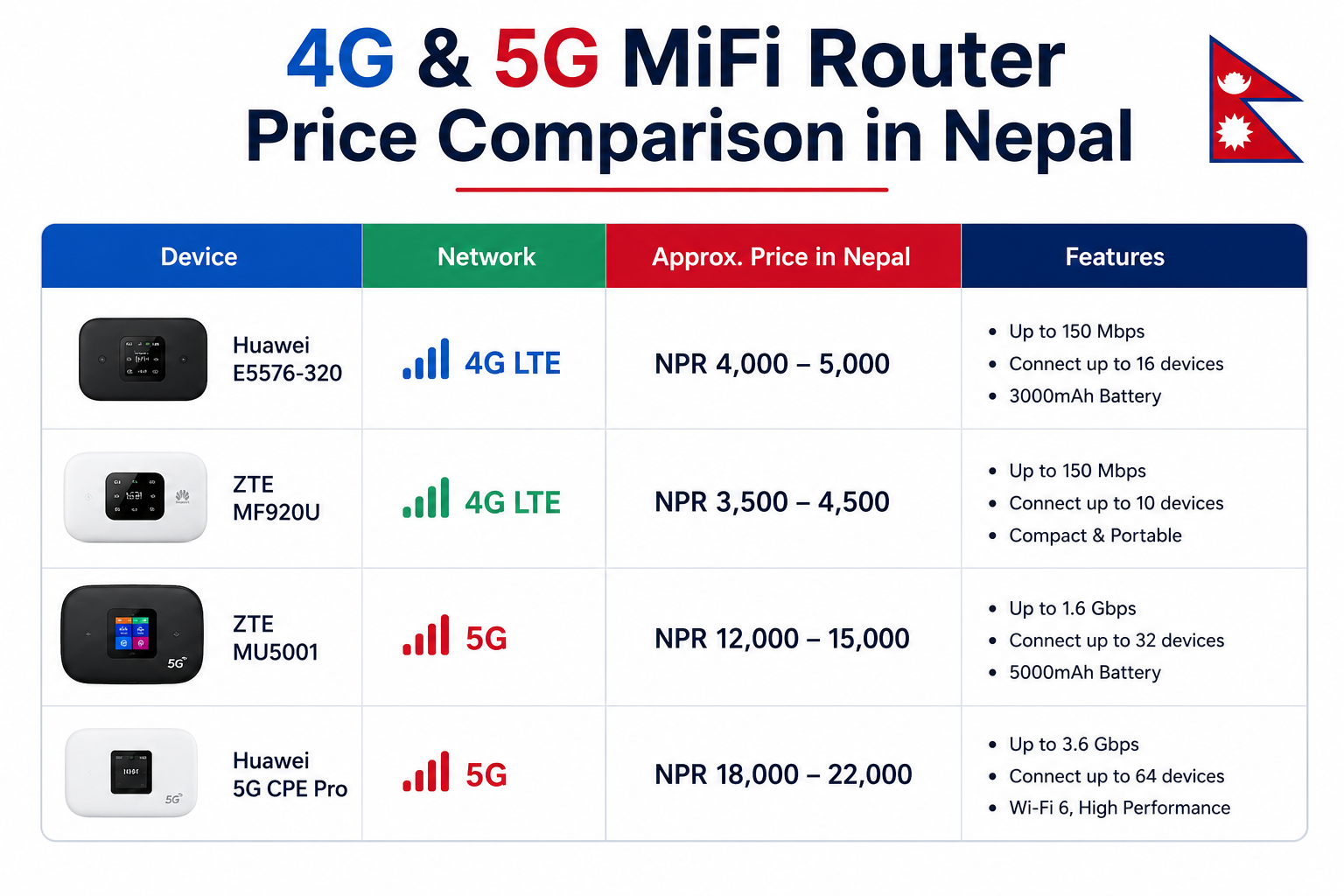
| Router Type | Network | Approx. Price in Nepal | Best For |
|---|---|---|---|
| Basic Portable MiFi | 4G LTE | Rs. 2,000–2,500 | Budget users |
| Portable MiFi | 4G LTE | Rs. 2,500–3,500 | Travel & everyday use |
| High-Battery MiFi | 4G LTE | Rs. 3,000–4,500 | Long battery life |
| 4G/5G Portable Router | 4G/5G | Rs. 3,500–6,000+ | Users wanting newer network support |
| 5G Pocket Wi-Fi | 5G | Rs. 5,000–10,000+ | Faster mobile internet |
| Branded 5G Router | 5G | Rs. 10,000+ | Heavy users & home internet |
Note: Prices on Daraz Nepal and other online stores can change due, to seller, promotions, stock, shipping charges and specifications. Before buying check if the router really supports the 4G/5G bands that your mobile network uses.
4G LTE MiFi vs 5G MiFi
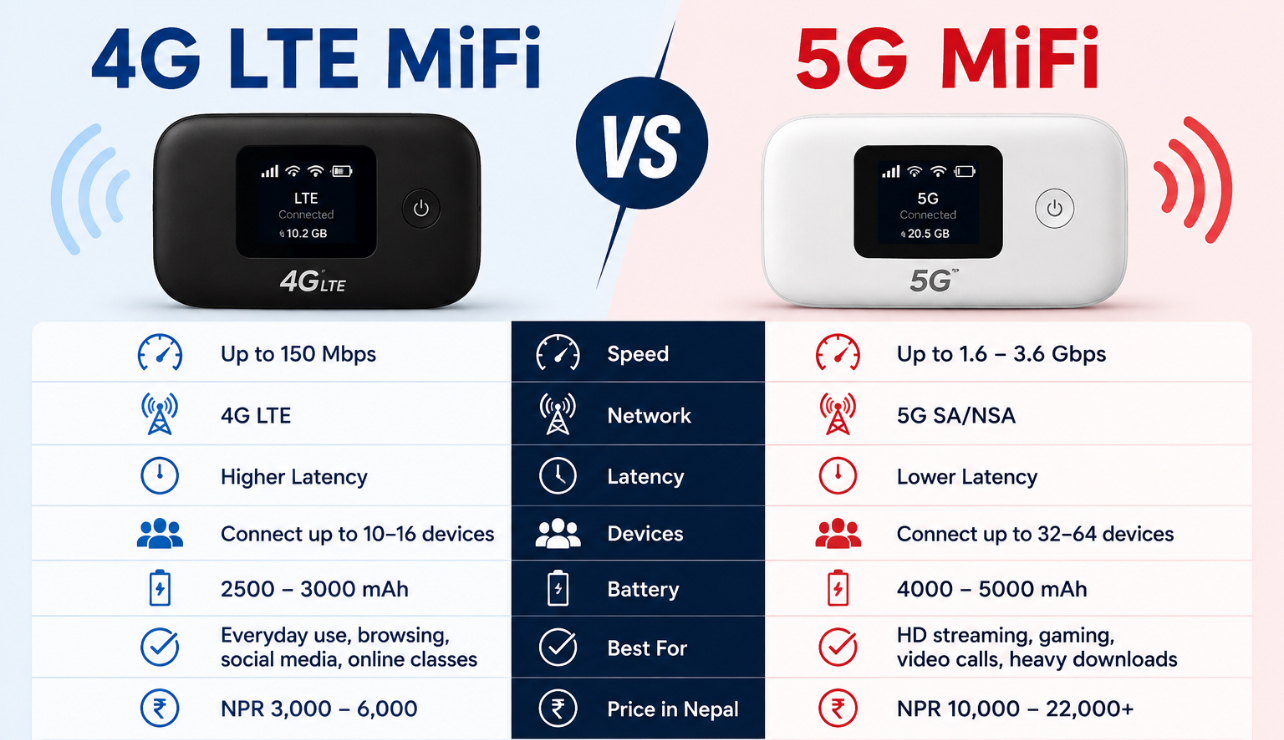
If you are trying to decide between a 4G LTE MiFi and a 5G MiFi router think about your network coverage and how internet speed you really need.
| Feature | 4G LTE MiFi | 5G MiFi |
|---|---|---|
| Network | 4G LTE | 5G + 4G LTE |
| Speed | Good | Much faster |
| Price | Usually cheaper | Usually more expensive |
| Battery Use | Generally lower | Can be higher |
| Coverage | Widely available | Depends on 5G coverage |
| Best For | Browsing, streaming & calls | High-speed downloads & heavy usage |
A 4G LTE MiFi is usually a smart pick if you want a reliable and affordable portable internet option. A 5G MiFi might make sense if your mobile operator offers strong 5G service and you often do things like download large files or stream, in high quality.
Before you buy either kind of MiFi router check the supported network bands. Make sure they match up with what your mobile operator uses. That way you won’t end up with a device that doesn’t work properly where you live or travel.
Final Thoughts
I found that a 4G LTE MiFi router is a way to share mobile internet with many devices. With a SIM card, a battery and the right network settings you can set up a portable Wi‑Fi hotspot wherever compatible mobile network coverage is available.
Before you use the MiFi router read the sticker or manual on the MiFi device for the correct SSID, Wi‑Fi password, management IP address, administrator login details and network settings.
For performance place the MiFi in an area, with a strong mobile signal and ensure the SIM card has an active data plan.
Samsung Galaxy A57 5G: Full Specifications, Features, Price & Review
realme C85 5G Review: 7000mAh Battery 144Hz Display & Dimensity 6300
Samsung Galaxy A56 5G: Impressive Features, Performance & Specifications